Can I Hook Up A Vcr To A Computer Monitor Right Here
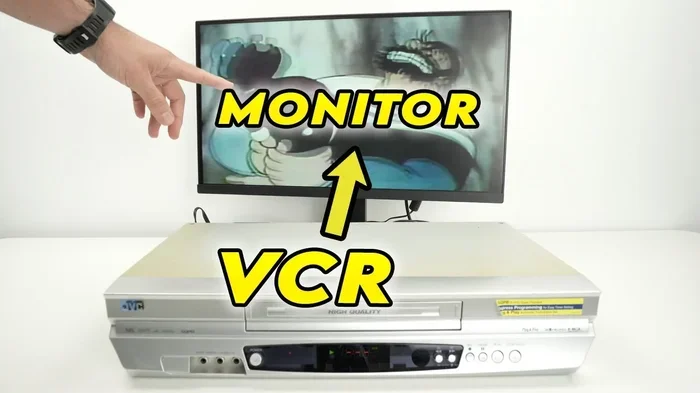
Yes, you can hook up a VCR to a computer monitor and watch your favorite tapes on a bigger, clearer screen. All you need are the right cables, adapters, or converters to bridge the old and new technology. This guide walks you through every method, from composite cables to HDMI converters, so you can get your VCR working on any monitor with confidence.
Have you ever dug out an old VCR from the closet and wondered if you could still use it? Maybe you have a stack of classic tapes you want to watch again. Or perhaps you just do not want to throw away a working piece of equipment. Whatever the reason, the question on your mind is probably this: can I hook up a VCR to a computer monitor? The good news is yes, you absolutely can.
Connecting a VCR to a computer monitor might seem tricky at first. The ports do not always match. The cables look different from what you are used to. But once you understand the basics, the whole process becomes much simpler. You do not need to be a tech expert. You just need the right information and a little patience.
In this guide, I will walk you through every step. You will learn about the different types of connections available. You will discover which cables and adapters work best. And you will find practical tips to avoid common mistakes. By the end, you will be ready to hook up a VCR to a computer monitor and start watching your tapes with confidence.
Key Takeaways
- It is totally possible: You can hook up a VCR to a computer monitor using several different connection methods.
- Adapters are your best friend: An AV to HDMI converter or VGA adapter makes the connection simple and reliable.
- Check your ports first: Knowing what outputs your VCR has and what inputs your monitor supports saves a lot of time.
- Audio needs attention too: Do not forget to connect the audio cables alongside your video connection.
- Modern flat screens work great: LCD and LED monitors can display VCR content with the right signal conversion.
- Troubleshooting is easy: Most common issues like no signal or sync problems have simple fixes.
📑 Table of Contents
- Understanding Your VCR and Computer Monitor Connections
- The Cables and Adapters You Will Need
- How to Hook Up A VCR To A Computer Monitor Step by Step
- Common Problems and How to Fix Them
- Best Adapters and Converters for This Setup
- Can You Use a VCR With a Modern Flat Screen Monitor
- Expert Insights and Practical Advice
- Key Takeaways
- Conclusion
Understanding Your VCR and Computer Monitor Connections
Before you buy any cables or adapters, it helps to understand what you are working with. Both your VCR and your computer monitor have specific ports and input options. Knowing what each device supports makes the whole process much smoother.
What Ports Does Your VCR Have?
Most VCRs come with a few standard output options. The most common one is the RCA composite output. This uses three color-coded cables: yellow for video, red and white for audio. Many VCRs also have an S-Video port. This gives you a slightly better picture quality than composite. Some older models even have a coaxial output that looks like a single round plug.
Here are the typical VCR output options you will find:
- RCA Composite: Yellow, red, and white cables. This is the most common and widely supported.
- S-Video: A round connector with multiple pins. Offers better image quality than composite.
- Coaxial: A single round plug. Common on very old VCR models.
- Component Video: Three separate cables for higher quality video. Less common on VCRs.
Take a look at the back of your VCR. Identify which ports are available. This will determine which cables and adapters you need to buy.
What Inputs Does Your Computer Monitor Support?
Computer monitors are a bit different from TVs. Most modern monitors have HDMI ports. Some older models have VGA or DVI inputs. Very few monitors have composite or S-Video ports built in. This means you will almost always need some kind of converter to make the connection work.
Here is a quick look at common monitor inputs:
- HDMI: The most common port on modern monitors. Supports both video and audio.
- VGA: An older analog connection. Still found on many monitors and projectors.
- DVI: A digital connection that was popular before HDMI became standard.
- DisplayPort: Found on some newer monitors. Less common for this type of setup.
The gap between VCR outputs and monitor inputs is exactly why you need adapters or converters. Your VCR sends an analog signal. Most monitors expect a digital signal. A converter bridges that gap perfectly.
The Cables and Adapters You Will Need
Now that you know what ports your devices have, let us talk about the actual cables and adapters. This is where the magic happens. The right combination of cables will let you hook up a VCR to a computer monitor without any hassle.
RCA Composite Cables
RCA composite cables are the most basic option. They come included with most VCRs right out of the box. The yellow cable carries the video signal. The red and white cables carry the left and right audio channels. These cables are cheap and easy to find. However, they do not offer the best picture quality on their own.
To use RCA cables with a computer monitor, you will need an adapter. A composite to HDMI converter is the most popular choice. It takes the analog RCA signal and converts it to a digital HDMI signal that your monitor can read. These converters are affordable and work very well for everyday use.
S-Video Cables
If your VCR has an S-Video output, you are in luck. S-Video provides a cleaner picture than composite cables. It separates the chrominance and luminance signals. This means less color bleeding and sharper images.
You can use an S-Video to HDMI converter for this connection. Some adapters also include RCA audio inputs so you can get both video and sound through one device. Make sure the converter you choose supports the resolution your monitor needs.
VGA Adapters and Scan Converters
If your monitor only has a VGA input, you have a couple of options. One popular choice is a scan converter. This device takes the composite or S-Video signal from your VCR and converts it to a VGA signal. You then connect the VGA cable from the scan converter to your monitor.
Scan converters are a bit more expensive than basic HDMI converters. But they work great with older monitors that do not have HDMI ports. Some models also include audio passthrough so you can connect speakers or headphones directly.
How to Hook Up A VCR To A Computer Monitor Step by Step
Now for the part you have been waiting for. Let us walk through the actual setup process. I will cover the most common method using a composite to HDMI converter. This method works with most VCRs and modern monitors.
Step 1: Gather Your Equipment
Before you start, make sure you have everything ready. Here is a simple checklist:
- Your VCR and computer monitor
- RCA composite cables (yellow, red, white)
- A composite to HDMI converter
- An HDMI cable
- A power source for the converter
- Optional: RCA audio cables if the converter does not include them
Having everything on hand before you start makes the process much faster and less frustrating.
Step 2: Connect the VCR to the Converter
Plug the yellow RCA cable into the video output on your VCR. Connect the red and white cables to the audio outputs. Then plug the other ends into the corresponding inputs on your composite to HDMI converter. Make sure each cable is firmly seated in its port.
Next, connect the HDMI cable from the converter to your computer monitor. Plug the power adapter into the converter and then into a wall outlet or power strip.
Step 3: Power On and Set the Input
Turn on your VCR and your computer monitor. Use the monitor’s input selector button or menu to choose the HDMI input where you connected the converter. Most monitors will display a “No Signal” message at first. That is normal.
Now press play on your VCR. The monitor should display the VCR画面 within a few seconds. If you do not see anything, check your cable connections and make sure the correct input is selected on your monitor.
Step 4: Adjust the Settings
Once you see the image, you may need to adjust a few settings. Some converters let you choose the output resolution. Try setting it to 720p or 1080p for the best results. If the image looks too large or too small, check your monitor’s aspect ratio settings.
For the audio, make sure your monitor has built-in speakers or connect external speakers to the converter’s audio output. Some converters have a 3.5mm headphone jack for audio. Use this to connect to powered speakers or headphones.
Quick Tips for a Smooth Setup
- Use short cables: Shorter cables reduce signal loss and give you a cleaner picture.
- Check your converter’s power: Some converters need their own power supply. Do not skip this step.
- Test with a known working tape: Use a tape you know plays well to test your setup first.
- Clean your VCR heads: A dirty VCR can cause poor picture quality even with a perfect setup.
Common Problems and How to Fix Them
Even with the right setup, you might run into some issues. Do not worry. Most problems are easy to fix. Here are the most common ones and how to solve them.
No Signal on the Monitor
This is the most common issue when you hook up a VCR to a computer monitor. First, check all your cable connections. Make sure each cable is plugged in firmly and in the right port. Next, verify that you have selected the correct input source on your monitor.
If the connections are good and the input is correct, try a different HDMI cable. Sometimes the cable itself is the problem. Also, make sure your converter is powered on. Some converters have a small LED light that shows they are receiving power.
Poor Picture Quality
If the image looks fuzzy or has lines running through it, there are a few things to check. First, try cleaning the VCR heads. A dirty head can degrade the picture quality significantly. You can buy a VCR head cleaning cassette for just a few dollars.
Also, check the resolution setting on your converter. If it is set too high for your VCR to handle, the image may look distorted. Try lowering the resolution to 480p or 720p. Finally, make sure your RCA cables are not damaged or frayed.
Audio and Video Are Out of Sync
Sometimes the audio and video signals get out of alignment. This usually happens with older VCRs or cheaper converters. Try using a different converter if you have one available. You can also check if your monitor has any audio delay or sync settings that can be adjusted.
If the issue persists, it may be a limitation of the converter. Higher quality converters tend to have better audio-video sync. Investing in a better converter can solve this problem for good.
Best Adapters and Converters for This Setup
Not all converters are created equal. Some are cheap and unreliable. Others deliver excellent results. Here are a few things to look for when choosing your adapter or converter.
First, make sure the converter supports the input type your VCR uses. If you have composite cables, get a composite to HDMI converter. If you have S-Video, look for an S-Video to HDMI converter. Some converters handle both inputs, which gives you more flexibility.
Second, check the output resolution. A converter that supports at least 720p or 1080p will give you a clear and sharp image on your monitor. Cheaper converters may only support 480p, which is fine for VCR content but may look a bit soft on larger monitors.
Third, look for audio support. The best converters include audio passthrough so you do not need separate audio cables. A 3.5mm audio output is very convenient for connecting to speakers or headphones.
Some popular and reliable options include the RetroTINK series for higher-end setups and affordable composite to HDMI adapters from brands like ClearClick and J-tech Digital. Read reviews before you buy to find one that fits your budget and needs.
Can You Use a VCR With a Modern Flat Screen Monitor
Absolutely. Modern flat screen monitors work great with VCRs. The key difference is that flat screen monitors are digital displays. They expect a digital input signal. Your VCR sends an analog signal. This is where the converter comes in.
A composite to HDMI converter or a VGA adapter handles the conversion seamlessly. The monitor displays the VCR content as if it were a regular HDMI source. You may notice that the image is not as sharp as digital content. That is completely normal. VHS tapes have a limited resolution. But on a flat screen monitor, the image will still look much better than on an old CRT television.
LCD and LED Monitor Compatibility
LCD and LED monitors are the most common types today. They all work with VCR setups as long as you have the right converter. Most LCD and LED monitors have HDMI inputs. This makes the composite to HDMI converter the go-to choice for most people.
One thing to keep in mind is the monitor’s native resolution. A 1080p monitor will display VCR content within its native resolution. The converter will scale the image to fit the screen. This usually works well and produces a clean picture.
Old vs New Display Technologies
If you have the choice, a newer monitor with HDMI input is the easiest to work with. Older monitors with only VGA or DVI inputs require a scan converter instead of a simple HDMI adapter. While this works, it adds an extra step and sometimes a slight reduction in picture quality.
That said, do not throw away an old CRT monitor if you have one. CRT monitors can actually display analog signals directly without any converter. You can hook up a VCR to a CRT monitor using just RCA cables. The picture will look very similar to what you would see on a TV. However, CRT monitors are heavy and bulky, so most people prefer the slim design of modern flat screens.
Expert Insights and Practical Advice
Hooking up a VCR to a computer monitor is a great way to breathe new life into old tapes and equipment. Here are some expert tips that can make your experience even better.
Store your tapes properly. Old VHS tapes can degrade over time. Keep them in a cool, dry place away from direct sunlight. This preserves the quality of your recordings and ensures you get the best picture when you watch them.
Consider digitizing your tapes. If you have a lot of VHS tapes you want to preserve, consider using a VHS to digital converter. These devices let you transfer your tapes to a digital format. You can then watch them on your computer or any digital device. This is a great long-term solution for preserving old memories.
Do not force any connection. If a cable does not fit easily, do not force it. Check that you are using the right port and the right type of cable. Forcing connections can damage the ports on your devices.
Keep your VCR maintained. Regularly clean your VCR heads and replace worn-out belts. A well-maintained VCR will give you much better results than one that has not been serviced in years. You can buy VCR cleaning kits and replacement parts online for very reasonable prices.
Experiment with settings. Every VCR and monitor combination is slightly different. Take some time to experiment with the resolution, aspect ratio, and brightness settings on your converter and monitor. Small adjustments can make a big difference in picture quality.
Key Takeaways
- You can definitely hook up a VCR to a computer monitor: It is entirely possible with the right cables and adapters.
- A composite to HDMI converter is the easiest solution: It bridges the gap between analog VCR output and digital monitor input.
- Check your ports first: Knowing what your VCR and monitor support helps you choose the right equipment.
- Do not forget about audio: Make sure you connect audio cables or use a converter with audio passthrough.
- Modern flat screen monitors work great: LCD and LED displays handle VCR content beautifully with the right setup.
- Troubleshooting is straightforward: Most common issues have simple fixes like checking cables or adjusting settings.
- Consider digitizing old tapes: Converting VHS to digital is a great way to preserve your recordings long term.
Conclusion
So, can I hook up a VCR to a computer monitor? The answer is a resounding yes. With the right cables, a quality converter, and a little bit of patience, you can watch your favorite VHS tapes on any computer monitor. The process is simpler than most people think.
Whether you are revisiting old family recordings or enjoying classic movies from your VCR collection, connecting your VCR to a monitor opens up a world of possibilities. You get a larger screen, better picture quality, and the convenience of modern display technology. All while keeping your beloved old equipment in use.
Start with the basics. Check your VCR outputs and your monitor inputs. Get the right cables and a reliable converter. Follow the step-by-step setup process, and you will be watching your tapes in no time. If you run into any issues, the troubleshooting tips in this guide will help you get back on track.
Do not let those old VCR tapes collect dust any longer. Hook up your VCR to a computer monitor today and enjoy your favorite videos with a new lease on life. You will be glad you did.
Frequently Asked Questions
Can I hook up a VCR to a computer monitor without a converter?
In most cases, you will need a converter because VCRs output analog signals and computer monitors expect digital signals. However, if your monitor has a VGA input and you use a scan converter, or if you have a CRT monitor that accepts analog signals directly, you may not need a traditional converter. Check your monitor’s inputs first to determine what you need.
What is the best converter for hooking up a VCR to a computer monitor?
A composite to HDMI converter is the most popular and easiest option for most setups. It handles both video and audio and works with nearly all modern monitors. Look for a converter that supports at least 720p resolution and includes audio passthrough for the best results. Brands like J-tech Digital and ClearClick offer reliable options at affordable prices.
Why does my VCR picture look fuzzy on my computer monitor?
A fuzzy picture can be caused by several factors. First, make sure your RCA cables are in good condition and firmly connected. Second, clean your VCR heads with a head cleaning cassette. Third, check the resolution setting on your converter and try lowering it to 480p or 720p. Finally, remember that VHS tapes have a naturally limited resolution, so some softness is normal.
Can I watch VCR tapes on a laptop monitor?
Yes, you can watch VCR tapes on a laptop monitor using the same methods described in this guide. You will need a composite to HDMI converter or a VGA scan converter depending on your laptop’s available ports. Most laptops have HDMI inputs, making the converter method the simplest approach. Just make sure your laptop recognizes the external input when connected.
Do I need special software to hook up a VCR to a computer monitor?
No, you do not need any special software for a basic VCR to monitor setup. The converter handles the signal conversion at the hardware level. Your monitor simply displays the video as it would with any other HDMI source. However, if you plan to digitize your VHS tapes, you will need capture software like OBS Studio or a dedicated VHS-to-digital conversion tool.
Is it worth hooking up a VCR to a computer monitor in 2024?
Absolutely. If you have VHS tapes with memories, movies, or recordings you want to watch, connecting a VCR to a computer monitor is a worthwhile project. The setup is affordable, the process is straightforward, and it gives your old tapes a new home on a modern display. Plus, it is a great way to preserve and enjoy content that might otherwise be lost.