Can I Close My Macbook Pro And Still Use External Monitor
Yes, you can close your MacBook Pro and still use an external monitor. This setup is known as clamshell mode, and it lets you work with a closed lid while your external display stays active. All you need is a power adapter, a USB-C or Thunderbolt connection, and an external display. In this guide, we walk you through every step, from setup to troubleshooting, so you can get your laptop closed but monitor on in minutes.
Key Takeaways
- Clamshell mode works on all modern MacBook Pro models: You can close the lid and keep the external display running with the right setup.
- You need a power adapter connected: MacBook Pro will not enter clamshell mode without being plugged in.
- A USB-C or Thunderbolt cable is essential: This single cable handles both video output and charging.
- You can use a wireless keyboard and trackpad: Since the laptop lid is closed, Bluetooth peripherals keep you in control.
- Common issues are easy to fix: Display not showing, sleep on close, and audio problems all have simple solutions.
- It is safe for daily use: Running your MacBook Pro in clamshell mode will not damage the device.
- Adjust display settings in macOS: You can mirror or extend your screen depending on your workflow needs.
📑 Table of Contents
- Can I Close My MacBook Pro And Still Use External Monitor?
- How Clamshell Mode Works on MacBook Pro
- What You Need to Set Up Clamshell Mode
- Step-by-Step Setup Guide
- Common Problems and How to Fix Them
- Is It Safe to Keep Your MacBook Pro Closed All Day?
- Benefits of Using an External Monitor with a Closed MacBook Pro
- Expert Insights on Optimizing Your Closed-Lid Setup
- Key Takeaways
- Conclusion
Can I Close My MacBook Pro And Still Use External Monitor?
The short answer is yes. You can absolutely close your MacBook Pro and keep using an external monitor. Apple designed this feature specifically for people who want a clean desk setup or more screen space without keeping the laptop open.
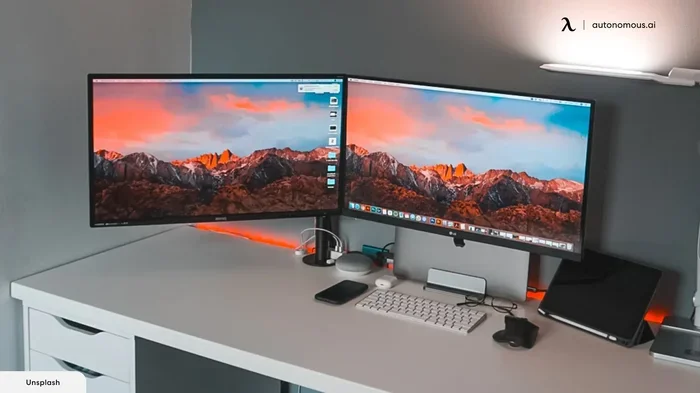
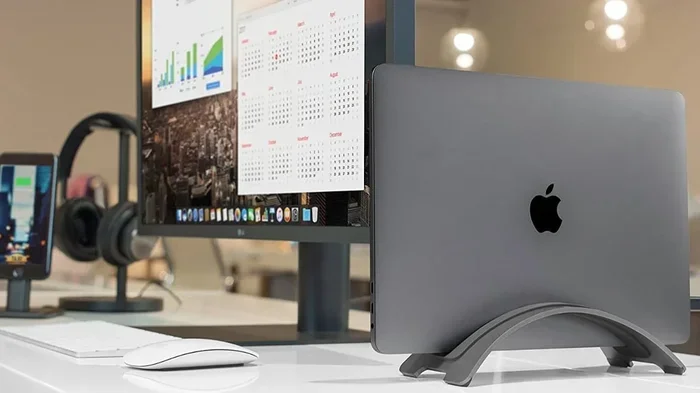
This mode is officially called clamshell mode. When you close the lid, the MacBook Pro goes to sleep internally, but the external display stays awake and ready. You interact with everything through a wireless keyboard, a Bluetooth trackpad, or even a mouse connected via USB.
Many professionals use this setup every single day. Designers, programmers, office workers, and students all benefit from a closed lid with external monitor arrangement. It saves desk space, reduces cable clutter, and gives you a more comfortable viewing angle.
But setting it up the right way matters. Without the correct accessories or settings, things can go wrong quickly. That is exactly why this guide exists. We will cover everything from what you need to how to fix the most common problems.
Whether you are new to the MacBook Pro ecosystem or looking to optimize your current setup, this article has you covered. Let us dive in.
How Clamshell Mode Works on MacBook Pro
Understanding how clamshell mode works helps you troubleshoot issues later. When you close the lid of your MacBook Pro, the built-in display turns off. macOS detects that an external display is connected and shifts all output to that screen.
The laptop does not fully power down. It enters a low-power state where the processor stays active enough to send a video signal and respond to input devices. This is why you need the power adapter plugged in at all times.
What Happens Inside Your MacBook Pro
When the lid closes, several things happen behind the scenes:
- The built-in display shuts off to save energy.
- The Wi-Fi and Bluetooth radios stay active so you can connect peripherals.
- macOS continues running all open apps and processes on the external display.
- The system sleeps the internal components like the keyboard backlight and trackpad sensor.
- Charging continues normally through the power adapter.
Apple designed this to be seamless. Most users never notice any difference in performance. The external monitor simply replaces the laptop screen as your primary display.
Which MacBook Pro Models Support This?
Nearly every modern MacBook Pro supports clamshell mode. Here is a quick list of compatible models:
- MacBook Pro 13-inch (2016 and later)
- MacBook Pro 15-inch (2016 and later)
- MacBook Pro 16-inch (2019 and later)
- MacBook Pro M1 (2020 and later)
- MacBook Pro M2 (2022 and later)
- MacBook Pro M3 (2023 and later)
Older models with Thunderbolt 2 or USB-A ports may need an adapter. But the core feature works across all recent generations. If your laptop was made after 2016, you are almost certainly good to go.
What You Need to Set Up Clamshell Mode
Setting up a closed lid with external monitor is simple, but you do need a few things in place before you start. Missing one item can cause frustration, so let us go through the checklist.
1. A Power Adapter
This is non-negotiable. Your MacBook Pro must be connected to power to enter clamshell mode. Without the power adapter plugged in, closing the lid will put the laptop to sleep completely.
Use the official Apple charger or a certified third-party alternative. A 61W, 87W, or 96W USB-C power adapter works depending on your model. Make sure the cable is in good condition and firmly seated.
2. An External Monitor
You need an external display that supports the video output from your MacBook Pro. Most modern monitors work great. Look for these features:
- USB-C input for a single-cable connection
- HDMI input if you need an adapter
- DisplayPort with a compatible cable
- 4K or higher resolution support for sharp text and images
You can also use a USB-C monitor that charges your MacBook Pro through the same cable. This reduces cable clutter and simplifies your setup.
3. A USB-C or Thunderbolt Cable
A single USB-C cable or Thunderbolt cable carries both video and power. This is the backbone of your external monitor setup. Use the cable that came with your MacBook Pro or invest in a high-quality certified alternative.
Avoid cheap, uncertified cables. They can cause flickering, resolution issues, or even damage your hardware over time.
4. Wireless Input Devices
Since the laptop lid is closed, you cannot use the built-in keyboard or trackpad. You need external alternatives:
- Wireless keyboard connected via Bluetooth
- Bluetooth trackpad or mouse
- USB keyboard and mouse connected through a USB-C hub or docking station
Apple Magic Keyboard and Magic Trackpad are popular choices. They pair effortlessly with macOS and keep your desk looking clean.
Step-by-Step Setup Guide
Now that you have everything ready, let us walk through the setup process. Follow these steps in order for the smoothest experience.
Step 1: Connect Your External Monitor
Plug your USB-C cable or Thunderbolt cable into the MacBook Pro and the monitor. If your monitor uses HDMI, connect an HDMI adapter to the MacBook Pro first, then plug in the HDMI cable to the monitor.
Your MacBook Pro should recognize the external display automatically. You may see the display extend or mirror right away.
Step 2: Connect the Power Adapter
Plug the power adapter into your MacBook Pro and the wall outlet. You should see the charging indicator light up. This step is essential before you close the lid.
Step 3: Open Display Settings
Go to System Settings or System Preferences on your MacBook Pro. Click on Displays. Here you can choose between:
- Extended display — use the external monitor as a separate workspace
- Mirrored display — show the same content on both screens
Most people prefer extended display. It gives you more room for windows and multitasking.
Step 4: Adjust Resolution and Arrangement
In the display settings, drag the monitor icons to match their physical placement on your desk. This ensures your cursor moves naturally between screens. You can also set the resolution to match your monitor’s native capability for the sharpest image.
Step 5: Close the Lid
Now for the moment of truth. With everything connected and powered on, gently close the lid of your MacBook Pro. The external monitor should stay active. You can now use your wireless keyboard and trackpad to control everything.
If the screen goes black, do not panic. This is a common hiccup, and we will troubleshoot it in the next section.
Quick Tips for a Smooth Setup
- Always plug in the power adapter before closing the lid.
- Use a USB-C hub or docking station to connect multiple devices through one port.
- Keep your Bluetooth devices charged and paired in advance.
- Set your display brightness on the external monitor to a comfortable level.
- Enable Night Shift in macOS to reduce eye strain during long work sessions.
Common Problems and How to Fix Them
Even with the best setup, you might run into issues. Here are the most common problems people face when using a closed lid with external monitor, along with practical solutions.
The External Monitor Goes Black After Closing the Lid
This is the number one issue. The most common cause is that the power adapter is not connected. Without power, macOS puts the entire system to sleep when the lid closes.
Try these fixes:
- Check that the power adapter is firmly connected.
- Try a different wall outlet to rule out power issues.
- Unplug the USB-C cable from the monitor, wait a few seconds, and plug it back in.
- Restart your MacBook Pro with the lid open, then close it again.
Display Settings Revert After Closing the Lid
Sometimes macOS resets your display settings when the lid closes and reopens. To prevent this, make sure your external monitor is the primary display. Go to System Settings, select Displays, and drag the menu bar to the external screen.
No Sound Through the External Monitor
If your monitor has built-in speakers but no audio plays, check your macOS sound output settings. Click the sound icon in the menu bar and select your external monitor as the output device. Some monitors need you to enable speakers in their own on-screen menu first.
Wi-Fi Disconnects in Clamshell Mode
Rarely, the Wi-Fi connection drops when the lid is closed. This usually happens with older routers or specific USB-C hubs that interfere with the wireless signal. Try moving your router closer or switching to a different USB-C hub if the problem persists.
The MacBook Pro Gets Warm
When the lid is closed, airflow around the MacBook Pro decreases slightly. This can cause the laptop to run warmer than usual. To prevent overheating:
- Place the MacBook Pro on a hard, flat surface, not a bed or couch.
- Use a laptop stand to elevate it slightly for better airflow.
- Keep the vents unobstructed by papers or objects.
Is It Safe to Keep Your MacBook Pro Closed All Day?
Many people worry about leaving their MacBook Pro in clamshell mode for hours at a time. The good news is that Apple engineered these laptops to handle this kind of use.
The power adapter manages charging intelligently. Once the battery reaches 100 percent, macOS stops charging and runs directly from the adapter. This prevents battery degradation.
You can safely leave your MacBook Pro in closed lid mode overnight or throughout a full workday. The external monitor will stay active, and your system will continue running normally.
One thing to keep in mind: if you plan to store your MacBook Pro closed for an extended period without use, charge the battery to about 50 percent first. This helps maintain long-term battery health.
For daily use, there is no need to worry. The laptop closed but monitor on setup is designed for exactly this kind of routine.
Benefits of Using an External Monitor with a Closed MacBook Pro
Beyond the obvious desk-space savings, there are several real advantages to this setup:
- Better posture: You can position the external monitor at eye level, reducing neck strain.
- More screen real estate: Extended display mode lets you spread out windows across two screens or more.
- Cleaner workspace: With no laptop screen open, your desk looks tidy and organized.
- Improved focus: A single large screen reduces distractions from the laptop interface.
- Portability: You can easily disconnect and take your MacBook Pro anywhere, then reconnect at your desk.
Many users report that switching to a dual monitor setup with a closed MacBook Pro boosted their productivity significantly. The combination of a large external display and a portable laptop gives you the best of both worlds.
Expert Insights on Optimizing Your Closed-Lid Setup
Here are some pro tips from experienced users and Apple specialists who use clamshell mode daily:
Use a docking station for a cleaner setup. A high-quality USB-C docking station connects your monitor, keyboard, mouse, and power adapter through a single cable to your MacBook Pro. This makes connecting and disconnecting effortless.
Set your external monitor as the primary display. This ensures your menu bar and Dock appear on the screen you look at most. It also prevents annoying delays when you reopen the lid.
Update macOS regularly. Apple frequently improves clamshell mode performance and fixes bugs in new updates. Keeping your system current ensures the smoothest experience.
Invest in a quality USB-C hub. Not all hubs are created equal. Cheap hubs can cause display flickering, connection drops, and slow charging. Look for hubs with Thunderbolt 3 or Thunderbolt 4 certification for the best results.
Consider a Bluetooth keyboard with a built-in trackpad. This combo replaces your laptop input entirely and keeps your desk minimal. The Apple Magic Keyboard with Touch ID is a popular choice among MacBook Pro users.
Key Takeaways
- Clamshell mode works on all modern MacBook Pro models: You can close the lid and keep the external display running with the right setup.
- You need a power adapter connected at all times: MacBook Pro will not enter clamshell mode without being plugged in.
- A USB-C or Thunderbolt cable is essential: This single cable handles both video output and charging.
- You can use a wireless keyboard and trackpad: Since the laptop lid is closed, Bluetooth peripherals keep you in control.
- Common issues are easy to fix: Display not showing, sleep on close, and audio problems all have simple solutions.
- It is safe for daily use: Running your MacBook Pro in clamshell mode will not damage the device.
- Adjust display settings in macOS: You can mirror or extend your screen depending on your workflow needs.
Conclusion
Can I close my MacBook Pro and still use an external monitor? Absolutely. Clamshell mode is a powerful, convenient feature that transforms how you work. With a power adapter, a USB-C cable, and an external display, you can enjoy a spacious, clean workspace without ever opening your laptop.
The setup process is straightforward, and troubleshooting common issues is quick once you know what to look for. Whether you are a professional who needs dual screens or a student who wants a minimalist desk, this approach delivers real value every single day.
Take the time to set up your external monitor properly. Adjust your display settings, invest in quality accessories, and enjoy the freedom of a laptop closed but monitor on workspace. Once you make the switch, you will wonder how you ever worked any other way.
Start today. Close that lid, fire up your external display, and experience the difference a well-configured MacBook Pro clamshell setup can make.
Frequently Asked Questions
Do I need to keep my MacBook Pro plugged in at all times when using clamshell mode?
Yes, you must keep the power adapter connected whenever the lid is closed. Without power, the MacBook Pro will go to sleep when the lid closes and will not wake up when you press a key on your external keyboard.
Can I use any external monitor with my MacBook Pro in clamshell mode?
Most external monitors work fine. You need a compatible connection, such as USB-C, Thunderbolt, or HDMI with an adapter. Check your monitor’s inputs and match them with your MacBook Pro’s outputs for the best experience.
Will closing my MacBook Pro damage the screen or hinges?
No. Apple designs MacBook Pro hinges to withstand thousands of open and close cycles. Using clamshell mode daily will not cause any damage to the screen or the hinge mechanism.
Can I connect more than one external monitor in clamshell mode?
Yes, depending on your MacBook Pro model. Newer models with Thunderbolt 4 or M2 Pro and above can support two external displays. Check Apple’s official specifications for your specific model to confirm.
Why does my external monitor flicker in clamshell mode?
Flickering is often caused by a low-quality or uncertified USB-C cable or USB-C hub. Try using a certified cable or a different docking station. Also check your display settings in macOS to ensure the refresh rate matches your monitor’s capabilities.
Can I use a wireless trackpad and keyboard to control my MacBook Pro in clamshell mode?
Yes, Bluetooth peripherals work perfectly in clamshell mode. Pair your wireless keyboard and trackpad through Bluetooth settings before closing the lid. The Apple Magic Keyboard and Magic Trackpad are optimized for this use case.