Can I Add A Larger Screen To My Laptop And Why It Matters
Yes, you can add a larger screen to your laptop using an external monitor, USB-C dock, or portable display. A bigger screen boosts productivity, reduces eye strain, and makes multitasking easier. Whether you work from home or travel, upgrading your setup is simpler and more affordable than you think.
Ever looked at your laptop screen and thought, “This is just too small”? You are not alone. Millions of laptop users wish their displays were bigger. The good news is that you can add a larger screen to your laptop, and it is easier than most people think.
Whether you work from home, study, or just enjoy streaming content, a bigger display changes everything. It opens up more space, reduces eye strain, and makes multitasking a breeze. In this guide, we will walk you through every option available. We will also help you pick the right setup for your needs and budget.
By the end of this article, you will know exactly how to expand your laptop display. You will understand the different connection types, monitor choices, and setup tips. Let us dive in and explore how you can transform your laptop experience today.
Key Takeaways
- Multiple Options Exist: You can connect an external monitor, use a USB-C docking station, or carry a portable monitor to add a larger screen to your laptop setup.
- Productivity Boost: A bigger display helps you multitask, compare documents, and work more efficiently throughout your day.
- Easy Setup: Most modern laptops support HDMI, USB-C, or DisplayPort connections, making the process straightforward for all users.
- Right Monitor Matters: Choosing the correct screen size, resolution, and connection type ensures the best experience with your laptop.
- Common Mistakes Are Avoidable: Simple errors like wrong cable choice or ignoring display settings can cause frustration, but they are easy to fix.
- Worth the Investment: Adding a larger screen improves comfort, reduces eye strain, and enhances your overall computing experience.
📑 Table of Contents
- Why A Bigger Laptop Screen Makes A Real Difference
- Ways To Add A Larger Screen To Your Laptop
- How To Connect An External Monitor To Your Laptop
- Choosing The Right External Monitor For Your Laptop
- Common Mistakes People Make When Adding A Bigger Screen
- Expert Insights On Laptop Display Upgrades
- Is It Worth It? Final Thoughts On Adding A Larger Screen
Why A Bigger Laptop Screen Makes A Real Difference
Your laptop screen size affects how you work, play, and interact with your computer all day long. A small display can feel cramped and limiting. A larger screen opens up your digital workspace and makes everything feel more comfortable.
Better Productivity And Multitasking
When you add a larger screen to your laptop, you gain room to open multiple windows at once. You can have your email on one side and your document on the other. This split-screen setup saves you from constantly switching between tabs and applications.
Studies show that people who use dual monitors or larger screens complete tasks faster. They also make fewer errors when switching between different apps. If you work with spreadsheets, code, or design files, a bigger display is a game changer.
Reduced Eye Strain And Comfort
Staring at a tiny laptop screen for hours takes a toll on your eyes. Your eyes have to work harder to focus on small text and details. Over time, this can lead to headaches, blurry vision, and general discomfort.
A larger screen lets you see text and images more clearly without squinting or leaning forward. This is especially important if you spend long hours working or studying. Many users report feeling less tired at the end of the day after adding a bigger display to their setup.
Improved Entertainment Experience
Watching movies, playing games, or browsing photos on a small laptop screen never feels quite right. A larger external monitor brings your content to life. Colors appear more vibrant, details become sharper, and the overall experience feels much more immersive.
Gamers especially benefit from a bigger display. A larger screen gives you better visibility in games, which can improve your reaction time and overall performance. Even casual viewers enjoy a more cinematic experience on a bigger screen.
Ways To Add A Larger Screen To Your Laptop
There are several practical ways to connect a bigger display to your laptop. Each option has its own advantages, and the best choice depends on your needs, budget, and how you use your laptop.
Option 1: Connect An External Monitor
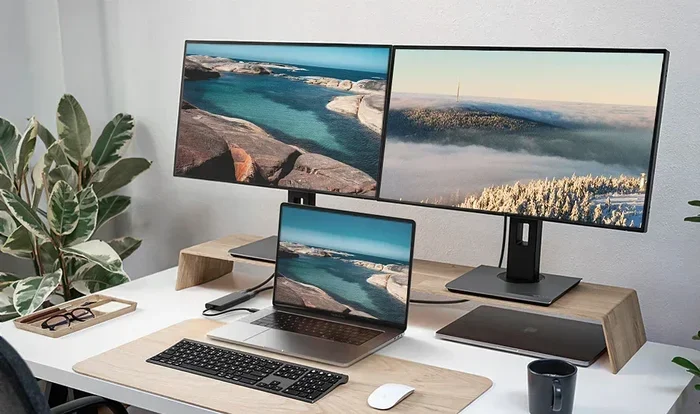
The most popular way to add a larger screen to your laptop is by using an external monitor. You simply plug the monitor into your laptop using a cable, and your laptop extends the display to the new screen. This gives you a much larger workspace without replacing your laptop.
External monitors come in many sizes, from 22 inches to 49 inches. You can choose a compact monitor for a small desk or a large ultrawide screen for a more immersive experience. Most monitors today support high-definition resolution, which means your picture looks crisp and clear.
Here is what you need to know about external monitors:
- Screen Size: Common sizes range from 24 inches to 34 inches for most users.
- Resolution: Look for Full HD (1080p) or higher for sharp text and images.
- Panel Type: IPS panels offer the best color accuracy and viewing angles.
- Refresh Rate: If you game or watch fast videos, aim for 120Hz or higher.
Option 2: Use A USB-C Docking Station
A USB-C docking station is a small hub that connects to your laptop and provides multiple ports. It can support external monitors, charging, and data transfer all through one single cable. This is a clean and convenient solution for people who want a tidy workspace.
Many modern laptops come with USB-C or Thunderbolt ports. These ports can carry video signals to external displays, which means you do not need a separate video cable. You simply plug your docking station into your laptop, connect your monitor to the dock, and you are ready to go.
Docking stations also make it easy to connect and disconnect your external setup. You can go from a portable laptop setup to a full desktop workstation in seconds. This is perfect for people who work both at home and in the office.
Option 3: Carry A Portable Monitor
If you travel often or need a second screen on the go, a portable monitor is a great choice. These lightweight screens are thin enough to slide into a backpack or laptop bag. They usually come with a stand or attach directly to the back of your laptop.
Portable monitors are powered by USB-C, so you do not need a separate power outlet. This makes them ideal for coffee shop work sessions, hotel rooms, or classroom settings. They typically range from 15 to 17 inches, which is a nice size boost over most laptop screens.
Some popular portable monitor brands include ASUS ZenScreen, Lepow, and INNOCN. They offer good picture quality in a compact, travel-friendly design. Prices range from about $100 to $300, making them an affordable upgrade for any laptop user.
Option 4: Use Screen Mirroring Or Casting
Some laptops support wireless screen mirroring or casting to a TV or smart display. This lets you use a larger screen without any cables at all. Technologies like Miracast, Chromecast, or Apple AirPlay make this possible on compatible devices.
Screen mirroring is convenient, but it may have a slight delay compared to wired connections. For general browsing, presentations, or watching videos, this works well. However, if you need a responsive setup for gaming or detailed work, a wired connection is better.
How To Connect An External Monitor To Your Laptop
Setting up an external monitor is straightforward, even if you are not very tech-savvy. Follow these simple steps to get your larger screen up and running.
Step 1: Check Your Laptop Ports
First, look at the back or side of your laptop. Identify what video output ports you have. Most laptops have one of the following:
- HDMI: The most common port found on laptops and monitors.
- USB-C: Found on newer laptops, especially thin and light models.
- DisplayPort: Common on some laptops and high-end monitors.
- VGA: An older port still found on some devices, but it offers lower quality.
If your laptop and monitor have matching ports, you just need the right cable. If the ports do not match, you will need an adapter or a docking station.
Step 2: Choose The Right Cable Or Adapter
Once you know your ports, pick the appropriate cable. For example, if both your laptop and monitor have HDMI ports, use an HDMI cable. If your laptop has USB-C but your monitor has HDMI, get a USB-C to HDMI adapter.
Here is a quick guide for common connection scenarios:
- Laptop USB-C to Monitor HDMI: Use a USB-C to HDMI adapter or cable.
- Laptop HDMI to Monitor HDMI: Use a standard HDMI cable.
- Laptop USB-C to Monitor DisplayPort: Use a USB-C to DisplayPort adapter.
- Laptop with no video output: Use a USB-C docking station with video output support.
Always buy high-quality cables and adapters. Cheap ones can cause signal loss, flickering, or no display at all. A reliable connection ensures the best picture quality and a stable setup.
Step 3: Adjust Your Display Settings
After connecting the monitor, your laptop should automatically detect it. If the screen does not appear, you may need to adjust the display settings manually.
On Windows, right-click your desktop and select Display Settings. On Mac, go to System Settings and click Displays. From there, you can choose to extend your screen, mirror it, or adjust the resolution and orientation.
Extending the display gives you more workspace. Mirroring the display shows the same image on both screens, which is useful for presentations. Take a moment to explore these options and find what works best for you.
Quick Tips For A Smooth Setup
- Restart your laptop after connecting the external monitor to ensure proper detection.
- Update your graphics drivers before setting up a new display.
- Use a cable length that fits your desk layout without creating clutter.
- Position the monitor at eye level to reduce neck strain during long work sessions.
- Adjust the brightness and contrast of the external monitor to match your room lighting.
Choosing The Right External Monitor For Your Laptop
Not all external monitors are the same, and picking the right one can make a big difference in your daily experience. Here are the key factors to consider when choosing a monitor to add a larger screen to your laptop.
Screen Size And Resolution
Screen size is measured diagonally in inches. For most desk setups, 24 to 27 inches is the sweet spot. This size gives you plenty of workspace without taking up too much desk space. If you want an ultra-wide experience, consider a 34-inch ultrawide monitor.
Resolution refers to how many pixels the screen has. Higher resolution means sharper text and clearer images. Here is a simple comparison:
- 1080p (Full HD): Great for everyday tasks and budget setups.
- 1440p (QHD): A step up with sharper details and more screen real estate.
- 4K (Ultra HD): The best for creative work, photo editing, and premium viewing.
For most users adding a larger screen to their laptop, a 27-inch 1440p monitor offers the best balance of size, sharpness, and value.
Connection Compatibility
Before buying a monitor, check that it is compatible with your laptop’s output ports. Most modern monitors support HDMI and USB-C input. If your laptop only has USB-C, make sure the monitor accepts USB-C with video input, or buy a compatible adapter.
Thunderbolt 3 and Thunderbolt 4 ports are especially versatile. They support video output, data transfer, and charging through a single cable. If your laptop has Thunderbolt, you can use a Thunderbolt-compatible monitor or dock for the simplest setup possible.
Panel Type And Color Accuracy
The panel type affects how the monitor looks and performs. IPS (In-Plane Switching) panels are the most popular for general use. They offer wide viewing angles and accurate colors, which means the picture looks good from almost any position.
If you do creative work like photo or video editing, look for monitors with good color coverage. Monitors with 99% sRGB or 95% DCI-P3 coverage deliver vibrant, true-to-life colors. For casual use, standard color accuracy is perfectly fine.
Budget Considerations
External monitors range widely in price. You can find a solid 24-inch Full HD monitor for around $150 to $200. Mid-range 27-inch 1440p monitors typically cost between $250 and $400. Premium 4K monitors can go above $500, but they offer the best picture quality available.
Portable monitors are generally more affordable, with good options starting around $100. USB-C docking stations range from $30 for basic models to $200 for advanced ones with multiple ports and charging support.
Set a budget before you shop, and focus on the features that matter most to you. You do not need the most expensive monitor to enjoy a better viewing experience.
Common Mistakes People Make When Adding A Bigger Screen
Adding a larger screen to your laptop is simple, but small mistakes can cause frustration. Here are the most common errors and how to avoid them.
Using The Wrong Cable Or Adapter
This is the number one mistake people make. Not all cables carry video signals, and not all adapters work with every device. For example, a USB-C cable that only charges your laptop will not send video to your monitor. You need a cable or adapter that supports video output.
To avoid this problem, check the specifications of your cable and adapter before purchasing. Look for terms like “HDMI,” “DisplayPort,” or “USB-C with DisplayPort Alt Mode” to ensure video support.
Ignoring Display Settings After Connection
Some people plug in the monitor and expect everything to work perfectly. But sometimes, the screen appears blank or shows the wrong resolution. Always check your display settings after connecting a new monitor. Make sure the display is set to “Extend” if you want more workspace, or “Duplicate” if you want the same image on both screens.
Choosing A Monitor That Is Too Large Or Too Small
Screen size matters more than you might think. A 49-inch monitor on a small desk can feel overwhelming. A 15-inch portable monitor may not give you the space you hoped for. Measure your desk space and think about how you use your laptop before choosing a monitor size.
For most standard desks, 24 to 32 inches is the ideal range. If you travel often, a 15 to 17-inch portable monitor hits the sweet spot between portability and screen real estate.
Overlooking Monitor Placement And Ergonomics
Where you place your external monitor affects your comfort and health. A monitor positioned too low or too high can cause neck and back pain over time. The top of the screen should be at or slightly below eye level. The monitor should be about an arm’s length away from your face.
Use a monitor stand or adjustable arm to get the height right. This small change can make a huge difference in your comfort during long work sessions.
Expert Insights On Laptop Display Upgrades
We spoke with tech experts and professionals who regularly help users set up external displays. Here is what they recommend.
Start With Your Use Case
Before buying any equipment, think about what you actually need. If you mainly work with documents and emails, a basic 24-inch monitor is plenty. If you edit videos or design graphics, invest in a higher-resolution monitor with accurate colors. Your use case should drive every decision you make.
Future-Proof Your Setup
Technology changes fast, but some standards last a long time. USB-C and HDMI are not going away anytime soon. Choose monitors and docks that support current standards, and you will be able to use them with future laptops and devices as well.
Do Not Forget About Audio
Many people overlook audio when setting up an external monitor. Most monitors have built-in speakers, but they are often mediocre in quality. If sound matters to you, consider using external speakers or a good pair of headphones connected to your laptop or dock.
Is It Worth It? Final Thoughts On Adding A Larger Screen
The short answer is yes. Adding a larger screen to your laptop is one of the most impactful upgrades you can make. It improves your comfort, boosts your productivity, and makes everyday tasks more enjoyable.
You do not need to spend a lot of money either. A basic external monitor or a portable display can transform your laptop experience for a reasonable price. The setup process is simple, and the benefits are immediate and lasting.
Whether you are a student, a remote worker, a creative professional, or a casual user, a bigger display makes a real difference. You will wonder how you ever managed with just your laptop screen.
Take some time to evaluate your needs, pick the right option, and enjoy your expanded workspace. Your eyes, your back, and your productivity will thank you.
Frequently Asked Questions
Can I Connect Two External Monitors To My Laptop?
Yes, most modern laptops support connecting two external monitors. You may need a docking station or a laptop with multiple video output ports. Check your laptop specifications to confirm it supports multi-display setups, and use the appropriate cables or adapters for each monitor.
Do I Need A Special Laptop To Use An External Monitor?
No, almost any laptop can connect to an external monitor. As long as your laptop has a video output port like HDMI, USB-C, or DisplayPort, you can add a larger screen. Even older laptops with VGA ports can connect to a monitor using the right cable or adapter.
Will Adding An External Monitor Slow Down My Laptop?
No, connecting an external monitor does not slow down your laptop. The monitor simply displays what your laptop sends to it. However, if you run demanding applications across two screens, your laptop may use more processing power, but this is normal and not caused by the monitor itself.
What Is The Best Screen Size For A Laptop External Monitor?
For most users, 24 to 27 inches is the best size. It provides enough workspace without being too large for a standard desk. If you travel frequently, a 15 to 17-inch portable monitor offers a good balance between size and portability.
Can I Use A TV As An External Monitor For My Laptop?
Yes, you can use a TV as an external monitor. Most TVs have HDMI inputs, and many laptops support HDMI output. Just connect your laptop to the TV with an HDMI cable and adjust the display settings. Keep in mind that TVs may have higher input lag, which can affect fast-paced gaming.
How Much Does It Cost To Add A Larger Screen To A Laptop?
The cost varies depending on your choice. A basic 24-inch external monitor costs around $150 to $200. Portable monitors start at about $100. USB-C docking stations range from $30 to $200. Overall, adding a larger screen is an affordable upgrade that delivers significant benefits.
=== CONCLUSION ===
Can I add a larger screen to my laptop? Absolutely, and now you know all the ways to do it. From external monitors to portable displays, the options are plentiful and accessible. A bigger screen transforms how you work, play, and interact with your laptop every single day.
Take action today. Evaluate your needs, pick the right setup, and enjoy the benefits of a larger display. Whether you choose a full-size monitor, a USB-C dock, or a portable screen, your upgraded setup will serve you well for years to come.