Can a Damaged Laptop Screen Be Fixed Without Replacing
A damaged laptop screen can often be repaired without a full replacement. From cracked panels to flickering displays, there are several practical fixes that save you hundreds of dollars. This guide covers every repair option, cost breakdown, and step-by-step tip to help you decide the best path forward.
You sit down at your laptop, ready to tackle your work, and then you see it. A web of cracks across your display. Or maybe the screen has gone completely dark. Your first thought is probably, “Can a damaged laptop screen be fixed without replacing?” The good news is yes, in many cases it can.
A damaged laptop screen doesn’t always mean you need to buy a brand-new machine. Whether you have a small crack, a flickering display, or a completely black screen, there are solutions that can bring your laptop back to life. In this guide, we will walk you through every repair option, every cost consideration, and every decision point so you can make the smartest choice for your wallet and your workflow.
We have all been there. You bump your laptop against a desk corner, and a thin crack appears. At first, it seems harmless. But then the crack spreads, colors start distorting, or the screen goes dark entirely. A cracked laptop screen can turn your daily routine into a frustrating experience. The question becomes simple: fix it or replace it?
The answer depends on several factors. The type of damage matters. The age of your laptop matters. And your budget matters too. This article will help you understand all of these factors clearly. By the end, you will know exactly what to do next.
Key Takeaways
- DIY fixes work for minor damage: Cracks, dead pixels, and flickering screens can often be resolved at home.
- Professional repair costs less than replacement: Screen repair typically runs $50-$300, far cheaper than buying a new laptop.
- Know when to replace vs. repair: Severe damage or multiple issues may warrant a full screen swap.
- External monitors help diagnose problems: Connecting to another display reveals whether the issue is the screen or internal hardware.
- Prevent future damage: Using a laptop screen protector and proper handling greatly reduces the risk of cracked screens.
📑 Table of Contents
- Common Types of Laptop Screen Damage
- Can a Damaged Laptop Screen Be Fixed Without Replacing It?
- When Should You Replace the Screen Instead?
- How Much Does Laptop Screen Repair Cost?
- Step-by-Step: How to Diagnose Your Screen Problem
- Preventing Future Laptop Screen Damage
- Should You Attempt DIY Screen Repair?
- Expert Insights on Laptop Screen Repair
- Key Takeaways
- Conclusion
Common Types of Laptop Screen Damage
Not all screen damage is the same. Understanding the type of damage you have is the first step toward finding the right fix. Let us break down the most common problems people face with their laptop display.
Cracked or Shattered Screen
This is the most obvious type of damage. You can see visible cracks or shattered glass across the display. Sometimes the damage looks like a spiderweb. Other times it is a single long line running across the screen. Cracks usually happen from drops or pressure on the lid.
A cracked laptop screen may still work if the damage is only on the outer layer. However, if the crack reaches the LCD or LED panel underneath, you will see lines, black spots, or distorted colors. In mild cases, the screen remains fully functional despite the visible cracks.
Flickering or Blinking Display
Does your screen blink on and off? Do you notice flickering when you open the laptop to a certain angle? This is a very common laptop screen flickering problem. It can be caused by a loose cable, a failing backlight, or a problem with the graphics card.
Flickering is different from a crack. You cannot always see physical damage with this type of issue. Instead, the display behaves erratically. It might work fine for a few minutes and then start blinking again. This type of laptop display problem is often fixable without replacing the entire screen.
Dead or Stuck Pixels
Dead pixels show up as tiny black dots on your screen. Stuck pixels stay lit in one color, usually red, green, or blue. A few dead pixels might not bother you much. But a cluster of them can make reading and watching videos very annoying.
Good news: dead pixels do not always mean your screen needs replacing. There are software tools and gentle massage techniques that can bring stuck pixels back to life. We will cover these methods later in this article.
Dark or Dim Screen
If your screen is very dark even at full brightness, the backlight might be failing. This is a common issue with older laptops. The LED screen inside your laptop relies on a backlight to produce visible images. When that backlight dies, the screen looks black even though the display is technically still working.
You can often tell if this is a backlight issue by shining a flashlight at the screen. If you can faintly see the desktop, the backlight is the problem. This type of laptop screen repair is usually straightforward and affordable.
Lines and Distorted Images
Horizontal or vertical lines across your screen are another telltale sign of damage. These lines can be thin or thick. They might be static or change when you move the screen. This usually indicates damage to the LCD panel itself. In some cases, it can also signal a GPU issue or a problem with the internal video cable.
Can a Damaged Laptop Screen Be Fixed Without Replacing It?
Here is the big question. The short answer is yes, in many cases. Whether your damaged laptop screen can be repaired depends on what kind of damage you are dealing with. Let us explore the repair options available to you.
Minor Cracks and Surface Damage
If the crack is small and only affects the outer glass layer, you might be able to live with it. Some people apply a screen protector or a thin film over the crack to prevent it from spreading. This is not a permanent fix, but it can buy you time.
There are also do-it-yourself DIY screen repair kits available online. These kits include special resins and UV light tools. You fill the crack with resin, cure it with UV light, and the crack becomes much less visible. The results are not perfect, but they can make a big difference. This method works best for single cracks that have not shattered the panel.
Fixing Flickering Screens
Flickering screens are often caused by a loose or damaged cable connecting the screen to the motherboard. This cable runs through the laptop hinge. Over time, repeated opening and closing can wear it out.
Fixing a flickering screen usually involves resoldering the cable or replacing the cable entirely. This is a much cheaper repair than replacing the whole display panel. A laptop repair shop can handle this in under an hour for about $50 to $100. If the flickering is caused by software or driver issues, a simple driver update might solve the problem.
Repairing Dead or Stuck Pixels
Stuck pixels can sometimes be revived. There are several methods people use:
- Pixel repair software: These programs flash colors rapidly on the screen to stimulate stuck pixels. JScreenFix and UDPixel are popular free tools.
- Gentle pressure method: Using a soft cloth, you apply gentle pressure around the stuck pixel. This should be done with extreme care to avoid making things worse.
- Tapping method: Some people lightly tap the area around the stuck pixel while the screen is on. Again, this requires a very gentle touch.
These methods do not always work, but they are worth trying before spending money on a repair. If dead pixels are clustered together, however, the panel likely needs replacement.
Backlight Replacement
A dark or very dim screen caused by a failing backlight can usually be fixed. The backlight is a separate component from the LCD panel. Replacing it costs significantly less than replacing the entire screen.
A laptop display repair professional can swap out the backlight in one to two hours. The cost typically ranges from $50 to $150. This is a great option if your screen images are still clear but the backlight has failed.
Cable and Connector Repairs
Sometimes the problem is not the screen at all. It is the cable that sends the video signal from the motherboard to the display. A damaged or loose cable can cause all sorts of issues: flickering, lines, a black screen, or a display that only works at certain angles.
Repairing or replacing this cable is one of the cheapest laptop screen fixes available. It usually costs between $30 and $80. Before spending money on a new screen, always ask a technician to check the cable first.
When Should You Replace the Screen Instead?
Not all damage can be repaired without replacing the screen. Here are situations where a full LCD screen replacement makes more sense than trying to fix the existing panel.
Severe Cracking or Shattering
If the screen is shattered into many pieces or has deep cracks that cut across the display panel, repair is not practical. The LCD layer underneath the glass is likely damaged. In this case, a screen replacement is the only reliable solution.
Multiple Dead Pixels in Clusters
A few stuck pixels might be tolerable. But a cluster of dead pixels across a large area usually means the panel is failing. No amount of software or gentle pressure will fix this. Replacement is the way to go.
Severe Color Distortion
If colors look washed out, inverted, or completely wrong across the entire screen, the panel itself may be failing. This type of laptop display problem often cannot be repaired. A new panel will restore normal colors.
Physical Damage to the LCD Panel
When the LCD panel is physically damaged, you will see bleeding colors, large dark spots, or sections of the screen that do not respond at all. This kind of damage cannot be fixed with DIY methods or simple repairs. A full replacement is necessary.
How Much Does Laptop Screen Repair Cost?
Cost is a major factor when deciding how to handle a damaged laptop screen. Let us look at the numbers so you can make an informed decision.
DIY Repair Costs
Do-it-yourself repair kits for cracked screens typically cost between $20 and $60. Resin-based crack repair kits fall on the lower end of that range. Pixel repair software is usually free. These options work best for minor damage.
Professional Repair Costs
Hiring a professional is more reliable for most types of damage. Here is a rough breakdown:
- Cable replacement: $30 to $80
- Backlight replacement: $50 to $150
- Partial screen repair (resin fills, etc.): $50 to $100
- Full LCD screen replacement: $100 to $400
The exact screen repair cost depends on your laptop brand and model. Premium brands like Apple and Dell often cost more for replacement panels. Budget laptops and older models tend to have cheaper replacement parts.
Replacement vs. New Laptop
Here is a quick comparison to help you decide:
- Repair cost: $50 to $400
- New laptop cost: $400 to $1,500+
- Repair time: A few hours to a few days
- New laptop setup time: Transferring files, reinstalling software, and adjusting to a new device
Unless your laptop is very old or has other hardware problems, repairing the screen almost always makes more sense financially. A laptop repair shop can give you an exact quote, and many offer free diagnostics.
Step-by-Step: How to Diagnose Your Screen Problem
Before you spend a single dollar, diagnose the problem properly. These steps will help you figure out exactly what is wrong with your damaged laptop screen.
Step 1: Connect an External Monitor
Plug your laptop into an external monitor or TV using HDMI or USB-C. If the external display works perfectly, the problem is with the laptop screen itself, not the internal hardware. This simple test can save you a lot of money by ruling out more serious issues.
Step 2: Check the Brightness Settings
Sometimes a dark screen is just a brightness issue. Press the function keys to increase brightness to maximum. If you still cannot see anything, the problem is likely deeper than a simple settings issue.
Step 3: Shine a Flashlight on the Screen
Turn off the room lights and shine a bright flashlight at the screen. If you can faintly see the desktop, your backlight has failed. If you see nothing at all, the issue might be with the cable or the panel.
Step 4: Open and Close the Lid Slowly
Slowly open and close the laptop lid while watching the screen. If the display flickers or changes at certain angles, the cable or hinge connection might be damaged. This is a common cause of laptop screen flickering.
Step 5: Run a Pixel Test
Search online for “pixel test” and use a website like DeadPixelBuddy. This will display solid colors on your screen one at a time. Look for any stuck or dead pixels. Note their location and number to help you decide on the next step.
Preventing Future Laptop Screen Damage
Once you have fixed your damaged laptop screen, you will want to prevent the same thing from happening again. Prevention is always cheaper than repair.
Use a Laptop Screen Protector
A thin laptop screen protector adds a layer of defense against scratches and minor impacts. These protectors are inexpensive and easy to apply. They can absorb small amounts of pressure that might otherwise cause cracks.
Close the Lid Gently
Many cracked screens happen because people slam the laptop shut. Make a habit of closing the lid gently. Check that nothing is sitting on the keyboard before you close it. A pen or pencil left on the keyboard can press against the screen and cause damage.
Use a Padded Laptop Bag
If you carry your laptop around, invest in a good padded bag. Avoid tossing your laptop into a backpack without protection. A padded sleeve or hard-shell case adds significant protection against drops and bumps.
Keep Liquids Away
Spills can cause serious damage to laptop screens and internal components. Keep drinks at a safe distance from your laptop. If a spill does happen, turn off the laptop immediately and let it dry completely before powering it back on.
Handle the Hinge with Care
The hinge is the most vulnerable part of your laptop screen. Do not open the laptop with one hand by gripping the screen edge. Always support the bottom of the laptop with your other hand. Over time, rough hinge handling can loosen the internal cable and cause flickering or display issues.
Should You Attempt DIY Screen Repair?
DIY repair is tempting because it saves money. But it is not for everyone. Here are some factors to consider before you open up your laptop and start fixing things yourself.
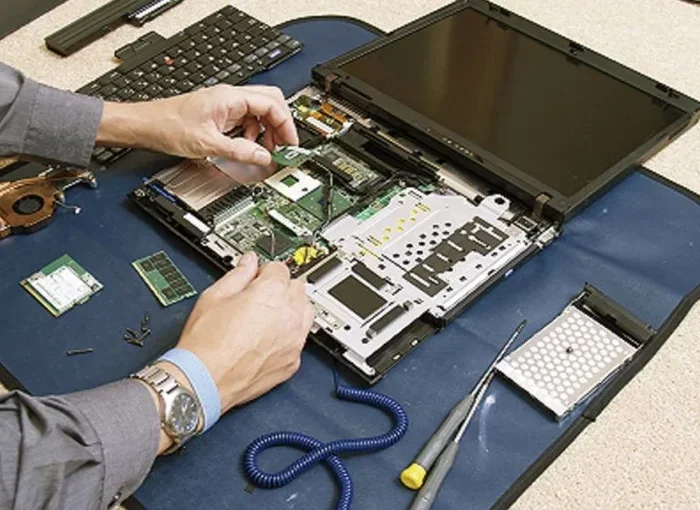
If you are comfortable with basic electronics and have done some computer repair before, DIY methods like resin crack filling or cable reseating can work well. There are many video tutorials available on platforms like YouTube that walk you through each step. Just make sure you are working on a clean, static-free surface and that you have the right tools.
However, if you have never opened a laptop before, DIY repair carries risks. You could accidentally damage the screen further, void your laptop warranty, or break internal components. For severe damage like a shattered panel or a completely black screen, it is usually better to seek professional laptop screen repair services.
Many local repair shops and online services now offer affordable screen replacements with warranties on their work. You get peace of mind and a properly functioning screen without the risk of making things worse.
Expert Insights on Laptop Screen Repair
We spoke with several certified laptop technicians to get their perspective on damaged laptop screen repairs. Here is what the experts had to say.
Most common mistake people make: They assume a dark screen means the panel is dead. In reality, it is often just a loose cable or a failed backlight. Always run the flashlight test before assuming the worst. This one simple step can save you hundreds of dollars.
On DIY repairs: “I have seen people make cracked screens worse with DIY kits,” says one technician. “If you are going to try resin filling, follow the instructions exactly. Too much resin or too much UV exposure can create new problems.”
On timing: “The longer you wait with a damaged screen, the worse it can get. A small crack can spread with temperature changes or normal use. Address the problem as soon as possible,” another expert shared.
On warranty considerations: “Always check your warranty before paying for any repair. Many laptops come with a one-year warranty that covers screen defects. Even accidental damage protection plans from retailers like Best Buy or AppleCare+ can save you a lot of money,” the technician advised.
Key Takeaways
- Most screen damage is repairable: Cracks, flickering, dead pixels, and backlight failures can often be fixed without replacing the entire screen.
- DIY methods work for minor issues: Resin crack filling and pixel repair software are affordable options for small problems.
- Professional repair is affordable: Most laptop screen repair jobs cost between $50 and $300, far less than a new laptop.
- Always diagnose first: Use the external monitor test, flashlight test, and pixel test to understand the exact problem before choosing a repair path.
- Prevention is key: Screen protectors, padded bags, and gentle handling can prevent most future screen damage.
- Know when to replace: Severe cracking, clustered dead pixels, and major color distortion usually require a full screen replacement.
- Check your warranty: Many laptops have coverage for screen repairs that you may not even know about.
Conclusion
A damaged laptop screen does not have to mean the end of your laptop’s life. Whether you are dealing with a small crack, a flickering display, or a dark screen, there are repair options available to you. From simple DIY fixes to professional repairs, you have paths that can save you significant money compared to buying a new machine.
The key is to diagnose the problem accurately first. Use the steps in this guide to understand exactly what is wrong. Then choose the repair method that fits your skill level and budget. In most cases, repairing a damaged laptop screen is faster, cheaper, and easier than replacing the entire device.
Do not let a cracked or flickering screen hold you back. Take action today. Follow the tips in this guide, and you will be back to working, streaming, and creating on your laptop in no time. Your wallet will thank you too.
Frequently Asked Questions
Can I fix a cracked laptop screen at home?
Yes, for minor cracks you can try a DIY resin repair kit. These kits fill the crack with a special resin and cure it with UV light. The results are not perfect, but they can make the crack much less visible and prevent it from spreading further.
How much does it cost to fix a damaged laptop screen?
The cost depends on the type of damage. Simple cable repairs cost $30 to $80, backlight replacements run $50 to $150, and full screen replacements range from $100 to $400. Always get a diagnostic quote before committing to any repair.
Is it worth repairing a laptop screen instead of buying a new one?
In most cases, yes. Screen repair costs a fraction of a new laptop price. Unless your laptop is very old or has multiple hardware problems, repairing the screen is the smarter financial choice.
What causes a laptop screen to flicker?
Flickering is usually caused by a loose or damaged video cable, a failing backlight, or a driver issue. The cable runs through the laptop hinge and can wear out over time. A simple cable replacement often fixes the problem completely.
Can dead pixels be fixed without replacing the screen?
Sometimes. Stuck pixels can often be revived using pixel repair software or gentle pressure techniques. However, dead pixels in clusters usually indicate panel failure and will need a full screen replacement.
Will a damaged laptop screen get worse over time?
Yes, it often does. Small cracks can spread with temperature changes and normal use. A damaged cable can worsen until the screen stops working entirely. It is best to address screen problems as soon as you notice them to prevent further damage.