Can You Connect 2 Monitors With Hdmi Splitter Explained
Yes, you can connect 2 monitors with an HDMI splitter, but there are important limitations you need to know. An HDMI splitter duplicates the same image on both screens, while an HDMI switch lets you toggle between sources. Understanding the difference helps you choose the right solution for your dual monitor setup and avoid frustrating display issues.
Have you ever looked at your desk and thought, “I need more screen space”? You are not alone. Dual monitor setups have become incredibly popular for gamers, remote workers, and content creators alike. But what happens when your computer only has one HDMI output? That is where the question comes in: can you connect 2 monitors with an HDMI splitter?
The short answer is yes, but the full answer is a bit more nuanced. An HDMI splitter takes a single video signal and sends it to two or more displays. However, how it works and what you actually get depends on the type of splitter you buy, your graphics card, and what you want to accomplish. This guide breaks it all down in plain language so you can make the right choice without any confusion.
Whether you are trying to extend your workspace or simply mirror your screen for a presentation, understanding how HDMI splitters and HDMI switches work will save you time, money, and frustration. Let us dive into everything you need to know about connecting two monitors with an HDMI splitter.
Key Takeaways
- An HDMI splitter mirrors the same content on both monitors instead of extending your desktop.
- A powered HDMI splitter is essential for maintaining signal quality over longer cable runs.
- HDMI switches and HDMI splitters serve different purposes, and confusing them leads to poor setup results.
- Resolution and refresh rate may drop when splitting a signal across multiple displays.
- Check your graphics card outputs before buying a splitter, as many GPUs support direct dual monitor connections.
- Signal degradation is a real risk with cheap, unpowered splitters.
- Display settings in Windows or macOS play a big role in how your dual monitor setup performs.
📑 Table of Contents
- What Is an HDMI Splitter and How Does It Work?
- Can You Connect 2 Monitors With HDMI Splitter for Extended Displays?
- HDMI Splitter vs HDMI Switch: What Is the Difference?
- What Happens to Resolution and Signal Quality?
- Step-by-Step: How to Connect 2 Monitors With an HDMI Splitter
- Common Mistakes People Make With HDMI Splitters
- Alternatives to Using an HDMI Splitter for Dual Monitors
- Which HDMI Splitter Should You Buy?
- Final Thoughts on Connecting 2 Monitors With an HDMI Splitter
What Is an HDMI Splitter and How Does It Work?
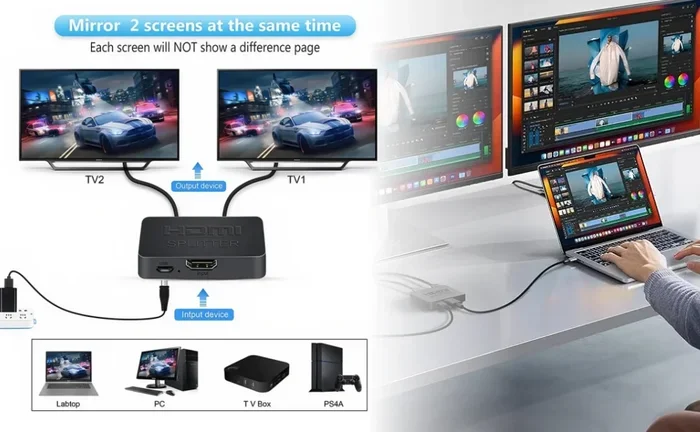
An HDMI splitter is a small device that takes one HDMI input and replicates the signal across multiple HDMI outputs. Think of it like a water pipe splitter, but for digital video and audio. You plug one cable from your laptop or desktop into the splitter, and then run separate cables to each monitor.
The most common type is a 1×2 splitter, which means one input and two outputs. Some splitters support four or even eight outputs, but for most people, a two-output splitter is all you need. These devices come in different shapes and sizes, from tiny dongles that plug directly into your port to larger boxes with cables attached.
How the Signal Gets Copied
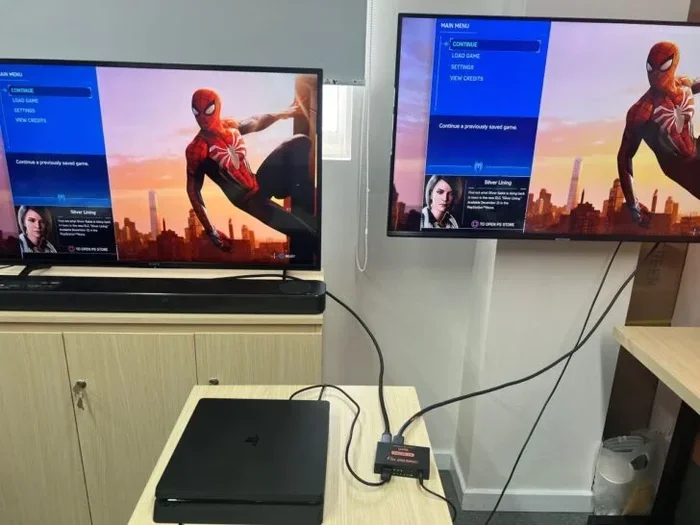
When you send a video signal through an HDMI splitter, it creates an exact copy of that signal for each output. Both monitors receive the same image at the same time. This is called screen mirroring. It is not the same as extending your desktop across two screens. If you want different content on each monitor, an HDMI splitter alone will not do that.
The splitter does not process or alter the signal in any meaningful way. It simply duplicates it. This means both monitors will display the same resolution, the same refresh rate, and the same content. The quality of the output depends heavily on the quality of the splitter itself.
Can You Connect 2 Monitors With HDMI Splitter for Extended Displays?
This is where things get tricky. If your goal is to extend your desktop so you have a larger workspace, an HDMI splitter is not the right tool. A splitter mirrors content, it does not extend it. Both screens will show the exact same image, just like looking into two mirrors facing each other.
To extend your display across two monitors, you need your graphics card to support multiple outputs. Most modern GPUs come with at least two video outputs, whether that is HDMI, DisplayPort, or USB-C. If your computer has two outputs, you can connect two monitors directly without any splitter at all.
When a Splitter Makes Sense
Even though a splitter does not extend your desktop, there are still plenty of valid use cases. Here are some situations where connecting two monitors with an HDMI splitter actually works well:
- Presentations: You want to show the same screen on a projector and a monitor at the same time.
- Digital signage: You need identical content displayed on multiple screens in a store or office.
- Gaming on two TVs: You want to play the same game on a larger screen while keeping a second TV for chat or walkthroughs.
- Teaching environments: You want students at the back of the room to see the same content as those in the front.
In all of these scenarios, mirroring is exactly what you want. The HDMI splitter serves its purpose perfectly.
HDMI Splitter vs HDMI Switch: What Is the Difference?
People often confuse HDMI splitters with HDMI switches, and the mix-up can lead to buying the wrong product. Let us clear this up once and for all.
An HDMI splitter takes one source and sends it to multiple displays. An HDMI switch takes multiple sources and sends them to one display. They do opposite things.
| Feature | HDMI Splitter | HDMI Switch |
|---|---|---|
| Input Count | 1 | 2 or more |
| Output Count | 2 or more | 1 |
| Primary Function | Mirror content to multiple screens | Switch between multiple devices on one screen |
| Use Case | Presentations, digital signage | Connecting console, PC, and streaming box to one TV |
| Desktop Extension | Not possible | Not possible |
If you want to connect two monitors to one computer, a splitter mirrors the image. If you want to connect a PC, a PlayStation, and a cable box to one monitor, a switch is what you need. Keep this distinction in mind when shopping, because it will save you from a lot of headaches.
What Happens to Resolution and Signal Quality?
One of the biggest concerns people have about using an HDMI splitter is whether the image quality will suffer. The honest answer is: it depends on the splitter.
Powered vs Unpowered Splitters
A powered HDMI splitter has its own power source, usually through a USB cable or a wall adapter. This extra power helps amplify the signal and maintain quality across both outputs. A passive splitter draws power from the HDMI port itself, which can weaken the signal, especially over longer cable runs.
For best results, always go with a powered splitter. The small investment pays off in stable signal strength and reliable performance. Cheap passive splitters often lead to flickering screens, dropouts, or no signal at all.
Resolution Limitations
Most quality HDMI splitters support 1080p and even 4K resolution. However, when you split the signal, some splitters may downgrade the resolution slightly. This is rare with modern, well-made splitters, but it is worth checking the specifications before you buy.
Also, keep in mind that both monitors will run at the same resolution. If one monitor is 4K and the other is 1080p, the splitter will send the same signal to both. You may need to adjust settings on the lower-resolution monitor to avoid scaling issues.
Quick Tips for Best Signal Quality
- Always use a powered HDMI splitter for reliable performance.
- Keep HDMI cables as short as possible to reduce signal loss.
- Check that your cables support the resolution you need (HDMI 2.0 for 4K).
- Avoid daisy-chaining splitters, as this compounds signal loss.
Step-by-Step: How to Connect 2 Monitors With an HDMI Splitter
Setting up an HDMI splitter is straightforward, but following the right steps ensures everything works smoothly from the start.
What You Will Need
- An HDMI splitter (1×2 for two monitors)
- Two HDMI cables (length depends on your desk setup)
- A powered splitter if your cables are longer than 10 feet
- A computer or laptop with at least one HDMI output
Setup Steps
- Connect the splitter to your computer. Plug one end of an HDMI cable into your computer’s HDMI output and the other end into the input port on the splitter.
- Run cables to each monitor. Connect one HDMI cable from each output on the splitter to the corresponding HDMI input on your monitors.
- Power on the splitter. If you have a powered splitter, plug in the USB cable or adapter.
- Turn on both monitors. Make sure both displays are set to the correct HDMI input channel.
- Adjust display settings. On Windows, go to Settings > System > Display. On macOS, go to System Settings > Displays. Both monitors should show the same image if mirroring is working correctly.
If you see a black screen on one monitor, try swapping the HDMI cables. Sometimes the issue is a faulty cable, not the splitter. Also, make sure both monitors are set to their native resolution for the sharpest image.
Common Mistakes People Make With HDMI Splitters
Even with a simple device like an HDMI splitter, there are common pitfalls that trip people up. Knowing these mistakes ahead of time helps you avoid frustration.
Buying a Passive Splitter for Long Cable Runs
This is the number one mistake. A passive splitter works fine when your cables are short, say under six feet. But if you need to run cables across a room, the signal weakens. A powered splitter solves this problem by boosting the signal along the way.
Expecting Desktop Extension From a Splitter
We have said it before, but it bears repeating. An HDMI splitter mirrors content. If you want to extend your desktop and use each monitor for different tasks, you need a second video output on your graphics card, not a splitter.
Ignoring HDMI Version Compatibility
Not all HDMI cables and splitters support the same features. An older HDMI 1.4 splitter may not handle 4K resolution or HDR content. Check the HDMI version of both your splitter and cables to make sure they match your display capabilities.
Overlooking Audio Output
Some splitters pass audio, and some do not. If you plan to use your monitors for sound, verify that the splitter supports audio transmission. Most modern splitters do, but it is always worth double-checking the product specifications.
Expert Insights
According to display technology specialists, the quality of the HDM splitter matters more than most people realize. Spending an extra $10 to $20 on a reputable brand can mean the difference between a crisp, stable image and a frustrating experience with flickering or no signal. Look for splitters that explicitly state their supported resolutions and are compatible with your specific devices.
Alternatives to Using an HDMI Splitter for Dual Monitors
If an HDMI splitter does not fit your needs, there are several alternatives worth considering. Each option has its own advantages depending on what you are trying to achieve.
Use Two Outputs on Your Graphics Card
The simplest alternative is to use two video outputs directly from your computer. Most desktop GPUs and many laptops come with multiple ports. You can connect one monitor via HDMI and another via DisplayPort, DVI, or USB-C. This gives you full control over each screen and allows desktop extension.
Use a USB-to-HDMI Adapter
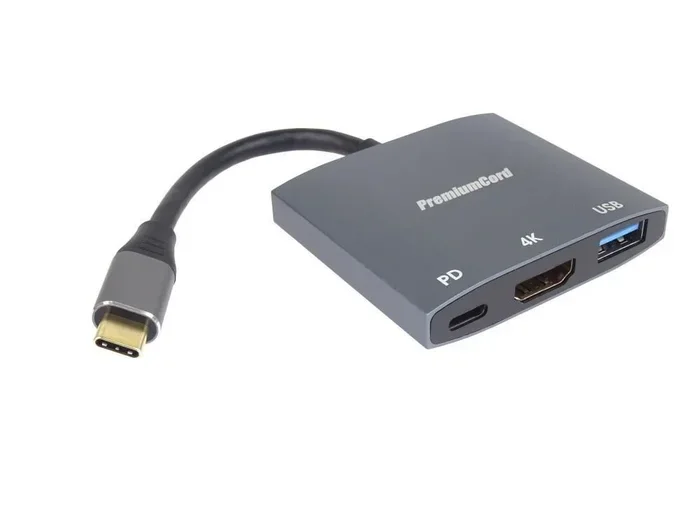
If your computer has only one HDMI output, a USB-to-HDMI adapter adds a second video output. These adapters are affordable and widely available. They work well for extending your desktop to a second monitor without needing a splitter. Some adapters even support 4K resolution.
Use an HDMI Switch Instead
If your real goal is to connect multiple devices to a single monitor, an HDMI switch is the right choice. You can toggle between your PC, gaming console, and streaming device without unplugging cables. This is especially useful for setups where screen mirroring is not the goal.
Use a DisplayLink Adapter
For more advanced setups, a DisplayLink adapter uses your USB port to add display capabilities. These adapters support multiple monitors and allow desktop extension. They are a great option for laptops that lack native multi-display support.
Which HDMI Splitter Should You Buy?
Not all HDMI splitters are created equal. When shopping for a splitter to connect two monitors, look for these key features:
- Powered design: Ensures stable signal delivery to both monitors.
- 4K support: If your monitors support 4K, make sure the splitter does too.
- HDCP compliance: This is important for streaming content from services like Netflix or Disney+.
- Good build quality: Metal housings and quality connectors last longer than cheap plastic ones.
- Audio pass-through: If you need sound from your monitors, confirm the splitter supports it.
Popular brands in this space include IOGEAR, UGREEN, and Kinivo. Reading user reviews before purchasing gives you real-world insight into how a splitter performs in everyday use. Look for reviews that mention signal stability, ease of setup, and long-term reliability.
Final Thoughts on Connecting 2 Monitors With an HDMI Splitter
So, can you connect 2 monitors with an HDMI splitter? Absolutely. But the real question is whether a splitter meets your actual needs. If you want to mirror the same content on two screens, an HDMI splitter works great. If you want to extend your desktop and use each monitor for different tasks, you need a different solution.
The key is understanding the difference between mirroring and extending, choosing the right type of splitter, and paying attention to signal quality. A powered HDMI splitter from a reputable brand, paired with quality cables, will give you a reliable dual monitor experience for mirroring purposes.
Take a moment to assess what you actually need before making a purchase. Check your graphics card outputs, consider whether you want to mirror or extend, and choose the right device accordingly. With the right setup, you can enjoy a more productive and immersive computing experience without breaking the bank.
Whether you are setting up a home office, a gaming station, or a presentation room, knowing how HDMI splitters work puts you in control. You now have the knowledge to make an informed decision and avoid the common traps that catch so many buyers off guard.
Frequently Asked Questions
Will an HDMI splitter let me extend my desktop across two monitors?
No, an HDMI splitter mirrors the same content on both monitors. To extend your desktop, you need your graphics card to support multiple video outputs or use a USB-to-HDMI adapter to add a second output.
Do I need a powered HDMI splitter or will a passive one work?
For short cable runs under six feet, a passive splitter may work fine. For longer runs or more reliable performance, a powered splitter is strongly recommended because it amplifies the signal and prevents degradation.
Can I use an HDMI splitter with a laptop?
Yes, as long as your laptop has an HDMI output. You plug the splitter into the laptop, run HDMI cables to each monitor, and adjust your display settings to mirror the screen.
Will both monitors show the same resolution when using a splitter?
Yes, both monitors will receive the same signal and display the same resolution. If your monitors have different native resolutions, you may need to adjust scaling settings on the lower-resolution display for the best results.
Can I connect more than two monitors with one HDMI splitter?
Yes, some HDMI splitters support three, four, or even eight outputs. However, adding more outputs can further weaken the signal, so a powered splitter is essential for multi-monitor setups beyond two displays.
Is an HDMI splitter the same as an HDMI switch?
No, they serve opposite purposes. An HDMI splitter takes one source and sends it to multiple displays. An HDMI switch takes multiple sources and sends them to one display. Make sure you buy the right one for your needs.
=== CONCLUSION ===
Connecting 2 monitors with an HDMI splitter is entirely possible and can be very useful when done right. The key is knowing what a splitter can and cannot do. It mirrors content, it does not extend your desktop. Choosing a powered splitter, using quality cables, and understanding your graphics card capabilities will set you up for success.
Take the time to evaluate your needs before buying. Whether you need a simple mirroring setup for presentations or a more complex multi-device configuration, the right knowledge makes all the difference. Now you have everything you need to make a confident decision and get the most out of your dual monitor setup.