Can Usb Be Converted To Hdmi Full Guide For Beginners
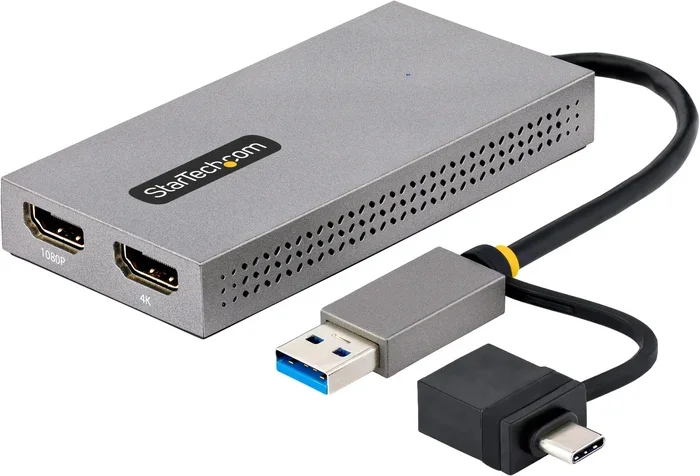
Yes, you can convert USB to HDMI using the right adapter or cable. This USB to HDMI adapter lets you connect laptops, tablets, and other USB devices to HDMI-enabled screens like TVs and monitors. Whether you use a USB-C to HDMI cable or a traditional USB-A to HDMI adapter, the process is simple and works in minutes.
Have you ever wanted to show something from your laptop or tablet on a bigger screen? Maybe you are at home and want to watch a movie on your TV. Or perhaps you are in a meeting and need to display a presentation on a large monitor. The problem is your device only has a USB port, not an HDMI port. This is where the question comes up: can USB be converted to HDMI?
The short answer is yes. You can absolutely convert a USB connection to HDMI. It is easier than most people think. You just need the right USB to HDMI adapter or cable. This guide will walk you through everything you need to know. We will cover how it works, what types of adapters exist, and how to set things up step by step.
Whether you are a beginner or just looking for a quick refresher, this guide has you covered. We will keep things simple and practical. No confusing tech talk. Just clear, helpful advice you can use right away.
Key Takeaways
- USB to HDMI conversion is possible: You can connect USB devices to HDMI displays using the right adapter or cable.
- USB-C to HDMI is the most popular option: It supports video and audio output in a single cable for modern laptops and phones.
- USB-A to HDMI adapters work too: These are ideal for older computers with standard USB-A ports.
- Display settings matter: You may need to adjust your device settings to enable external display output.
- Not all adapters are equal: Check for resolution support, audio capability, and plug-and-play compatibility before buying.
- Common issues are easy to fix: Most problems like no signal or no audio can be resolved with simple troubleshooting steps.
📑 Table of Contents
What Is a USB to HDMI Conversion?
A USB to HDMI conversion means taking a video signal from a USB port and turning it into an HDMI signal. HDMI stands for High-Definition Multimedia Interface. It is the standard cable used to send both video and audio to screens like TVs, monitors, and projectors.
USB ports, on the other hand, were originally designed for data transfer and charging. But modern USB ports, especially USB-C, can also carry video signals. This is what makes the conversion possible. A USB to HDMI adapter acts as a bridge between the two.
How USB and HDMI Differ
USB and HDMI serve different purposes, even though they both carry data. Here is a quick look at how they differ:
- USB is mainly used for connecting peripherals like keyboards, mice, flash drives, and charging devices.
- HDMI is built specifically for sending high-quality video and audio to a display.
- USB-A is the older, flat rectangular port found on most computers.
- USB-C is the newer, smaller, reversible port found on modern laptops and phones.
- HDMI cables come in different versions, including standard, mini, and micro HDMI.
When you use a USB-C to HDMI cable or adapter, you are essentially using the USB-C port’s ability to output a video signal. This feature is part of a technology called DisplayPort over USB-C. It allows your device to send video to an external display through a simple adapter.
Why You Might Need This Conversion
There are many real-world reasons you might need to convert USB to HDMI. Here are some common scenarios:
- Connecting a laptop to a TV: You want to watch a video or show photos on a bigger screen.
- Presenting at work or school: Your projector or monitor only has HDMI input.
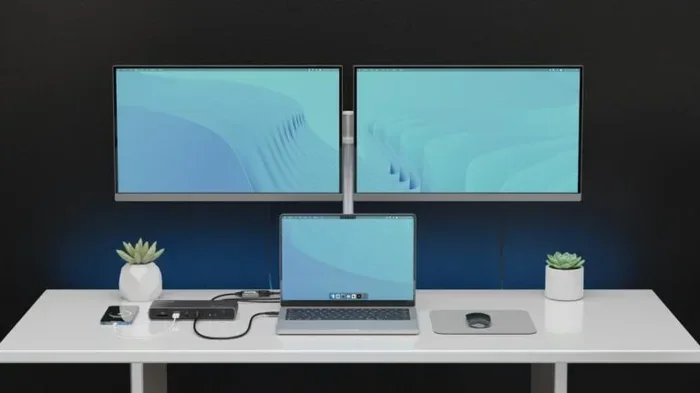
- Setting up a dual display: You want to extend your screen for more workspace.
- Using a docking station: Many docking stations include HDMI output through a USB connection.
- Streaming from a tablet: You want to cast your tablet screen to a TV with an HDMI port.
In all these cases, a USB to HDMI adapter makes it happen. It is a simple and affordable solution for getting your content on a larger screen.
Types of USB to HDMI Adapters and Cables
Not all adapters are the same. Different devices need different types of connections. Here is a breakdown of the most common options you will find when shopping for a USB to HDMI adapter.
USB-A to HDMI Adapters
USB-A is the traditional flat port you have probably seen on computers for years. A USB-A to HDMI adapter plugs into your computer’s USB-A port and provides an HDMI output. These adapters are great for older laptops and desktop computers that do not have USB-C ports.
Most USB-A to HDMI adapters are plug and play. This means you do not need to install any software. Just plug in the adapter, connect an HDMI cable, and your screen should appear on the external display. However, these adapters may not support the highest resolutions. Many are limited to 1080p at 60Hz.
USB-C to HDMI Cables and Adapters
USB-C to HDMI is the most popular option today. USB-C is small, reversible, and found on most modern laptops, tablets, and even some smartphones. A USB-C to HDMI cable has a USB-C connector on one end and an HDMI connector on the other.
These cables are incredibly convenient because they carry both video and audio through a single cable. You do not need separate audio cables. Just plug it in, and your TV or monitor will display both picture and sound.
Many USB-C to HDMI adapters also support 4K resolution at 60Hz. This makes them perfect for watching high-quality videos or giving crisp presentations. Some even support higher refresh rates for gaming.
USB 3.0 to HDMI Adapters
USB 3.0 is an older but still common standard. A USB 3.0 to HDMI adapter works well for basic display needs. These adapters are usually bulkier than USB-C options but are widely compatible with desktop computers and older laptops.
They typically support resolutions up to 1080p or 4K depending on the model. The key thing to check is whether your USB port is USB 3.0 or higher. USB 2.0 ports may struggle with video output and could cause lag or low resolution.
Active vs Passive Adapters
It is also important to understand the difference between active and passive adapters:
- Passive adapters simply convert the signal without any extra power. They work well for most everyday tasks.
- Active adapters have built-in chips that boost the signal. They are better for high-resolution output or when connecting to multiple displays.
For most users, a passive USB-C to HDMI adapter will work perfectly. If you need 4K or higher performance, look for an active adapter.
How to Convert USB to HDMI Step by Step
Setting up a USB to HDMI connection is straightforward. Follow these steps and you will be up and running in no time.
Step 1: Check Your Device’s USB Port
First, look at your device and identify the type of USB port it has. Is it USB-A or USB-C? This determines which adapter you need. If you are not sure, check your device’s manual or look up the model online.
Quick tip: USB-C ports are small and oval-shaped. USB-A ports are the standard rectangular shape. This simple check saves you from buying the wrong adapter.
Step 2: Choose the Right Adapter or Cable
Once you know your port type, pick the right USB to HDMI adapter. Make sure it supports the resolution you need. If you want 4K quality, choose an adapter that explicitly states 4K support.
Also check if the adapter supports audio output. Most modern USB-C to HDMI adapters do, but older USB-A adapters sometimes only carry video. Read the product description carefully before you buy.
Step 3: Plug in the Adapter
Connect the adapter to your device’s USB port. If you are using a separate HDMI cable, plug that into the adapter and then into your TV or monitor.
Most adapters are plug and play. This means your device should recognize them immediately. You may see a brief flash on the external screen as it connects.
Step 4: Configure Your Display Settings
After plugging everything in, you may need to adjust your display settings. Here is how to do it on popular operating systems:
- Windows: Right-click on your desktop and select Display Settings. Choose Extend or Duplicate display depending on your preference.
- Mac: Go to System Settings, then Displays. Select the external display and choose Mirror or Extend.
- Linux: Open Display Settings and configure your external monitor from there.
These steps ensure your device sends the video signal to the HDMI display correctly. If the screen is black, try changing the resolution or refresh rate in your display settings.
Best USB to HDMI Adapters on the Market
There are many adapters available, and choosing the right one can feel overwhelming. Here is a comparison of popular options to help you decide.
| Adapter | Port Type | Max Resolution | Audio Support | Price Range |
|---|---|---|---|---|
| Generic USB-A to HDMI | USB-A | 1080p | Yes | $10 – $20 |
| USB-C to HDMI Cable | USB-C | 4K at 60Hz | Yes | $15 – $30 |
| USB-C to HDMI Adapter with USB Hub | USB-C | 4K at 30Hz | Yes | $25 – $50 |
| USB 3.0 to HDMI Active Adapter | USB-A / USB 3.0 | 4K at 60Hz | Yes | $30 – $60 |
| USB-C Docking Station with HDMI | USB-C | 4K at 60Hz | Yes | $50 – $150 |
As you can see, prices vary a lot. A basic USB-A to HDMI adapter costs as little as $10. If you need more features like extra USB ports or higher resolution, a docking station might be worth the investment.
Common Problems and How to Fix Them
Most USB to HDMI setups work without any issues. But sometimes things go wrong. Here are the most common problems and simple fixes.
No Signal on the External Display
This is the most common issue. If your TV or monitor shows no signal, try these steps:
- Unplug the adapter and plug it back in firmly.
- Make sure the HDMI cable is connected to both the adapter and the display.
- Check that your TV or monitor is set to the correct HDMI input source.
- Try a different USB port on your device.
- Restart your device and try again.
Often, the fix is as simple as reseating the connection. A loose cable can cause a no-signal problem every time.
No Audio Through HDMI
Sometimes the video works but you get no sound. This usually happens when the audio output setting is not set to the HDMI display. Here is how to fix it:
- Windows: Right-click the speaker icon in your taskbar. Select the HDMI output device as your default audio output.
- Mac: Go to System Settings, then Sound. Choose the HDMI display as your output device.
If you are using a USB-A to HDMI adapter, make sure it supports audio. Some older adapters only carry video and require a separate audio cable.
Low Resolution or Flickering Screen
If your external display looks blurry or flickers, the adapter or cable may not support the resolution you are trying to use. Try lowering the resolution in your display settings. Also check that your HDMI cable is not damaged. A faulty cable can cause all sorts of display problems.
Adapter Not Recognized by the Device
In rare cases, your device may not recognize the adapter. Try plugging it into a different USB port. If you are using a USB hub, plug the adapter directly into your device instead. Some adapters need more power than a hub can provide.
Expert Tips for Getting the Best Results
Here are some practical tips to make your USB to HDMI experience smooth and hassle-free:
- Buy quality adapters: Cheap adapters may save money upfront but can cause connection issues and poor video quality. Stick with reputable brands.
- Check compatibility first: Make sure your adapter supports your device’s operating system. Most work with Windows, macOS, and ChromeOS, but always double-check.
- Use a shorter HDMI cable: Longer cables can cause signal loss. Keep your HDMI cable under 6 feet for the best results.
- Update your display drivers: Outdated drivers can cause display problems. Visit your device manufacturer’s website to download the latest drivers.
- Consider a docking station: If you use your external display often, a docking station with HDMI output is a great long-term investment. It also gives you extra USB ports for peripherals.
- Test before important meetings: Always test your setup before a presentation or movie night. This avoids embarrassing tech failures.
Key Takeaways
- USB to HDMI conversion is simple and affordable: You do not need expensive equipment to connect your USB device to an HDMI screen.
- USB-C to HDMI is the go-to option for modern devices: It delivers high-quality video and audio through one cable.
- USB-A to HDMI adapters work for older computers: They are budget-friendly and widely available.
- Display settings need adjustment: Your device may not automatically send video to the external display. Check your settings after connecting.
- Most problems are easy to fix: No signal, no audio, and low resolution issues usually have simple solutions.
- Quality matters: Investing in a good adapter saves you frustration and delivers better performance over time.
Conclusion
Can USB be converted to HDMI? Absolutely yes. With the right USB to HDMI adapter or cable, you can connect almost any USB-enabled device to an HDMI display. Whether you have a USB-A or USB-C port, there is an adapter that fits your needs.
The process is simple. Check your port type, buy the right adapter, plug it in, and adjust your display settings. Within minutes, you can watch movies, give presentations, or extend your screen to a bigger display.
The key is choosing a quality adapter that supports your desired resolution and audio output. Avoid the cheapest options if you need reliable performance. And always test your setup before you need it in a real situation.
USB to HDMI conversion opens up a world of possibilities. You are no longer limited by the ports on your device. With a small adapter, any screen with an HDMI input becomes a display for your computer, tablet, or phone. Start exploring the options today and enjoy the freedom of a bigger, better screen.
Frequently Asked Questions
Do I need to install drivers for a USB to HDMI adapter?
Most USB to HDMI adapters are plug and play and do not require any driver installation. However, some advanced adapters or docking stations may need you to download a driver from the manufacturer’s website. Always check the product description before purchasing.
Can I use a USB to HDMI adapter for gaming?
Yes, but it depends on the adapter quality and your device’s capabilities. A high-quality USB-C to HDMI adapter that supports 4K at 60Hz works well for casual gaming. For competitive gaming, a direct HDMI connection from your device is always better to avoid any input lag.
What is the difference between USB-A and USB-C to HDMI adapters?
The main difference is the port type. A USB-A to HDMI adapter connects to older computers with standard rectangular USB ports. A USB-C to HDMI adapter connects to modern laptops and devices with the smaller, reversible USB-C port. USB-C adapters typically offer better performance and higher resolution support.
Can I connect multiple displays using a USB to HDMI adapter?
Yes, you can connect multiple displays if your device supports it. Some USB-C docking stations offer multiple HDMI outputs. However, your device’s graphics capabilities will determine how many external displays you can run at the same time.
Why is my USB to HDMI adapter not working on my Mac?
Some Mac computers may have compatibility issues with certain adapters. Make sure your adapter supports macOS. Also, go to System Settings, then Displays, and check if the external display is detected. Restarting your Mac after connecting the adapter often resolves the issue.
Can I convert USB to HDMI wirelessly without any cables?
While traditional USB to HDMI conversion requires a physical adapter or cable, there are wireless alternatives. Devices like Chromecast or wireless display adapters can mirror your screen without cables. However, these solutions work differently and may introduce slight delays compared to a wired connection.
=== CONCLUSION ===
Can USB be converted to HDMI is a question with a clear and positive answer. A USB to HDMI adapter gives you the freedom to connect your devices to any HDMI-enabled screen. It is a simple, affordable, and practical solution for work, entertainment, and everyday use.
Remember to choose the right adapter for your port type, check for resolution and audio support, and enjoy the bigger screen experience. With the tips and guidance in this guide, you are now ready to set up your own USB to HDMI connection with confidence.