Can I Use Usb C To Hdmi On My Laptop For Video Output
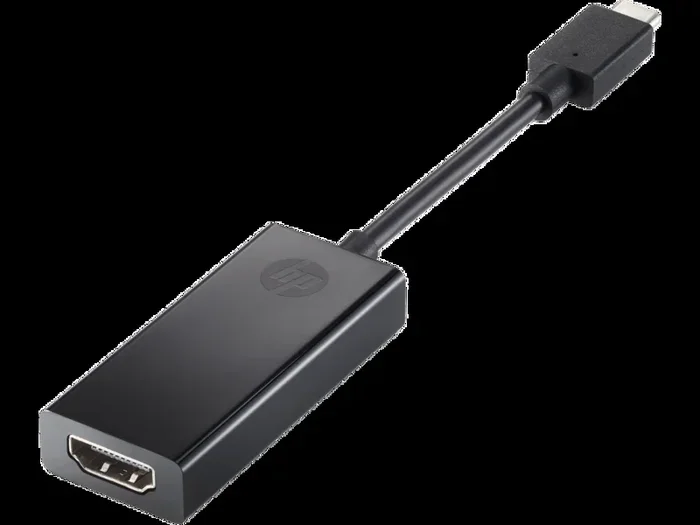
Can I use USB C to HDMI on my laptop for video output? Absolutely! This guide walks you through everything you need to know about connecting your laptop to a TV or monitor using a USB C to HDMI adapter or cable. You’ll learn about compatibility, setup steps, and how to avoid common pitfalls. USB C to HDMI connections are simple, fast, and support high-resolution video.
Have you ever wondered, Can I use USB C to HDMI on my laptop for video output? The short answer is yes. Most modern laptops come with USB-C ports that can send video to an external monitor, TV, or projector. All you need is the right adapter or cable.
Connecting your laptop to a bigger screen is easier than ever. Whether you want to mirror your screen for a presentation or extend your workspace, a USB C to HDMI setup makes it possible. This guide will show you exactly how to do it, what to watch out for, and how to get the best picture quality.
You’ll learn about different adapter types, how to check if your laptop supports video over USB-C, and step-by-step setup instructions. By the end, you’ll feel confident plugging in your device and enjoying a larger display. Let’s dive in.
Key Takeaways
- USB C to HDMI works on most modern laptops: If your laptop has a USB-C port that supports video output, you can connect it to any HDMI display with the right adapter.
- Check for video output support first: Look for a Thunderbolt or DisplayPort symbol next to your USB-C port to confirm it can carry video.
- Choose the right adapter type: Passive adapters work for basic needs, while active adapters or docking stations handle 4K and high refresh rates.
- Setup is plug and play: Just connect the adapter, select the input on your TV or monitor, and configure display settings in Windows or macOS.
- Troubleshoot common issues: If you see no signal, try a different cable, check the adapter power, and update your graphics drivers.
- Avoid common mistakes: Don’t use a USB-C port that only charges, and always verify your laptop’s video output capabilities before buying an adapter.
📑 Table of Contents
Can I Use USB C to HDMI on My Laptop for Video Output?
Yes, you can. Most laptops made after 2016 support video output over USB-C using a feature called alternate mode. This lets the USB-C port carry a video signal directly to an HDMI display. You don’t need special software or drivers in most cases.
Here’s what you need to know about USB C to HDMI video output:
- It works with most modern laptops: If your laptop has a USB-C port, there’s a good chance it can output video.
- Supports high resolutions: Many adapters handle 4K at 30Hz or 60Hz, and some even support 8K.
- Plug and play: You usually just plug in the adapter and the external display shows up automatically.
- No extra power needed for basic use: Simple adapters draw power from the laptop’s USB-C port.
The key is to match your adapter to your needs. A basic adapter is fine for checking emails on a big screen. An active adapter or docking station is better for gaming, video editing, or running two high-resolution monitors.
How to Check If Your Laptop Supports USB C Video Output
Not every USB-C port can send video. Some ports are designed only for charging or data transfer. You need to confirm your laptop’s port supports alternate mode or Thunderbolt before buying an adapter.
Look for the Thunderbolt or DisplayPort Symbol
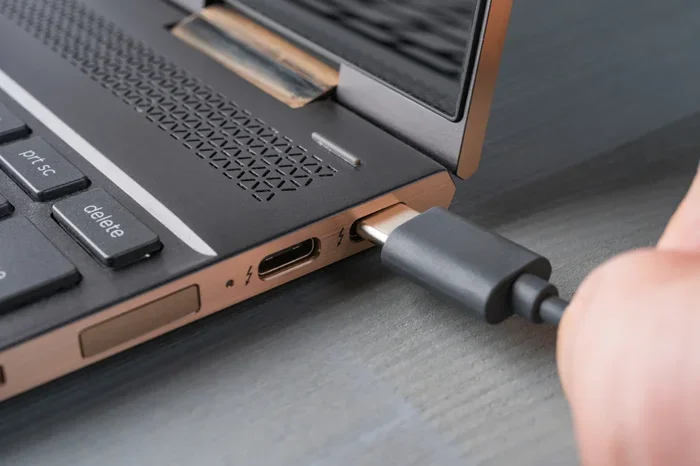
Most laptops with video-capable USB-C ports have a small icon next to the port. Look for a lightning bolt (Thunderbolt) or a DisplayPort logo. If you see either symbol, your port can carry video.
Here’s how to check:
- Examine the USB-C port on your laptop carefully.
- Look for a tiny thunderbolt symbol or a D with a vertical line next to it.
- If you see either, your laptop supports video output over USB-C.
Check Your Laptop’s Manual or Manufacturer Website
If you’re not sure, search for your laptop model online. Look for specs that mention “USB-C with DisplayPort” or “Thunderbolt 3/4.” These terms confirm that the port can output video. You can also check the laptop’s product page on the manufacturer’s website for the exact port details.
Use Windows or macOS Settings to Verify
On Windows, go to Settings > System > Display and click “Advanced display settings.” If your USB-C port supports video, it will list the connected display. On Mac, go to System Settings > Displays. If you plug in an adapter and the external screen shows up, your laptop supports USB C video output.
Types of USB C to HDMI Adapters and Cables
Not all adapters are the same. Choosing the right one ensures you get the best picture and performance. Here are the three main types you’ll encounter.
Passive Adapters
These simple adapters convert the USB-C signal to HDMI without needing extra power. They work well for 1080p and sometimes 4K at 30Hz. They are affordable and great for everyday tasks like watching videos or giving presentations.
Active Adapters
Active adapters have built-in chips to handle higher resolutions and refresh rates. They are ideal for 4K at 60Hz or 144Hz gaming. Some active adapters need a small USB-C power cable to work properly. Always check the product description for power requirements.
USB-C Docking Stations
Docking stations offer multiple ports, including HDMI, USB-A, and charging passthrough. They are great for a permanent desk setup where you connect and disconnect your laptop often. Docking stations usually provide the most stable and feature-rich experience.
| Type | Best For | Supports 4K? | Needs External Power? | Price Range |
|---|---|---|---|---|
| Passive Adapter | Basic connections, 1080p | Up to 4K@30Hz | No | $10–$25 |
| Active Adapter | 4K@60Hz, high refresh rates | Yes, up to 4K@60Hz | Sometimes | $25–$60 |
| USB-C Docking Station | Multiple ports, charging | Yes, up to 4K@60Hz | Yes | $50–$200 |
Step-by-Step Setup Guide
Setting up your USB C to HDMI connection takes just a few minutes. Follow these steps for a smooth experience.
Connecting the Adapter
- Plug the USB-C end of the adapter into your laptop’s video-capable USB-C port.
- Connect an HDMI cable to the adapter’s HDMI port.
- Plug the other end of the HDMI cable into your TV or monitor.
- Turn on the external display and select the HDMI input source using your remote or monitor buttons.
Configuring Display Settings
On Windows, right-click the desktop and choose Display Settings. You’ll see two displays. Choose “Extend” to use the external monitor as a second screen, or “Duplicate” to mirror your laptop screen. On Mac, go to System Settings > Displays. You can arrange the displays and choose whether to mirror or extend.
Quick Tips for Smooth Connectivity
- Use a high-quality HDMI cable to avoid signal loss or flickering.
- If the display is not detected, unplug the adapter and plug it back in firmly.
- For 4K resolution, ensure your adapter and cable both support 4K bandwidth.
- Keep your laptop plugged in for stable performance, especially during long sessions.
Common Problems and How to Fix Them
Even with the right gear, you might run into issues. Here are the most common problems and their solutions.
No Signal on the External Display
If the screen stays black, try these steps:
- Check that the HDMI cable is firmly connected at both ends.
- Switch the TV or monitor to the correct HDMI input (HDMI 1, HDMI 2, etc.).
- Try a different USB-C port on your laptop if you have more than one.
- Update your laptop’s graphics drivers through Device Manager (Windows) or System Preferences (Mac).
Resolution or Refresh Rate Issues
If the picture looks blurry or flickers, your adapter might not support the resolution you selected. Lower the display resolution in settings and see if it improves. For 4K at 60Hz, you need an active adapter or a Thunderbolt 3/4 dock. Passive adapters often max out at 4K@30Hz.
Common Mistakes to Avoid
- Using a USB-C port that only charges your laptop and does not support video output.
- Buying a cheap passive adapter for 4K needs that require higher bandwidth.
- Forgetting to update your graphics drivers after connecting a new display.
- Using a damaged or too-short HDMI cable that can’t carry a stable signal.
Expert Tips for the Best Experience
Here are some insider tips to get the most out of your USB C to HDMI setup.
Quick Tips for Smooth Connectivity
- Always use adapters from reputable brands to ensure reliable video signal quality.
- For gaming, choose an active adapter with high bandwidth and support for the refresh rate you need.
- Use a docking station if you need multiple connections like HDMI, USB-A, and Ethernet all at once.
Common Mistakes to Avoid
- Don’t force a 4K signal through a passive adapter that only supports 30Hz.
- Avoid cheap no-name adapters that may overheat or drop the signal.
- Don’t ignore driver updates, especially after a major operating system update.
Expert Insight: “Even if your laptop has a USB-C port, not all ports support video output. Always check the specs before buying an adapter. A Thunderbolt 3 or 4 port is the most versatile and reliable choice for video,” says a tech expert.
Key Takeaways
- USB C to HDMI works on most modern laptops: If your laptop has a video-capable USB-C port, you can connect to any HDMI display.
- Check for the right port symbols: Thunderbolt or DisplayPort icons confirm video support.
- Choose the right adapter type: Passive for basic use, active for 4K, docking station for multiple ports.
- Setup is simple: Plug in, select input, and configure display settings.
- Troubleshoot with these steps: Check cables, update drivers, and try a different port.
- Avoid common mistakes: Don’t use a charge-only port and don’t skip driver updates.
Conclusion
Can I use USB C to HDMI on my laptop for video output? Yes, absolutely! With the right adapter, you can easily connect your laptop to a TV, monitor, or projector. This guide has shown you how to check compatibility, choose the right adapter, and set everything up in minutes.
Remember to look for the Thunderbolt or DisplayPort symbol on your USB-C port. Pick an adapter that matches your resolution needs. And if you run into issues, the troubleshooting steps above will help you fix them quickly.
Now you’re ready to enjoy a bigger screen for work, gaming, or movies. Grab your USB C to HDMI adapter and give it a try. You’ll wonder how you ever worked without it.
Frequently Asked Questions
Can I use USB C to HDMI on any laptop?
Most laptops made after 2016 with USB-C ports support video output. However, some laptops only have USB-C ports for charging. Check your laptop’s specs or look for a Thunderbolt or DisplayPort symbol next to the port to be sure.
Do I need an active or passive USB C to HDMI adapter?
If you want to connect a 1080p or 4K at 30Hz display, a passive adapter is enough. For 4K at 60Hz or high refresh rate gaming, you need an active adapter or a Thunderbolt docking station that can handle the extra bandwidth.
Why is there no signal when I connect my laptop to a TV?
This usually happens because the HDMI input is not selected, the cable is loose, or the adapter is not receiving power. Try unplugging everything, checking the input source on your TV, and using a different HDMI port on the television.
Can I use a USB C to HDMI adapter for 4K video?
Yes, but only with an adapter that supports 4K resolution. Passive adapters often max out at 4K at 30Hz. For 4K at 60Hz, you need an active adapter or a USB-C docking station with a dedicated display chip.
Is USB C to HDMI plug and play?
In most cases, yes. Once you connect the adapter and HDMI cable, your laptop should automatically detect the external display. You may need to adjust display settings in Windows or macOS to mirror or extend the screen.
Can I charge my laptop while using a USB C to HDMI adapter?
If you use a USB-C docking station with power delivery, you can charge your laptop and output video at the same time. A simple passive or active adapter usually does not provide charging, so your laptop will run on battery during use.