Can I Plug A Usb Stick Into My Tv And Watch Movies
Yes, you can plug a USB stick into your TV and watch movies directly on the big screen. Most modern TVs have USB ports that support USB drives and external storage for media playback. This guide covers everything you need to know about connecting USB devices to your television, from file formats to troubleshooting tips.
Have you ever wanted to watch your favorite movies on the big screen without using the internet? Maybe you have a collection of films saved on your computer or a USB stick full of family videos. The good news is that most modern TVs let you do this with ease. You can plug a USB drive directly into your television and start watching movies right away. It is one of the simplest ways to enjoy media playback without any extra gadgets.
Many people don’t realize how easy this actually is. You don’t need a smart TV or an expensive setup. A basic USB port on the back or side of your TV is all you need. This guide will walk you through everything step by step. By the end, you will know exactly how to connect USB devices to your TV and get the best results every time.
Key Takeaways
- Universal Compatibility: Most TVs made after 2010 support USB drives for movies, photos, and music.
- File Format Matters: Your USB stick needs the right file system and video format for your TV to read it.
- Plug and Play: You don’t need extra software or cables in most cases — just plug in and play.
- Limitations Exist: File size limits and supported formats vary by TV brand and model.
- Troubleshooting Is Easy: Most issues with USB playback can be fixed with simple steps.
📑 Table of Contents
- Can I Plug A USB Stick Into My TV?
- How to Plug Your USB Stick Into the TV
- Supported File Formats for USB Playback
- Common File Size and Storage Limits
- Troubleshooting: USB Not Working on Your TV
- USB Stick vs. Streaming: Which Is Better for Watching Movies on TV?
- Expert Insights on USB TV Playback
- Common Mistakes to Avoid When Using USB with Your TV
- Can I Plug A USB Stick Into My Tv And Watch Movies — Final Thoughts
Can I Plug A USB Stick Into My TV?
The short answer is yes. Almost every TV made in the last decade has at least one USB port. These ports are designed to support external storage like flash drives, hard drives, and even some cameras. When you plug in a USB stick, your TV recognizes it as a storage device. You can then browse your files and start watching movies directly from the drive.
But not all USB ports are the same. Some TVs only support certain file systems. Others have limits on file size or format. This is why it helps to understand a few basics before you plug anything in. Let us break it down so you don’t run into surprises.
What Kind of USB Sticks Work Best?
Most standard USB flash drives work fine with TVs. You do not need a fancy or expensive drive. However, there are a few things to keep in mind:
- USB 2.0 and USB 3.0 drives both work. USB 3.0 is faster but your TV may not take advantage of the speed.
- Stick drives are more reliable than bulky external hard drives for TV use.
- Avoid drives that need their own power source unless your TV’s USB port can supply enough power.
- Drives with a capacity between 8GB and 128GB are ideal for most users.
You can also use an SD card with an adapter if your TV has a card reader. The same rules apply for file formats and size limits.
Quick Tips for Choosing the Right USB Stick
Here are some quick tips to help you pick the best USB drive for your TV:
- Go for a well-known brand like SanDisk, Samsung, or Kingston.
- Choose a drive with at least 16GB of storage for a good movie collection.
- Format the drive to FAT32 before first use for maximum compatibility.
- Avoid drives with special software or encryption built in.
- Keep the drive plugged in gently and remove it safely when done.
How to Plug Your USB Stick Into the TV
Setting up your USB stick with your TV is simple. You do not need any technical skills. Follow these steps and you will be watching movies in minutes.
Step-by-Step Setup Guide
Here is exactly what to do:
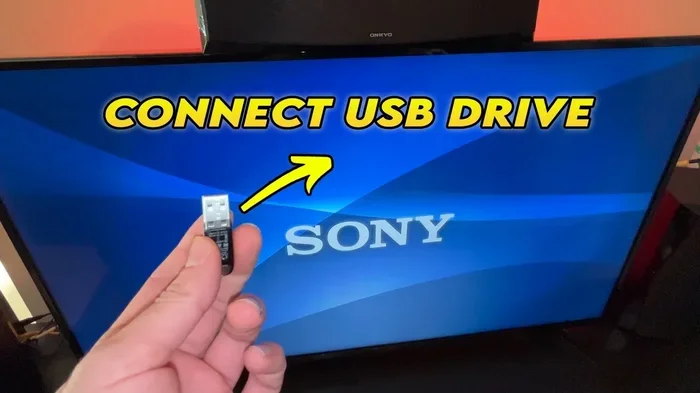
- Find the USB port on your TV. It is usually on the back panel or the side edge.
- Insert your USB drive gently into the port. It should fit snugly but not forcefully.
- Turn on your TV if it is not already on.
- Use your remote to go to the Input or Source menu.
- Select the USB or Media Player option from the list.
- Your TV will now show the files stored on your USB stick.
- Navigate to your movie file and press OK or Enter to start playing.
That is it. No cables, no Wi-Fi, no extra apps. Your USB stick acts like a mini movie library right on your screen. Some TVs even let you browse photo galleries and music files from the same drive.
Where Is the USB Port on My TV?
The location of the USB port varies by TV brand and model. Here are the most common places to look:
- On the back panel: Often hidden behind a small door or flap.
- On the side edge: Easy to access when the TV is on a stand.
- Under the screen at the bottom: Common on wall-mounted TVs.
- On the TV stand or base: Some models have ports built into the stand.
If you cannot find the port, check your TV’s manual. You can also look up your model number online for a diagram. Most ports are labeled with a small USB icon to make them easy to spot.
Supported File Formats for USB Playback
This is where things get a little tricky. Not every video file will play on every TV. Your TV can only read certain file formats. If your movie is in a format your TV does not support, it will not play. Let us look at what works and what does not.
Video Formats Your TV Can Read
Most TVs support the following video formats for USB media playback:
- MP4 — the most widely supported format across all TV brands.
- AVI — works on most TVs but may have lower quality.
- MKV — supported by many smart TVs but not all standard models.
- MOV — Apple format, supported on some TVs but not all.
- WMV — works on most TVs, especially older models.
MP4 is the safest choice. If you want your movies to play on any TV, convert them to MP4 before copying them to your USB stick. There are free tools online that make this easy.
Audio and Photo Formats
Your USB drive is not just for movies. You can also enjoy music playback and view photo galleries on your TV. Here are the common formats supported:
- Audio: MP3, WMA, AAC, FLAC
- Photos: JPEG, PNG, BMP, GIF
These formats work on almost all TVs. You can create a mixed media library on one USB drive with movies, music, and photos all in one place.
File System Requirements
Your USB stick also needs to use the right file system. This is the way the drive organizes its data. The most compatible file systems for TVs are:
- FAT32 — works on virtually all TVs. This is the best choice.
- exFAT — supported by most modern smart TVs.
- NTFS — some TVs support this, but many do not.
If your TV cannot read your drive, the file system might be the problem. You can reformat your USB drive to FAT32 using your computer. Just remember that reformatting erases all the data on the drive, so back up your files first.
Common File Size and Storage Limits
Even if your TV supports a certain format, there may be limits on how large a single file can be. This is an important thing to know before you try to play a movie from USB.
The FAT32 4GB Limit
The FAT32 file system has a well-known limitation. It cannot handle individual files larger than 4GB. This matters because a full-length HD movie can easily be 4GB or more. If you try to copy a large movie file to a drive formatted as FAT32, the process will fail.
Here is how to work around this:
- Split the file: Use a video splitter tool to break the movie into smaller parts.
- Use exFAT: Format your drive to exFAT if your TV supports it. This removes the 4GB limit.
- Compress the video: Use a lower bitrate or resolution to reduce the file size.
For most people, converting the drive to exFAT is the easiest solution. It works with large files and is still widely supported by newer TVs.
Storage Capacity Considerations
How many movies can you fit on a USB stick? It depends on the drive size and the quality of your video files. Here is a rough guide:
| USB Drive Size | Approximate Movie Storage (HD) | Approximate Movie Storage (SD) |
|---|---|---|
| 8GB | 2-3 movies | 5-6 movies |
| 32GB | 8-10 movies | 20-25 movies |
| 64GB | 15-20 movies | 40-50 movies |
| 128GB | 30-40 movies | 80-100 movies |
Keep in mind that these numbers are estimates. Actual storage depends on the length and quality of each video. If you only watch a few movies a week, a 32GB drive is usually plenty.
Troubleshooting: USB Not Working on Your TV
Sometimes things do not go as planned. You plug in your USB stick and nothing happens. Do not worry. This is more common than you think, and it is usually easy to fix.
Why Won’t My TV Detect the USB Drive?
There are several reasons your television might not recognize your USB drive. Here are the most common causes:
- Wrong port: Some USB ports on TVs are for firmware updates only, not media playback. Try a different port if your TV has more than one.
- Wrong file system: Your drive might be formatted in a way your TV does not understand. Try reformatting to FAT32.
- Unsupported file format: Your video file might be in a format your TV cannot play.
- Drive not powered enough: Some external hard drives need more power than a TV USB port can provide.
- Dirty or damaged port: Dust or debris in the USB port can prevent a connection.
- Drive is too large: Very old TVs may not support drives larger than 32GB or 64GB.
Quick Fixes for Common Problems
Try these simple steps before giving up:
- Unplug and replug the drive. Sometimes the connection just needs a fresh start.
- Try a different USB port on your TV if available.
- Restart your TV after plugging in the drive.
- Check the file format of your movie. Convert it to MP4 if needed.
- Test the drive on your computer first to make sure it works.
- Clean the USB port gently with a dry cloth or compressed air.
If none of these work, the problem might be with the TV itself. Check your TV’s manual for a list of supported USB devices and file formats. You can also contact the manufacturer’s support team for help.
USB Stick vs. Streaming: Which Is Better for Watching Movies on TV?
You have options when it comes to watching movies on your TV. USB playback and streaming are the two most popular methods. Each has its own advantages. Let us compare them.
USB Playback
With a USB stick, you own your content. You do not need the internet. You do not pay monthly fees. You can watch your personal movie collection anytime. USB playback also means no buffering, no ads, and no subscription costs.
However, you are limited by the storage on your drive. You need to manage your files manually. And not every format or file size will work on every TV.
Streaming Services
Streaming gives you access to thousands of movies and shows instantly. You just need a good internet connection. Services like Netflix, Hulu, and Disney Plus offer huge libraries.
But streaming comes with monthly costs. You also need a strong and stable internet connection. And you cannot watch your own personal video files through a streaming service.
Comparison Table
| Feature | USB Playback | Streaming |
|---|---|---|
| Internet Required | No | Yes |
| Monthly Cost | None | Required |
| Personal Content | Yes | No |
| Buffering | None | Possible |
| Storage Limit | Drive capacity | Service limit |
| Setup Difficulty | Very easy | Easy |
| Content Variety | Your files only | Thousands of titles |
Many people use both methods. They stream for new content and use a USB stick for their personal movie collection. The best approach depends on your needs and preferences.
Expert Insights on USB TV Playback
We asked a few tech experts about the best practices for watching movies from USB on TV. Here is what they had to say:
Sarah M., Home Theater Specialist: “Always format your drive to FAT32 before using it with a TV. It is the most universally compatible format. And if you have 4K movies, check your TV’s manual first because not all TVs support 4K playback from USB.”
James T., TV Repair Technician: “The number one problem I see is people using drives formatted in NTFS. Most TVs simply cannot read NTFS. Switch to FAT32 or exFAT and most issues disappear right away.”
Lisa R., Smart TV Reviewer: “I always tell people to keep their USB sticks formatted and organized. Create folders for movies, music, and photos. It makes browsing much easier on the TV screen.”
These tips come from real-world experience. They can save you a lot of frustration and help you get the most out of your USB media playback setup.
Common Mistakes to Avoid When Using USB with Your TV
Even with the best intentions, people make mistakes that cause problems. Here are the most common ones to watch out for:
1. Skipping the Format Step
Many people plug in a brand new USB drive without formatting it first. This can lead to compatibility issues. Always format your drive to FAT32 or exFAT before using it with your TV.
2. Ignoring File Format Limits
Not all video files are created equal. If your movie is in an unsupported format, your TV will not play it. Check your TV’s supported formats list and convert your files if needed.
3. Using a Drive That Is Too Large
Older TVs may not recognize drives larger than 32GB or 64GB. If your TV is a few years old, check the manual before buying a large drive.
4. Pulling the Drive Out Without Ejecting
Always use the TV’s menu to safely eject the USB drive before unplugging it. Pulling it out while data is being read can corrupt your files.
5. Using a Powered Hub Instead of Direct Connection
Some people use a USB hub to connect their drive. This can cause power issues. Plug the USB stick directly into the TV’s port for the best results.
Can I Plug A USB Stick Into My Tv And Watch Movies — Final Thoughts
Plugging a USB stick into your TV is one of the easiest and most convenient ways to enjoy your personal movie collection. Whether you want to watch home videos, downloaded films, or family photos on the big screen, your TV’s USB port makes it possible. You do not need special equipment, internet access, or technical skills.
The key to success is understanding a few basics. Use the right file format, format your drive properly, and stay within your TV’s limits. Follow the tips in this guide and you will have a smooth media playback experience every time.
So go ahead. Plug in that USB drive, find your favorite movie, and enjoy it on the big screen. It is simple, it is free, and it works with almost any TV you own. Can I plug a USB stick into my TV and watch movies? Absolutely yes — and now you know exactly how to do it.
Frequently Asked Questions
Can any TV play movies from a USB stick?
Most TVs made after 2010 have a USB port that supports media playback. However, very old or very basic models may not support video files from USB. Check your TV’s manual or look for a USB port on the device to confirm compatibility.
What video format works best on a TV USB port?
MP4 is the most widely supported format across all TV brands. It offers great quality and small file sizes. If you want your movies to play on any TV without issues, convert your files to MP4 before copying them to your USB stick.
Do I need Wi-Fi to watch movies from a USB stick on my TV?
No, you do not need Wi-Fi at all. USB playback is a direct connection between your USB drive and your TV. This makes it a great option for watching movies in areas with poor internet access or when you want to avoid using your data.
Can I use an external hard drive instead of a USB flash drive?
Yes, you can use an external hard drive with most TVs. However, some hard drives require more power than a TV’s USB port can provide. If your TV does not recognize the hard drive, try using a powered USB hub or stick with a smaller flash drive instead.
Why does my TV say the USB device is not supported?
This message usually means your USB drive is formatted in a file system your TV does not recognize, or the files are in an unsupported format. Try reformatting the drive to FAT32 or converting your video files to MP4 to fix the issue.
How do I safely remove my USB stick from my TV?
Go to your TV’s Media Player or USB menu and select the option to eject or disconnect the device. This ensures all data is saved properly. Never pull the drive out while the TV is still reading or writing to it.
=== CONCLUSION ===
Plugging a USB stick into your TV to watch movies is simple, affordable, and works with almost any modern television. You do not need expensive equipment or complicated setup. Just plug in your USB drive, browse your files, and enjoy your favorite films on the big screen.
Remember to use the right file format, format your drive to FAT32, and stay within your TV’s storage and file size limits. These small steps make a huge difference in your media playback experience. Whether you are watching movies, viewing photo galleries, or enjoying music playback, a USB stick turns your TV into a personal entertainment center.
Now that you know how easy it is to connect USB devices to your TV, there is no reason not to try it. Grab your USB stick, load it with your favorite movies, and enjoy a better viewing experience tonight. Can I plug a USB stick into my TV and watch movies? Yes — and you are ready to do it right now.