Can I Get A Hdmi To Displayport Cable And Adapter Guide
Yes, you can get an HDMI to DisplayPort cable or adapter to connect your devices seamlessly. This guide walks you through every option, from active adapters to passive converters, so you can pick the right solution for your monitor, TV, or gaming setup. We also cover common issues, expert tips, and step-by-step instructions to save you time and money.
You just bought a shiny new monitor with a DisplayPort input, but your laptop or PC only has HDMI output. What do you do? The good news is you can absolutely get an HDMI to DisplayPort solution. Whether you are a gamer, a creative professional, or just someone who wants a bigger screen, this guide has you covered.
In this article, we will explore every angle of the HDMI to DisplayPort connection question. You will learn how these two standards compare, which adapter type you need, and how to set everything up without headaches. We will also share practical tips and real-world examples so you can make the best decision for your setup.
The world of cables and adapters can feel confusing. There are so many options on the market, and not all of them work the same way. But do not worry. By the end of this guide, you will know exactly what to look for and how to get a strong, reliable signal from your HDMI source to your DisplayPort monitor.
Key Takeaways
- HDMI to DisplayPort adapters exist and work well: you can bridge the two standards with the right converter.
- Active adapters are usually needed: passive options only work in specific scenarios, especially with modern GPUs.
- Check your GPU and monitor specs: compatibility depends on the source device, not just the cable or adapter.
- 4K and high refresh rates are possible: but you need the right adapter version and bandwidth support.
- Common issues are easy to fix: most problems come from driver settings, incorrect adapter type, or faulty cables.
- Quality matters: cheap adapters often fail with 4K content or cause signal drops and audio issues.
- Always test your setup before buying: verify compatibility with your specific devices to avoid returns and frustration.
📑 Table of Contents
Understanding HDMI and DisplayPort Basics
Before we dive into adapters, let us quickly cover what HDMI and DisplayPort actually are. Both are digital display interfaces used to send video and audio from a source device to a display. They are the two most common connection types you will find on monitors, TVs, and projectors today.
What Is HDMI?
HDMI stands for High-Definition Multimedia Interface. It is the most widely used connection standard in consumer electronics. You will find HDMI ports on almost every TV, streaming device, game console, and laptop. HDMI carries both video and audio signals through a single cable, which makes it incredibly convenient.
The latest version is HDMI 2.1, which supports massive bandwidth for 4K at 120Hz and even 8K resolution. But most devices still use HDMI 2.0, which handles 4K at 60Hz just fine for everyday use. The standard has evolved over the years, but the basic idea remains the same. One cable carries high-quality video and sound from your source to your screen.
What Is DisplayPort?
DisplayPort is a digital display interface developed by VESA, a standards organization. It is especially popular in the PC and monitor world. DisplayPort offers excellent bandwidth and supports high resolutions and refresh rates, making it a favorite among gamers and professionals.
DisplayPort 1.4 is the most common version you will encounter. It supports 4K at 120Hz and even 8K at lower refresh rates. The newer DisplayPort 2.1 standard pushes bandwidth even further. Many high-end monitors use DisplayPort because it handles multi-monitor setups and adaptive sync technologies like FreeSync and G-Sync very well.
Why Do HDMI and DisplayPort Need Adapters?
HDMI and DisplayPort use different signaling protocols. Think of them like two different languages. A device speaking HDMI cannot directly understand DisplayPort, and vice versa. An adapter or converter acts as a translator between the two. It takes the HDMI signal and converts it into a DisplayPort signal so your monitor can display it correctly.
This is why you cannot simply plug an HDMI cable into a DisplayPort monitor and expect it to work. You need a dedicated HDMI to DisplayPort adapter or a cable with a built-in converter. The type of adapter you need depends on your specific devices and what you want to achieve.
Can You Connect HDMI to DisplayPort Directly?
The short answer is no. You cannot connect an HDMI output directly to a DisplayPort input without some form of conversion. The pin layouts and signal types are completely different. But the good news is that adapters and converter cables make this process simple and affordable.
Why Passive Cables Do Not Always Work
You might find HDMI to DisplayPort cables that look like simple pass-through cables. These are called passive adapters. They work in very specific situations. For example, some DisplayPort monitors support dual-mode DisplayPort, which can accept an HDMI signal when a passive adapter is used.
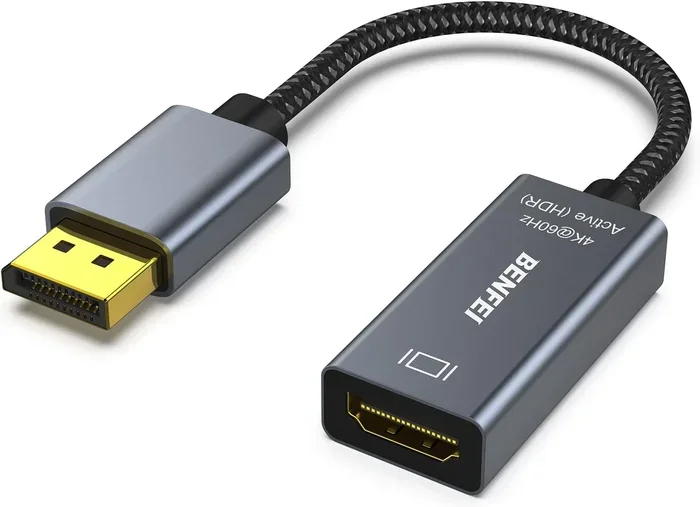
However, passive adapters only work when the source device can output a DisplayPort-compatible signal through HDMI. Most modern GPUs and laptops cannot do this. That means a passive adapter will likely not work for most people. You almost always need an active HDMI to DisplayPort adapter that has a built-in chip to convert the signal.
When Does a Passive Adapter Work?
Passive adapters work in limited scenarios. Here are a few cases where they might be viable:
- Dual-mode DisplayPort monitors: Some monitors support DisplayPort++ or dual-mode, which allows them to accept HDMI input through a passive adapter.
- Older GPUs: Certain older graphics cards can output a compatible signal that passive adapters can handle.
- Specific device combinations: Some laptops and docking stations support passive conversion, but this is rare.
For most users, an active adapter is the safest and most reliable choice. Active adapters have their own processing chip that handles the signal conversion. They work with virtually any HDMI source and DisplayPort monitor combination.
Active vs Passive Adapters Explained
Understanding the difference between active and passive adapters is crucial. Choosing the wrong type is the most common mistake people make when buying an HDMI to DisplayPort solution. Let us break it down clearly.
Active Adapters
An active adapter contains a built-in chip that converts the HDMI signal to DisplayPort. It needs power to work, usually drawn through a USB port or the DisplayPort connection itself. Active adapters are universal and work with almost all HDMI sources and DisplayPort monitors.
These adapters are more expensive than passive ones, but they are worth every penny. They support higher resolutions, better refresh rates, and more reliable audio transmission. If you want a hassle-free setup, go with an active adapter every time.
Passive Adapters
A passive adapter does not have a conversion chip. It simply changes the physical connector shape without altering the signal. This only works when the source device already outputs a signal the monitor can understand.
Passive adapters are cheaper, but they are very limited in compatibility. If your GPU or laptop does not support dual-mode DisplayPort, a passive adapter will not work. You will end up with a blank screen and a lot of frustration.
Quick Comparison Table
| Feature | Active Adapter | Passive Adapter |
|---|---|---|
| Signal Conversion | Yes, built-in chip | No, just changes connector |
| Power Required | Yes, usually USB | No |
| Compatibility | Almost universal | Very limited |
| 4K Support | Yes, with proper model | Rarely |
| Price Range | $15 to $50 | $5 to $15 |
| Audio Support | Yes | Sometimes |
| Best For | Most users | Specific dual-mode setups |
When in doubt, always choose an active adapter. The small extra cost saves you from compatibility headaches and returns. It is the most reliable way to get your HDMI to DisplayPort connection working perfectly.
Step-by-Step Setup Guide
Setting up an HDMI to DisplayPort connection is straightforward once you have the right adapter. Follow these steps to get everything working quickly and correctly.
Step 1: Check Your Devices
Before buying anything, check the ports on your source device and your monitor. Look at the back of your laptop, PC, or console. Do you see an HDMI output? Now check your monitor. Does it have a DisplayPort input? Confirming both ports exist is the first step.
Also, check your GPU model if you are using a desktop PC. Some older graphics cards have limited compatibility with certain adapters. Visit the manufacturer website if you are unsure about your specific model.
Step 2: Choose the Right Adapter
Based on what you learned earlier, pick an active HDMI to DisplayPort adapter. Make sure it supports the resolution and refresh rate you need. If you want 4K at 60Hz, choose an adapter that explicitly states 4K support. For 1080p or 1440p, most adapters will work fine.
Look for adapters from reputable brands. Brands like Cable Matters, Club3D, and StarTech are well-known for quality HDMI to DisplayPort adapters. Avoid the cheapest no-name options, as they often have poor signal quality and compatibility issues.
Step 3: Connect the Adapter
Plug the HDMI end of the adapter into your source device. Then connect the DisplayPort end to your monitor. If the adapter needs external power, plug in the USB cable to a USB port on your PC or use a wall charger.
Once connected, turn on your monitor and switch the input source to DisplayPort. Your device should recognize the adapter and display the signal. If the screen stays black, do not panic. Move to Step 4.
Step 4: Adjust Display Settings
If you see a blank screen, go to your display settings on your computer. On Windows, right-click the desktop and select Display Settings. On macOS, go to System Settings and then Displays. Make sure the DisplayPort monitor is detected and set as the primary or extended display.
You may also need to update your graphics drivers. Outdated drivers can cause detection issues with adapters. Visit your GPU manufacturer website and download the latest driver for your card.
Step 5: Test Audio
One thing to keep in mind is audio routing. HDMI carries audio, but when you use an adapter, the audio path may change. Check your sound settings to make sure audio is outputting through the correct device. Sometimes you need to set DisplayPort as the default audio output in your system settings.
Common Problems and How to Fix Them
Even with the right adapter, you might run into issues. These are very common and usually easy to fix. Here are the most frequent problems people encounter with their HDMI to DisplayPort setup.
No Signal or Blank Screen
A blank screen is the most common complaint. The first thing to check is whether the adapter is receiving power. If it has a USB power cable, make sure it is plugged in. Next, try a different DisplayPort cable or a different port on your monitor. Sometimes the issue is simply a loose connection.
Another common cause is an incompatible adapter type. If you bought a passive adapter and your GPU does not support dual-mode, it will not work. Switch to an active adapter and the problem will likely disappear.
Low Resolution or Flickering
If your display looks blurry or flickers, the adapter may not support your desired resolution or refresh rate. Check the adapter specifications and make sure it supports the resolution you are trying to use. Also, update your GPU drivers, as outdated drivers can cause display instability.
Try reducing the resolution temporarily to see if the signal stabilizes. If it does, your adapter may not handle the higher resolution. This is especially common with budget adapters that do not meet the bandwidth requirements for 4K content.
No Audio Through DisplayPort
Audio issues happen more often than you might think. When using an HDMI to DisplayPort adapter, the audio signal sometimes does not route correctly. To fix this, go to your system sound settings and set DisplayPort as the default audio output device.
On Windows, right-click the speaker icon in your taskbar, select Open Sound Settings, and choose DisplayPort under Output. On macOS, go to Sound Preferences and select the DisplayPort output. This simple change usually resolves audio problems instantly.
Adapter Overheating
Some active adapters can get warm during use, especially when running high-resolution content for long periods. This is normal to a degree. However, if the adapter gets too hot to touch or causes signal drops, it may be underpowered or defective.
Make sure the adapter has proper ventilation and is not buried under other hardware. If it comes with a USB power cable, always use it. A powered adapter runs cooler and more reliably than one drawing power solely from the DisplayPort connection.
Best HDMI to DisplayPort Adapters and Cables
Not all adapters are created equal. The market is flooded with cheap options that fail at the first hurdle. Here are some trusted choices that deliver reliable performance for your HDMI to DisplayPort needs.
Top Picks for Most Users
- Cable Matters Active HDMI to DisplayPort Adapter: A solid all-rounder that supports 4K at 60Hz. It is well-reviewed and affordable. Great for office work and gaming alike.
- Club3D CAC-1060: A premium choice with excellent build quality. Supports 4K and works reliably with most GPUs. Slightly pricier but worth it for long-term use.
- StarTech USB3HDMVDP: This adapter uses USB 3.0 for power and offers wide compatibility. It is a great option if your adapter keeps losing signal.
Budget-Friendly Options
You do not have to spend a fortune to get a working setup. Several budget adapters handle 1080p and 1440p very well. Just be cautious with extremely cheap options from unknown brands. They often have poor signal quality and may not support higher resolutions or refresh rates.
Read reviews before buying any budget adapter. Look for user feedback on 4K performance, audio quality, and long-term reliability. A slightly more expensive adapter from a reputable brand will save you money in the long run by avoiding replacements and frustration.
Expert Tips for the Best Performance
Getting the most out of your HDMI to DisplayPort setup is about more than just plugging things in. Here are some expert tips that make a real difference in your daily use.
Use High-Quality Cables
The adapter is only as good as the cables connected to it. Use certified HDMI and DisplayPort cables that support the bandwidth you need. Cheap, unbranded cables can introduce signal loss, flickering, and audio dropouts. Invest in quality cables from trusted brands like Monoprice, Cable Matters, or VESA-certified options.
Keep Drivers Updated
Graphics driver updates often include fixes for display compatibility issues. Make it a habit to check for updates every few weeks, especially after a major Windows or macOS update. Updated drivers improve stability, resolution support, and overall performance with adapters.
Match Your Adapter to Your Resolution Needs
Not every adapter supports every resolution. Before buying, confirm that the adapter supports the resolution and refresh rate of your monitor. A 1080p monitor has different requirements than a 4K monitor at 144Hz. Check the product specifications carefully and do not assume all adapters are equal.
Consider a DisplayPort Daisy Chain for Multi-Monitor Setups
If you are connecting multiple monitors, consider whether your GPU supports DisplayPort daisy chaining. This allows you to connect multiple monitors through a single DisplayPort output using a daisy chain topology. It keeps your desk cleaner and reduces the number of adapters you need.
However, daisy chaining requires DisplayPort 1.2 or higher and monitors that support MST (Multi-Stream Transport). Not all monitors support this feature, so check your monitor specifications before relying on it.
Final Thoughts
So, can you get an HDMI to DisplayPort connection? Absolutely yes. With the right active adapter and a quality cable, you can connect any HDMI source to any DisplayPort monitor without breaking a sweat. The key is understanding the difference between active and passive adapters and choosing the right one for your specific setup.
Remember to check your device compatibility before buying, use high-quality cables, and keep your graphics drivers up to date. These simple steps will save you hours of frustration and ensure your display looks sharp and performs reliably every time.
Whether you are setting up a gaming rig, a home office, or a creative workstation, the HDMI to DisplayPort adapter is a small but essential tool. It bridges the gap between two of the most common display standards and opens up more flexibility for how you use your screens. Pick the right adapter, follow the setup steps in this guide, and enjoy your new display configuration with confidence.
Frequently Asked Questions
Can I plug an HDMI cable directly into a DisplayPort monitor?
No, you cannot plug an HDMI cable directly into a DisplayPort monitor. The connectors have different shapes and use different signaling protocols. You need an HDMI to DisplayPort adapter or converter cable to bridge the two. An active adapter is the most reliable option for most setups.
Do I need an active or passive HDMI to DisplayPort adapter?
For most users, an active adapter is the right choice. Active adapters have a built-in chip that converts the HDMI signal to DisplayPort, making them compatible with virtually all devices. Passive adapters only work in specific dual-mode scenarios and are not reliable for most setups.
Can I get 4K resolution with an HDMI to DisplayPort adapter?
Yes, you can get 4K resolution, but only with a quality active adapter that explicitly supports 4K. Check the adapter specifications before buying. Budget adapters may only support 1080p or 1440p and will not handle 4K content properly.
Why does my HDMI to DisplayPort adapter have no audio?
Audio routing can change when using an adapter. Go to your system sound settings and set DisplayPort as the default audio output device. On Windows, right-click the speaker icon and choose the DisplayPort output. This simple fix resolves audio issues in most cases.
Are expensive HDMI to DisplayPort adapters worth it?
Yes, investing in a quality adapter from a reputable brand pays off in reliability and performance. Cheap adapters often have poor signal quality, overheat, or fail to support higher resolutions. Brands like Cable Matters, Club3D, and StarTech offer dependable options at reasonable prices.
Can I use an HDMI to DisplayPort adapter for gaming?
Yes, you can use an HDMI to DisplayPort adapter for gaming. Make sure the adapter supports your desired resolution and refresh rate. For competitive gaming at high refresh rates like 144Hz, choose an adapter that explicitly supports those specs and uses a reliable conversion chip.
=== CONCLUSION ===
Getting an HDMI to DisplayPort connection is straightforward once you know what to look for. The right HDMI to DisplayPort adapter or cable solves the compatibility gap between two of the most common display standards. Active adapters are the safest and most universal choice, offering reliable signal conversion for virtually any setup.
Avoid passive adapters unless you have confirmed your devices support dual-mode. Choose adapters from reputable brands, match the specifications to your resolution needs, and always test your setup thoroughly. With the right approach, you will enjoy a seamless, high-quality display connection every single time.