Can I Connect 2 Hdmi Cables To One Port Right Here
Can I Connect 2 HDMI Cables To One Port? The short answer is no, not directly. You need a proper HDMI splitter or switch to share one port between multiple devices. This guide breaks down every solution, mistake, and tip so you can set up your display the right way without signal loss or frustration.
Have you ever looked at your TV or monitor and thought, “I wish I could plug in two devices to this one HDMI port”? It happens all the time. Maybe you have a gaming console and a streaming stick, or a laptop and a Blu-ray player. You want them both connected, but there is only one HDMI port available. So what do you do?
The first thing many people try is just plugging in two HDMI cables to the same port. It seems logical, right? But here is the thing — it does not work that way. An HDMI port accepts one cable connection at a time. Trying to jam two cables into a single port will not give you dual input. It will give you nothing at all, or worse, it could damage your port. So can I connect 2 HDMI cables to one port? Not by just plugging them in. But there are real, working solutions, and this guide walks you through every single one of them.
Whether you are setting up a home theater system, a dual-monitor workstation, or a simple entertainment center, understanding how to manage your HDMI connections is essential. We are going to cover splitters, switches, adapters, and common mistakes. By the end of this article, you will know exactly what to buy and how to set it up correctly.
Key Takeaways
- You Cannot Plug Two HDMI Cables Into One Port Directly: HDMI ports are designed for a single cable input. Trying to force two cables in will not work and may damage your port.
- An HDMI Splitter Duplicates the Signal: A splitter sends the same content to multiple displays from one source device.
- An HDMI Switch Shares One Port Across Multiple Devices: A switch lets you connect several devices to a single display input.
- Signal Quality Matters: Cheap splitters or switches can degrade your picture, especially at 4K or 8K resolutions.
- HDMI Version Compatibility Is Crucial: Always match your HDMI cable type and port version for the best performance.
- Common Mistakes Cause Problems: Using the wrong adapter or ignoring cable length can ruin your setup.
📑 Table of Contents
- What Happens When You Try to Connect 2 HDMI Cables to One Port
- The Real Solution: HDMI Splitters and Switches
- Can You Physically Connect Two HDMI Cables Together
- When You Might Actually Need Two HDMI Cables to One Port
- Common Mistakes People Make With HDMI Connections
- Expert Tips for a Better HDMI Setup
- Final Thoughts on Connecting Multiple HDMI Devices
What Happens When You Try to Connect 2 HDMI Cables to One Port
Let us start with the basics. An HDMI port on your TV, monitor, or projector is built to accept one HDMI cable at a time. Inside that port, there are tiny pins that carry the audio and video signal. When you insert one cable, those pins make contact and transmit your audio video signal perfectly. When you try to insert a second cable, there is no extra space. The pins cannot connect to two cables at once.
Here is what typically happens when you try this:
- Nothing displays on screen: The port cannot recognize either cable properly.
- Intermittent signal: If both cables are partially inserted, you might get a flickering display.
- Potential port damage: Forcing two cables can bend or break the internal pins.
- No signal error: Your device may show a “no signal” message constantly.
The bottom line is clear. You cannot simply split an HDMI port by plugging in two cables. The HDMI port is a single-input connection by design. So what can you do instead? That is where the real solutions come in.
Why People Try This in the First Place
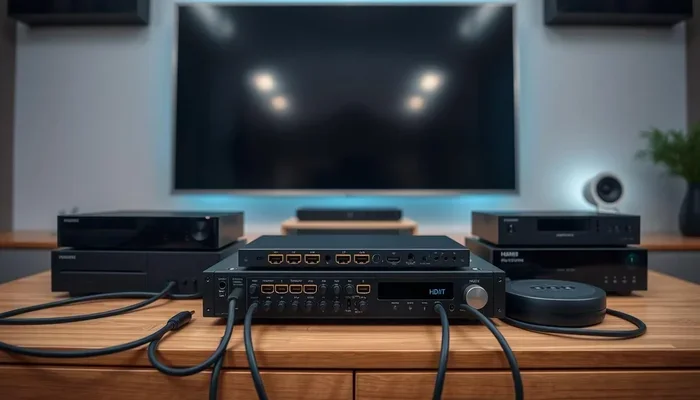
Many people run into this problem because they have more devices than ports. A modern living room might have a cable box, a gaming console, a streaming stick, and a soundbar — all competing for one or two HDMI ports on the back of a TV. When you run out of ports, the natural instinct is to try and double up. But understanding why it does not work helps you find the right fix faster.
The Real Solution: HDMI Splitters and Switches
If you cannot plug two cables into one port directly, then you need a helper device. Two products solve this problem in very different ways: an HDMI splitter and an HDMI switch. People often confuse these two, but they do opposite things. Let us break down each one clearly.
HDMI Splitter: Duplicating the Signal
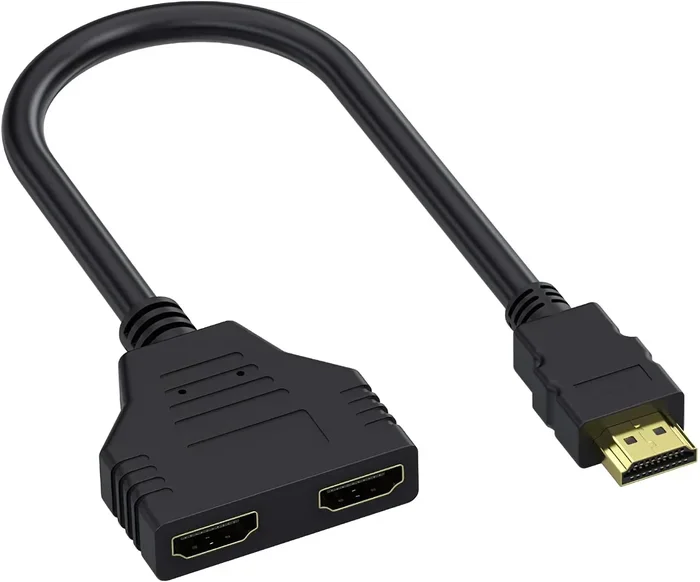
An HDMI splitter takes one input and sends the same signal to multiple outputs. For example, you plug your gaming console into the splitter’s input, and then the splitter sends that signal to two or more TVs or monitors. This is perfect when you want to show the same content on multiple screens.
Here is how a basic setup works:
- Plug your source device into the splitter’s input port.
- Run separate HDMI cables from the splitter’s output ports to each display.
- Power on the splitter if it requires external power.
- Select the correct input on each display.
Splitters come in different sizes. You can find a 1-to-2 splitter for two screens or a 1-to-4 splitter for four screens. Some splitters also amplify the signal to prevent loss over long cable runs. When shopping for one, look for HDMI 2.0 or HDMI 2.1 support if you want to enjoy 4K or even 8K resolution without any lag.
HDMI Switch: Sharing One Port Among Multiple Devices
An HDMI switch does the opposite of a splitter. It takes multiple inputs and sends them to one output. This is exactly what you need when your TV has only one free HDMI port but you have three or four devices you want to use.
Think of it like a power strip for HDMI connections. You plug all your devices into the switch, and then you use one cable to connect the switch to your TV. Most switches come with a remote control so you can toggle between devices easily.
A typical setup looks like this:
- Connect your cable box, gaming console, and streaming stick to the switch inputs.
- Use one HDMI cable from the switch output to your TV.
- Use the remote to switch between devices whenever you want.
The key benefit here is cable management. Instead of unplugging and replugging cables every time you want to change devices, you just press a button. It is clean, simple, and saves a lot of wear and tear on your ports.
Can You Physically Connect Two HDMI Cables Together
Some people wonder if they can just join two HDMI cables end to end using an adapter or coupler. The answer is yes, but with important caveats. An HDMI adapter or coupler can extend a cable, but it does not create a second input on a single port. You are simply making one longer cable, not splitting a connection.
When you daisy-chain cables this way, you may experience slight signal degradation. The longer the total cable length, the weaker the signal can become. For short extensions, this usually does not matter. But if you are running cables across a room, you might notice picture quality issues, especially with high-resolution content.
If you need to extend an HDMI connection, consider an active HDMI extension cable or an HDMI-over-Ethernet extender. These solutions boost the signal and maintain quality over longer distances. A simple coupler works fine for short runs, but active solutions are better for anything over 10 feet.
HDMI Cable Types and Their Impact
Not all HDMI cables are created equal. The cable you use matters a lot for performance. Here is a quick look at the main types:
- Standard HDMI: Supports up to 1080p. Fine for older devices and basic setups.
- High Speed HDMI: Supports 4K at 30Hz. Good for most home entertainment.
- Premium High Speed HDMI: Supports 4K at 60Hz and HDR. Great for modern TVs and consoles.
- Ultra High Speed HDMI: Supports 8K and 4K at 120Hz. Best for cutting-edge setups.
Using the wrong cable type with a splitter or switch can limit your resolution and refresh rate. Always match your cables to your device capabilities.
When You Might Actually Need Two HDMI Cables to One Port
There are a few real-world scenarios where people genuinely need to share one HDMI port between two sources. Understanding these situations helps you choose the right solution.
Scenario 1: The Hotel Room Setup. You are traveling and need to connect both your laptop and your phone to the hotel TV, which has only one HDMI port. An HDMI switch solves this instantly. You plug both devices into the switch, and the single output goes to the TV.
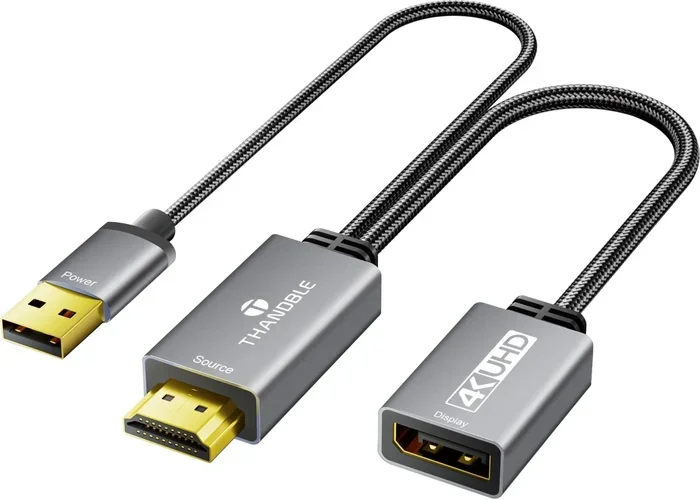
Scenario 2: The Home Office Dual Monitor. Your laptop has one HDMI output but you want to run two external monitors. In this case, you might need a different approach, like a docking station or a USB-to-HDMI adapter. A splitter would duplicate the same image on both monitors, which is not always what you want for work.
Scenario 3: The Arcade Cabinet Build. You are building a retro gaming cabinet and want multiple systems connected to one monitor. An HDMI switch lets you toggle between a NES, SNES, and PlayStation without unplugging cables.
In each case, the solution is the same: use a helper device. You cannot bypass the physics of a single port, but you can work around it smartly.
Quick Tips for Choosing the Right Device
- Count how many devices you need to connect.
- Check how many free ports your display actually has.
- Make sure your splitter or switch supports your resolution (1080p, 4K, or 8K).
- Look for devices with remote controls for easy switching.
- Read reviews for signal quality and reliability before buying.
Common Mistakes People Make With HDMI Connections
Even when people know the right solution exists, they still make avoidable errors. Here are the most common mistakes that cause frustration with HDMI setups.
Mistake 1: Buying a Cheap Splitter. Not all splitters are created equal. A $10 splitter from an unknown brand might distort your signal or fail to pass through 4K content. Invest in a reputable brand that supports your resolution and includes proper signal amplification.
Mistake 2: Ignoring HDMI Version Compatibility. If your TV supports HDMI 2.1 but your switch only supports HDMI 1.4, you will not get the full benefit. Always check the version compatibility of every piece in your chain.
Mistake 3: Using Too Many Adapters. Stacking multiple adapters together creates points of signal loss. Each connection is a potential weak spot. Keep your setup as simple as possible.
Mistake 4: Overlooking Cable Length. Long, unshielded cables can pick up interference. If you need a long run, use a high-quality certified cable or an active extender.
Mistake 5: Forgetting About Audio Return Channel (ARC). If you are connecting a soundbar or AV receiver, make sure your setup supports HDMI ARC. A basic splitter might not pass back the audio signal your sound system needs.
How to Avoid These Mistakes
The easiest way to avoid problems is to plan your setup before buying anything. Write down your devices, your display, and your resolution needs. Then choose a splitter or switch that matches all of those requirements. Taking five minutes to plan can save hours of frustration later.
Expert Tips for a Better HDMI Setup
After helping hundreds of people set up their displays, here are the tips that make the biggest difference. These are practical, actionable steps that anyone can follow.
Tip 1: Label Your Cables. When you have multiple devices connected through a switch, it helps to label each cable. Use colored tape or a label maker. When you need to troubleshoot, you will know exactly which cable goes where.
Tip 2: Use a Powered Splitter for Long Runs. Passive splitters lose signal strength over distance. If you need to run cables more than 15 feet, get a powered splitter with its own power supply. It makes a noticeable difference in picture quality.
Tip 3: Firmware Updates Matter. Some modern TVs and devices need firmware updates to work properly with splitters and switches. Check for updates on all your devices before setting everything up.
Tip 4: Test One Device at a Time. If your setup is not working, disconnect everything and test one device at a time. This isolates the problem and saves you from guessing.
Tip 5: Keep Your Cables Organized. Use cable ties or a cable management box to keep your setup clean. Good organization reduces strain on connections and makes your setup look professional.
Comparison Table: HDMI Splitter vs HDMI Switch
| Feature | HDMI Splitter | HDMI Switch |
|---|---|---|
| Direction of Signal | One input to multiple outputs | Multiple inputs to one output |
| Best For | Showing same content on multiple screens | Connecting multiple devices to one display |
| Example Use | Digital signage, mirror displays | Home theater, gaming setups |
| Needs Power? | Usually yes for multi-output models | Often no for basic models |
| Signal Quality Risk | Moderate with long runs | Low for short runs |
| Price Range | $10 to $80 | $10 to $50 |
Both devices are affordable and widely available online. The right choice depends entirely on what you are trying to achieve. If you want one source to feed multiple screens, get a splitter. If you want multiple sources to feed one screen, get a switch.
Final Thoughts on Connecting Multiple HDMI Devices
So, can I connect 2 HDMI cables to one port? Not directly, but you absolutely can achieve the result you want with the right tool. An HDMI splitter or HDMI switch opens up your options and lets you connect as many devices as you need without constantly unplugging cables.
The key is understanding your setup. Know how many devices you have, how many ports your display offers, and what resolution you need. Then pick a splitter or switch that fits those requirements. Avoid the common mistakes we covered, and invest in quality cables and devices.
Your home theater setup or office display should work seamlessly, not be a source of daily frustration. With the right approach, connecting multiple devices to limited ports is simple and reliable. Take what you learned here, apply it to your setup, and enjoy a clean, organized connection that just works every time.
Now you have everything you need to make the right choice. Whether it is a splitter, a switch, or a better cable, you are ready to go. Set up your devices with confidence and enjoy your content on every screen you own.
Frequently Asked Questions
Can I use an HDMI splitter to connect two consoles to one TV?
Yes, an HDMI splitter duplicates the signal, so both consoles would show the same content on the same screen. However, if you want to switch between consoles on one TV, you need an HDMI switch instead. A splitter mirrors; a switch selects. Make sure your splitter supports your console’s resolution for the best experience.
Will an HDMI switch reduce my picture quality?
A good quality HDMI switch will not reduce your picture quality at all. Cheap or unbranded switches may not support 4K or HDR properly, which can cause a drop in quality. Always buy a switch that matches your resolution and refresh rate requirements to maintain full signal integrity.
Do I need a powered HDMI splitter or will a passive one work?
For short cable runs under 10 feet, a passive splitter usually works fine. For longer runs or when connecting to multiple displays, a powered splitter with its own power supply is better. It boosts the signal and prevents loss of picture quality over distance.
Can I connect two HDMI cables together to make one longer cable?
Yes, you can use an HDMI coupler or adapter to join two cables end to end. This extends the total length of your cable run. Just be aware that each connection point can introduce slight signal loss. Use high-quality cables and couplers to minimize any degradation.
What is the difference between HDMI ARC and regular HDMI?
HDMI ARC stands for Audio Return Channel. It allows your TV to send audio back to a soundbar or AV receiver through the same HDMI cable. A standard HDMI cable only sends video from the source to the display. If you use a sound system, make sure your splitter or switch supports HDMI ARC for full audio functionality.
How many devices can I connect with an HDMI switch?
HDMI switches come in various sizes, typically ranging from 2 inputs to 8 inputs or more. A 5-port switch is popular for home setups with a cable box, gaming console, streaming stick, and laptop. Choose a switch with enough inputs for your current devices and a couple of spare ports for future additions.
=== CONCLUSION ===
Can I Connect 2 HDMI Cables To One Port directly? No, but with the right HDMI splitter or HDMI switch, you can connect multiple devices to a single port effortlessly. Understanding the difference between these two devices is the first step toward a clean, organized setup. Avoid the common mistakes we covered, choose quality equipment that matches your resolution needs, and your display will work exactly the way you want it to.
Take action today. Check your current setup, identify your needs, and grab the right accessory. A small investment in an HDMI splitter or switch saves you time, frustration, and the hassle of constantly unplugging cables. Enjoy your devices and your content with a setup that is built to work.