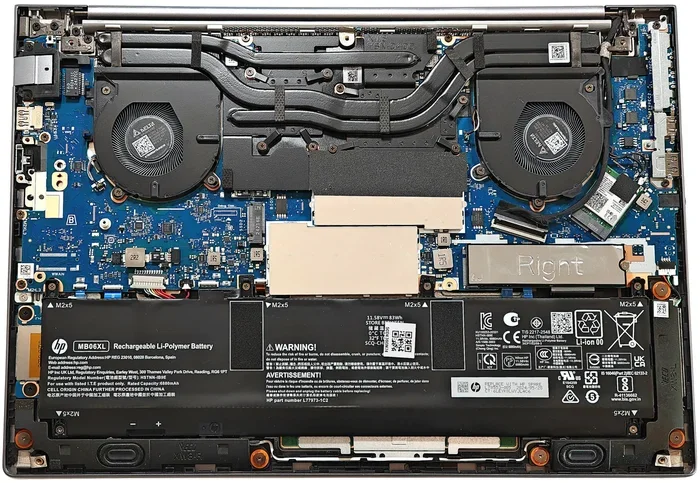
Can Hp Zbook Be Upgraded for Better Performance Today
Yes, the HP ZBook can be upgraded in several key areas including RAM, storage, and sometimes the processor or graphics card. Whether you own a ZBook Firefly, ZBook Power, or ZBook Fury, this guide walks you through every upgrade option available today. Learn what parts you can swap, what to watch out for, and how to get more speed from your workstation laptop.
The short answer is yes. The HP ZBook lineup is one of the most upgradeable workstation laptops on the market today. But the details matter a lot. What you can upgrade depends on your specific model, generation, and configuration.
Many professionals buy a ZBook and assume they are stuck with whatever specs they chose at purchase. That is simply not true. Whether you want more memory, faster storage, or a stronger graphics card, there are real paths forward. This guide breaks down every upgrade path in plain language so you can make smart decisions.
We will cover RAM upgrades, storage swaps, GPU replacements, CPU options, cooling improvements, and more. You will also learn about common mistakes to avoid and tips that even seasoned tech users sometimes miss. Let us dive in.
Key Takeaways
- RAM upgrades are widely supported: Most HP ZBook models allow you to add or replace memory for better multitasking.
- Storage upgrades are simple and impactful: Swapping in a faster SSD can dramatically speed up boot times and file transfers.
- GPU upgrades are limited on some models: Certain ZBooks let you replace the graphics card, while others have it soldered to the motherboard.
- CPU upgrades depend on the model: Some ZBooks use socketed processors that can be swapped, but others do not.
- Cooling and thermal paste matter: A fresh thermal paste application can improve performance during heavy workloads.
- Always check compatibility first: Not all parts work with every ZBook generation or model number.
- Warranty may be affected: Opening your laptop can void the manufacturer’s warranty in some cases.
📑 Table of Contents
- Understanding the HP ZBook Lineup
- Upgrading RAM in Your HP ZBook
- Boosting Storage Speed with an SSD Upgrade
- Can You Upgrade the GPU on an HP ZBook?
- Processor Upgrades on HP ZBook
- Cooling System and Thermal Improvements
- Compatibility and What to Check Before Upgrading
- Cost vs Benefit: Which Upgrades Are Worth It?
- Common Mistakes People Make When Upgrading Their HP ZBook
- Final Thoughts on HP ZBook Upgrades
Understanding the HP ZBook Lineup
Before you upgrade anything, you need to know which ZBook you have. HP makes several lines within the ZBook family. Each line has different upgrade capabilities. Here is a quick overview.
ZBook Firefly
The ZBook Firefly is the lightest and most portable option. It is designed for professionals who need power on the go. The Firefly models are generally very upgradeable when it comes to RAM and storage. However, the GPU is often soldered to the motherboard, which means you cannot replace it easily.
ZBook Power
The ZBook Power sits in the middle of the lineup. It offers a great balance of portability and performance. You can upgrade the RAM and storage on most Power models. Some newer versions also allow you to swap the processor, but this depends on the specific generation you own.
ZBook Fury
The ZBook Fury is the beast of the family. It is built for heavy workloads like 3D rendering, video editing, and engineering simulations. The Fury models often have more upgrade options. You may be able to replace the GPU, CPU, and RAM depending on the exact model year and configuration.
Upgrading RAM in Your HP ZBook
RAM is one of the easiest and most impactful upgrades you can make. If your ZBook feels slow when you have many apps open, adding more memory can transform the experience. Most HP ZBook models support RAM upgrades, but the maximum amount varies by generation.
How to Check Your Current RAM
Before buying new memory, find out what you currently have. You can do this in Windows by opening Task Manager and clicking the Performance tab. Look at the Memory section to see how many slots are in use and what type of RAM is installed.
Steps to Upgrade ZBook RAM
Upgrading RAM on an HP ZBook is straightforward. Here is what you need to do.
- Power off your laptop completely.
- Unplug the charger and remove the battery if possible.
- Locate the RAM access panel on the bottom of the laptop.
- Use a screwdriver to remove the panel screws.
- Carefully remove the existing RAM sticks by pushing the side clips outward.
- Align the new RAM stick at an angle and press it down until it clicks.
- Replace the panel and screw it back in.
- Power on and verify the new memory is recognized.
What RAM Do You Need?
HP ZBooks typically use DDR4 or DDR5 SODIMM modules. Check your specific model number on HP’s support website to confirm the exact type. Most ZBooks support up to 64 GB of RAM across two slots. Some newer models can go even higher.
Quick Tip: Always buy RAM in matching pairs for dual-channel performance. This means if you have one 16 GB stick, add another 16 GB stick rather than a single 32 GB stick.
Boosting Storage Speed with an SSD Upgrade
If your ZBook still uses a traditional hard drive, upgrading to a solid-state drive is the single best thing you can do. An SSD cuts boot times dramatically and makes file transfers blazing fast. Most modern HP ZBooks already come with an SSD, but you can always swap in a larger or faster one.
Types of SSDs for HP ZBook
HP ZBooks use M.2 NVMe SSDs in most cases. These small drives plug directly into the motherboard and offer incredible speeds. Some older models may use a 2.5-inch SATA SSD or HDD bay instead.
How to Upgrade Your ZBook Storage
Here is a simple guide to swapping in a new SSD.
- Back up all your important files before starting.
- Open the laptop bottom panel or the dedicated SSD access cover.
- Unscrew the existing SSD and gently pull it out at an angle.
- Insert the new M.2 NVMe SSD at a 30-degree angle.
- Secure it with the mounting screw.
- Reinstall Windows or restore from your backup.
Expert Insight: Samsung 980 Pro and WD Black SN850 are excellent choices for ZBook SSD upgrades. They offer read speeds above 3,500 MB/s, which is a massive jump from older drives.
Can You Upgrade the GPU on an HP ZBook?
This is one of the most common questions people ask. The answer is: it depends on your model. Some HP ZBooks have a dedicated GPU that can be replaced, while others have the graphics chip soldered directly to the motherboard.
Models with Replaceable GPUs
Older ZBook Fury models from the 7000 and 8000 series often feature a socketed GPU. This means you can remove the existing graphics card and install a newer one. These models use mobile workstation GPUs from NVIDIA like the Quadro or RTX series.
Models with Soldered GPUs
Most newer ZBook models, especially the Firefly and some Power variants, use integrated or soldered graphics. In these cases, you cannot upgrade the GPU. The graphics capability is locked to what came with the laptop.
External GPU as an Alternative
If your ZBook has a Thunderbolt or USB-C port, you can use an external GPU enclosure. This is not an internal upgrade, but it does give you access to a much more powerful graphics card for heavy workloads. Just keep in mind that you will lose some performance compared to a fully internal GPU setup.
Common Mistake: Do not assume your ZBook GPU can be upgraded just because it has a dedicated card. Always check your specific model’s service manual before purchasing any GPU.
Processor Upgrades on HP ZBook
Upgrading the CPU on an HP ZBook is possible on some models but not all. The ZBook series uses Intel Core or Xeon processors, and a few models use AMD Ryzen or Threadripper options. The upgradeability depends entirely on whether the processor is socketed or soldered.
Socketed vs Soldered Processors
A socketed CPU sits in a removable slot on the motherboard. You can pull it out and drop in a newer compatible chip. A soldered CPU is permanently attached to the board and cannot be replaced without specialized equipment.
Which ZBook Models Support CPU Upgrades?
Older ZBook Power and Fury models from the 2016 to 2019 generations often use socketed processors. These give you the freedom to swap in a newer Intel Xeon or Core i9 chip for better performance. Always verify compatibility with HP’s official documentation before making a purchase.
Quick Tip: Even if your ZBook supports CPU upgrades, make sure your cooling system can handle the new processor’s heat output. A more powerful chip will generate more thermal energy, and an underpowered cooling system can lead to throttling.
Cooling System and Thermal Improvements
Upgrades generate more heat. If you add more RAM, a faster CPU, or a beefier GPU, your ZBook’s cooling system needs to keep up. Ignoring thermal management can lead to slowdowns, crashes, and even hardware damage over time.
Cleaning and Repasting
One of the simplest upgrades you can do is clean the internal fans and apply fresh thermal paste. Over time, dust builds up inside the laptop and the thermal paste dries out. This reduces heat transfer between the processor and the heatsink.
Here is what to do.
- Open the laptop and locate the CPU and GPU heatsinks.
- Remove the fans carefully and clean them with compressed air.
- Wipe off the old thermal paste with isopropyl alcohol.
- Apply a pea-sized dot of new thermal paste to the processor.
- Reassemble the heatsink and fans securely.
Upgraded Cooling Pads
If you use your ZBook on a desk most of the time, consider a cooling pad. These external stands blow cool air up into the laptop’s vents. They are not as effective as internal upgrades, but they do help maintain lower temperatures during long work sessions.
Compatibility and What to Check Before Upgrading
Not every part works with every ZBook model. Before you spend money on upgrades, do your homework. Checking compatibility first saves you time, money, and frustration.
Where to Find Your Model Number
Your ZBook model number is printed on a sticker on the bottom of the laptop. You can also find it in the BIOS or by running a system information tool in Windows. Write this number down and keep it handy.
HP Support Website
Go to the HP Support website and enter your model number. You will find a list of compatible parts, including RAM, SSDs, batteries, and more. This is the most reliable source for upgrade compatibility.
Warranty Considerations
Opening your laptop to perform upgrades can void the manufacturer’s warranty. If your ZBook is still under warranty, check with HP before opening it up. Some upgrades, like RAM and SSD swaps, are considered user-serviceable and may not void the warranty. But it is always best to confirm first.
Key Takeaway: Compatibility is king when upgrading any laptop. Always double-check that the part you want to buy is listed as compatible with your exact ZBook model.
Cost vs Benefit: Which Upgrades Are Worth It?
Not all upgrades deliver the same return on investment. Some upgrades give you a huge performance boost for a small price, while others cost a lot for marginal gains. Here is a breakdown of what is worth your money.
| Upgrade | Typical Cost | Performance Boost | Difficulty Level |
|---|---|---|---|
| RAM Upgrade | $30 – $100 | High for multitasking | Easy |
| SSD Upgrade | $60 – $200 | Very High for speed | Easy |
| Battery Replacement | $40 – $80 | Moderate for portability | Easy |
| Thermal Paste Refresh | $10 – $20 | Moderate for thermals | Medium |
| GPU Upgrade | $200 – $600+ | High for graphics work | Hard |
| CPU Upgrade | $200 – $500+ | High for processing | Hard |
Expert Insight: The RAM and SSD upgrades offer the best bang for your buck. They are cheap, easy to install, and make a noticeable difference in everyday use. If you have a tight budget, start with these two upgrades first.
Common Mistakes People Make When Upgrading Their HP ZBook
Even experienced users sometimes make avoidable mistakes when upgrading their laptops. Here are the most common ones and how to prevent them.
Buying Incompatible Parts
This happens more often than you might think. A RAM stick might physically fit into the slot but not be compatible with your ZBook’s motherboard. Always verify the part number and specifications before purchasing.
Skipping the Backup
Whenever you open up your laptop, there is always a risk of data loss. Before you start any upgrade, back up your important files to an external drive or cloud storage. It takes five minutes and can save you hours of headaches.
Forcing Parts Into Place
If a component does not slide in easily, do not force it. You may be holding it at the wrong angle or inserting it into the wrong slot. Double-check the orientation and try again gently.
Overlooking BIOS Updates
After a major hardware upgrade, it is a good idea to update your BIOS. HP releases BIOS updates that improve hardware compatibility and system stability. Check the HP Support website for the latest BIOS version for your model.
Final Thoughts on HP ZBook Upgrades
The HP ZBook is a powerful workstation laptop, and it is also one of the most upgradeable options in its class. Whether you need more RAM, faster storage, or a stronger graphics card, there are real upgrade paths available. The key is to know your specific model and check compatibility before you buy anything.
Start with the upgrades that give you the most benefit for the least effort. RAM and SSD upgrades are the easiest to do and the most impactful for everyday performance. From there, you can explore more advanced upgrades like GPU or CPU swaps if your model supports them.
Remember to take your time, follow the steps carefully, and always back up your data first. With the right upgrades, your HP ZBook can keep pace with your growing professional needs for years to come. An HP ZBook upgrade is one of the smartest investments you can make for your workflow.
Frequently Asked Questions
Can I upgrade the RAM on any HP ZBook model?
Most HP ZBook models support RAM upgrades, but the maximum amount and type of RAM vary by generation. Check your specific model number on HP’s support website to confirm the exact RAM specifications and maximum capacity.
Is it hard to upgrade the storage on an HP ZBook?
No, upgrading the storage on an HP ZBook is one of the easiest upgrades you can do. Most models use M.2 NVMe SSDs that you can swap out in just a few minutes with a screwdriver and a little patience.
Can I upgrade the GPU on my HP ZBook?
It depends on your model. Older ZBook Fury models from the 7000 and 8000 series often have socketed GPUs that can be replaced. Newer models typically have soldered GPUs that cannot be upgraded internally. You can also use an external GPU enclosure via Thunderbolt as an alternative.
Will upgrading my HP ZBook void the warranty?
This depends on your warranty terms and the specific upgrade. HP considers some upgrades like RAM and SSD swaps to be user-serviceable. However, opening the laptop can sometimes void the warranty. Always check with HP support before performing any internal upgrades.
What is the best SSD brand for an HP ZBook upgrade?
Samsung, Western Digital, and Crucial are all excellent choices for HP ZBook SSD upgrades. Look for M.2 NVMe SSDs with PCIe Gen 3 or Gen 4 support for the best performance. Make sure the physical size matches your ZBook’s SSD slot.
How often should I upgrade my HP ZBook components?
There is no set schedule for upgrades. Instead, upgrade when you notice performance bottlenecks. If your laptop struggles with multitasking, add RAM. If it takes too long to boot or load files, swap in a faster SSD. Upgrades should match your actual workflow needs.
=== CONCLUSION ===
The HP ZBook is built to grow with your professional demands. Upgrading your HP ZBook is not only possible but also one of the smartest ways to extend its useful life. From simple RAM and SSD swaps to more advanced GPU and CPU replacements, the upgrade options are real and accessible.
Start by identifying your specific ZBook model and checking what it supports. Then prioritize upgrades that deliver the most impact for your workflow. Whether you are a designer, engineer, data scientist, or creative professional, a well-planned HP ZBook upgrade can breathe new life into your machine and keep you productive for years to come.