Can Dvi Run 2560×1440 The Answer Might Surprise You
Can Dvi Run 2560×1440? The short answer is yes, but only with a dual-link DVI cable and the right hardware. Single-link DVI cannot handle QHD resolution, which catches many people off guard. This guide breaks down the technical details, cable types, and practical tips so you know exactly what your setup can do.
You just bought a 2560×1440 monitor, and you are itching to plug it in. You look at your graphics card and see a DVI port. You grab a DVI cable, connect everything, and… nothing. Or maybe you get a signal, but the image looks weird. So the big question comes up: can DVI run 2560×1440?
The answer is not a simple yes or no. It depends on several factors that most people do not think about until they are already frustrated. DVI technology has been around for decades, and it has evolved in ways that many users overlook. Understanding these differences can save you time, money, and a lot of headaches.
In this article, we will walk through everything you need to know. From single-link versus dual-link differences to bandwidth limits and real-world performance, you will get a clear picture of what your setup can handle. By the end, you will know exactly whether your DVI connection can deliver QHD resolution or if you need a different cable.
Key Takeaways
- Dual-link DVI can run 2560×1440: But only at 60Hz and with a compatible graphics card and cable.
- Single-link DVI falls short: It maxes out at 1920×1200, so you need to upgrade for QHD.
- Cable quality matters: A cheap or damaged DVI cable can cause flickering, artifacts, or no signal at all.
- Consider DisplayPort or HDMI: These modern alternatives offer better bandwidth and future-proofing for high-resolution displays.
- Check your graphics card: Not all GPUs support dual-link DVI at QHD resolutions, even if the cable does.
- An adapter can help: DVI-to-HDMI or DVI-to-DisplayPort adapters work but may add limitations.
📑 Table of Contents
What Is DVI and Why Does It Matter?
DVI stands for Digital Visual Interface. It was introduced in 1999 by the Digital Display Working Group. At the time, it was a big step forward from older analog connections like VGA. DVI carried a digital signal, which meant sharper images and less signal degradation.
But technology moves fast. What felt cutting-edge in 1999 is now considered legacy in many setups. Yet millions of monitors and graphics cards still include DVI ports. That is why understanding how DVI works matters more than you might think.
The Different Types of DVI Connectors
Not all DVI cables are the same. There are three main types, and each one behaves differently when you try to push high resolutions.
- DVI-A: This is an analog-only connector. It carries no digital signal at all. It is essentially a VGA replacement and cannot support 2560×1440 in any meaningful way.
- DVI-D: This is a digital-only connector. It comes in both single-link and dual-link versions. This is the one you want for modern displays.
- DVI-I: This is an integrated connector that supports both analog and digital signals. It can work with older and newer displays, but its resolution depends on whether it is single-link or dual-link.
Within each of these categories, you will find single-link and dual-link variants. This distinction is the most important factor when asking whether DVI can handle 2560×1440.
Can Single-Link DVI Handle 2560×1440?
The short answer is no. Single-link DVI uses a single transmitter with 12 pins. It relies on one TMDS channel to send data. That channel has a maximum bandwidth of about 165 megahertz.
With that bandwidth, single-link DVI can support resolutions up to 1920×1200 at 60Hz. That is full HD, essentially. But 2560×1440 requires significantly more data to be pushed every single frame. The pixel count alone is almost double what single-link DVI can handle.
If you try to force 2560×1440 through a single-link connection, you will likely run into one of these problems:
- The monitor simply will not display an image.
- The resolution drops automatically to something lower, like 1920×1080.
- You get a scrambled or flickering picture.
- The refresh rate falls far below 60Hz, making everything feel choppy.
So if your graphics card or monitor only has a single-link DVI port, you are out of luck for QHD resolution. You will need a different connection type or an adapter.
How to Tell If Your DVI Cable Is Single-Link
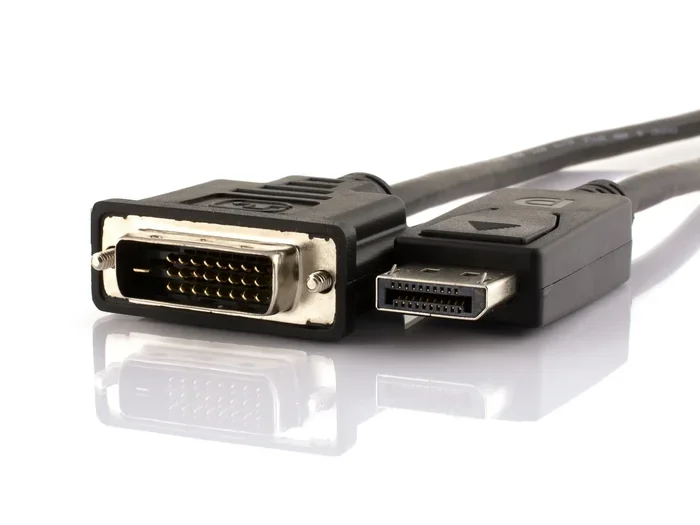
It is actually pretty easy to check. Look at the flat pin in the middle of the DVI connector. If there is a single wide flat pin, it is single-link. If there are two pins flanking a narrower center pin, it is dual-link. This small physical difference makes a huge impact on what resolutions you can use.
Dual-Link DVI: The Real Answer
Here is where things get interesting. Dual-link DVI doubles the bandwidth by adding six more pins to the connector. Instead of one TMDS channel, it uses two. This pushes the maximum bandwidth up to about 330 megahertz.
With that extra bandwidth, dual-link DVI can absolutely support 2560×1440 at 60Hz. This is the resolution many people call QHD or 2K. A dual-link DVI cable can deliver a crisp, clear image at this resolution without major issues.
However, there is an important caveat. The refresh rate is locked at 60Hz with standard DVI. You will not get the higher refresh rates that DisplayPort or modern HDMI versions can offer. For many users, 60Hz at 2560×1440 is perfectly fine. But gamers who want 144Hz or higher will need a different connection.
What Graphics Cards Support Dual-Link DVI at QHD?
Not all graphics cards are created equal. Even if you have a dual-link DVI port, the GPU itself needs to be capable of outputting a 2560×1440 signal. Here are some general guidelines:
- Older cards from the mid-2000s: Many of these only supported single-link DVI, even if the port looked like dual-link. Check your specific model.
- Mid-range cards from the last decade: Most support dual-link DVI and can output 2560×1440 without problems.
- Modern graphics cards: These almost always support dual-link DVI at QHD. But many newer cards are dropping DVI ports entirely in favor of DisplayPort and HDMI.
If you are unsure, check your graphics card specifications online. Look for the “maximum digital resolution” listed under the DVI output. It should say something like 2560×1600 at 60Hz for dual-link DVI.
How to Check If Your DVI Cable Supports QHD
Not all DVI cables are created equal, even if they look identical on the outside. The cable itself needs to support the bandwidth required for 2560×1440. A cheap or poorly made cable might not handle the data rate, even if the connector is dual-link.
Steps to Verify Your Cable
- Check the packaging or product listing: Look for “dual-link” or “DVI-D dual-link” on the box or description.
- Inspect the connector pins: As mentioned earlier, dual-link cables have extra pins in the connector.
- Test the connection: Plug everything in and check your display settings. If the monitor shows 2560×1440 as an available option, your cable supports it.
- Look for certifications: Cables that are HDMI or DVI certified often meet higher quality standards.
Do not underestimate the role of cable quality. A poorly shielded DVI cable can introduce signal interference, especially at higher resolutions. This can lead to visual artifacts, flickering, or intermittent signal loss. Spending a few extra dollars on a quality cable is always worth it.
Quick Tips for DVI Cable Selection
- Choose cables from reputable brands like Cable Matters, Belkin, or Monoprice.
- Make sure the cable is labeled as “dual-link” or “DVI-D dual-link.”
- Avoid extremely long cables (over 15 feet) unless they are active or high-quality passive cables.
- If you need to run a long cable, consider a DVI amplifier or signal booster.
DVI vs Other Connectors for 2560×1440
While DVI can technically handle 2560×1440, it is not always the best choice. Modern connectors offer better performance, higher refresh rates, and additional features. Let us compare DVI against the most common alternatives.
| Feature | Dual-Link DVI | HDMI 1.4 | DisplayPort 1.2 | DisplayPort 1.4 |
|---|---|---|---|---|
| Max Resolution at 60Hz | 2560×1600 | 3840×2160 | 2560×1600 | 3840×2160 |
| Max Resolution at 144Hz | No | No | 2560×1440 | 2560×1440 |
| Audio Support | No | Yes | Yes | Yes |
| Max Bandwidth | 330 MHz | 10.2 Gbps | 17.28 Gbps | 25.92 Gbps |
| Connector Type | Large, bulky | Medium | Small, slim | Small, slim |
| Availability on New GPUs | Declining | Common | Very Common | Very Common |
As you can see, DisplayPort 1.2 and newer are the best options for 2560×1440. They offer higher bandwidth, support for higher refresh rates, and audio delivery over the same cable. HDMI 1.4 and later also handle QHD well, with some versions even supporting 4K.
DVI still has its place, especially with older monitors and graphics cards. But if you are building a new setup or upgrading, consider moving to DisplayPort or HDMI 2.0 or newer. These connections are more future-proof and offer a better overall experience.
When DVI Still Makes Sense
There are situations where DVI is still a perfectly valid choice. If you have an older monitor that only supports DVI, you do not need to replace it. If you are on a tight budget and already have a dual-link DVI cable lying around, use it. DVI is not bad technology, it is just older technology.
The key is knowing its limitations. DVI does not carry audio. It does not support very high refresh rates at QHD. And it is slowly being phased out of newer hardware. But for basic 2560×1440 at 60Hz, it gets the job done.
Common Problems and How to Fix Them
Even with a dual-link DVI setup, you might run into issues when trying to use 2560×1440. Here are the most common problems and their solutions.
No Signal at 2560×1440
If your monitor shows no signal when you set it to 2560×1440, the first thing to check is your cable. Make sure it is a true dual-link DVI-D cable. Many cables that are marketed as DVI are actually single-link, which will not work at this resolution.
Next, check your graphics card settings. In Windows, go to Display Settings and look for the resolution dropdown. If 2560×1440 is not listed, your connection is not supporting it. Try a different port or a different cable.
Flickering or Artifacts
Visual glitches at 2560×1440 often point to a cable that cannot handle the bandwidth. This is common with cheap or damaged DVI cables. Replace the cable with a high-quality dual-link version and see if the problem goes away.
Another cause can be a loose connection. Make sure the DVI cable is firmly seated in both the graphics card and the monitor. Dust or debris in the port can also cause intermittent issues. A quick blow of compressed air can sometimes fix this.
Refresh Rate Locked at 30Hz or 60Hz
Standard DVI does not support refresh rates above 60Hz at 2560×1440. If you want higher refresh rates, you will need to switch to DisplayPort or HDMI 2.0 or newer. This is one of the biggest limitations of DVI for QHD gaming.
If you are stuck with DVI and need a higher refresh rate, you might be able to use a custom resolution in your graphics card software. But this is a workaround and not always stable. It is better to upgrade your connection type if possible.
DVI-to-HDMI or DVI-to-DisplayPort Adapters
Many people use adapters to connect DVI outputs to HDMI or DisplayPort monitors. These adapters can work, but they add another potential point of failure. Make sure the adapter supports the resolution you need. A cheap passive adapter might not handle 2560×1440 even if the source does.
Active adapters are more reliable but cost more. If you are using an adapter, look for one that is actively powered and explicitly supports QHD resolution.
Expert Insights and Practical Advice
Over the years, display technology has changed dramatically, but DVI remains a common question among users. Here are some insights from display technicians and hardware experts.
Always check both ends of the connection. Your graphics card might support dual-link DVI at QHD, but if your monitor only has a single-link DVI input, you will not get the full resolution. Compatibility works both ways.
Do not rely on the cable alone. A great dual-link DVI cable will not help if your graphics card or monitor does not support the resolution. Every link in the chain needs to be capable: the GPU, the cable, and the display.
Consider future-proofing your setup. If you are buying a new monitor today, look for one with DisplayPort or HDMI 2.1 inputs. These connections will serve you well for years to come, while DVI is steadily becoming obsolete.
Keep your drivers updated. Graphics card drivers sometimes affect which resolutions and refresh rates are available over specific outputs. An outdated driver might not list 2560×1440 as an option even when the hardware supports it.
Key Takeaways
- Dual-link DVI can run 2560×1440 at 60Hz: This is the main takeaway. You need a dual-link cable, a compatible GPU, and a monitor that accepts DVI input at QHD.
- Single-link DVI cannot handle QHD: It maxes out at 1920×1200. If you only have single-link, you will need a different connection.
- Cable quality is critical: A cheap or damaged cable can prevent QHD from working, even with a dual-link setup.
- DVI does not carry audio: You will need a separate audio connection if your setup requires sound.
- DisplayPort and HDMI are better alternatives: They offer higher refresh rates, better bandwidth, and audio support in one cable.
- Adapters can help but add complexity: If you must use an adapter, choose an active, high-quality one that supports QHD.
- Check all components in your chain: The GPU, cable, and monitor all need to support 2560×1440 for it to work properly.
Conclusion
So, can DVI run 2560×1440? The answer is yes, with the right equipment. A dual-link DVI-D cable and a compatible graphics card can deliver crisp QHD resolution at 60Hz. But there are clear limitations. No audio, no high refresh rates, and a connection type that is slowly being phased out.
If you are working with older hardware or a budget setup, DVI is a perfectly fine option for 2560×1440. Just make sure every part of your setup supports it. Check your cable, your GPU, and your monitor. A single weak link will hold back your entire display experience.
For most people building or upgrading a system today, DisplayPort or HDMI is the better long-term choice. These connections offer more features, better performance, and wider compatibility with modern displays. But if DVI is what you have, do not throw it away just yet. It can still do the job when used correctly.
Understanding your connection options puts you in control. You will make better buying decisions, troubleshoot problems faster, and get the most out of your high-resolution monitor. The next time someone asks you whether DVI can handle 2560×1440, you will know the answer better than most.
Frequently Asked Questions
Can I use a single-link DVI cable for 2560×1440?
No, a single-link DVI cable cannot support 2560×1440. It maxes out at 1920×1200 resolution. You need a dual-link DVI cable to achieve QHD resolution on a DVI connection.
What refresh rate can DVI support at 2560×1440?
Standard dual-link DVI supports 60Hz at 2560×1440. It cannot go higher than 60Hz with this resolution. If you want higher refresh rates, you will need DisplayPort or HDMI 2.0 or newer.
Does DVI carry audio?
No, DVI does not carry audio signals. It is a video-only connection. If you need audio, you will need a separate cable or a different connection type like HDMI or DisplayPort.
Can I use a DVI-to-HDMI adapter for 2560×1440?
Yes, but only if the adapter is high-quality and supports QHD resolution. Cheap passive adapters may not handle the bandwidth required for 2560×1440. Look for an active adapter that explicitly supports this resolution.
Is DVI still used in modern monitors?
DVI is becoming increasingly rare in modern monitors. Most new monitors feature DisplayPort and HDMI inputs. However, many older monitors and some budget models still include DVI ports, making it relevant for legacy setups.
How can I tell if my DVI cable is dual-link or single-link?
Look at the flat pin in the center of the DVI connector. A single wide flat pin means single-link. Two pins flanking a narrower center pin means dual-link. You can also check the cable packaging or product specifications for confirmation.