Can All 3d Printers Use Stl Files Explained Right
Can all 3d printers use stl files? The short answer is yes, but there are important details you need to know. STL files are the standard format for 3d printing, yet not every machine handles them exactly the same way. You must understand how your specific printer and slicer software work together to turn a 3d model into a physical object. File compatibility depends on your printer type, bed size, and print settings. This guide breaks it all down for you.
Can all 3d printers use stl files? This is a question many new makers ask when they start their journey into the exciting world of making things at home. STL files are the bread and butter of the 3d printing world. Almost every machine on the market accepts them. But the real question is how smoothly they work with your specific setup. Understanding this helps you avoid frustrating print failures. Let us dive into the world of 3d printing and explore file compatibility in a simple way.
When you buy a new printer, the box usually says it supports STL format. But what does that actually mean for you? It means you can take a digital design and turn it into a real object. However, the journey from digital file to physical object has a few steps. You need the right software, the right printer settings, and a healthy 3d model. This article will walk you through each step. We will look at different printer types, common errors, and how to fix them. By the end, you will feel confident about your stl files. You will know exactly what to do before you press the print button.
You can find millions of free STL files online on sites like Thingiverse. People share their 3d design creations with the world. You download the file and want to print it. But does your specific machine understand it? The answer is almost always yes. Yet the process is not always automatic. You have to prepare the file correctly. This preparation is the key to 3d printing success. Let us explore how this works.
Key Takeaways
- Universal Format: Most 3d printers can read STL files because it is the industry standard for additive manufacturing.
- Slicing is Essential: You cannot print an STL file directly. You must use slicer software to convert it to gcode.
- Printer Types Matter: Both FDM and resin printers use STL files, but they process them differently.
- Mesh Integrity is Key: A broken or non-watertight mesh will cause your print to fail.
- Check Your Units: Always verify if your 3d model is in inches or millimeters to avoid scaling errors.
- Future Formats Exist: While STL is dominant, formats like 3MF are gaining popularity for advanced features.
📑 Table of Contents
Understanding the STL File Format
Before we ask if your printer can use a file, let us look at what the file actually is. STL stands for Stereolithography. It is a very old file format, but it still works great today. An STL file describes the surface geometry of a three-dimensional object. It does this by using lots of tiny triangles. These triangles create a mesh that wraps around your shape. Think of it like a net that covers the object completely. Every triangle is flat. But when you put thousands of them together, they make a curved surface. This is how computers understand 3D shapes.
What Is an STL File?
An STL file only cares about shape. It does not store color, texture, or material information. This makes it very simple. Because it is so simple, almost every 3d design program can save a file as an STL. When you design something in software like Blender or Tinkercad, you export it as an STL. This file extension tells your computer and printer that the data inside is ready for additive manufacturing. The printer does not care about colors here. It only cares about the height, width, and depth of the triangles. It reads the coordinates of each triangle corner. Then it builds the object layer by layer. This simple approach is why the format has lasted so long in the world of 3d printing.
Why STL Remains the Industry Standard
You might wonder why we still use such an old format. Why not use something newer? The answer is simple. STL is universal. Every slicer software on the market can open an STL file. Whether you use a free program or a paid one, STL works. 3d printer types from budget-friendly kits to high-end industrial machines all rely on this format. 3d printing would be much harder if every machine needed a different file type. STL keeps things easy and standardized. It is the common language between your computer and your machine. You do not have to worry about converting files. You just export and print. This universal acceptance is the biggest reason STL is still around today.
Do All 3D Printers Support STL Files?
The short answer is yes, almost all modern 3d printers can use STL files. But the way they use them can differ. You have to look at the kind of printer you own. The two most popular types are FDM printers and resin printers. Both accept STL files, but they process them in their own unique ways. Let us break down how each type handles your digital 3d model. Once you understand the difference, you will be able to pick the right machine for your needs.
FDM Printers and STL Compatibility
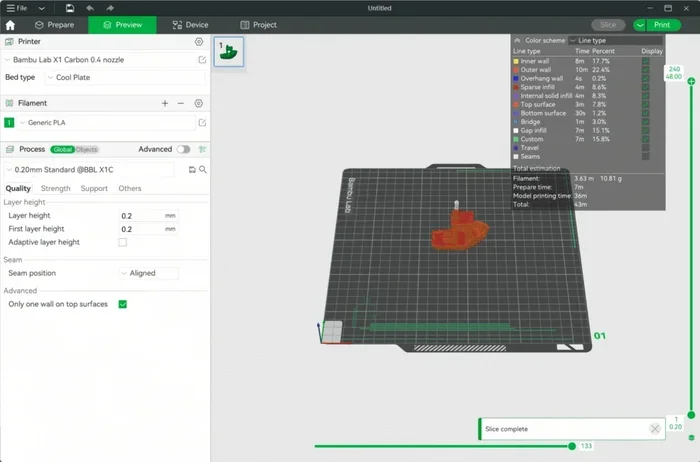
Fused Deposition Modeling, or FDM, printers are the most common type for hobbyists. They melt plastic filament and lay it down layer by layer. When you have an STL file, you drop it into your slicer software. The software reads the triangles in the mesh. It then slices the object into thin horizontal layers. Next, it generates the gcode. Gcode is the actual set of instructions the printer follows. It tells the hot end where to move and when to push plastic. Without this step, your FDM printer would just sit there doing nothing. Popular slicers like Cura or PrusaSlicer make this process easy. You just drag and drop your file into the program.
The type of filament you use does not change the STL file itself. Whether you print with PLA, PETG, or ABS, the stl format remains the same. The slicer software adjusts the printer settings based on the material you choose. Bed adhesion is another big part of FDM printing. If your first layer does not stick to the print bed, your whole print will fail. Always make sure your bed is clean and level. A good first layer is the secret to a great print. Bed leveling should always be your first step before you start the slicing process.
Resin Printers and STL Compatibility
Resin printers, also known as SLA printers, use a different method. They use UV light to cure liquid resin into hard plastic. Even though the printing process is different, they still use STL files. You still need to slice your stl format file before you print. The slicer software for resin printers adds support structures. These are tiny pillars of plastic that hold your model in place while it cures. After the print is done, you remove these supports. Then you wash and cure the part. File compatibility is just as important here. The 3d model must fit within the resin tank’s boundaries. If your model is too big, it will not print correctly. Always measure your tank size first.
The Z-axis lift is a crucial part of resin printing. As each layer cures, the build plate lifts slightly out of the resin. This allows fresh resin to flow over the part. The gcode tells the machine exactly how far to lift. If your stl files are too large, the lift time becomes very long. Patience is key with resin printing. You must respect the limits of your machine and your file compatibility.
Comparison Table: FDM vs Resin STL Handling
| Printer Type | Uses STL? | Slicer Needed? | Common File Issue |
|---|---|---|---|
| FDM Printer | Yes | Yes | Mesh holes causing leaks |
| Resin Printer | Yes | Yes | Missing support structures |
How to Prepare Your STL File for Printing
Having an STL file is only half the battle. You must prepare it properly before you hit print. Preparation ensures your 3d printing goes smoothly. It saves you time, filament, and frustration. Let us look at the steps you need to take to get your file ready. A little preparation goes a long way. It makes the difference between a perfect print and a failed one.
The Role of Slicer Software
A slicer is the bridge between your digital 3d model and the physical print. You cannot skip this step. When you load your stl files into the slicer, the software analyzes the shape. It checks for errors in the mesh. It then cuts the object into layers based on your print settings. The height of each layer is called layer height. A lower layer height means more detail, but it takes longer to print. The slicer then outputs gcode. This is the final language your printer understands. Always make sure your slicer is up to date. Older slicers sometimes struggle with newer STL files. Updates fix bugs and improve file compatibility with modern 3d design exports.
Quick Tips for STL Preparation
- Check the file size: Very large STL files can slow down your computer and slicer.
- Verify your units: Make sure your model is in millimeters, not inches.
- Inspect the mesh: Look for holes or flipped normals in your 3d design software.
- Scale correctly: Always scale your object to the size you want before exporting.
- Use repair tools: Many programs have a one-click fix for broken mesh errors.
- Orient the part: Place the model at an angle to reduce support marks.
- Add a base: Thin bases help small parts stick to the print bed.
- Check triangle count: Too many triangles slow down slicing. Too few ruin detail.
Common Problems and Mistakes with STL Files
Even with the best preparation, things can go wrong. STL files are not perfect. Sometimes they come from the internet with errors. Other times, our own mistakes cause the problems. Knowing what to look for helps you fix issues fast. Let us explore the most common troubles you will face with stl format files. Most problems have simple fixes. You just need to know where to look.
When STLs Refuse to Print
The most common reason an STL file fails is a non-watertight mesh. A watertight mesh means the surface is completely closed. Think of it like a bucket. If the bucket has a hole, water leaks out. The same thing happens with your print. If the mesh has a hole, the plastic leaks out. The slicer gets confused. It does not know what is inside and what is outside. The result is a failed print or a messy blob of plastic. You can use free tools like Meshmixer to check your file compatibility. These tools will highlight any holes in your 3d model. Fixing them is usually as easy as clicking a button. It takes just a few seconds to repair a broken 3d model.
Common Mistakes to Avoid
One big mistake is ignoring your printer settings. If your print bed is not level, even a perfect STL will fail. Always do a quick bed leveling before you start a new print. Another mistake is not checking the scale. We mentioned this before, but it is worth repeating. If your model is 100 inches instead of 100 millimeters, it will not fit on your print bed. Always double-check your print settings before you start the slicing process. Patience here saves a lot of wasted filament later. Another mistake is printing too fast. Slow down for the first layer. A good first layer is the secret to a great print. Finally, never assume a downloaded file is perfect. Always inspect it before you print.
Expert Insights on 3D File Compatibility
We asked some experts in the field of additive manufacturing about the future of file handling. They agree that STL is here to stay for now. But they also see new formats emerging. Understanding where the industry is going helps you make smart choices today. 3d printer types are evolving, and so is the software that drives them. The more you know, the better prepared you are for the future.
The Future of 3D File Formats
While STL is the king of 3d printing, formats like 3MF are gaining ground. 3MF can store color and texture data. It also fixes some of the old issues with the STL format. For example, 3MF handles units better. It prevents the inch-millimeter mix-up we talked about. However, for most hobbyists and professionals, STL is still the best choice. It is reliable, simple, and universally supported. As filament technology and resin technology advance, we will see even better ways to send files to our machines. But for right now, mastering STL is the best thing you can do. Focus on getting your stl files perfect, and the rest will follow. The basics will always serve you well in this hobby.
Conclusion
To wrap things up, can all 3d printers use stl files? The answer is a resounding yes. STL files remain the backbone of additive manufacturing. They work with FDM machines, resin printers, and everything in between. The key to success is not the printer itself, but how you prepare your stl format files. Always check your mesh, use the right slicer software, and verify your print settings. Do not let technical terms scare you. 3d printing is meant to be fun and accessible. Once you understand how file compatibility works, you will feel much more confident.
Take your time to learn your slicer software. Practice fixing simple mesh errors. Soon, preparing your 3d model will be easy. You will be creating amazing physical objects from digital files in no time. Now go out there and start your next project! Happy printing!
Frequently Asked Questions
What does STL stand for in 3D printing?
STL stands for Stereolithography. It is the most common file format used in 3d printing. The format describes the surface geometry of a 3D object using a mesh of tiny triangles. It does not store color or texture, only shape.
Can I print an STL file directly without a slicer?
No, you cannot print an STL file directly. You must use slicer software first. The slicer converts the STL into gcode, which is the language your printer understands. Without this step, your printer will not know what to do.
Why is my STL file not compatible with my printer?
Usually, this happens because the mesh is not watertight or the file is scaled wrong. If the 3d model has holes, the slicer cannot process it. Also, check if your file is in inches when your printer expects millimeters. This causes file compatibility issues.
Do resin printers use STL files?
Yes, resin printers use STL files just like FDM printers. Even though the printing process is different, the stl format works for both. You still need to slice the file to add support structures before printing.
What is the difference between an STL and a Gcode file?
An STL file is the original digital design, while a gcode file is the set of machine instructions. Your 3d design starts as an STL. The slicer software turns it into gcode. The printer reads the gcode to build the object layer by layer.
Are there better file formats than STL for 3D printing?
STL is the industry standard and works for almost everyone. However, formats like 3MF are newer and can store color and texture. For most 3d printing projects, STL is still the best choice because of its universal file compatibility with all 3d printer types.