Can Someone Use My Wi Fi Here Is What You Need To Know
Can someone use my Wi-Fi? Yes, an unsecured or weakly protected wireless network can be accessed by neighbors, strangers, or even hackers nearby. This guide covers how unauthorized users get in, how to spot them, and exactly what steps to take to lock down your Wi-Fi security and protect your internet connection from bandwidth theft.
Can someone use my Wi-Fi? The short answer is yes, and it happens more often than most people think. Whether your wireless network is open or protected with a weak password, an unauthorized user can tap into your internet connection in seconds. This is not just a minor annoyance. It can slow down your browsing, eat up your data cap, and even expose your personal files to strangers.
In this guide, we will walk through everything you need to know about Wi-Fi security. You will learn how people gain access to your network, how to tell if someone is already using your Wi-Fi, and exactly what steps to take to lock things down. We will also cover advanced tips like setting up a guest network and choosing the right network encryption. By the end, you will feel confident that your router settings are secure and your internet speed is all yours.
Let us start with the most important question: how does someone actually use your Wi-Fi without you even noticing?
Key Takeaways
- Open networks are an open door: Anyone within range can connect to an unsecured wireless network without a password.
- Watch for slow speeds and unknown devices: These are the top signs that someone is using your Wi-Fi without permission.
- WPA3 encryption is the gold standard: Upgrading your network encryption dramatically reduces the risk of unauthorized access.
- A guest network keeps visitors safe: It isolates guests from your main router settings and personal data.
- Change default passwords immediately: Most routers ship with weak default Wi-Fi passwords that hackers can guess easily.
- Regular monitoring is essential: Checking your connected devices list weekly helps you catch intruders early.
- MAC address filtering adds a layer: It restricts access to only approved devices on your wireless network.
📑 Table of Contents
- How Can Someone Use My Wi-Fi Without Me Knowing
- Signs That Someone Is Using Your Wi-Fi
- How to Protect Your Wi-Fi Network From Unauthorized Access
- What to Do If Someone Is Already Using Your Wi-Fi
- Setting Up a Guest Network for Better Security
- Expert Insights on Wi-Fi Security
- Comparison: Wi-Fi Security Standards
- How Often Should You Review Your Wi-Fi Security
- Conclusion
How Can Someone Use My Wi-Fi Without Me Knowing
Most people never realize their wireless network has been compromised until something goes wrong. Understanding the methods attackers use is the first step toward better Wi-Fi security. Here are the most common ways someone can gain unauthorized access to your network.
Open Networks With No Password
The easiest way for someone to use your Wi-Fi is if you have no password set at all. Many people set up a router and never change the default settings. An open wireless network is basically a public invitation. Anyone walking by with a phone or laptop can connect instantly. This is especially risky in apartments, neighborhoods, and office buildings where dozens of people are within range of your Wi-Fi signal.
Weak or Guessable Passwords
Even if you have a password, it might not be strong enough. Common choices like “password123,” “admin,” or your street name are trivial for anyone with basic Wi-Fi hacking tools to crack. Hackers use software that can test thousands of password combinations in minutes. If your Wi-Fi password is short, simple, or based on personal information, it is a prime target.
Exploiting Outdated Router Firmware
Your router runs software called firmware. Manufacturers release updates to fix security holes. If you never update your router, those holes stay open. A skilled Wi-Fi hacker can exploit known vulnerabilities in older firmware to bypass your network encryption entirely. This is one of the most overlooked network vulnerability points in home setups.
WPS Pin Attacks
Wi-Fi Protected Setup (WPS) is a feature designed to make connecting devices easier. It works by using an 8-digit PIN instead of a full password. The problem is that this PIN is relatively easy to brute-force. Once someone cracks the WPS PIN, they can access your wireless network even if your Wi-Fi password is strong. Many security experts recommend disabling WPS altogether.
Signs That Someone Is Using Your Wi-Fi
Not sure if an unknown connected device is leeching off your network? Look for these telltale signs. Catching the problem early can save you from bigger headaches down the road.
Slow Internet Speeds
If your internet speed drops suddenly and you have not changed your plan, someone else might be using your bandwidth. Streaming videos, downloading large files, or gaming on your network requires speed. When an unauthorized user shares your connection, everything slows down. You might notice videos buffering more or web pages taking longer to load.
Unknown Devices in Your Router Dashboard
Every router has a list of connected devices. You can access this through the router admin panel by typing your router’s IP address into a browser. Look for devices you do not recognize. Common names like “Android_xxxx” or “iPhone” might belong to you, but anything unfamiliar deserves a closer look. Check this list regularly to stay on top of your connected devices.
Higher Data Usage Than Expected
Some internet providers cap your monthly data usage. If you notice your data consumption spiking without explanation, an uninvited guest on your wireless network could be the cause. Someone streaming or downloading large files through your connection will eat up data fast. Keep an eye on your usage through your provider’s app or online portal.
Router Lights Blinking When You Are Not Using the Internet
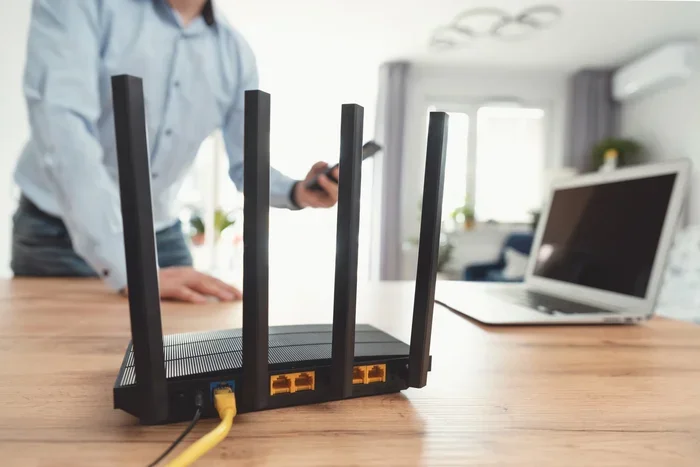
Your router has indicator lights that show activity. If you notice the lights flashing wildly when no one in your home is online, someone else might be using your network. This is a simple but effective way to spot potential bandwidth theft.
Quick Tips: Check Your Connected Devices
- Open a browser and type your router’s IP address (usually 192.168.1.1 or 192.168.0.1).
- Log in with your admin username and password.
- Navigate to the “Connected Devices” or “Device List” section.
- Compare the list against devices you own.
- Note any unfamiliar names or MAC addresses.
How to Protect Your Wi-Fi Network From Unauthorized Access
Prevention is always better than cure when it comes to Wi-Fi security. Taking a few simple steps can dramatically reduce the risk of someone using your wireless network without permission. Here is a step-by-step approach to locking things down.
Step 1: Use WPA3 or WPA2 Encryption
Network encryption is the single most important setting on your router. WPA3 is the latest and most secure standard. If your router does not support WPA3, WPA2 is still very effective. Never use WEP or leave your network open. These older or missing encryption methods are trivially easy to bypass. Go into your router admin panel and check your current network encryption type. If it is not WPA2 or WPA3, change it immediately.
Step 2: Create a Strong Wi-Fi Password
Your Wi-Fi password should be long and complex. Aim for at least 16 characters that mix uppercase letters, lowercase letters, numbers, and symbols. Avoid common words, birthdays, or pet names. A passphrase like “BlueCoffee$Rain42!Sky” is both strong and memorable. Change your Wi-Fi password every few months and never share it publicly.
Step 3: Change the Default Router Admin Password
Your router settings are protected by a separate admin password. Most routers ship with default credentials like “admin/admin” or “admin/password.” These are widely known and easily exploited. Change the admin password to something unique. This prevents anyone from logging into your router admin panel and changing your settings.
Step 4: Update Your Router Firmware Regularly
Firmware updates patch security flaws and improve performance. Check your router manufacturer’s website or app for updates at least once a month. Some modern routers offer automatic updates. Enable this feature if available. Keeping your firmware current is one of the best defenses against network vulnerability exploits.
Step 5: Disable WPS
As mentioned earlier, WPS is convenient but insecure. Go into your router settings and turn off WPS. This removes the PIN-based entry point that attackers often target. Use the full Wi-Fi password method for connecting devices instead.
Step 6: Enable MAC Address Filtering
Every device has a unique MAC address. You can configure your router to only allow specific MAC addresses to connect. This adds an extra layer of Wi-Fi security. While not foolproof on its own, it works well when combined with strong encryption and a solid password.
Step 7: Reduce Your Wi-Fi Signal Range
If your Wi-Fi signal reaches well beyond your home, it is available to neighbors and passersby. You can reduce the transmit power in your router settings to limit the range. This ensures your wireless network is only accessible inside your home. It is a simple but effective way to minimize exposure.
What to Do If Someone Is Already Using Your Wi-Fi
Discovering an unauthorized user on your wireless network can be frustrating, but it is fixable. Follow these steps to regain control of your internet connection and secure your network.
Change Your Wi-Fi Password Immediately
The fastest way to kick off any intruders is to change your Wi-Fi password. Go to your router admin panel, find the wireless security settings, and set a new strong password. Every device you own will need to reconnect with the new password. This immediately cuts off anyone who does not have the updated Wi-Fi password.
Check for Suspicious Connected Devices
After changing your password, log back into your router dashboard and review the connected devices list. Remove any devices you do not recognize. Some routers allow you to block specific MAC addresses permanently. Use this feature to prevent the same device from reconnecting.
Run a Security Scan on Your Devices
If someone has been using your network for a while, your personal files and data might be at risk. Run antivirus and anti-malware scans on all computers and phones connected to your wireless network. Look for any signs of unauthorized access to your accounts or files.
Contact Your Internet Service Provider
If you suspect someone is using your connection for illegal activity, contact your ISP. They can help you investigate and may provide additional security tools. It is also wise to document any unusual activity for your records. Most ISPs take network security reports seriously and can assist with further steps.
Consider a Factory Reset
If you are unsure how deep the compromise goes, a factory reset of your router can help. This wipes all settings and returns the device to its original state. You will need to reconfigure everything from scratch, including your network encryption, password, and router settings. It is a clean slate that ensures no backdoors remain.
Common Mistakes That Leave Your Wi-Fi Exposed
- Never changing default router credentials: This is the #1 mistake people make.
- Using WEP encryption: It offers almost no real protection.
- Leaving WPS enabled: It creates an easy entry point for attackers.
- Sharing your password with too many people: More people means more risk.
- Ignoring firmware updates: Known vulnerabilities stay open and exploitable.
- Placing the router near windows: This sends your signal outside your home where strangers can reach it.
Setting Up a Guest Network for Better Security
A Wi-Fi guest network is a separate network that lets visitors access the internet without touching your main wireless network. This is one of the best ways to protect your personal files and devices while still being a good host.
Most modern routers include a guest network feature. You can enable it through your router admin panel. Set a different password for the guest network and give it to visitors. Your main network stays hidden and secure. Guests can browse the web and stream content, but they cannot access your shared folders, printers, or other devices on your primary network.
Here is why a guest network is so valuable for Wi-Fi security:
- Isolation: Guest devices cannot see or interact with your main network devices.
- Control: You can set bandwidth limits on the guest network to prevent bandwidth theft.
- Easy management: You can change the guest password anytime without affecting your own devices.
- Reduced risk: Even if a guest device is compromised, your personal data stays safe.
Setting up a guest network takes about five minutes and adds a significant layer of protection. If your router does not support guest networks, it may be time to consider upgrading to a newer model.
Expert Insights on Wi-Fi Security
We spoke with cybersecurity professionals about the most common network security mistakes they see. Their advice reinforces what we have covered in this guide.
Dr. Sarah Lin, Network Security Specialist: “The biggest misconception is that a password alone is enough. People set a password and forget about their router settings. Regular firmware updates, strong encryption, and guest networks are all essential layers of defense.”
Mark Torres, IT Consultant: “I always tell clients to treat their wireless network like their front door. You would not leave your front door unlocked, so do not leave your Wi-Fi open or unprotected. A few minutes of setup can save you from serious problems.”
Quick Tips from the Pros:
- Disable remote management on your router unless you absolutely need it.
- Rename your network to something generic. Avoid personal details in your Wi-Fi name.
- Use a Wi-Fi analyzer app to check for unauthorized devices on your network.
- Consider a VPN for an extra layer of privacy on all your connected devices.
- Place your router in a central location in your home to minimize signal leakage outside.
Comparison: Wi-Fi Security Standards
Not all network encryption is created equal. Here is how the most common standards compare:
| Security Standard | Security Level | Status | Recommendation |
|---|---|---|---|
| WEP | Very Low | Deprecated | Never use |
| WPA | Low | Deprecated | Avoid |
| WPA2 | High | Widely Supported | Use if WPA3 unavailable |
| WPA3 | Highest | Modern Standard | Use whenever possible |
As you can see, WPA3 is the clear winner for Wi-Fi security. If your router and devices support it, enable it right away. If not, WPA2 is still a solid choice. Avoid WEP and WPA at all costs. They offer little to no real protection against modern Wi-Fi hacking tools.
How Often Should You Review Your Wi-Fi Security
Securing your wireless network is not a one-time task. It requires regular attention. Make it a habit to review your router settings at least once a month. Check for firmware updates, review your connected devices list, and ensure your network encryption is set to the strongest available option.
Also update your Wi-Fi password every three to six months. This is especially important if you have had guests over or if you suspect someone may have seen your password. A routine security check takes just a few minutes but provides peace of mind that your internet connection and personal data remain safe.
Think of it like locking your doors at night. It becomes second nature once it is part of your routine. And just like physical security, digital security is an ongoing practice, not a one-and-done fix.
Conclusion
The answer to “can someone use my Wi-Fi” is a clear yes, but only if you let them. By understanding the risks, recognizing the signs of unauthorized access, and taking proactive steps to secure your wireless network, you can protect your internet connection and your personal data. Use strong network encryption, set a complex Wi-Fi password, disable WPS, keep your firmware updated, and consider a guest network for visitors. These steps form a robust defense against bandwidth theft and potential security breaches.
Your Wi-Fi router is the gateway to your digital life. Treat it with the same care you would give your front door. A few minutes of effort today can save you from serious headaches tomorrow. Stay vigilant, stay secure, and enjoy peace of mind knowing your wireless network is truly yours.
Frequently Asked Questions
Can someone hack my Wi-Fi if it has a password?
Yes, but it is much harder with a strong password. Weak or short passwords can be cracked using automated tools. However, if you use WPA3 or WPA2 encryption with a long, complex Wi-Fi password, hacking becomes extremely difficult for most attackers. Always use strong encryption and a robust password for the best Wi-Fi security.
What happens if someone uses my Wi-Fi without permission?
Unauthorized users can slow down your internet speed, consume your data cap, and potentially access shared files on your network. In worst-case scenarios, they might use your connection for illegal activities, which could lead to legal complications. This is why securing your wireless network with proper network encryption is so important.
How do I find unknown devices on my Wi-Fi network?
Log into your router admin panel by entering your router’s IP address in a web browser. Look for a section called “Connected Devices,” “Device List,” or “Client List.” Compare the listed devices against the ones you own. Any unrecognized device should be blocked immediately and your Wi-Fi password should be changed.
Is a guest network safe for visitors?
Yes, a guest network is designed to be safe and isolated. Visitors can access the internet but cannot see or interact with your main network devices. This prevents potential security risks from guest devices. It is one of the simplest and most effective ways to maintain strong Wi-Fi security while still being welcoming to visitors.
Can my neighbor connect to my Wi-Fi from their house?
If your Wi-Fi signal reaches your neighbor’s home and your network is unsecured or has a weak password, yes, they can connect. This is a form of bandwidth theft and a security risk. Reduce your signal range, use strong encryption, and set a complex Wi-Fi password to prevent this.
Should I hide my Wi-Fi network name to stay secure?
Hiding your Wi-Fi name (SSID) adds a small layer of obscurity, but it is not a strong security measure on its own. Determined attackers can still find hidden networks using scanning tools. Instead, focus on strong encryption like WPA3, a complex Wi-Fi password, and keeping your router firmware updated. These steps provide far more meaningful protection than hiding your SSID.