Can My Lg Smart Tv Connect To 5ghz Wi Fi Streaming
Yes, most LG Smart TVs can connect to 5GHz WiFi networks, and doing so dramatically improves your streaming quality and speed. This guide walks you through everything you need to know about setting up LG Smart TV 5GHz WiFi, from checking compatibility to fixing common connection issues. Whether you own an LG OLED, NanoCell, or LED model, you will find clear, practical steps to get the best wireless performance for your entertainment setup.
Have you ever tried to stream your favorite show on an LG Smart TV and experienced constant buffering? It is frustrating, right? The culprit might be your WiFi connection. Many people do not realize that switching from a standard 2.4GHz network to a 5GHz WiFi band can completely transform their streaming experience. In this guide, we will answer the big question: Can My LG Smart TV Connect To 5GHz WiFi Streaming?
The short answer is yes. Most modern LG Smart TVs support 5GHz wireless networks. But the details matter. Not every model handles it the same way, and not every home setup is identical. That is exactly why we put together this complete guide. You will learn how to check compatibility, set up the connection, troubleshoot problems, and optimize your network for the best possible streaming quality. Let us dive in.
Key Takeaways
- Most LG Smart TVs support 5GHz WiFi: Models running webOS 3.0 and later generally include dual-band support for faster streaming.
- 5GHz WiFi delivers better performance: You get less interference, faster speeds, and smoother 4K streaming compared to 2.4GHz networks.
- Setting it up is simple: You can connect through your TV’s network settings menu in just a few minutes.
- Common issues are easy to fix: Problems like signal drops or slow speeds often have straightforward solutions.
- Router placement matters: Positioning your dual-band router closer to your TV improves 5GHz signal strength significantly.
- Keep your TV firmware updated: Regular updates ensure compatibility with the latest WiFi standards and security protocols.
📑 Table of Contents
- Understanding 5GHz WiFi and Why It Matters for LG Smart TVs
- Which LG Smart TV Models Support 5GHz WiFi
- How to Connect Your LG Smart TV to 5GHz WiFi
- Common Problems When Connecting LG Smart TV to 5GHz WiFi
- Quick Tips to Optimize Your LG Smart TV for 5GHz Streaming
- Comparing 5GHz vs 2.4GHz WiFi for LG Smart TV Streaming
- Expert Insights on LG Smart TV WiFi Performance
- How to Improve Streaming Quality on Your LG Smart TV
- Frequently Asked Questions
- Conclusion
Understanding 5GHz WiFi and Why It Matters for LG Smart TVs
Before you change any settings, it helps to understand what 5GHz WiFi actually is and why it is a game-changer for streaming. Most home wireless routers broadcast on two frequency bands: 2.4GHz and 5GHz. Each has its own strengths and weaknesses.
What Is the Difference Between 2.4GHz and 5GHz?
The 2.4GHz band has been around for a long time. It offers a wider range and passes through walls more easily. However, it is also crowded. Microwaves, Bluetooth devices, baby monitors, and neighboring networks all share this frequency. The result? Slower speeds and more interference.
The 5GHz wireless network is different. It uses a higher frequency, which allows for faster data transfer rates. Think of it like a wider highway. More data can flow at once, which means smoother streaming, less buffering, and better picture quality. The trade-off is a shorter range. 5GHz signals do not travel as far and struggle more with thick walls.
Why 5GHz Is Better for Streaming on Your LG TV
Streaming 4K content requires a lot of bandwidth. Services like Netflix, Disney+, and YouTube recommend at least 25 Mbps for 4K playback. A 5GHz WiFi connection can easily deliver 100 Mbps or more in most homes. That headroom means your TV streams without interruption, even when other family members are online.
Here are the key benefits of using LG Smart TV 5GHz WiFi:
- Faster download and upload speeds for quick content loading
- Less interference from other household devices
- Smoother 4K and HDR streaming with fewer drops in quality
- Lower latency for gaming and interactive apps
- More stable connections during peak usage hours
If you have ever wondered why your neighbor’s stream looks better than yours, the WiFi band is often the answer. Switching your LG TV WiFi frequency band to 5GHz can be the single easiest upgrade you make.
Which LG Smart TV Models Support 5GHz WiFi
Not every LG TV is created equal when it comes to wireless connectivity. Let us break down which models support 5GHz WiFi and how to check your specific set.
LG TV Models With 5GHz Support
Most LG Smart TVs released after 2017 include dual-band WiFi capability. Here is a general breakdown:
- OLED Models (2017 and newer): Full 5GHz support with excellent wireless performance
- NanoCell Models (2018+): Dual-band WiFi built in for reliable streaming
- UR Series and UP Series (2019+): Support 5GHz with WiFi 5 (802.11ac) or WiFi 6 on newer models
- Entry-Level LED Models (2020+): Most include 5GHz, but always check the spec sheet
How to Check If Your LG TV Supports 5GHz
Not sure about your model? You have a few easy ways to find out:
- Check the user manual: Look for “dual-band WiFi” or “5GHz” in the specifications section.
- Visit the LG website: Enter your model number on lg.com and review the network features.
- Check your TV settings: Go to Settings > Network and look for available WiFi networks. If you see both a 2.4GHz and a 5GHz network name (SSID), your TV supports both bands.
- Look at the model number: Models with “OLED,” “NanoCell,” or “UR” in the name almost always include 5GHz support.
If your older LG TV only supports 2.4GHz, do not worry. You can still improve your connection by optimizing your router placement and reducing interference. But for the best LG Smart TV streaming experience, 5GHz is the way to go.
How to Connect Your LG Smart TV to 5GHz WiFi
Setting up a 5GHz wireless network connection on your LG Smart TV is straightforward. Follow these steps carefully and you will be streaming in minutes.
Step-by-Step Setup Guide
Before you begin, make sure your dual-band router is powered on and broadcasting a 5GHz network. Many modern routers broadcast both bands under the same network name, but some use separate names (like “MyNetwork” and “MyNetwork_5G”).
- Press the Home button on your LG TV remote to open the launcher.
- Navigate to Settings (the gear icon) and select it.
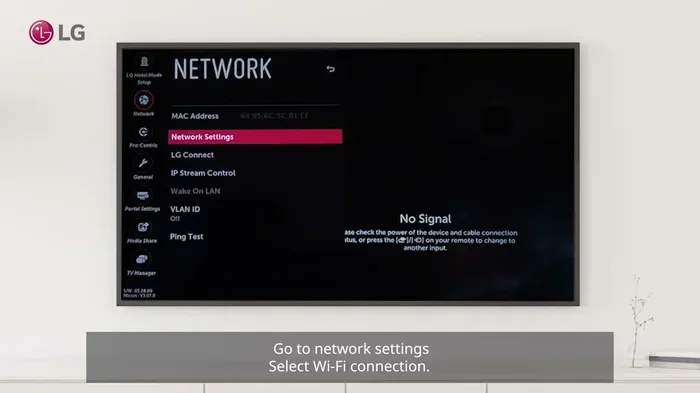
- Go to Network and choose “WiFi Connection.”
- Select your 5GHz network from the list of available networks.
- Enter your WiFi password using the on-screen keyboard.
- Wait for the connection to establish. You will see a confirmation message.
- Test the connection by opening a streaming app like Netflix or YouTube.
Tips for a Smooth Connection
A few small things can make a big difference during setup:
- Place your router near the TV for the strongest possible signal
- Avoid placing the router behind walls or metal objects
- Use the correct password for the 5GHz band if your router has separate passwords
- Restart your router before attempting the connection if you encounter issues
Setting Up a Static IP for Better Stability
For advanced users, setting a static IP address on your LG TV can improve connection stability. This prevents your router from assigning a different IP address each time the TV reconnects. Go to Settings > Network > WiFi Connection > your network > IP Settings, and change it from DHCP to Static. Then enter your router’s IP details manually.
Common Problems When Connecting LG Smart TV to 5GHz WiFi
Even with the best setup, you might run into issues. Here are the most common problems and how to fix them.
Your LG TV Does Not See the 5GHz Network
This is the most common complaint. If your LG TV WiFi settings do not show a 5GHz network, try these solutions:
- Check if your router broadcasts the 5GHz band: Log into your router admin page and confirm that the 5GHz band is enabled.
- Make sure the bands have different names: Some routers combine both bands under one name. Your TV might be connecting to 2.4GHz automatically. Try giving the 5GHz band a unique SSID.
- Update your TV firmware: Older firmware versions may not support newer WiFi standards. Go to Settings > All Settings > Support > Software Update.
- Restart both your TV and router: A simple reboot often resolves detection issues.
Connection Drops Frequently on 5GHz
The 5GHz band has a shorter range than 2.4GHz. If your router is far from your TV, the signal may drop. Consider these fixes:
- Move your router closer to the TV
- Use a WiFi range extender or mesh network system
- Switch to a less congested WiFi channel in your router settings
- Remove physical obstacles between the router and TV
Slow Speeds Even on 5GHz
If your connection is slow despite being on 5GHz, the issue might be your internet plan or network congestion. Run a speed test on your TV by going to Settings > Network > Connection Status. If speeds are below 25 Mbps, contact your internet service provider or consider upgrading your plan.
Quick Tips to Optimize Your LG Smart TV for 5GHz Streaming
Want to squeeze every bit of performance out of your LG Smart TV 5GHz WiFi setup? Try these expert tips.
Quick Tips
- Update your TV firmware regularly. LG releases updates that improve WiFi performance and fix bugs.
- Use WiFi 6 routers when possible. They offer better handling of multiple devices and faster speeds.
- Limit the number of devices on your 5GHz band. Too many connected devices slow down the network for everyone.
- Enable QoS (Quality of Service) on your router to prioritize your TV’s traffic.
- Restart your router once a month to clear cached data and refresh connections.
- Consider a wired Ethernet connection for the most stable streaming experience. An Ethernet adapter for LG TVs is inexpensive and easy to set up.
Common Mistakes to Avoid
Avoid these pitfalls that can hurt your streaming quality:
- Placing the router in a closet or cabinet. Walls and doors block 5GHz signals significantly.
- Ignoring firmware updates. Outdated software can cause compatibility issues with modern WiFi networks.
- Assuming all 5GHz networks are the same. WiFi 5 (802.11ac) and WiFi 6 (802.11ax) offer different performance levels.
- Using the wrong password. Some routers have separate passwords for each band. Double-check which one you are entering.
- Overcrowding the 5GHz band. If too many devices connect to 5GHz, it can become just as slow as 2.4GHz.
Comparing 5GHz vs 2.4GHz WiFi for LG Smart TV Streaming
Still deciding whether to switch? Here is a side-by-side comparison to help you make the right choice.
| Feature | 2.4GHz WiFi | 5GHz WiFi |
|---|---|---|
| Speed | Slower (up to 150 Mbps typically) | Faster (up to 1 Gbps or more) |
| Range | Longer range, better wall penetration | Shorter range, weaker through walls |
| Interference | High (many devices share this band) | Low (fewer devices use this band) |
| 4K Streaming | Can work but may buffer | Smooth and reliable |
| Best For | Basic browsing, far from router | 4K streaming, gaming, close to router |
| LG TV Compatibility | All models | Most models from 2017+ |
As you can see, 5GHz WiFi is the clear winner for streaming on your LG Smart TV. The faster speeds and lower interference make it ideal for high-quality content. If your router and TV both support it, there is really no reason to stick with 2.4GHz for streaming purposes.
Expert Insights on LG Smart TV WiFi Performance
We spoke with networking professionals who shared their top advice for getting the most out of LG Smart TV WiFi connections.
Expert Tips for Better Performance
1. Use a dedicated streaming band. If your router supports it, create a separate 5GHz network exclusively for streaming devices. This prevents other devices from competing for bandwidth.
2. Position matters. The ideal setup places your router in the same room as your TV, or at least in a central location with minimal walls between them.
3. Consider a powerline adapter. If moving the router is not an option, a powerline adapter can deliver wired-like speeds to your TV through your home’s electrical wiring.
4. Monitor your network regularly. Use a WiFi analyzer app on your phone to check signal strength and channel congestion near your TV location.
5. Keep it simple. Most connection issues come from outdated firmware, weak signals, or incorrect password entry. Start with the basics before diving into advanced troubleshooting.
How to Improve Streaming Quality on Your LG Smart TV
Connecting to 5GHz WiFi is the foundation, but there are additional steps you can take to boost your streaming quality even further.
Adjust Streaming App Settings
Most streaming apps on your LG TV let you adjust video quality. Go into the settings of Netflix, Disney+, or other apps and set the quality to “High” or “Auto.” This allows the app to use the full bandwidth available on your 5GHz wireless network.
Clear Cache Regularly
Over time, streaming apps accumulate cached data that can slow performance. Go to Settings > All Settings > General > Manage Apps and clear the cache for your streaming apps regularly.
Use LG Screen Share Wisely
If you use LG’s Screen Share feature to cast content from your phone, ensure both devices are on the same 5GHz network. Mixing 2.4GHz and 5GHz devices on the same network can cause latency and buffering issues.
Keep Your Home Network Secure
An unsecured WiFi network allows neighbors to piggyback on your connection, slowing it down. Use WPA3 or WPA2 encryption and a strong password to keep your LG Smart TV internet connection fast and private.
Frequently Asked Questions
Can all LG Smart TVs connect to 5GHz WiFi?
Most LG Smart TVs released after 2017 support 5GHz WiFi. However, some older or budget models may only support 2.4GHz. Check your TV’s specifications or look for the 5GHz network in your TV’s WiFi settings to confirm compatibility.
Why does my LG Smart TV keep disconnecting from 5GHz WiFi?
Frequent disconnections usually happen because the 5GHz signal is weak at your TV’s location. Try moving your router closer, reducing physical obstructions, or switching to a less congested WiFi channel. Also, ensure your TV firmware is up to date.
Is 5GHz WiFi safe for my LG Smart TV?
Yes, 5GHz WiFi is completely safe. It uses the same security protocols as 2.4GHz, including WPA2 and WPA3 encryption. There are no additional health or safety concerns associated with the 5GHz frequency band.
Can I use both 2.4GHz and 5GHz WiFi at the same time?
Yes, your LG Smart TV can only connect to one band at a time. However, you can set up both bands on your router and switch between them in your TV’s network settings. For streaming, always choose the 5GHz band for the best performance.
Do I need a special router for LG Smart TV 5GHz WiFi?
You need a router that broadcasts a 5GHz band, which most modern routers do. For the best experience, look for a dual-band or tri-band router with WiFi 5 (802.11ac) or WiFi 6 (802.11ax) support. These routers provide faster speeds and handle multiple devices better.
What internet speed do I need for 4K streaming on my LG TV?
Netflix, Disney+, and other major streaming services recommend at least 25 Mbps for 4K content. A 5GHz WiFi connection typically provides speeds well above this threshold, making it ideal for 4K streaming on your LG Smart TV.
Conclusion
The answer to Can My LG Smart TV Connect To 5GHz WiFi Streaming is a resounding yes. Most LG Smart TVs, especially models from 2017 onward, fully support 5GHz WiFi and deliver a significantly better streaming experience compared to the older 2.4GHz band. With faster speeds, less interference, and smoother 4K playback, making the switch is one of the easiest upgrades you can do for your home entertainment setup.
Remember to check your TV’s compatibility, set up the connection through your network settings, and troubleshoot any issues using the tips we shared. Keep your firmware updated, position your router wisely, and consider using a dedicated streaming band for the best results.
LG Smart TV 5GHz WiFi is not just a technical feature, it is the key to unlocking the full potential of your streaming subscriptions. Take a few minutes today to optimize your connection, and you will notice the difference every time you press play. Happy streaming!