Can I Use My PS4 Controller Wirelessly on PC Today
Yes, you can absolutely use your PS4 controller wirelessly on PC. Whether you want to play Steam games, emulators, or other PC titles, your DualShock 4 works great without wires. All you need is a Bluetooth adapter or the official USB wireless adapter, and a free tool like DS4Windows to unlock full compatibility.
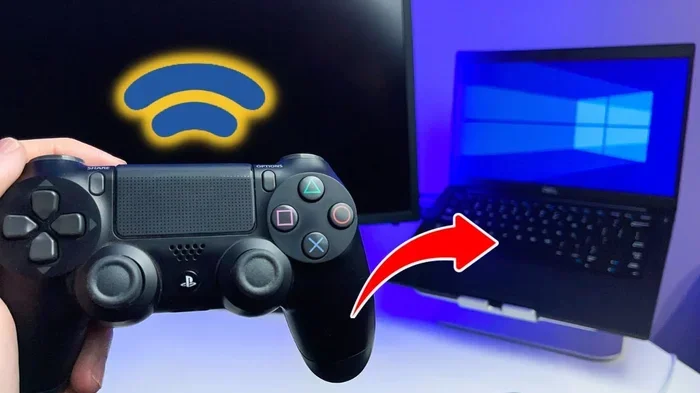
Can you use your PS4 controller wirelessly on PC? The short answer is yes. If you have been sitting on the couch with your DualShock 4 and wished you could bring that familiar feel to your PC gaming setup, you are in luck. Using a PS4 controller wirelessly on PC is simple, affordable, and works with a huge range of games. In this guide, we walk you through every step. You will learn what gear you need, how to pair the controller, and how to fix the most common problems. By the end, you will be ready to game wirelessly on your computer like a pro.
Many PC gamers love the PS4 controller. It fits comfortably in your hands. The analog sticks are smooth. The triggers feel responsive. And the built-in touchpad adds extra control options. Best of all, you do not need to spend extra money on a new controller just for PC gaming. Your existing DualShock 4 can do it all. Let us dive into how to make it work wirelessly.
Key Takeaways
- Wireless PS4 controller on PC is fully supported: You can connect your DualShock 4 to your computer using Bluetooth or a USB wireless adapter.
- DS4Windows is essential: This free software makes your PS4 controller work on almost every PC game and application.
- You need the right hardware: A Bluetooth 4.0 adapter or the official PS4 wireless adapter ensures a stable connection.
- Setup takes minutes: The pairing process is simple and does not require advanced technical skills.
- Common issues are easy to fix: Driver problems, connection drops, and input lag can all be resolved quickly.
- Charging while playing is possible: You can keep your controller powered during long gaming sessions.
- PS4 controllers work great for PC gaming: They offer comfortable grips, responsive buttons, and built-in touchpads.
📑 Table of Contents
- Can You Use a PS4 Controller Wirelessly on PC?
- What You Need Before You Start
- Step-by-Step: Connecting Your PS4 Controller Wirelessly
- Setting Up DS4Windows for Full Compatibility
- PS4 Controller vs Other Controllers on PC
- Troubleshooting Wireless Connection Problems
- Expert Tips for the Best Wireless Experience
- Final Thoughts
Can You Use a PS4 Controller Wirelessly on PC?
The answer is a definite yes. Sony designed the DualShock 4 to be compatible with computers. You can connect it to your PC using Bluetooth or a USB wireless adapter. Once connected, the controller works with most PC games, especially those that support Xbox or standard gamepad inputs. Some games might need extra setup, but the process is straightforward.
Using your PS4 controller wirelessly on PC gives you freedom of movement. No cables tangled on your desk. No reaching across the room to stay connected. You can sit back and enjoy your games just like you would on a console. The wireless range is typically around 10 to 15 feet, which is plenty for most setups.
There are a few things to keep in mind. Not every PC has built-in Bluetooth. Older computers might need a Bluetooth adapter. And some games might not recognize the PS4 controller right away. That is where software like DS4Windows comes in. It translates the DualShock 4 signals into something your PC games understand. We will cover all of this in detail below.
Why Wireless Beats Wired for PC Gaming
Wireless connections give you more flexibility. You are not stuck to your desk. You can relax on your couch or move around your room. For many gamers, this freedom makes a big difference in comfort during long gaming sessions.
Modern Bluetooth connections are fast and reliable. The slight input lag that used to bother wireless controllers has been minimized in newer hardware. A good Bluetooth adapter or the official PS4 wireless adapter keeps latency low. You will not notice a delay between pressing a button and seeing the action on screen.
What You Need Before You Start
Before you connect your PS4 controller to your PC, you need a few things. Having the right gear makes the setup process smooth and hassle-free. Here is a simple checklist of everything you need.
Hardware Requirements
- A PS4 controller (DualShock 4): Make sure it is charged or has fresh batteries. A low battery can cause connection problems.
- A PC with Bluetooth: Most modern laptops have Bluetooth built in. Desktop PCs might need a Bluetooth USB adapter.
- A Bluetooth 4.0 or higher adapter: If your PC does not have Bluetooth, buy a compatible USB adapter. Bluetooth 4.0 is the minimum for reliable PS4 controller connections.
- Or the official PS4 USB wireless adapter: Sony sells a dedicated wireless adapter for the DualShock 4. It provides the most stable wireless connection.
- A USB cable (for initial setup): You will need a micro-USB cable for the first pairing. After that, the controller stays wireless.
Software Requirements
- DS4Windows: This free, open-source program is the most popular tool for using a PS4 controller on PC. It creates a virtual Xbox controller that almost every game recognizes.
- Updated Bluetooth drivers: Make sure your PC has the latest Bluetooth drivers installed. Outdated drivers can cause connection issues.
- Steam (optional but recommended): Steam has built-in controller support. It makes configuring your PS4 controller for Steam games very easy.
Step-by-Step: Connecting Your PS4 Controller Wirelessly
Now that you have everything ready, let us get your PS4 controller connected to your PC. Follow these steps carefully, and you will be gaming in no time.
Step 1: Install DS4Windows
First, download DS4Windows from the official GitHub page. This free tool is the key to making your PS4 controller work wirelessly on PC. Install it on your computer and open the program. DS4Windows will automatically detect your controller when you plug it in.
The software creates a virtual Xbox 360 controller profile. This means your PC and games think you are using an Xbox controller. That is great news because most PC games are designed to work with Xbox controllers.
Step 2: Connect the Controller via USB First
Plug your PS4 controller into your PC using a micro-USB cable. DS4Windows will recognize the controller and install the necessary drivers. You will see the controller appear in the DS4Windows main window.
This wired connection is only temporary. It lets the software install drivers and configure the controller properly. Once the setup is complete, you can unplug the cable and switch to wireless mode.
Step 3: Pair the Controller via Bluetooth
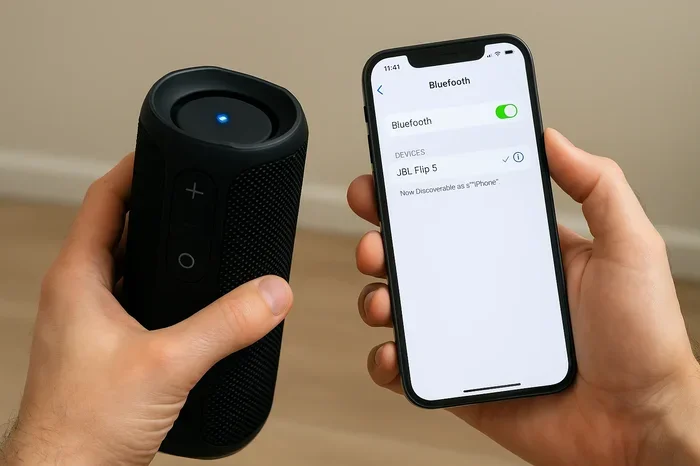
On your PC, go to Settings and open the Bluetooth & Devices section. Make sure Bluetooth is turned on. Then press and hold the Share button and the PS button on your controller at the same time. The light bar on the controller will start flashing rapidly.
Your PC should now detect the DualShock 4. Click on it in the Bluetooth devices list and select Pair. Once connected, the light bar will stop flashing and stay a solid color.
Step 4: Test Your Connection
Open a game or the Windows Game Controllers settings to test your PS4 controller. Move the analog sticks and press the buttons. If everything responds correctly, you are all set. You can now enjoy wireless gaming on your PC.
Quick Tips for a Smooth Connection
- Keep your controller close to your Bluetooth adapter during the initial pairing.
- Make sure nothing else is interfering with the Bluetooth signal.
- If the controller disconnects often, try moving closer to your PC.
- Keep DS4Windows running in the background while you game.
Setting Up DS4Windows for Full Compatibility
DS4Windows is the secret weapon for PS4 controller users on PC. It unlocks features and fixes compatibility issues that you would otherwise run into. Let us look at how to get the most out of this tool.
Configuring DS4Windows Settings
When you open DS4Windows, you will see several tabs and options. The Output tab lets you choose what type of virtual controller your PC sees. For most users, the Xbox 360 Controller option works best. It is the most widely supported profile across PC games.
The Profile tab lets you save custom settings for different games. You can create a profile for racing games that adjusts the trigger sensitivity. You can create another profile for fighting games that remaps the buttons. The possibilities are vast.
Enabling Touchpad and Motion Controls
One of the best features of DS4Windows is that it can enable your PS4 controller touchpad and motion sensors on PC. Some games use the touchpad for extra controls. Racing games might use the motion sensors for steering. DS4Windows makes all of this possible.
Go to the Settings tab in DS4Windows and look for the Touchpad and Motion options. Enable them based on your preferences. Keep in mind that not every game supports these inputs. But for games that do, they add a whole new layer of control.
Updating Controller Firmware Through DS4Windows
DS4Windows can also update your controller firmware. This is important because firmware updates can fix bugs and improve performance. Connect your controller via USB, open DS4Windows, and check for firmware updates in the settings. Keeping your controller updated ensures the best wireless performance on PC.
PS4 Controller vs Other Controllers on PC
When you are choosing a controller for PC gaming, it helps to compare your options. The PS4 controller is popular, but how does it stack up against other controllers? Let us look at the most common choices.
| Feature | PS4 Controller (DualShock 4) | Xbox Controller | Nintendo Switch Pro |
|---|---|---|---|
| Wireless on PC | Yes (Bluetooth or USB adapter) | Yes (Xbox Wireless or Bluetooth) | Yes (Bluetooth) |
| Native PC Support | Needs DS4Windows | Native support | Needs driver software |
| Touchpad | Yes | No | No |
| Motion Controls | Yes | No | Yes |
| Comfort | Excellent | Excellent | Very Good |
| Price | Affordable | Moderate | Affordable |
| Battery Life | 4-8 hours | 30-40 hours | 40+ hours |
The PS4 controller holds its own against the competition. It offers unique features like the touchpad and motion controls. The build quality is excellent. And it is often more affordable than the Xbox Wireless controller. The main downside is battery life. The DualShock 4 does not last as long as some other controllers. But for most gaming sessions, it is more than enough.
If you already own a PS4 controller, there is no reason not to use it on your PC. The wireless setup is simple, and the controller feels great in your hands. You get a premium gaming experience without spending extra money.
Troubleshooting Wireless Connection Problems
Sometimes things do not go as smoothly as we hope. If your PS4 controller keeps disconnecting or does not connect at all, do not worry. Most wireless connection problems have simple fixes. Here are the most common issues and how to solve them.
Controller Not Showing Up in Bluetooth
If your PC does not detect the PS4 controller, try these steps. First, make sure the controller is in pairing mode. Hold the Share button and the PS button together until the light bar flashes. Second, restart your Bluetooth adapter. Third, make sure DS4Windows is not running during the initial pairing. Sometimes the software can interfere with the Bluetooth detection process.
Frequent Disconnections
If your controller keeps disconnecting during gameplay, the Bluetooth signal might be weak. Move your Bluetooth adapter closer to your controller. Avoid placing your PC tower behind a desk or in a closed cabinet. Walls and distance weaken the Bluetooth signal. A USB extension cable for your Bluetooth adapter can help place it in a better position.
Input Lag or Delay
Some lag is normal with Bluetooth connections. But if the delay is noticeable and affects your gameplay, try a few things. Update your Bluetooth adapter drivers. Close other Bluetooth devices that might be interfering. And consider using the official PS4 USB wireless adapter instead of Bluetooth. The dedicated adapter provides a more stable and faster connection.
Controller Not Recognized by Games
If games do not detect your PS4 controller, DS4Windows is the likely solution. Make sure DS4Windows is running before you launch the game. Check that the output profile is set to Xbox 360 Controller. Some games might need you to restart them after connecting the controller. If the problem persists, try reinstalling DS4Windows or updating to the latest version.
Expert Tips for the Best Wireless Experience
Want to get the most out of your PS4 controller on PC? These expert tips will help you optimize your setup for the best wireless gaming experience.
Use a USB Wireless Adapter Instead of Bluetooth
While Bluetooth works well, a dedicated USB wireless adapter is better. Sony sells the official PS4 wireless adapter, and third-party options are available too. These adapters provide a stronger, more stable connection. They also reduce input lag compared to standard Bluetooth. If you game competitively or play fast-paced games, the wireless adapter is worth the investment.
Keep Your Controller Charged
Nothing ruins a gaming session faster than a dead controller. Get into the habit of charging your DualShock 4 after every session. You can charge it while playing by plugging in a USB cable. The controller will continue to work wirelessly while charging. This way, you never have to stop gaming to top up the battery.
Customize Button Layouts for Each Game
DS4Windows lets you create custom button mappings. Use this feature to set up your controller for each game. Racing games might benefit from different trigger sensitivity than fighting games. Take a few minutes to configure your settings. It makes a noticeable difference in comfort and performance.
Update Your Drivers Regularly
Keep your Bluetooth drivers and DS4Windows up to date. Updates fix bugs and improve compatibility with new games. Check for updates once a month or whenever you notice connection issues. Staying current ensures your PS4 controller wireless on PC setup runs smoothly.
Consider a Controller Stand or Charging Dock
A charging dock keeps your controller ready to go. It also protects the USB port on your controller from wear and tear. You can find affordable docks that charge your DualShock 4 quickly. It is a small accessory that adds a lot of convenience to your setup.
Final Thoughts
Using your PS4 controller wirelessly on PC is one of the best things you can do for your gaming setup. It gives you the comfort and familiarity of a great controller without being tied to a console. The setup process is simple. The software is free. And the results are excellent.
Whether you are a casual gamer or a dedicated enthusiast, your DualShock 4 belongs on your PC. Follow the steps in this guide, troubleshoot any issues that come up, and enjoy the freedom of wireless PC gaming. You will wonder why you did not make the switch sooner.
So go ahead. Connect your PS4 controller to your PC. Fire up your favorite game. And enjoy the seamless wireless experience that you deserve. Happy gaming!
Frequently Asked Questions
Do I need any special software to use my PS4 controller wirelessly on PC?
Yes, you need DS4Windows. This free software makes your PS4 controller work with PC games by creating a virtual Xbox controller. Without it, most games will not recognize your DualShock 4 properly. It is easy to install and use, and it makes the whole process seamless.
Can I connect my PS4 controller to PC using Bluetooth without any adapter?
Yes, if your PC has built-in Bluetooth 4.0 or higher. Most modern laptops come with Bluetooth already installed. Desktop PCs might need a USB Bluetooth adapter. Once Bluetooth is available on your PC, you can pair the controller wirelessly without any extra cables.
Is there any input lag when using a PS4 controller wirelessly on PC?
The input lag is very minimal with Bluetooth connections. Most gamers will not notice any delay during regular gameplay. If you are a competitive gamer, using the official PS4 USB wireless adapter can reduce latency even further. Overall, the wireless experience is smooth and responsive.
Can I use my PS4 controller wirelessly on PC for Steam games?
Absolutely. Steam has excellent controller support. Once you connect your DualShock 4 via DS4Windows, Steam will recognize it as an Xbox controller. You can configure button mappings, sensitivity, and other settings directly in Steam’s controller settings menu.
Why does my PS4 controller keep disconnecting from my PC wirelessly?
Frequent disconnections are usually caused by weak Bluetooth signals or outdated drivers. Move your Bluetooth adapter closer to your controller and avoid obstacles between them. Updating your Bluetooth drivers and DS4Windows software often fixes the issue. Using a USB wireless adapter instead of Bluetooth can also solve this problem.
Can I charge my PS4 controller while using it wirelessly on PC?
Yes, you can. Simply plug a micro-USB cable into your controller while it is connected wirelessly. The controller will continue to work wirelessly and charge at the same time. This is perfect for long gaming sessions where you do not want to stop to charge your controller.
=== CONCLUSION ===
Using your PS4 controller wirelessly on PC is easy, affordable, and incredibly rewarding. You get the comfort of a familiar controller, the freedom of wireless gaming, and full compatibility with your favorite PC games. With DS4Windows, a Bluetooth adapter, and a few simple steps, you can be up and running in minutes. Follow the tips in this guide, keep your drivers updated, and enjoy every moment of wireless PC gaming with your DualShock 4.