Can I Use A Firestick On A Projector For Movies And TV
Yes, you can absolutely use a Firestick on a projector for movies and TV. This combo turns any blank wall or screen into a massive home theater. You just need a compatible projector with an HDMI port and a few simple steps. In this guide, we walk you through the entire setup process, compatibility checks, and tips to get the best streaming experience. Using a Firestick with a projector is one of the easiest ways to upgrade your movie nights and binge-watching sessions.
Have you ever wondered if you can use a Firestick on a projector for movies and TV? The answer is a resounding yes. This setup has become incredibly popular among movie lovers and cord-cutters who want a big-screen experience without spending a fortune. Whether you are setting up a backyard movie night or upgrading your living room, this combination works beautifully.
A Firestick plugged into a projector gives you access to all your favorite streaming apps on a screen that can be 100 inches or more. That is way bigger than any TV you can buy at a reasonable price. The process is straightforward, and most people can set it up in under 15 minutes. Let us walk you through everything you need to know.
In this article, we will cover how the connection works, what you need to check before buying, step-by-step setup instructions, and tips to get the best picture and sound quality. By the end, you will know exactly how to use a Firestick with your projector for an amazing viewing experience.
Key Takeaways
- Easy Setup: Connecting a Firestick to a projector is simple and requires only an HDMI cable and a power source.
- Wide Compatibility: Most modern projectors with HDMI ports work seamlessly with the Amazon Fire TV Stick.
- Big Screen Streaming: You can access Netflix, Disney Plus, Amazon Prime Video, and hundreds of other apps on a large projection screen.
- Wireless Freedom: The Firestick supports WiFi and Bluetooth, so you can stream without messy cables everywhere.
- Affordable Upgrade: A Firestick projector setup costs much less than a large smart TV or a dedicated home theater system.
- Quick Troubleshooting: Common issues like no signal or poor audio can be fixed with simple steps you can do at home.
📑 Table of Contents
- What Is A Firestick And How Does It Work With A Projector
- How To Connect A Firestick To A Projector
- Best Projectors For A Firestick Setup
- Tips For The Best Streaming Experience
- Common Problems And How To Fix Them
- Firestick vs. Other Streaming Devices For Projectors
- Frequently Asked Questions About Using A Firestick With A Projector
- Final Thoughts On Using A Firestick With A Projector
What Is A Firestick And How Does It Work With A Projector
Understanding The Basics
The Amazon Fire TV Stick is a small streaming device that plugs directly into the HDMI port of your display. It connects to your WiFi network and lets you access apps like Netflix, YouTube, Hulu, and many more. Think of it as a tiny computer that turns any screen with an HDMI input into a smart display.
When you connect a Firestick to a projector, the projector simply acts as a very large display. The Firestick handles all the streaming and app processing. The projector just shows the picture. This means the quality of your stream depends more on your WiFi connection than on the projector itself.
Most projectors made in the last decade have at least one HDMI port. This makes them naturally compatible with the Firestick. The connection is plug-and-play in most cases. You do not need any special technical skills to get it working.
Why People Love This Combo
The Firestick projector combo has exploded in popularity for several reasons. First, it is affordable. A good Firestick costs under $50, and many decent projectors are available for a few hundred dollars. Together, they cost far less than a large smart TV with similar screen size.
Second, the portability is unbeatable. You can set up a Firestick and projector in any room, or even outdoors. Pack them in a bag and take them to a friend’s house for a movie party. No other setup gives you this kind of flexibility at this price point.
Third, the screen size is unmatched. Even a mid-range projector can cast an image 100 inches wide or more. Watching movies or TV shows at that size feels completely different from watching on a 55-inch TV. It gives you a true cinema feel right in your own home.
How To Connect A Firestick To A Projector
Checking Your Projector’s HDMI Port
Before you buy anything, check that your projector has an HDMI port. Look at the back or side of the projector. You should see a small rectangular slot labeled HDMI. Almost all projectors made after 2012 have at least one HDMI input.
If your projector only has older connections like VGA or composite inputs, do not worry. You can buy an HDMI-to-VGA adapter. However, these adapters may not carry audio, so you might need a separate audio cable. We recommend sticking with a projector that has a native HDMI port for the simplest setup.
Also, check if your projector has a USB port. Some projectors have USB ports that can power the Firestick directly. This means you do not need a wall outlet nearby, which is very convenient for outdoor setups.
Setting Up The Connection Step By Step
Here is how to set up your Firestick on a projector in just a few minutes:
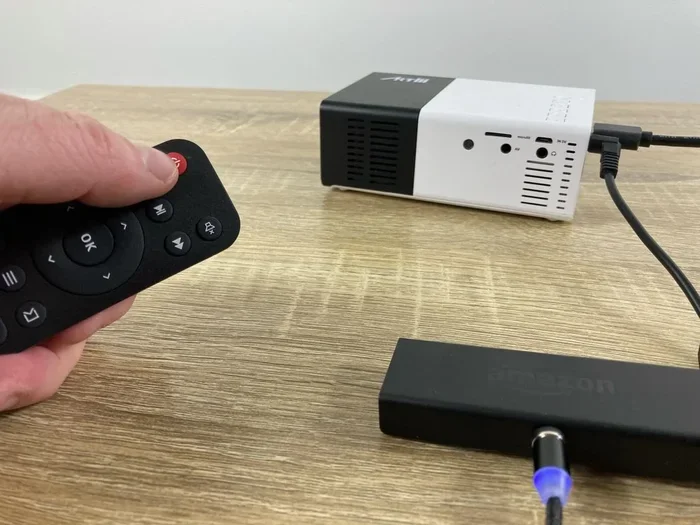
- Plug the Firestick into the HDMI port on your projector.
- Connect the Firestick power cable to a USB port on the projector or a wall outlet using the power adapter.
- Turn on the projector and switch to the correct HDMI input channel.
- Follow the on-screen instructions on the Firestick to connect to your WiFi network.
- Sign in to your Amazon account and download your favorite streaming apps.
That is it. You are ready to stream. The entire process takes less than 10 minutes for most people. If you have never set up a streaming device before, do not worry. The Firestick interface is very user-friendly and walks you through every step.
Best Projectors For A Firestick Setup
Key Features To Look For
Not all projectors are created equal when it comes to streaming with a Firestick. Here are the features that matter most:
- HDMI Port: This is non-negotiable. Without an HDMI port, the setup becomes complicated and may not deliver good quality.
- Resolution: Look for a projector that supports at least 1080p (Full HD). If you can afford a 4K projector, even better. The Firestick supports 4K streaming on compatible models.
- Brightness: Measured in lumens. For indoor use, 1,500 to 2,500 lumens is ideal. For outdoor use during the day, you will need 3,000 lumens or more.
- Built-in WiFi: A dual-band WiFi connection ensures smooth streaming without buffering. The Firestick relies heavily on a strong WiFi signal.
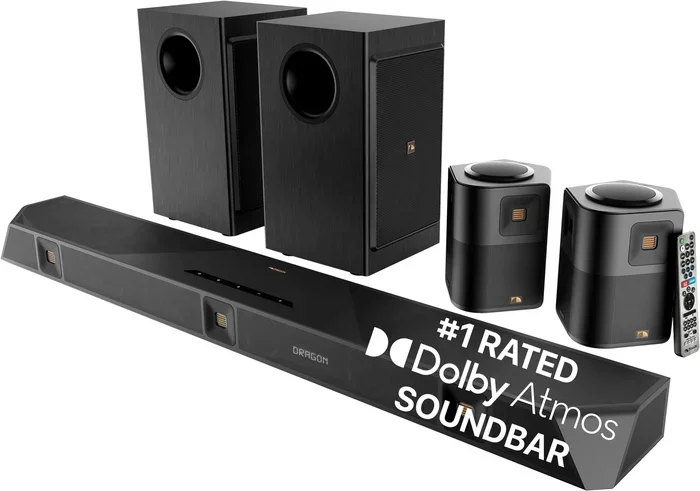
- Built-in Speakers: Some projectors have decent built-in speakers. Others require you to connect external speakers or a soundbar for better audio.
Budget-Friendly Options
You do not need to spend a fortune to get great results. Many affordable projectors work wonderfully with a Firestick. Brands like ViewSonic, Epson, and BenQ offer projectors in the $200 to $400 range that deliver sharp images and reliable performance.
For those on a tight budget, there are even mini projectors available for under $100 that work with a Firestick. They may not match the brightness or resolution of higher-end models, but they are perfect for casual movie nights or travel use.
When choosing a projector, always read reviews from other users. Look for feedback specifically about streaming performance and color accuracy. A projector that looks great for presentations might not be ideal for watching movies.
Tips For The Best Streaming Experience
Improving Picture Quality
Getting the best picture from your Firestick and projector setup is easier than you think. Start by adjusting the projector settings. Most projectors have brightness, contrast, and color settings that you can tweak. Set the brightness to a comfortable level for your room lighting.
Make sure the projector is positioned correctly. It should be perpendicular to the screen or wall for the least distortion. If your projector has keystone correction, use it to fix any skewed image. However, use keystone correction sparingly because too much can reduce image quality.
Another important tip is to keep the Firestick firmware updated. Amazon regularly releases updates that improve streaming performance and fix bugs. Go to Settings on the Firestick, select My Fire TV, and choose About to check for updates.
Audio Setup Tips
Sound quality can make or break your movie experience. Many projectors have small built-in speakers that sound okay but lack depth. For a truly immersive experience, consider connecting external speakers.
You have several options for audio:
- Bluetooth Speakers: The Firestick supports Bluetooth, so you can pair wireless speakers easily.
- Soundbar: A soundbar connected via HDMI or optical cable delivers rich, clear sound.
- Home Theater System: For the ultimate setup, connect a full surround sound system to the projector or use the Firestick with a compatible AV receiver.
Even a pair of affordable Bluetooth speakers can dramatically improve your viewing experience. Do not underestimate the importance of good audio when watching movies on a big screen.
Common Problems And How To Fix Them
Connectivity Issues
The most common issue people face is the Firestick not connecting to the projector. If you see a no-signal message on the screen, try these steps:
- Check that the Firestick is firmly plugged into the HDMI port.
- Make sure the projector is set to the correct HDMI input channel.
- Try a different HDMI port on the projector if available.
- Unplug the Firestick, wait 30 seconds, and plug it back in.
- Ensure the Firestick power cable is connected and receiving power.
If the Firestick connects but the picture is blurry, check the projector focus ring. Adjust it until the image is sharp. Also, make sure the Firestick resolution matches your projector’s native resolution for the clearest picture.
Buffering And Streaming Quality Problems
Buffering during streaming is frustrating but common. It usually happens when the WiFi signal is weak or the internet speed is too slow. Here is what you can do:
- Move your WiFi router closer to the projector setup.
- Use a WiFi extender or mesh system to boost the signal.
- Reduce the number of devices using the same network.
- Lower the streaming quality in the app settings if needed.
For the best results, aim for at least 25 Mbps download speed for HD streaming and 50 Mbps for 4K content. You can test your internet speed using a free app on the Firestick or by visiting a speed test website on your phone.
Firestick vs. Other Streaming Devices For Projectors
While the Firestick is a popular choice, it is not the only option. Here is how it compares to other streaming devices you can use with a projector:
| Feature | Fire TV Stick | Chromecast | Roku Streaming Stick |
|---|---|---|---|
| Price Range | $25 to $50 | $30 to $50 | $30 to $50 |
| App Selection | Very Good | Good | Excellent |
| 4K Support | Yes (on 4K model) | Yes | Yes (on Ultra model) |
| Voice Remote | Yes | No (uses phone) | Yes |
| Alexa Integration | Yes | No | No |
| Ease of Setup | Very Easy | Easy | Very Easy |
Each device has its strengths. The Firestick stands out for its Alexa integration, Amazon Prime Video access, and affordable price. The Chromecast is great if you prefer casting from your phone. Roku offers the widest app selection. All three work well with projectors, so choose based on your preferences and ecosystem.
Frequently Asked Questions About Using A Firestick With A Projector
Can I Use Any Firestick With Any Projector
Most modern projectors with an HDMI port will work with any Firestick model. The Firestick is designed to be a universal streaming device. However, very old projectors that only have VGA or composite inputs will need an adapter to work with a Firestick. Always check your projector’s available ports before purchasing.
Do I Need A Special Firestick For A Projector
No, you do not need a special Firestick. Any Fire TV Stick model will work with a projector. The standard Fire Stick supports HD streaming, while the Fire Stick 4K and Fire TV Stick 4K Max support 4K resolution if your projector supports it. Choose the model that matches your projector’s capabilities and your budget.
Will The Firestick Drain The Projector’s Power
The Firestick uses very little power and will not drain your projector’s battery or affect its performance. Most projectors have a USB port that provides enough power for the Firestick. If your projector does not have a powered USB port, use the wall adapter that comes with the Firestick. This ensures a stable power supply and prevents any issues.
Can I Use A Firestick With A Portable Projector
Yes, portable projectors work great with Firesticks. Many portable projectors have HDMI ports and built-in batteries, making them perfect for outdoor movie nights or travel. Just make sure the portable projector has enough brightness for your viewing environment. Outdoor use during the evening or in shaded areas works best with most portable models.
How Do I Get Sound From The Firestick Through The Projector
If your projector has built-in speakers, the audio will play through them automatically when the Firestick is connected. If you want better sound, you can connect external speakers to the projector’s audio output or use Bluetooth speakers paired with the Firestick. Some projectors also support optical audio output for connecting to a soundbar or home theater system.
Is It Safe To Leave The Firestick Plugged Into The Projector All The Time
Yes, it is perfectly safe to leave the Firestick plugged in. The Firestick goes into a low-power standby mode when not in use, so it does not consume much electricity or generate excess heat. Just make sure the area around the projector has good ventilation to prevent any overheating issues during extended use.
Final Thoughts On Using A Firestick With A Projector
Using a Firestick on a projector for movies and TV is one of the best ways to enjoy streaming content on a big screen. The setup is simple, affordable, and delivers an impressive viewing experience that rivals a commercial theater. Whether you are a casual viewer or a dedicated movie buff, this combination gives you incredible value and flexibility.
The key to success is choosing a compatible projector with an HDMI port, following the setup steps carefully, and optimizing your WiFi connection for smooth streaming. With the right setup, you can watch your favorite shows and movies in stunning detail on a screen that fills your entire field of view.
Do not let the idea of setting up a home theater intimidate you. The Firestick and projector combo is designed to be simple and accessible for everyone. Start with the basics, experiment with placement and settings, and soon you will have a setup that rivals any expensive entertainment system. So go ahead, plug in that Firestick, and turn your next movie night into an unforgettable experience.