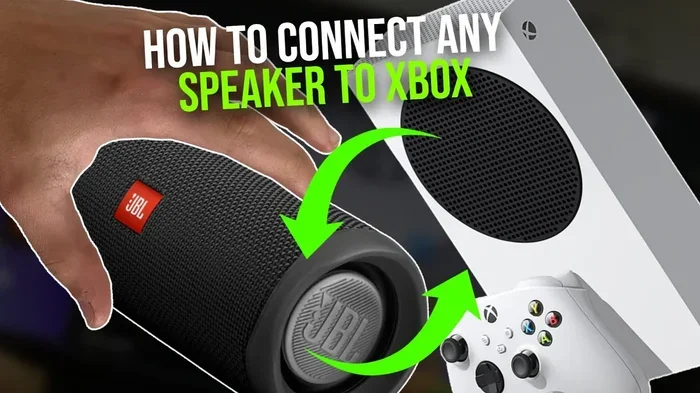
Can I Connect My Xbox One To A Bluetooth Speaker Now
Yes, you can connect your Xbox One to a Bluetooth speaker, but it requires a workaround since the console lacks built-in Bluetooth support. Using a Bluetooth adapter or alternative wired connections, you can enjoy wireless audio while gaming. This guide walks you through every method, compatible speakers, and troubleshooting tips to get your Xbox One audio working wirelessly right away.
If you are a gamer who loves immersive sound, you have probably wondered about your options for wireless audio on the Xbox One. The short answer is yes, you can connect your Xbox One to a Bluetooth speaker. But the full story is a bit more involved than just pressing a pair of buttons and calling it done.
The Xbox One console does not include native Bluetooth audio support. This means you cannot simply pair a Bluetooth speaker the way you would with your phone or laptop. However, that does not mean wireless audio is impossible. With the right adapter, a few workarounds, and some patience, you can absolutely get your Xbox One connected to a Bluetooth speaker and enjoy high-quality wireless gaming audio.
In this guide, we will walk you through every method available. We will cover the limitations, the best Bluetooth adapters, compatible speakers, common problems, and practical fixes. Whether you own an Xbox One X or the original Xbox One S, this article has you covered.
Key Takeaways
- Xbox One does not have native Bluetooth audio support: you need a Bluetooth adapter or alternative method to connect wireless speakers.
- A Bluetooth adapter is the most reliable way to connect a Bluetooth speaker to your Xbox One without audio lag.
- Not all Bluetooth speakers work well with Xbox One: look for low-latency models with good wireless range.
- Common issues like audio delay and connection drops can usually be fixed with simple troubleshooting steps.
- Alternative wireless options exist, including Xbox Wireless Headsets and optical audio transmitters.
- Optimizing your Xbox One audio settings can significantly improve your gaming sound experience.
- Compatibility matters: check your speaker and adapter specs before purchasing.
📑 Table of Contents
Understanding Xbox One Bluetooth Limitations
Before jumping into the how-to, it helps to understand why connecting a Bluetooth speaker to Xbox One is not as simple as it should be. Microsoft made specific design choices that affect wireless audio on this console.
Why Xbox One Does Not Have Built-In Bluetooth
Microsoft chose to use a proprietary wireless protocol for the Xbox One instead of standard Bluetooth. This decision was made to reduce interference with the controller’s wireless signal. The Xbox Wireless protocol keeps your controller connection stable, but it also means standard Bluetooth devices cannot connect directly to the console.
This is different from the Xbox Series X, which still follows the same pattern for Bluetooth audio. So if you have been hoping for a simple Bluetooth pairing option in the settings menu, that is not going to happen on the Xbox One.
What Wireless Audio Options Does Xbox One Support
The Xbox One supports a few wireless audio methods out of the box. You can use the official Xbox Wireless Headset, which connects through the proprietary Xbox Wireless protocol. You can also use a wireless headset that connects through the Xbox One controller’s 3.5mm jack.
For optical audio, the console has an optical out port that works with compatible soundbars and home theater systems. These are all great options, but they do not cover Bluetooth speakers specifically. That is where adapters and workarounds come in.
How to Connect a Bluetooth Speaker to Xbox One
Now for the part you have been waiting for. Connecting a Bluetooth speaker to your Xbox One is absolutely possible, and there are a few different ways to do it. Let us break down each method so you can pick the one that works best for your setup.
Method 1: Using a Bluetooth Adapter
The most reliable way to connect a Bluetooth speaker to Xbox One is through a Bluetooth adapter. This small device plugs into the Xbox One’s USB port or optical output and creates a bridge between the console and your wireless speaker.
Here is how the process typically works:
- Plug the Bluetooth adapter into a USB port on your Xbox One.
- Put your Bluetooth speaker into pairing mode.
- Go to the Xbox One settings and navigate to the audio output section.
- Select the Bluetooth adapter as your audio output device.
- Wait for the pairing to complete and test the sound.
Not all Bluetooth adapters are created equal. Look for adapters that support aptX or aptX Low Latency codecs. These reduce audio delay, which is critical for gaming where you need sound to match what is happening on screen. Cheap adapters without good codec support can cause noticeable audio lag that ruins your gaming experience.
Method 2: Using the Xbox One Controller’s 3.5mm Jack
If your Bluetooth speaker has a 3.5mm input, you can use the Xbox One controller as a middleman. Plug a 3.5mm audio cable from the controller’s jack into your speaker’s input. This method works, but it has limitations.
The main issue is range. You are limited by the length of your cable, so you cannot move far from the console. Also, the Xbox One controller’s audio output quality is not the best. You will get sound, but it may not be as rich or detailed as a direct connection through an adapter.
Method 3: Using an Optical Audio Transmitter
Some Bluetooth speakers come with an optical input or can be paired with a Bluetooth transmitter that accepts optical connections. You run an optical cable from the Xbox One to the transmitter, and the transmitter sends the audio wirelessly to your speaker.
This method is excellent for home setups where you want to keep things clean and cable-free. The optical connection provides solid digital audio quality, and the wireless transmission to your speaker eliminates the need for extra cables across your room.
Best Bluetooth Speakers for Xbox One Gaming
Not every Bluetooth speaker is a good fit for Xbox One gaming. You need a speaker that delivers clear audio, has low latency, and can handle the dynamic range of game sound effects and dialogue.
Key Features to Look For
When shopping for a Bluetooth speaker to use with your Xbox One, keep these features in mind:
- Low latency support: Look for speakers or adapters that support aptX Low Latency to minimize audio delay.
- Good wireless range: A range of at least 30 feet lets you move around your room comfortably.
- Clear dialogue reproduction: Gaming relies heavily on spoken cues, so a speaker that handles vocals well is essential.
- Compatible codecs: Make sure the speaker and your adapter both support the same Bluetooth codec for the best performance.
- Battery life: Long gaming sessions demand a speaker that can keep up without dying mid-game.
Top Picks for Xbox One Compatibility
Here are some Bluetooth speakers that tend to work well with Xbox One setups:
- JBL Flip 6: Great sound quality, solid Bluetooth range, and reliable low-latency performance when paired with a good adapter.
- Sony SRS-XB23: Compact and durable with strong bass and clear mids, perfect for casual gaming sessions.
- Bose SoundLink Mini II: Excellent audio clarity and a tight Bluetooth connection that stays stable during extended play.
- Anker Soundcore Motion+: Supports aptX codec, which helps reduce audio lag when connected through a compatible Bluetooth adapter.
Keep in mind that your experience may vary depending on the adapter you use and your specific Xbox One model. The Xbox One X and Xbox One S both work with these methods, but the optical output on the Xbox One S is especially useful for the optical transmitter method.
Common Problems and How to Fix Them
Connecting a Bluetooth speaker to Xbox One can come with some frustrating issues. Here are the most common problems and how to solve them.
Audio Lag and Latency Issues
Audio lag is the number one complaint when using Bluetooth speakers for gaming. You hear the sound a fraction of a second after the action happens on screen. This can throw off your timing in fast-paced games and make the experience feel disconnected.
To fix audio lag, try these steps:
- Use a Bluetooth adapter that supports aptX Low Latency or aptX Adaptive codecs.
- Move your Bluetooth speaker closer to the Xbox One to strengthen the signal.
- Reduce interference by keeping other wireless devices away from your setup.
- Check for firmware updates on both your adapter and your speaker.
- Restart both the Xbox One and the Bluetooth speaker to refresh the connection.
Connection Drops and Interference
Bluetooth signals can be disrupted by other wireless devices, walls, and even microwave ovens. If your connection keeps dropping during gameplay, the interference is likely the culprit.
Here is how to stabilize your connection:
- Place the Bluetooth adapter in a central location, not tucked behind the console.
- Keep your speaker within 15 to 20 feet of the adapter for the strongest signal.
- Switch to a less crowded Bluetooth channel if your adapter supports this feature.
- Turn off nearby devices that use Wi-Fi or Bluetooth to reduce signal competition.
- Use a USB extension cable for the adapter to position it away from the console’s heat and interference.
Poor Audio Quality
If your Bluetooth speaker sounds muffled or distorted when connected to Xbox One, the issue is often related to codec mismatch or low-quality adapter. Make sure both devices support the same Bluetooth codec. Switching from SBC to aptX or AAC can make a noticeable difference in audio clarity.
Alternative Ways to Get Wireless Audio on Xbox One
If a Bluetooth speaker does not work out for your setup, there are other wireless audio options worth considering. These alternatives may offer better performance and fewer headaches.
Xbox Wireless Headsets
The official Xbox Wireless Headset connects directly to the Xbox One without any adapters. It uses the Xbox Wireless protocol, so you get a stable, low-latency connection with great audio quality. These headsets also support spatial audio, which adds depth and direction to in-game sounds.
If you prefer something from a third-party brand, many gaming headsets now offer Xbox Wireless compatibility. Brands like SteelSeries, HyperX, and Razer all make headsets that connect natively to the Xbox One.
Xbox Wireless Adapter for Windows
Even though this adapter is designed for PC gaming, some users have found creative ways to use it with their Xbox One setup. The adapter provides a dedicated wireless connection that bypasses the Bluetooth limitations entirely. However, this method is more advanced and may require additional configuration.
Using a Soundbar with Bluetooth
Many modern soundbars have Bluetooth capability and optical inputs. By connecting your Xbox One to the soundbar via optical cable and using the soundbar’s Bluetooth feature for other devices, you can create a versatile audio setup. This is a great option if you want both gaming audio and the ability to stream music from your phone.
Tips for the Best Gaming Audio Experience
Once you get your Bluetooth speaker connected, you can take a few extra steps to maximize your audio quality and overall experience.
Optimizing Your Xbox One Audio Settings
Go to Settings, then General, then Volume & Audio Output on your Xbox One. Here, you can adjust the speaker output level, enable night mode for quieter dialogue, and configure surround sound if your setup supports it. Taking five minutes to tweak these settings can make a huge difference in how your games sound.
Quick Tips for Better Performance
- Keep your Xbox One firmware updated to ensure the best audio compatibility.
- Place your Bluetooth adapter in a visible location, not buried behind other devices.
- Use a powered USB hub if your Xbox One’s USB ports are not providing enough power to the adapter.
- Test different Bluetooth codecs to find the one that balances quality and latency best for your setup.
- Restart your Bluetooth speaker and adapter periodically to clear the connection cache.
- Consider using a dedicated Bluetooth 5.0 adapter for faster speeds and more stable connections.
These small adjustments add up over time and can transform your Xbox One gaming sessions from mediocre audio to genuinely immersive sound.
Conclusion
So, can you connect your Xbox One to a Bluetooth speaker? Absolutely. While the Xbox One does not have built-in Bluetooth audio support, the right adapter or workaround makes wireless audio entirely possible. Whether you choose a Bluetooth adapter, an optical transmitter, or a 3.5mm cable through your controller, there is a method that fits your setup and budget.
The key is to manage your expectations and choose compatible equipment. A quality Bluetooth adapter with low-latency support will give you the best results, and picking a speaker designed for clear audio will make your gaming sessions more enjoyable. With the right setup, you can game with immersive wireless sound without being tethered to your console by cables.
Take the time to troubleshoot any issues that come up, optimize your audio settings, and experiment with different configurations. Once you find the right setup, you will wonder how you ever gamed without wireless audio on your Xbox One.
Frequently Asked Questions
Can I connect any Bluetooth speaker to Xbox One?
Not directly. The Xbox One does not support standard Bluetooth audio connections. You will need a Bluetooth adapter or another workaround to connect most Bluetooth speakers. Make sure the adapter you choose supports the codecs your speaker uses for the best results.
Why is there audio delay when using a Bluetooth speaker with Xbox One?
Audio delay happens because Bluetooth has inherent latency, and cheap adapters often do not handle the audio processing fast enough. Using an adapter that supports aptX Low Latency or aptX Adaptive codecs significantly reduces this delay and makes gaming much more responsive.
Can I use AirPods with Xbox One through a Bluetooth speaker setup?
You can connect AirPods to Xbox One if you use a Bluetooth adapter that supports AAC codec. However, the connection may not be as stable as with dedicated Xbox Wireless headsets. The experience varies depending on the adapter quality and your specific AirPods model.
Is it better to use a Bluetooth speaker or a wireless gaming headset for Xbox One?
A wireless gaming headset is generally better for Xbox One gaming because it connects natively without adapters and offers lower latency. Bluetooth speakers work well for casual gaming and multimedia use, but serious gamers usually prefer a dedicated wireless headset for the best audio precision.
Does the Xbox One S handle Bluetooth speakers differently than the original Xbox One?
The Xbox One S and original Xbox One have the same Bluetooth audio limitations. Both require a Bluetooth adapter or workaround to connect wireless speakers. The Xbox One S does offer an optical output, which makes the optical transmitter method more convenient for S model users.
How do I know if my Bluetooth speaker is compatible with Xbox One?
Check that your Bluetooth speaker supports common codecs like aptX, AAC, or SBC. Also verify that the Bluetooth adapter you plan to use is compatible with both the Xbox One and your speaker. Reading user reviews specifically about Xbox One compatibility can save you from buying incompatible equipment.