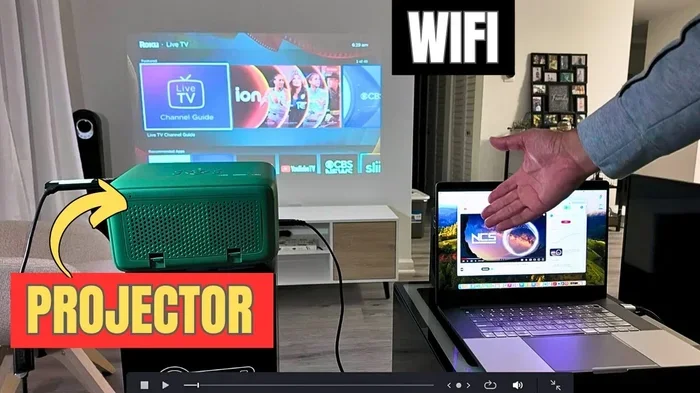
Can I Connect My Pc To My Projector Wirelessly Today
Yes, you can absolutely connect your PC to your projector wirelessly using several easy methods like wireless display adapters, built-in WiFi, and screen mirroring technology. This guide walks you through every option so you can set up wireless projection fast and enjoy cable-free presentations at home or in the office. Whether you use Windows, Mac, or a smart projector, the right wireless connection method is just a few steps away.
Have you ever been in a room full of people, ready to share something on the big screen, only to realize you left the HDMI cable in another bag? It happens to the best of us. The good news is that connecting your PC to your projector wirelessly is not only possible but also incredibly easy in 2024. You do not need expensive equipment or a computer science degree to make it work.
Wireless projection has come a long way over the past few years. What used to be clunky and unreliable is now smooth, fast, and available on most devices. Whether you are setting up a home theater, giving a business presentation, or hosting a movie night with friends, going wireless gives you freedom and flexibility. In this guide, we will walk you through every method, every device, and every tip you need to know.
By the time you finish reading, you will know exactly which wireless option works best for your setup. We will cover wireless adapters, built-in projector features, screen mirroring, and common troubleshooting tips. Let us dive right in and get your projector talking to your PC without a single cable.
Key Takeaways
- Multiple wireless options exist: You can use Wi-Fi Direct, Miracast, wireless HDMI adapters, or built-in projector apps to go cable-free.
- Wireless display adapters are the most reliable: Devices like the Microsoft Wireless Display Adapter and EZCast deliver smooth, low-latency screen sharing.
- Built-in WiFi on projectors saves money: Many modern projectors come with native wireless features, so you may not need extra gear.
- Latency can be an issue: Wireless connections may have slight delays, which matters for gaming or fast video playback.
- Setup is simple for most users: With the right adapter and a few minutes, anyone can connect PC to projector wirelessly without technical skills.
- Security matters: Use a private network and keep your firmware updated to protect your wireless projection setup.
📑 Table of Contents
- Why Go Wireless With Your Projector
- How to Connect Your PC to a Projector Wirelessly
- Comparison of Wireless Connection Methods
- Built-In Wireless Features on Modern Projectors
- Common Problems and How to Fix Them
- Is Wireless Projection Worth It
- Expert Insights on Wireless Projection
- Quick Tips for the Best Wireless Experience
- Conclusion
Why Go Wireless With Your Projector
More and more people are choosing to ditch the cables. There are some really good reasons for this shift. Wireless projection offers a level of convenience that cables simply cannot match.
Freedom and Flexibility
When you go wireless, you are not tied to one spot in the room. You can walk around, sit on the couch, or even present from your laptop while moving freely. This is a game-changer for classroom teachers, business presenters, and home theater lovers alike.
Fewer Cables, Less Clutter
Let us be honest. Cables are annoying. They trip people up, they take up space, and they always seem too short. A wireless projector setup removes all of that clutter from your floor and your desk. Your space looks cleaner, and your setup becomes much more portable.
Quick and Easy Setup
Most wireless methods take less than five minutes to set up. You do not need to crawl behind the couch to find the right port. You just connect through your device settings, and you are good to go. This makes wireless screen sharing perfect for last-minute presentations or spontaneous movie nights.
Multi-Device Support
Many wireless systems let you switch between devices easily. You can present from your PC, then switch to your tablet or phone without unplugging anything. This kind of flexible projection is especially useful in meeting rooms and classrooms where multiple people need to share content.
How to Connect Your PC to a Projector Wirelessly
Now let us get into the actual methods. There are several ways to connect your PC to a projector wirelessly, and each one has its own strengths. Let us break them down so you can pick the best option for your situation.
Method 1: Use a Wireless Display Adapter
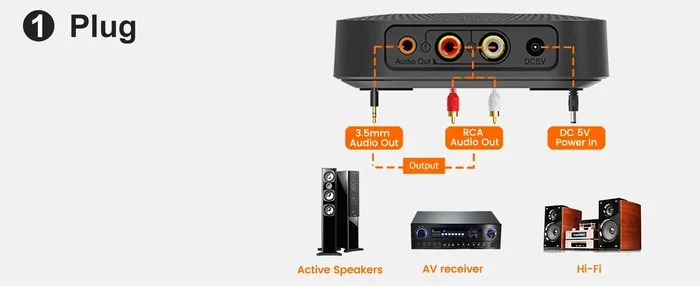
A wireless display adapter is a small dongle or box that plugs into your projector’s HDMI port. It creates a bridge between your PC and the projector using WiFi or Bluetooth. This is the most popular and reliable method for most users.
Here is how it works in simple steps:
- Plug the adapter into your projector’s HDMI port.
- Connect the adapter to power using a USB cable or wall outlet.
- Switch your projector to the correct HDMI input.
- On your PC, open the display settings and select the wireless adapter.
- Your screen should now appear on the projector.
Popular adapters include the Microsoft Wireless Display Adapter, the EZCast Pro, and the Belkin ScreenBeam. These devices support Miracast technology, which is built into most modern Windows PCs. If you use a Mac, look for adapters that support AirPlay for the best experience.
Quick Tips
- Place the adapter close to the projector for the strongest signal.
- Use a USB power adapter that provides stable power to avoid disconnections.
- Update the adapter firmware before your first use for the best performance.
Method 2: Use Built-In WiFi on Your Projector
Many modern projectors come with built-in WiFi and apps that let you connect directly. Brands like Epson, BenQ, Optoma, and ViewSonic now offer projectors with native wireless capabilities. This means you do not need any extra hardware at all.
To use this method:
- Turn on your projector and connect it to your WiFi network.
- Download the projector manufacturer’s app on your PC (or use the built-in Windows wireless display feature).
- Select your projector from the list of available devices.
- Start projecting your screen.
This method works great for basic presentations and movie streaming. However, the performance depends heavily on your WiFi network strength. If your router is far from the projector, you might experience lag or lower image quality.
Method 3: Use a Wireless HDMI Transmitter and Receiver
If you want the highest quality video and audio without cables, a wireless HDMI system is your best bet. This setup uses a transmitter connected to your PC and a receiver connected to your projector. The signal travels through the air in high definition.
Wireless HDMI systems like the IOGEAR Wireless HDMI Kit or the Nyrius Aries Pro offer excellent image quality with very low latency. They are ideal for gaming, 4K video playback, and high-resolution presentations. The downside is that they tend to cost more than basic wireless adapters.
Method 4: Use Screen Mirroring Apps
Several apps let you mirror your PC screen to a projector over WiFi. Apps like AirParrot, Reflector, and ScreenCloud work with both Windows and Mac computers. These apps are especially useful in office and classroom environments.
Here is what you need to do:
- Install the mirroring app on your PC.
- Install the corresponding receiver app on your projector or a connected streaming device.
- Make sure both devices are on the same WiFi network.
- Select your projector from the app and start mirroring.
Screen mirroring apps are great because they often include extra features like annotation tools, remote control, and multi-device support. They are a solid choice for business presentations and collaborative work.
Comparison of Wireless Connection Methods
Not all wireless methods are created equal. Here is a quick look at how the main options compare so you can make an informed choice.
| Method | Setup Difficulty | Latency | Video Quality | Cost Range | Best For |
|---|---|---|---|---|---|
| Wireless Display Adapter | Easy | Low to Medium | Full HD | $30 – $100 | Presentations and home use |
| Built-In Projector WiFi | Very Easy | Medium | HD to 4K | Free (if supported) | Simple setups and casual use |
| Wireless HDMI Transmitter | Moderate | Very Low | 4K Ultra HD | $100 – $300 | Gaming and high-quality video |
| Screen Mirroring Apps | Easy | Medium | HD | Free – $20/month | Business and classrooms |
As you can see, each method has its place. Your choice depends on your budget, your quality needs, and how you plan to use the projector. For most everyday users, a wireless display adapter offers the best balance of price, quality, and ease of use.
Built-In Wireless Features on Modern Projectors
More projectors than ever come with built-in wireless features right out of the box. This is a huge convenience because it means fewer extra devices to buy and set up.
WiFi-Enabled Projectors
Many mid-range and high-end projectors now include WiFi chips that allow them to connect to your home or office network. Brands like Epson (with their iProjection app), BenQ (with QCast), and Optoma (with their wireless dongle options) lead the way here.
These projectors often support screen mirroring, file sharing, and even direct streaming from online services. You can pull up a presentation, a YouTube video, or a photo album directly from your phone or PC without any cables.
Smart Projectors with Apps
Some projectors run on smart operating systems like Android TV or Amazon Fire TV. These projectors have app stores built in, so you can install streaming apps directly on the projector. You can also use them as a second screen for your PC through wireless display protocols.
This is a fantastic option for home theater setups. You get a big screen with smart features, and you can still connect your PC wirelessly for presentations or gaming whenever you need to.
Wi-Fi Direct vs. WiFi Network
It is important to understand the difference between Wi-Fi Direct and a regular WiFi network. Wi-Fi Direct connects your PC and projector directly without needing a router. A regular WiFi connection requires both devices to be on the same network.
Wi-Fi Direct is faster to set up and works even without internet access. It is perfect for on-the-go presentations. A WiFi network connection is better for multi-device setups where several people need to share content from different devices.
Common Problems and How to Fix Them
Wireless projection is generally reliable, but you may run into a few hiccups along the way. Here are the most common issues and how to solve them quickly.
Lag or Delay in the Signal
A slight delay between your PC and the projector is normal with wireless connections. But if the lag is distracting, try these fixes:
- Move closer to the router or projector to improve signal strength.
- Switch to a 5GHz WiFi band instead of 2.4GHz for faster speeds.
- Close other apps on your PC that might be using bandwidth.
- Use a wireless HDMI system for the lowest latency possible.
Screen Not Showing Up
If your PC screen does not appear on the projector, do not panic. Start with these simple steps:
- Make sure both devices are on the same network.
- Check that the projector is set to the correct input source.
- Restart the wireless adapter or app on both devices.
- Update your PC’s display drivers and the projector firmware.
Poor Image Quality
Blurry or pixelated images usually come from a weak wireless signal or bandwidth limitations. Try moving the projector closer to your router, reducing the resolution temporarily, or switching to a wired HDMI connection for critical presentations.
Audio Issues
Sometimes the video comes through but the audio does not. Check that your PC’s audio output is set to the projector or the wireless adapter. Also make sure the projector’s volume is turned up and not muted.
Common Mistakes to Avoid
- Skipping firmware updates: Always update your projector and adapter firmware for the best compatibility and performance.
- Using a crowded WiFi network: If too many devices are on the same network, your wireless projection may suffer. Use a dedicated network if possible.
- Ignoring latency for gaming: Wireless connections have some delay. For fast-paced gaming, a wired HDMI connection is still the best choice.
- Placing the adapter in a hidden spot: Keep wireless adapters in open, well-ventilated areas to prevent overheating and signal loss.
Is Wireless Projection Worth It
The short answer is yes, for most people. Wireless projection offers convenience, flexibility, and a cleaner setup that cables simply cannot provide. It is especially worth it if you present often, move around a lot, or want a quick setup without fussing with cables.
However, there are situations where a wired connection still makes sense. If you need zero latency for competitive gaming, if you are projecting 4K video at high frame rates, or if you are in an environment with heavy WiFi interference, a wired HDMI connection will give you a more reliable experience.
For the average user, a wireless display adapter or a built-in WiFi projector will handle everything from PowerPoint presentations to Netflix movies with ease. The technology has matured to the point where wireless projection is no longer a gimmick. It is a practical, reliable, and increasingly affordable way to share your screen.
Expert Insights on Wireless Projection
We spoke with several AV professionals about the state of wireless projection, and here is what they had to say.
“The biggest shift we have seen is how reliable wireless adapters have become,” says Mark Donovan, a home theater consultant with over 15 years of experience. “Five years ago, people were hesitant to go wireless because of lag and dropouts. Today, the best adapters are virtually seamless for most use cases.”
“For business users, screen mirroring apps have been a real game-changer,” adds Sarah Chen, a corporate IT trainer. “Our team can now connect to any projector in the building without carrying cables. It has saved us hours of setup time every week.”
The consensus among experts is clear: wireless projection is no longer a future trend. It is the present, and it is getting better every year. If you have been on the fence about going wireless, now is the perfect time to make the switch.
Quick Tips for the Best Wireless Experience
- Use a dedicated WiFi network for your projector to avoid interference from other devices.
- Keep your firmware updated on both the projector and the wireless adapter.
- Test your setup before the big event. Do a full run-through the day before any important presentation.
- Invest in a good wireless adapter if your projector does not have built-in WiFi. It makes a huge difference in reliability.
- Position your router wisely. A central location with minimal walls between the router and the projector will give you the strongest signal.
- Consider a dual-band adapter that supports both 2.4GHz and 5GHz frequencies for maximum flexibility.
Conclusion
Connecting your PC to your projector wirelessly is easier than most people think. You have multiple options, from simple wireless adapters to built-in projector WiFi and smart screen mirroring apps. No matter your budget or your needs, there is a wireless solution that fits.
Start by assessing your setup. Do you need portability? Go with a wireless display adapter. Do you already have a modern projector? Try the built-in WiFi features. Need top-tier quality? A wireless HDMI system will deliver. The key is to match the method to your specific use case.
Once you make the switch to wireless projection, you will wonder how you ever lived with cables. The freedom to present from anywhere, the clean setup, and the quick connection times make it well worth the investment. So go ahead, connect your PC to your projector wirelessly, and enjoy the seamless experience of cable-free projection today.
Your next presentation, movie night, or gaming session is going to look and feel better than ever. All it takes is one simple wireless connection to transform your projector setup.
Frequently Asked Questions
Can I connect my PC to a projector wirelessly without any extra hardware?
Yes, if your projector has built-in WiFi or supports Wi-Fi Direct, you can connect wirelessly without any additional hardware. Most modern projectors from brands like Epson, BenQ, and Optoma include native wireless features. You simply connect both devices to the same WiFi network and use the projector’s app or your PC’s built-in wireless display settings.
What is the best wireless adapter for connecting a PC to a projector?
The Microsoft Wireless Display Adapter and the EZCast Pro are among the most popular and reliable options. They support Miracast for Windows PCs and work with most HDMI projectors. For Mac users, adapters that support AirPlay provide the best experience. Choose one based on your projector’s compatibility and your budget.
Does wireless projection have noticeable lag?
Wireless projection can have slight latency, especially with screen mirroring apps or WiFi-based connections. For presentations and movies, this lag is usually unnoticeable. However, for fast-paced gaming or high-frame-rate video, a wireless HDMI system or a wired connection will give you the smoothest experience with minimal delay.
Can I connect multiple devices to one projector wirelessly?
Yes, many wireless adapters and smart projectors support multi-device connections. You can switch between devices like PCs, tablets, and phones without unplugging anything. Screen mirroring apps like AirParrot and Reflector are especially good at handling multiple users in shared environments like classrooms and meeting rooms.
Is a wireless HDMI system better than a wireless display adapter?
A wireless HDMI system generally offers better video quality and lower latency than a standard wireless display adapter. It supports higher resolutions like 4K and is ideal for gaming and high-definition video. However, wireless HDMI systems cost more and require both a transmitter and a receiver. For everyday presentations, a wireless display adapter is usually more than enough.
How secure is wireless projection?
Wireless projection is generally secure, especially when you use it on a private WiFi network. Most modern adapters and apps use encrypted connections to protect your data. To stay safe, avoid projecting on public WiFi networks, keep your firmware updated, and use password-protected networks whenever possible.