Do You Need Wi Fi On A Digital Camera For Smart Photos
Do you need Wi-Fi on a digital camera? The short answer is: it depends on your shooting style and how you share photos. A Wi-Fi enabled camera lets you transfer images wirelessly, control your camera from a phone, and upload to the cloud instantly. However, not every photographer needs this feature, and it comes with trade-offs like battery drain and occasional connection issues.
You just came home from an amazing weekend trip. You shot hundreds of photos with your digital camera, and now you want to share them on social media. But wait — you need to plug in a cable, transfer files, wait for them to load, and only then can you post. Sound familiar?
Now imagine a different scenario. You take a shot, tap your phone, and the photo is already on your screen. You edit it, add a filter, and post it — all within minutes. That is the power of a Wi-Fi enabled camera. But the real question is, do you need Wi-Fi on a digital camera for your photography needs?
In this guide, we will break down everything you need to know about wireless connectivity in digital cameras. We will cover the benefits, the drawbacks, and help you decide if a WiFi camera is the right choice for you. Let us get into it.
Key Takeaways
- Wireless convenience: Wi-Fi lets you transfer photos to your phone or computer without cables.
- Smart camera features: Remote control, GPS tagging, and instant sharing are major perks.
- Battery impact: Wi-Fi can drain your camera battery faster than expected.
- Not essential for everyone: Professional studio shooters may not need it at all.
- Smartphone integration: Most Wi-Fi cameras pair with a mobile app for seamless workflow.
- Cloud storage made easy: You can back up photos in real time without extra effort.
- Price consideration: Wi-Fi cameras may cost more than non-Wi-Fi models.
📑 Table of Contents
- What Is Wi-Fi on a Digital Camera?
- Benefits of Having Wi-Fi on Your Camera
- Drawbacks of Wi-Fi on a Digital Camera
- WiFi Camera vs Non-WiFi Camera: Which One Is Right for You?
- How to Use Wi-Fi on Your Digital Camera
- Top WiFi-Enabled Digital Cameras Worth Considering
- Common Mistakes People Make With Camera Wi-Fi
- The Future of Wireless Photography
- Final Thoughts
What Is Wi-Fi on a Digital Camera?
When we talk about Wi-Fi on a digital camera, we mean a built-in wireless connection that lets your camera communicate with other devices. This includes smartphones, tablets, laptops, and even cloud storage services. The technology works similarly to how your phone connects to a wireless network at home or in a café.
Most modern Wi-Fi enabled cameras come with a dedicated mobile app. You download the app, pair it with your camera through Bluetooth or a direct Wi-Fi signal, and you are good to go. Some cameras also support Bluetooth connectivity as a low-power alternative for everyday syncing.
Here is what a typical wireless connection on a camera can do:
- Wireless photo transfer: Send images directly to your phone or computer.
- Remote camera control: Use your phone as a viewfinder and shutter button.
- GPS tagging: Add location data to your photos automatically.
- Cloud upload: Sync images to services like Google Photos or Dropbox.
- Firmware updates: Download camera improvements without a computer.
Not all wireless connections are the same, though. Some cameras use a direct Wi-Fi hotspot mode, where the camera creates its own network. Others connect to your existing home or public Wi-Fi. Understanding this difference matters, because it affects how you use the feature in real-world situations.
Direct Wi-Fi vs. Router-Based Connection
A direct Wi-Fi connection means your camera acts as its own access point. You turn on the camera, connect your phone to its network, and transfer files. This method works anywhere, even in the middle of a forest with no internet. However, it can be slower and drains battery faster.
A router-based connection uses your home or office Wi-Fi network. This is faster and more stable, but it only works where you have a wireless connection. Many photographers prefer the direct method for on-the-go shoots and the router method for studio work.
Benefits of Having Wi-Fi on Your Camera
So why are Wi-Fi enabled cameras so popular? The benefits go way beyond just convenience. Let us look at the real advantages that make wireless features worth considering.
Instant Sharing and Social Media Workflow
This is the biggest selling point for most people. With a Wi-Fi enabled camera, you can share photos almost instantly. Wedding photographers can send selected shots to clients on the spot. Travel bloggers can post directly from the field. Journalists can file images to editors in real time.
Even if you are not a professional, instant sharing is a game-changer. You take a photo at a dinner party, send it to your phone, and text it to friends within seconds. No cables, no waiting, no hassle.
Remote Camera Control
Imagine you are taking a group photo and you do not want to run back and forth to the camera. With smart camera features, you can use your phone as a remote control. You see the live view on your phone screen, frame the shot perfectly, and tap the shutter button.
This is incredibly useful for:
- Self-portraits and vlogging: Frame yourself perfectly from a distance.
- Long exposures: Avoid camera shake by triggering the shutter remotely.
- Wildlife photography: Set up your camera and trigger it from a safe distance.
- Family events: Be in the photo instead of behind the lens.
Cloud Backup and Photo Sync
Losing photos is every photographer’s nightmare. A Wi-Fi enabled camera can automatically back up your images to the cloud as you shoot. This means even if your camera is lost, stolen, or damaged, your photos are safe online.
Many cameras support image upload to services like Google Photos, iCloud, or Amazon Photos. You can set it to upload only when connected to Wi-Fi, saving your mobile data. This feature alone gives peace of mind, especially during once-in-a-lifetime events.
GPS Tagging and Location Data
Some wireless connection cameras can pull GPS data from your phone. This means every photo you take gets automatic location tagging. Later, when you look through your library, you can sort and search photos by where they were taken.
This is a fantastic feature for travel photographers and anyone who likes to organize their photo collection by location. It adds a layer of context to your images that you cannot get any other easy way.
Firmware and Software Updates
This one is often overlooked but very important. Many modern cameras receive firmware updates over Wi-Fi. These updates can add new features, fix bugs, and improve performance. Without wireless connectivity, you would need to connect your camera to a computer and manually update the software.
Over time, this can keep your camera feeling fresh and up to date, extending its useful life significantly.
Drawbacks of Wi-Fi on a Digital Camera
Now for the honest part. Wi-Fi on a digital camera is not perfect. There are real downsides that you should know about before making a decision.
Battery Drain
This is the number one complaint among wireless camera users. Keeping a Wi-Fi radio active uses significant power. Depending on your camera model, you might lose 20 to 40 percent of your battery life just from having Wi-Fi turned on. For all-day shoots, this can be a serious problem.
Some cameras have a low-power Bluetooth mode that reduces this drain. Others let you set Wi-Fi to turn on only after each shot or during specific intervals. But if you are shooting an event and cannot charge your camera, battery life becomes a real concern.
Connection Speed and Reliability
Let us be honest — wireless photo transfer on cameras is not always fast. Transferring a batch of RAW files can take several minutes, even on a good connection. Some cameras struggle with stable connections, especially in crowded areas with lots of wireless signals.
The transfer speed depends on several factors:
- The camera’s Wi-Fi standard (most use older Wi-Fi 4 or 5).
- Distance between the camera and your phone.
- Interference from other wireless devices.
- File size and format of your images.
For quick JPEG transfers, the speed is usually fine. For large RAW files, you might need patience or a different approach entirely.
Security Concerns
Any wireless connection comes with security risks. Your camera’s Wi-Fi signal can potentially be accessed by nearby devices. While most camera manufacturers encrypt their connections, it is still something to be aware of, especially when transferring sensitive or private images.
Always use strong passwords for your camera’s Wi-Fi network and turn off wireless features when you are not using them. These simple steps go a long way in keeping your data safe.
Added Cost
WiFi cameras often cost more than their non-wireless counterparts. The price difference can range from $50 to $200 or more, depending on the brand and model. If you are on a tight budget, this extra cost might not be worth it for features you may not use often.
WiFi Camera vs Non-WiFi Camera: Which One Is Right for You?
This is the big question, and the answer depends entirely on how you use your camera. Let us compare the two options side by side so you can make an informed decision.
| Feature | Wi-Fi Camera | Non-Wi-Fi Camera |
|---|---|---|
| Wireless photo transfer | Yes, instant | No, requires cable |
| Remote control via phone | Yes | No |
| Cloud backup | Yes, automatic | No |
| GPS tagging | Yes, via phone | No |
| Firmware updates | Over Wi-Fi | Via computer only |
| Battery life | Shorter with Wi-Fi on | Longer |
| Price | Higher | Lower |
| Connection reliability | Can be inconsistent | N/A |
| Best for | Travel, events, social media | Studio, landscape, professional work |
If you shoot mostly in controlled environments like a studio, and you always transfer files with a card reader or cable, a non-Wi-Fi camera might save you money and give you better battery life. But if you value convenience, instant sharing, and modern workflow, a Wi-Fi enabled camera is a smart investment.
Who Should Get a Wi-Fi Camera?
You should consider a wireless camera if any of these sound like you:
- You share photos frequently on social media or with clients.
- You travel light and want to avoid carrying extra cables.
- You love the idea of remote control and self-portraits.
- You want automatic cloud backup for peace of mind.
- You shoot events like weddings, parties, or conferences where quick delivery matters.
Who Can Skip Wi-Fi?
On the other hand, you might not need wireless features if:
- You prefer a simple, distraction-free shooting experience.
- You always edit and store photos on a computer anyway.
- You are a studio photographer who rarely needs to share images on the go.
- Battery life is your top priority and you do not want any compromises.
How to Use Wi-Fi on Your Digital Camera
If you decide a Wi-Fi enabled camera is right for you, here is how to get the most out of it. These practical tips will help you set up and use wireless features like a pro.
Step 1: Download the Right App
Every camera brand has its own companion app. Canon has Camera Connect, Nikon has SnapBridge, Sony has Imaging Edge, and Fuji has FUJIFILM Camera Remote. Download the app that matches your camera model before you try to connect anything.
Step 2: Enable Wi-Fi and Pair Devices
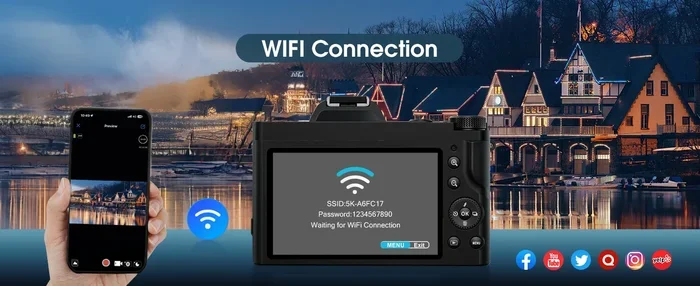
Go to your camera’s settings menu and turn on Wi-Fi. Your camera will display a network name and password. On your phone, go to Wi-Fi settings, find the camera’s network, and enter the password. Once paired, the devices will remember each other for future use.
Some cameras also support Bluetooth pairing, which keeps a low-energy connection active in the background. This makes the wireless connection faster when you actually need to transfer files.
Step 3: Adjust Your Transfer Settings
Most camera apps let you choose what to transfer. You can set it to send only JPEGs instead of RAW files, which is much faster and saves phone storage. You can also choose to auto-upload to cloud services or manually select images to transfer.
Step 4: Manage Battery Usage
To get the best battery life, turn Wi-Fi off when you are not using it. Many cameras have an auto-off feature that disables wireless after a set period of inactivity. Use this setting, especially during long shooting sessions.
Quick Tips for Better Wireless Performance
- Keep your phone and camera close during transfer — within a few feet is ideal.
- Turn off other wireless devices nearby that might cause interference.
- Update your camera firmware regularly for the best wireless performance.
- Use the camera’s built-in FTP server for professional wireless image upload to a computer or server.
- Consider a portable Wi-Fi hotspot if you need reliable connection in remote areas.
Top WiFi-Enabled Digital Cameras Worth Considering
If you are ready to explore the world of wireless photography, here are some WiFi camera options across different price ranges and skill levels.
Budget-Friendly Option: Canon PowerShot SX740 HS
This compact camera packs a punch with built-in Wi-Fi and Bluetooth. It is great for travel and everyday shooting. The wireless photo transfer works smoothly through the Canon Camera Connect app, and the price is very reasonable.
Mid-Range Pick: Sony Alpha a6400
The a6400 is a mirrorless favorite with excellent smart camera features. It has both Wi-Fi and Bluetooth, fast wireless transfer, and a great mobile app. It is perfect for enthusiasts who want professional-level results with modern connectivity.
Professional Grade: Nikon Z8
This flagship mirrorless camera offers top-tier wireless capabilities. It supports Wi-Fi, Bluetooth, and even wired Ethernet for studio use. The wireless connection is fast and reliable, making it ideal for working professionals who need to share images quickly.
When choosing a camera, do not just look at the Wi-Fi feature in isolation. Consider the overall image quality, lens options, build quality, and how well the companion app works. A great camera with a clunky app can be frustrating to use.
Common Mistakes People Make With Camera Wi-Fi
Even after buying a Wi-Fi enabled camera, many users do not get the full experience because of simple mistakes. Here are a few to avoid.
- Leaving Wi-Fi on all the time: This drains your battery fast. Turn it on only when you need to transfer or control remotely.
- Ignoring firmware updates: Manufacturers often improve wireless performance through updates. Skipping these means you miss out.
- Transferring huge files over Wi-Fi: Sending RAW files wirelessly is slow. Use the JPEG-only transfer option for everyday use.
- Not securing your connection: Always use a strong password for your camera’s Wi-Fi network to prevent unauthorized access.
- Expecting speed like your home internet: Camera Wi-Fi is not the same as your home broadband. Manage your expectations for transfer speeds.
Avoiding these pitfalls will make your wireless experience much smoother and more enjoyable.
The Future of Wireless Photography
Camera technology is evolving fast, and wireless features are getting better every year. We are seeing faster Wi-Fi standards, more reliable connections, and smarter integration with smartphones and cloud services. Some newer cameras even support 5GHz Wi-Fi bands, which are significantly faster than older standards.
In the near future, we can expect even more smart camera features powered by wireless technology. AI-powered editing, real-time cloud processing, and seamless multi-device workflows are all on the horizon. The line between a camera and a connected device is blurring, and that is an exciting trend for photographers of all levels.
So, do you need Wi-Fi on a digital camera? If you value convenience, instant sharing, and modern workflow, the answer is most likely yes. The wireless features available today make a real difference in how quickly and easily you can get your photos from camera to audience.
Final Thoughts
We have covered a lot of ground in this guide. From understanding what Wi-Fi actually does on a camera to weighing the pros and cons, we hope you now have a clear picture of whether wireless connectivity matters for your photography.
The bottom line is this: Wi-Fi on a digital camera is a powerful tool that can transform how you shoot, share, and manage your photos. It is not essential for everyone, but for those who value speed, convenience, and modern workflow, it is absolutely worth it.
Before you buy your next camera, ask yourself how you plan to use your photos. If instant sharing, remote control, and cloud backup matter to you, prioritize a Wi-Fi enabled camera. If you prefer a simpler setup and do not mind using cables, a non-wireless model can still deliver stunning results.
Either way, the most important thing is to enjoy the process of capturing moments and telling stories through your images. Technology is here to serve your creativity, not the other way around. Happy shooting!
Frequently Asked Questions
Do all new digital cameras come with Wi-Fi?
Most modern cameras include Wi-Fi as a standard feature, but not all of them. Entry-level and some older models may still lack wireless connectivity. Always check the specifications before purchasing if wireless features matter to you.
Does Wi-Fi on a camera drain the battery quickly?
Yes, keeping Wi-Fi active can significantly reduce battery life. Most cameras lose 20 to 40 percent more power when the wireless radio is on. To conserve battery, turn Wi-Fi off when you are not actively transferring files or using remote control.
Can I use Wi-Fi on my camera without an internet connection?
Absolutely. Most cameras create their own direct Wi-Fi hotspot that does not need an internet connection. You can transfer photos to your phone or control the camera remotely even in areas with no Wi-Fi or cellular service.
Is wireless photo transfer slow on digital cameras?
It depends on the camera model and file size. Transferring JPEGs is usually fast enough for everyday use. However, transferring large RAW files over Wi-Fi can take several minutes. For best results, use JPEG-only transfer settings when speed matters.
Are Wi-Fi cameras more expensive than regular cameras?
They can be slightly more expensive, with price differences typically ranging from $50 to $200. However, the convenience of wireless features often justifies the extra cost, especially for travel and event photographers who value quick sharing.
Can I connect my camera Wi-Fi to my home network?
Yes, many cameras can connect to your home Wi-Fi router. This allows automatic cloud uploads and faster transfer speeds compared to direct camera-to-phone connections. Check your camera’s manual for instructions on connecting to a router-based network.