Do Tcl Smart TVs Have A Reset Button And How To Find It
Do TCL Smart TVs Have A Reset Button? Yes, every TCL smart TV includes a reset button. This guide will show you exactly where to find it and how to perform both a soft reset and a factory reset.
Do TCL Smart TVs Have A Reset Button? The short answer is yes. Every TCL smart TV comes with a reset button. This small feature can save you a lot of trouble. Whether your TV freezes, apps crash, or the screen goes black, a reset often helps. Many people do not know where this button is. They also do not know how to use it. This guide will change that. You will learn exactly where the reset button sits on your TCL TV. You will also learn how to do a soft reset and a factory reset. We will cover models with and without remotes. By the end, you will feel confident. You will know how to restart your TV like a pro.
TCL makes many smart TV models. Some run Roku. Some run Android TV. Some use Google TV. No matter the operating system, the reset button works the same way. It is a tiny hole. You press it with a paperclip or a pen tip. The TV then restarts or wipes clean. This process is simple. It takes just a few minutes. You do not need any special tools. You do not need to call a technician. Just follow the steps in this article. We will walk you through each one. We will also share common mistakes to avoid. And we will tell you exactly when a reset is the right fix.
Resetting a TV might sound scary. You might worry about losing your favorite apps. You might fear breaking the TV. But do not worry. A soft reset is like restarting a phone. It does not delete anything. A factory reset deletes your settings and apps. But we will show you how to do that safely too. We will also give you tips to prevent future problems. So let us dive in. Let us find that reset button on your TCL smart TV.
Key Takeaways
- TCL TVs have a reset button: Every TCL smart TV includes a small pinhole reset button, usually on the back or side panel.
- Soft reset vs factory reset: A soft reset simply restarts the TV. A factory reset erases all settings, apps, and accounts.
- You can reset without a remote: The physical button lets you reset even if your remote is lost or broken.
- Location varies by model: Check the back panel, side edge, or bottom of your TCL TV for the reset hole.
- Always unplug first: For safety, disconnect the TV from power before pressing the reset button.
- Reset fixes many issues: A reset can solve freezing, app crashes, Wi-Fi problems, and login loops.
📑 Table of Contents
Do TCL Smart TVs Have A Reset Button?
Yes, they do. Every TCL smart TV has a reset button. This button is a small pinhole. It is usually about the size of a paperclip tip. The hole is often labeled “Reset” or has a tiny arrow next to it. You will not see a big button on the front. The reset button is hidden on the back or side of the TV. This design keeps the TV looking clean. It also prevents accidental presses. The button is easy to find once you know where to look.
What Does The Reset Button Do?
The reset button serves two main purposes. First, it can perform a soft reset. This restarts the TV without deleting any data. Second, it can trigger a factory reset. This wipes the TV back to its original settings. The type of reset depends on how long you press the button. A short press usually restarts the TV. A long press often starts a factory reset. We will explain the exact steps later. The reset button also works when the TV is completely frozen. If the screen is stuck on a logo or a black screen, the button can wake it up.
Quick Tip: Always unplug your TCL TV from the wall outlet before pressing the reset button. This protects the internal electronics. It also ensures a clean reset. Wait at least 30 seconds after unplugging. Then press the button with a dry paperclip.
Where Is The Reset Button Located On TCL TVs?
The reset button location can vary slightly between TCL models. But it is always on the back or side panel. You will not find it on the front bezel or the bottom stand. TCL places it near the ports. This makes sense because the back panel is less visible. It also keeps the button away from small fingers. Let us look at the most common spots.
Look At The Back Panel
Turn your TCL TV around. Look at the back panel. You will see HDMI ports, USB slots, and a power cord. Near these ports, you may see a small hole. It is often near the bottom right corner. Some models put it in the center. The hole is tiny. It might have a small arrow pointing toward it. This arrow tells you which side to press. Use a straightened paperclip or a pen tip. Gently push into the hole. Do not use a sharp object like a knife.
Check The Side Or Bottom Edge
Some TCL TV models place the reset button on the side panel. Look along the left or right edge. The button may be near the bottom. It could also be near the top. A few models put it on the bottom edge near the stand. If you do not see it on the back, check the sides carefully. Shine a flashlight if needed. The hole is very small. It can be hard to spot in dim light.
Expert Insight: TCL uses the same reset button design across many models. Whether you own a TCL 4-Series, 5-Series, 6-Series, or 8-Series, the button works the same way. The location might shift slightly, but it is always on the rear or side panel. If you cannot find it, check your owner’s manual. The manual will have a diagram showing the exact spot.
Common Mistake: Many people press the power button on the TV and think it is a reset. The power button only turns the TV on or off. It does not restart the system or clear settings. Only the tiny pinhole labeled “Reset” does that job. Do not confuse the two.
How To Perform A Soft Reset On Your TCL Smart TV
A soft reset is the safest way to restart your TCL TV. It does not delete any of your data. It simply refreshes the system. Think of it like restarting a computer. A soft reset can fix many common problems. Your TV might be slow. An app might be stuck. The sound might cut out. A soft reset often solves these issues in seconds.
Soft Reset Using The Reset Button
Follow these simple steps to do a soft reset with the physical button:
- Unplug the TV from the power outlet.
- Wait for 30 seconds. This lets the internal capacitors drain.
- Plug the TV back in and turn it on.
- Locate the reset button on the back panel.
- Press the button gently with a paperclip for 3 seconds.
- Release the button. The TV will restart automatically.
After the TV reboots, check if the problem is gone. The soft reset clears temporary glitches. It does not remove your apps or login information.
Soft Reset Using The Remote Or On-Screen Menu
If you have your remote, you can also soft reset without the button. This method is even easier. Here is how to do it:
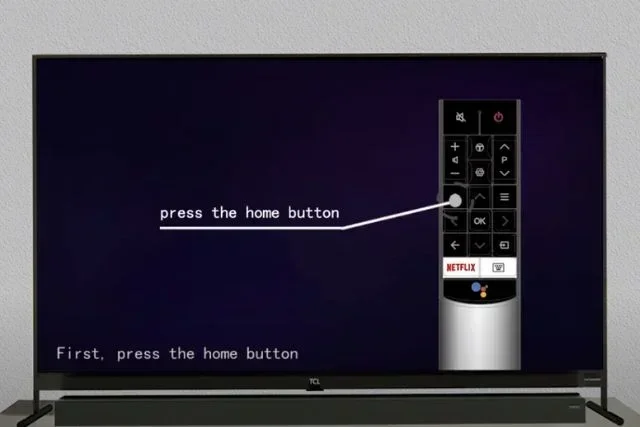
- Press the Home button on your TCL remote.
- Navigate to Settings.
- Select System or System Restart.
- Choose Restart or Power Cycle.
- The TV will turn off and back on.
This method works on TCL Roku TVs, TCL Android TVs, and TCL Google TVs. The menu path might look slightly different on each model. But the option is always in Settings. A soft reset through the menu is just as effective as using the pinhole button.
Quick Tip: If your TV is completely frozen and the remote does not respond, use the physical reset button. You can also unplug the TV from the wall, wait 60 seconds, and plug it back in. This is a power cycle. It often fixes a frozen screen without touching the reset button at all.
How To Factory Reset A TCL TV (With And Without A Remote)
A factory reset is a deeper reset. It erases all personal settings. It removes all downloaded apps. It deletes your Wi-Fi passwords and account logins. The TV goes back to the state it was in when you first opened the box. You should only do a factory reset when other fixes fail. It is a powerful tool. But it wipes everything clean.
Factory Reset Using The On-Screen Menu
If your TV is still responsive, use the on-screen menu. This is the easiest way. Here are the steps:
- Turn on your TCL TV.
- Press the Home button on your remote.
- Go to Settings.
- Select System or Advanced System Settings.
- Choose Factory Reset or Factory Data Reset.
- Enter your PIN if prompted. The default PIN is often 0000 or 1234.
- Confirm the reset. The TV will erase all data and restart.
After the reset, the TV will restart. You will need to set it up again. You will reconnect to Wi-Fi. You will sign back into your apps. This process takes about 5 to 10 minutes.
Factory Reset Without A Remote
What if you lost your remote? Or if the remote batteries died? You can still factory reset your TCL TV using the physical reset button. This method requires patience. Follow these steps carefully:
- Unplug the TV from the power outlet.
- Wait 30 seconds.
- Plug the TV back in. Wait for it to show the TCL logo.
- Locate the reset button on the back panel.
- Press and hold the reset button with a paperclip.
- Hold it for 10 to 15 seconds.
- Release the button. The TV will start the factory reset process.
- Wait for the TV to reboot. It may take several minutes.
Do not let go of the button too early. Holding it for at least 10 seconds is key. If you release it after 3 seconds, you might only get a soft reset. The long press triggers the factory reset. Watch the screen. You may see a warning message or a loading bar. Let the process finish completely.
Comparison Table: Soft Reset vs Factory Reset
| Feature | Soft Reset | Factory Reset |
|---|---|---|
| What it does | Restarts the TV system | Wipes all settings and apps |
| Deletes data? | No | Yes, all personal data is erased |
| Time needed | 1-2 minutes | 5-10 minutes |
| Use when | TV is slow or frozen | Selling the TV or fixing deep software issues |
| Button press | 3 seconds | 10-15 seconds |
| Remote needed? | No | No (can use button) |
Expert Insight: Always write down your Wi-Fi password and account logins before doing a factory reset. You will need them again after the reset. A factory reset is like giving your TV a fresh start. It fixes many stubborn problems. But it requires you to set everything up again.
Common Mistake: Some people hold the reset button for only 3 seconds during a factory reset attempt. This often triggers a soft reset instead. If your TV does not reset, make sure you hold the button for the full 10 to 15 seconds. Also, make sure the TV is plugged in and powered on when you press the button.
When Should You Reset Your TCL Smart TV?
Not every TV problem requires a reset. Many issues can be solved with a simple restart. But some problems truly need a reset. Knowing when to act can save you time and frustration. Here are the most common situations where a reset helps.
- The TV freezes on a black screen or a logo: A soft reset can wake the TV up. If it does not, try a factory reset.
- Apps keep crashing or will not open: A factory reset clears corrupted app data. This often fixes app crashes.
- Wi-Fi keeps disconnecting: Resetting the network settings or doing a full factory reset can restore your connection.
- The TV is very slow: Over time, smart TVs can get bogged down. A reset clears out the clutter and speeds things up.
- You are selling or giving away the TV: Always do a factory reset first. This protects your privacy and removes all your personal data.
- You forgot your TV PIN or parental lock password: A factory reset will clear the PIN. You can then set a new one.
- The remote is not working and the TV will not respond to any buttons: A reset can often revive an unresponsive TV.
Quick Tip: Before you reset, try a simple power cycle first. Unplug the TV, wait 60 seconds, and plug it back in. This fixes about 50 percent of TV issues. If the problem persists, then move on to a soft reset or factory reset. Do not jump straight to a factory reset. Start with the least disruptive option.
Common Mistake: Some users reset their TV every time a single app misbehaves. This is not necessary. A single app crash does not mean the whole system needs a wipe. Try restarting the app first. Then try a soft reset. Reserve the factory reset for deeper issues.
Common Problems A Reset Can Fix
A reset is a powerful troubleshooting tool. It can solve a wide range of issues on your TCL smart TV. Here are some of the most common problems that a reset fixes.
TV Stuck On The TCL Logo
If your TV turns on but stays on the TCL logo screen, it is stuck in a boot loop. This often happens after a software update. A soft reset can break the loop. If the soft reset does not work, a factory reset will. The factory reset clears the corrupted update data and lets the TV boot fresh.
No Sound Or No Picture
A sudden loss of sound or picture can be scary. Often, it is just a temporary glitch. A soft reset refreshes the audio and video processors. If the problem is caused by a bad setting, a factory reset can restore the defaults. Always check your cables first. But if the cables are fine, a reset is the next step.
Wi-Fi Keeps Dropping
Smart TVs rely on a stable Wi-Fi connection. If your TCL TV keeps disconnecting from your router, a reset can help. A soft reset refreshes the Wi-Fi adapter. A factory reset clears saved network settings. You will need to reconnect to Wi-Fi after a factory reset. But the connection should be stable again.
Remote Not Working
If your remote stops working, you can still control the TV with the buttons on the set. But if even those buttons do not respond, the TV’s system might be frozen. A reset can wake the TV up. Once it is back, try new remote batteries. A reset often fixes remote recognition issues too.
App Store Won’t Load
The TCL app store might fail to load after a software update. Or it might just stop working one day. A soft reset often fixes this. If not, a factory reset clears the app store cache and forces it to rebuild. You will need to sign back into your Google or Roku account after the reset.
Quick Tip: After a factory reset, update your TCL TV to the latest software version first. This ensures any bugs from the old version are gone. Then reinstall your apps one by one. This helps you spot any app that causes problems again.
Final Thoughts And Expert Tips
Do TCL Smart TVs Have A Reset Button? Now you know the answer. Yes, they do. The reset button is a small but mighty feature. It can save you hours of frustration. Whether you need a quick soft reset or a full factory reset, the process is simple. You just need to know where the button is and how long to press it. Always start with the least disruptive option. Try a power cycle first. Then try a soft reset. Only use a factory reset when necessary. And remember to back up your important logins before you wipe the TV clean.
Resetting your TCL TV is not something you will do every day. But when you need it, you will be glad you know how. Keep this guide handy. You can come back to it anytime your TV acts up. Share it with a friend who might be struggling with a frozen screen. A little knowledge goes a long way. Your TCL smart TV will run smoothly for years. Just give it a fresh start when it needs one.
Expert Insight: TCL TVs are built to be reliable. The reset button is a safety net built into every model. Use it with confidence. If you ever feel unsure, you can always contact TCL support. They can walk you through the reset steps over the phone. But most of the time, you can do it yourself in just a few minutes.
Common Mistake: Never press the reset button with a metal object like a key or a screwdriver. These can damage the tiny contacts inside the hole. Always use a plastic pen tip or a paperclip. And never press the button while the TV is plugged in and running. Unplug it first. Safety always comes first.
Frequently Asked Questions
How do I find the reset button on my TCL smart TV?
Look at the back panel of your TCL TV near the HDMI ports. You will see a tiny pinhole labeled “Reset.” Use a paperclip to press it gently. If you do not see it on the back, check the side or bottom edge. The button is always on the rear or side panel, never on the front.
Will a factory reset delete all my apps and settings?
Yes, a factory reset erases everything. It removes all downloaded apps, Wi-Fi passwords, and account logins. The TV will return to its original out-of-box state. You will need to set it up again after the reset. This is why you should only do a factory reset when necessary.
Can I reset my TCL TV without a remote?
Absolutely. You can use the physical reset button on the back of the TV. For a factory reset without a remote, unplug the TV, wait 30 seconds, plug it back in, and press and hold the reset button for 10 to 15 seconds while the TV is on. The TV will start the factory reset process.
What is the difference between a soft reset and a factory reset?
A soft reset simply restarts the TV. It does not delete any data or settings. A factory reset wipes the TV completely. It removes all apps, accounts, and personalized settings. A soft reset is like turning a light off and on. A factory reset is like moving into a brand new house.
How long should I hold the reset button on my TCL TV?
For a soft reset, press the button for about 3 seconds and release. For a factory reset, press and hold the button for 10 to 15 seconds. Make sure the TV is plugged in and powered on when you do this. Holding it for the correct amount of time is key to getting the right type of reset.
What should I do if my TCL TV is stuck on a black screen?
First, try a power cycle. Unplug the TV, wait 60 seconds, and plug it back in. If the black screen remains, try a soft reset using the reset button. If that does not work, a factory reset may be needed. A factory reset clears deep software glitches that can cause a black screen. Always unplug the TV before pressing the reset button for safety.