Do Bluetooth Headphones Work With Mac For Seamless Use
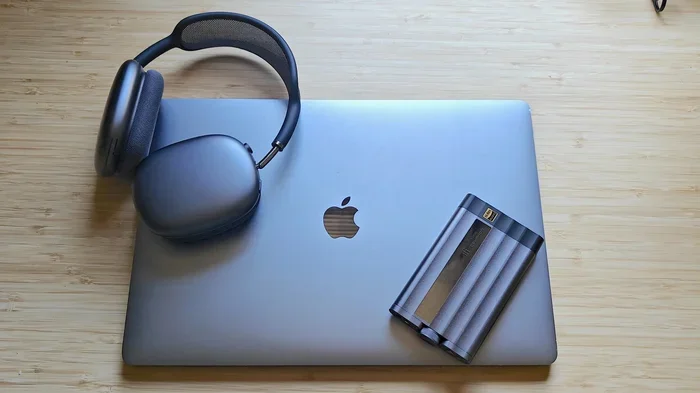
Yes, Bluetooth headphones work with Mac for seamless wireless audio. You can pair most wireless headphones with your Mac in just a few simple steps. This guide covers pairing, troubleshooting, compatibility, and tips for the best experience.
If you own a Mac and love wireless audio, you have probably wondered whether your Bluetooth headphones work with Mac. The short answer is yes. Most Bluetooth headphones connect to a Mac without any major issues. But the full story has more details that are worth knowing.
Whether you use your Mac for work, streaming movies, or listening to music, a good pair of wireless headphones makes a huge difference. Bluetooth technology has come a long way. Today, you get reliable connections, solid range, and surprisingly good audio quality. But not every pairing experience is perfect. Sometimes you run into glitches, audio delays, or connection drops. That is where this guide comes in.
In this article, we will walk you through everything you need to know about using Bluetooth headphones with your Mac. We will cover how to pair them, fix common problems, boost audio quality, and choose the best wireless headphones for Mac users. By the end, you will feel confident about your Bluetooth setup and know exactly how to get the most out of your wireless audio experience.
Key Takeaways
- Bluetooth headphones work with Mac: Most wireless headphones connect easily to any Mac with built-in Bluetooth support.
- Pairing is simple: You can pair your Bluetooth headphones with a Mac in under a minute through System Settings.
- AirPods offer the best Mac integration: Apple’s AirPods provide seamless switching and automatic reconnection with Mac devices.
- Troubleshooting is straightforward: Common Bluetooth issues can be fixed with simple steps like resetting Bluetooth or updating software.
- Audio quality depends on codecs: Understanding Bluetooth codecs helps you get the best sound quality from your wireless headphones on a Mac.
- Multiple headphones can connect: You can use Bluetooth multipoint or connect multiple devices, though Mac has some limitations.
- Firmware updates matter: Keeping both your Mac and headphones updated ensures the best compatibility and performance.
📑 Table of Contents
Do Bluetooth Headphones Work With Mac?
The short answer is a clear yes. Do Bluetooth headphones work with Mac? Absolutely. Every Mac made in the last decade or so comes with built-in Bluetooth support. This means you can connect wireless headphones without buying any extra hardware or accessories.
Apple has made Bluetooth integration a core part of macOS. The operating system handles Bluetooth connections smoothly. You will find Bluetooth settings right in System Settings. From there, you can scan for devices, pair headphones, and manage connected devices. It is a clean and user-friendly process.
That said, not all Bluetooth headphones perform the same way on a Mac. Some models deliver excellent audio quality and stable connections. Others might have minor issues with latency or range. The experience depends on several factors. These include the Bluetooth version of your headphones, the Bluetooth codec they use, and the specific Mac model you own. Let us explore these factors in more detail.
Bluetooth Versions and Mac Compatibility
Bluetooth technology has evolved over the years. Older versions like Bluetooth 3.0 and 4.0 still work with Mac. But they offer slower data transfer and shorter range. Newer versions like Bluetooth 5.0 and 5.3 provide better speed, longer range, and lower power consumption.
Here is a quick look at how Bluetooth versions compare:
- Bluetooth 4.0: Works fine for basic audio. Range is about 30 feet. Audio quality is decent but not the best.
- Bluetooth 5.0: Offers double the speed and four times the range of Bluetooth 4.0. Great for wireless headphones.
- Bluetooth 5.2 and 5.3: The latest standards. They support advanced codecs and provide the most stable connections.
Most modern wireless headphones use Bluetooth 5.0 or newer. If your Mac supports Bluetooth 4.0 or higher, you will have no trouble connecting. The key is to check your Mac model and Bluetooth version before purchasing new headphones.
How to Pair Bluetooth Headphones with Mac
Pairing Bluetooth headphones with a Mac is a straightforward process. You do not need any special software or technical skills. Just follow these simple steps and you will be listening to wireless audio in no time.
Step-by-Step Pairing Guide
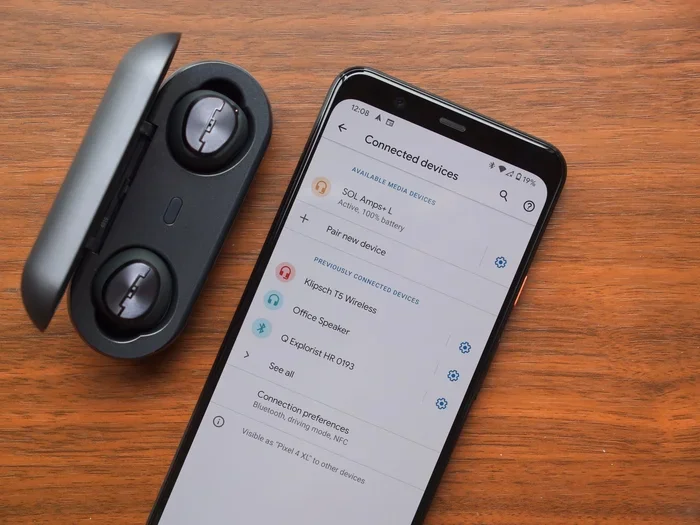
- Turn on your Bluetooth headphones. Make sure they are in pairing mode. Most headphones flash a light or display a message when they are ready to pair.
- Open System Settings on your Mac. Click the Apple menu in the top-left corner. Select System Settings from the dropdown menu.
- Click on Bluetooth. You will find this option in the left sidebar. It will show you all nearby Bluetooth devices.
- Find your headphones in the list. They should appear under Other Devices if they are not already paired.
- Click Connect next to your headphones. The Mac will establish the connection. You will see a status message once paired successfully.
- Start playing audio. Your Mac should now route sound through your Bluetooth headphones. You can adjust the volume from the Mac or the headphones themselves.
That is it. The entire process takes less than a minute. Once paired, your Mac will remember the headphones. You can reconnect automatically whenever both devices have Bluetooth turned on.
Quick Tips for a Smooth Pairing Process
- Keep your headphones close to the Mac during the initial pairing process.
- Turn off other Bluetooth devices temporarily to avoid interference.
- Make sure your headphones are charged. Low battery can sometimes cause pairing issues.
- Restart Bluetooth on your Mac if the headphones do not appear in the list.
- Check for macOS updates. Apple regularly improves Bluetooth compatibility through software updates.
Best Bluetooth Headphones for Mac
Not all wireless headphones are created equal. Some models work exceptionally well with Mac thanks to tight software integration and great audio quality. Here are some of the best options for Mac users.
AirPods Pro 2
Apple AirPods Pro 2 are the top choice for Mac users. They offer seamless switching between Mac, iPhone, and iPad. The H2 chip delivers rich, detailed sound. Active noise cancellation works beautifully. And the transparency mode lets you hear your surroundings without removing the earbuds.
AirPods Pro 2 connect instantly to Mac through iCloud. You do not even need to open Bluetooth settings. They just connect when you open the case near your Mac. This level of integration is hard to beat.
Sony WH-1000XM5
The Sony WH-1000XM5 over-ear headphones are a fantastic choice for Mac users who want premium sound. They offer industry-leading noise cancellation. The audio quality is rich and balanced. Battery life lasts up to 30 hours on a single charge.
These wireless headphones connect to Mac easily through standard Bluetooth. They support LDAC and AAC codecs, which means high-quality wireless audio on compatible Macs. The build quality is excellent, and the comfort level is top-notch for long listening sessions.
Bose QuietComfort Ultra Headphones
Bose has always been a leader in noise cancellation. The QuietComfort Ultra Headphones deliver immersive sound with spatial audio support. They connect to Mac effortlessly and offer a comfortable fit for hours of use.
Bose headphones work well with Mac for music, video calls, and movie watching. The Bluetooth range is solid, and the connection stays stable even through walls. These are a great pick for professionals who need reliable wireless audio throughout the workday.
Sennheiser Momentum 4 Wireless
Sennheiser is known for audiophile-grade sound. The Momentum 4 Wireless headphones do not disappoint. They offer exceptional audio clarity, deep bass, and a wide soundstage. Battery life reaches up to 60 hours, which is outstanding.
These headphones connect to Mac via Bluetooth 5.2. They support multiple codecs for high-quality wireless audio. If sound quality is your top priority, Sennheiser is a brand worth considering.
Common Bluetooth Issues with Mac and How to Fix Them
Even though Bluetooth technology is reliable, you may run into occasional problems. Here are the most common issues Mac users face with Bluetooth headphones and how to solve them.
Headphones Not Showing Up in Bluetooth Settings
This is one of the most common problems. Your headphones are in pairing mode, but they do not appear on your Mac. The fix is usually simple. First, make sure Bluetooth is turned on in System Settings. Then, toggle Bluetooth off and back on. If that does not work, restart your Mac and try again.
Sometimes, the issue is with the headphones themselves. Turn them off and back on. Put them back into pairing mode. This refreshes the Bluetooth signal and often solves the problem.
Audio Cuts Out or Keeps Disconnecting
Intermittent audio drops are frustrating. They usually happen when the Bluetooth connection is weak. The first thing to check is your distance from the Mac. Bluetooth range is typically about 30 feet. If you move too far away, the connection weakens.
Other devices can also interfere with Bluetooth signals. Wi-Fi routers, microwaves, and USB 3.0 devices can all cause interference. Move these devices away from your headphones and Mac. Also, make sure your Mac and headphones have the latest firmware updates installed.
Audio Lag or Latency
Audio lag happens when the sound does not match what you see on screen. This is especially noticeable when watching videos or playing games. Bluetooth audio has inherent latency because it compresses and transmits audio data wirelessly.
To reduce latency, make sure your headphones support low-latency Bluetooth codecs. AAC and aptX Low Latency are good options. Also, close any unnecessary apps on your Mac that might be using processing power. Updating your macOS can also help improve Bluetooth performance.
Poor Audio Quality
If your Bluetooth headphones sound muffled or distorted on Mac, there are a few things to try. First, check that you are using the right Bluetooth codec. Go to Bluetooth settings on your Mac and look for codec options. Switching to a higher-quality codec like AAC or LDAC can improve sound.
Also, make sure nothing is blocking the Bluetooth signal. Walls, furniture, and even your own body can weaken the connection. Moving closer to the Mac often fixes poor audio quality immediately.
Understanding Bluetooth Audio Codecs for Mac
Bluetooth audio codecs are the technology that compresses and sends audio wirelessly from your Mac to your headphones. Different codecs offer different levels of audio quality and latency. Understanding them helps you get the best sound from your wireless setup.
Here are the most common Bluetooth codecs you will encounter:
- SBC: The default Bluetooth codec. It works with all devices but offers the lowest audio quality.
- AAC: Apple’s preferred codec. It provides good audio quality and works well with Mac and AirPods.
- aptX: Offers better quality than SBC. Popular with Android but also works with some Macs.
- LDAC: A high-resolution codec from Sony. It delivers near-lossless audio quality over Bluetooth.
- LC3 (LE Audio): The newest codec standard. It offers better quality at lower bitrates and reduced power consumption.
Mac supports AAC natively, which is great for AirPods and other Apple-friendly headphones. If you use third-party Bluetooth headphones, check which codecs they support. Choosing headphones that support AAC or LDAC will give you the best wireless audio experience on a Mac.
Expert Tips for the Best Bluetooth Experience on Mac
Getting the most out of your Bluetooth headphones on a Mac is easier than you think. Here are some expert tips that make a real difference.
Keep Your Mac and Headphones Updated
Software updates often include Bluetooth improvements and bug fixes. Apple releases macOS updates regularly. These updates can improve Bluetooth connectivity, fix audio glitches, and add new features. Make sure both your Mac and your headphones have the latest firmware installed.
Use Bluetooth 5.0 or Newer When Possible
If you are buying new headphones, look for Bluetooth 5.0 or newer. These versions offer better range, faster connections, and lower power usage. They also support modern codecs that deliver superior audio quality. Your Mac will work just as well with older Bluetooth versions, but newer is always better.
Reset Bluetooth When Needed
If you are dealing with persistent Bluetooth issues, resetting the Bluetooth module on your Mac can help. Hold down the Shift and Option keys, click the Bluetooth icon in the menu bar, and select Reset the Bluetooth module. This clears all Bluetooth connections and gives you a fresh start.
Manage Connected Devices
Your Mac can remember multiple Bluetooth devices. But having too many connected devices can slow things down. Go through your Bluetooth settings and remove devices you no longer use. This keeps your connection clean and fast.
Consider a Bluetooth Adapter for Older Macs
If you have an older Mac that does not have built-in Bluetooth, you can use a USB Bluetooth adapter. These adapters plug into a USB port and add Bluetooth capability to your Mac. Look for adapters that support Bluetooth 5.0 or newer for the best performance.
Key Takeaways
- Bluetooth headphones work with Mac seamlessly in most cases. You just need to pair them through System Settings.
- AirPods offer the best Mac integration with features like automatic switching and instant pairing.
- Common Bluetooth issues are easy to fix by resetting Bluetooth, updating software, or moving closer to the Mac.
- Audio quality depends on the Bluetooth codec. AAC and LDAC provide the best sound on Mac.
- Bluetooth 5.0 or newer is recommended for the best range, speed, and audio quality.
- Keep your Mac and headphones updated to ensure the best compatibility and performance.
- Reset Bluetooth when needed to clear connection issues and start fresh.
Conclusion
Do Bluetooth headphones work with Mac for seamless use? Without a doubt, yes. The process is simple, the connections are reliable, and the audio quality is excellent. Whether you choose AirPods or a third-party brand, your Mac will work with most Bluetooth headphones without any hassle.
By following the pairing steps, troubleshooting tips, and expert advice in this guide, you can enjoy a smooth wireless audio experience every time. Keep your devices updated, manage your Bluetooth connections wisely, and choose headphones that support quality codecs. You will wonder how you ever used wired headphones again.
Now that you know everything about using Bluetooth headphones with Mac, go ahead and enjoy your wireless audio. Your Mac and your favorite pair of wireless headphones are ready to work together perfectly.
Frequently Asked Questions
Can I connect any Bluetooth headphones to my Mac?
Yes, most Bluetooth headphones work with Mac. Any wireless headphone that supports Bluetooth 4.0 or newer can connect to a Mac. Simply go to System Settings, open Bluetooth, and pair your headphones. Some premium models offer extra features like automatic switching and spatial audio on Mac.
Why is my Bluetooth headphone not connecting to my Mac?
Several factors can cause connection issues. Make sure Bluetooth is turned on and your headphones are in pairing mode. Try toggling Bluetooth off and back on. Restart both your Mac and headphones. If the problem persists, reset the Bluetooth module on your Mac. Keeping your macOS updated also helps resolve connection problems.
Does Bluetooth audio quality differ on Mac compared to other devices?
Audio quality can vary depending on the Bluetooth codec your Mac and headphones support. Mac supports AAC natively, which delivers good sound quality. Using headphones that also support AAC or LDAC will give you the best wireless audio experience. The difference between Bluetooth and wired audio is noticeable but has improved significantly with newer Bluetooth versions.
Can I use Bluetooth headphones for calls on my Mac?
Yes, Bluetooth headphones work great for calls on Mac. Your Mac recognizes Bluetooth headphones as audio input and output devices. You can select them in your Sound settings or directly in apps like FaceTime, Zoom, or Teams. Most wireless headphones have built-in microphones that deliver clear call quality.
How far can my Bluetooth headphones be from my Mac and still work?
Bluetooth range is typically about 30 feet in open spaces. Walls, furniture, and other electronic devices can reduce this range. Bluetooth 5.0 and newer versions offer better range and more stable connections. For the best experience, keep your headphones within reasonable distance of your Mac.
Do I need any special software to use Bluetooth headphones with Mac?
No special software is needed. macOS has built-in Bluetooth support that handles all wireless headphone connections. You can pair and manage Bluetooth headphones directly through System Settings. Some headphone brands offer companion apps for firmware updates and extra features, but these are optional and not required for basic Bluetooth connectivity.