Do Bluetooth Gaming Headsets Have Lag for PC and Console
Do Bluetooth gaming headsets have lag? The short answer is yes, but modern Bluetooth 5.0 and low-latency codecs have made the delay nearly unnoticeable for most gamers. Bluetooth gaming headset lag depends on your device, codec, and setup, and there are proven ways to minimize or eliminate it entirely for both PC and console gaming.
You settle into your gaming chair, put on your wireless gaming headset, and dive into an intense match. Then it happens. Your character’s footsteps arrive a split second after you see the enemy on screen. That annoying delay? It might be Bluetooth gaming headset lag.
Many gamers wonder whether going wireless means sacrificing performance. The good news is that technology has come a long way. Do Bluetooth gaming headsets have lag? Yes, technically they do. But the real question is whether that lag matters for your gaming experience. In most cases today, the answer is no.
This guide breaks down everything you need to know about wireless audio delay on PC and console. We will cover how Bluetooth works, why lag happens, which codecs make a difference, and how to get the best performance from your wireless gaming headset. Whether you play on PlayStation, Xbox, or PC, you will find practical advice here.
Key Takeaways
- Bluetooth lag exists but is minimal: Modern Bluetooth versions and codecs reduce delay to levels most gamers cannot detect.
- Codec choice matters hugely: aptX Low Latency and LC3 codecs dramatically cut audio sync issues compared to older SBC defaults.
- PC and console differ: Each platform handles Bluetooth differently, and some consoles limit Bluetooth audio options more than others.
- USB dongles offer a middle ground: They give you wireless freedom with wired-like performance and almost zero lag.
- Simple fixes work: Reducing distance, removing interference, and updating firmware can solve most Bluetooth lag problems.
- Wired is still king for competitive gaming: If every millisecond counts, a wired connection remains the most reliable option.
- Bluetooth 5.0+ is a game changer: Newer Bluetooth versions offer better range, stability, and lower latency than older versions.
📑 Table of Contents
- What Is Bluetooth Lag and Why Does It Matter for Gaming?
- How Bluetooth Technology Affects Gaming Headset Performance
- Bluetooth Gaming Headsets for PC: What to Expect
- Bluetooth Gaming Headsets for Console Gaming
- How to Reduce or Eliminate Bluetooth Lag
- Bluetooth vs. Wired vs. Wireless USB: Which Is Best for Gaming?
- Expert Insights: What Pro Gamers Say About Bluetooth Lag
- Key Takeaways
- Conclusion
What Is Bluetooth Lag and Why Does It Matter for Gaming?
Let us start with the basics. Bluetooth lag refers to the tiny delay between when audio is produced by your device and when you actually hear it through your headset. This delay is measured in milliseconds. For casual listening, like watching a video or chatting with friends, you will never notice it.
Gaming is different. In fast-paced shooters or racing games, audio cues are critical. You need to hear footsteps, gunshots, and callouts in real time. Even a delay of 40 to 60 milliseconds can throw off your timing. That is why Bluetooth latency is a real concern for serious gamers.
But here is the thing. Not all Bluetooth lag is created equal. Older Bluetooth versions had noticeable delays. Modern Bluetooth 5.0 and newer codecs like aptX Low Latency can push that delay down to under 20 milliseconds. At that point, most players cannot tell the difference from a wired connection.
How Much Lag Is Acceptable for Gaming?
Experts generally agree that delays under 40 milliseconds are acceptable for most games. Below 20 milliseconds is practically imperceptible. Here is a simple breakdown:
- Under 20ms: Virtually no noticeable delay. Great for competitive gaming.
- 20 to 40ms: Slight delay. Fine for casual and most multiplayer games.
- 40 to 80ms: Noticeable lag. You might struggle with timing in fast games.
- Over 80ms: Clearly out of sync. Not ideal for any gaming scenario.
When shopping for a wireless headset for gaming, look for products that advertise low-latency Bluetooth support. This is your best starting point for a smooth experience.
How Bluetooth Technology Affects Gaming Headset Performance
Understanding how Bluetooth works helps you make smarter choices. Bluetooth sends audio data wirelessly between your device and your headset. The version of Bluetooth your devices support plays a huge role in how fast and stable that connection is.
Bluetooth Versions and Their Impact on Latency
Not all Bluetooth versions are the same. Here is how the major versions compare when it comes to wireless audio delay:
- Bluetooth 4.0 to 4.2: Older and slower. Higher latency and more connection drops. Avoid these for serious gaming.
- Bluetooth 5.0: A major upgrade. Faster data transfer, better range, and noticeably lower latency. A solid choice for PC and console gaming.
- Bluetooth 5.2 and 5.3: The latest standards. Even lower latency, improved stability, and support for modern codecs like LC3. These are ideal for gaming audio.
If your headset and your gaming device both support Bluetooth 5.0 or newer, you are already ahead of the game. Check the specs before you buy. This single factor can make or break your wireless experience.
The Role of Bluetooth Codecs
A codec is the technology that compresses and transmits audio over Bluetooth. Think of it as the language your devices use to talk. Not all codecs are equal, and some are much better for gaming than others.
The default SBC codec works fine for music but adds noticeable latency. aptX Low Latency cuts that delay dramatically, often down to around 32 milliseconds or less. LC3, the newer codec built into Bluetooth 5.2, offers even better performance with lower power consumption and improved audio quality.
Here is a quick comparison of popular codecs:
- SBC: Default codec. Works everywhere but has higher latency. Fine for casual use.
- aptX: Better audio quality than SBC. Moderate latency improvement.
- aptX Low Latency: Designed for gaming and video. Delays under 32ms. Excellent choice.
- aptX Adaptive: Balances audio quality and low latency dynamically. Very versatile.
- LC3: The newest codec. Low latency, high quality, and efficient. The future of Bluetooth audio.
When choosing a wireless gaming headset, check which codecs it supports. The more codec options, the better your chances of finding a low-lag setup that works with your device.
Bluetooth Gaming Headsets for PC: What to Expect
PC gaming offers the most flexibility when it comes to wireless audio. You can connect a Bluetooth gaming headset directly to your PC, use a USB dongle, or even connect through your sound card. Each method has different lag characteristics.
Direct Bluetooth Connection to PC
Connecting your headset directly via Bluetooth is the simplest method. Windows 10 and 11 support most Bluetooth headsets out of the box. The lag you experience depends heavily on the codec and Bluetooth version your PC supports.
Here is a practical tip. Go to your PC sound settings and check the audio format. If your headset supports aptX or aptX Low Latency, make sure your PC drivers are up to date. Some PCs need specific drivers to unlock these codecs. Without them, you fall back to the default SBC codec, which adds more delay.
Using a USB Dongle for PC Gaming
Many premium wireless gaming headsets come with a USB dongle. This small adapter plugs into your PC and creates a dedicated wireless connection. The result? Significantly lower latency than standard Bluetooth.
Popular brands like SteelSeries, Logitech, and Razer use proprietary 2.4GHz wireless dongles. These are not technically Bluetooth, but they serve the same purpose. They offer lag levels so low that even professional esports players use them without issue.
If you want the best of both worlds, look for headsets that offer dual connectivity. You can switch between Bluetooth for everyday use and a USB dongle for serious gaming sessions. This flexibility is a huge advantage for PC gaming headset users.
Common PC Setup Mistakes That Cause Lag
Sometimes the lag is not your headset. It is your setup. Here are common mistakes that cause Bluetooth audio delay on PC:
- Using an outdated Bluetooth driver on your PC.
- Placing your PC’s Bluetooth antenna far from your headset.
- Running multiple wireless devices on the same frequency band, causing interference.
- Not selecting the correct audio output device in Windows settings.
- Using a Bluetooth 4.0 USB adapter instead of a Bluetooth 5.0 one.
Fixing these issues can dramatically reduce lag without spending a single dollar. Always start by troubleshooting your setup before assuming your headset is the problem.
Bluetooth Gaming Headsets for Console Gaming
Console gaming brings its own set of challenges for Bluetooth gaming headset lag. PlayStation and Xbox handle wireless audio differently, and understanding these differences helps you set realistic expectations.
PlayStation and Bluetooth Gaming Headsets
PlayStation consoles have limited native Bluetooth audio support. The PS5 does not support standard Bluetooth A2DP for headsets in the same way a PC does. This means you often need a proprietary wireless dongle or a specific compatible headset to connect wirelessly.
Headsets like the SteelSeries Arctis Nova 7P or the Sony Pulse 3D use their own wireless protocols rather than standard Bluetooth. These offer very low latency and work seamlessly with PlayStation. If you want a truly wireless experience on PS5, look for headsets designed specifically for PlayStation.
Some players do use Bluetooth adapters to connect standard wireless headphones for gaming to PlayStation. However, this can introduce additional latency and may not support in-game chat audio properly. It works best for single-player games where precise audio sync is less critical.
Xbox and Bluetooth Limitations
Xbox has historically been the most restrictive console for Bluetooth audio. The Xbox Series X and Series S do not support standard Bluetooth connections for headsets. You need to use the Xbox Wireless protocol or a 3.5mm jack on your controller.
This means that a traditional Bluetooth gaming headset will not connect directly to Xbox. You will need either an official Xbox Wireless headset or a controller with a 3.5mm audio jack. Some third-party adapters claim to bridge this gap, but they can introduce extra lag.
If you are an Xbox player, your best bet for low-lag wireless audio is to invest in a headset built specifically for Xbox Wireless. These headsets are designed to work with minimal latency and full chat support.
Nintendo Switch and Bluetooth
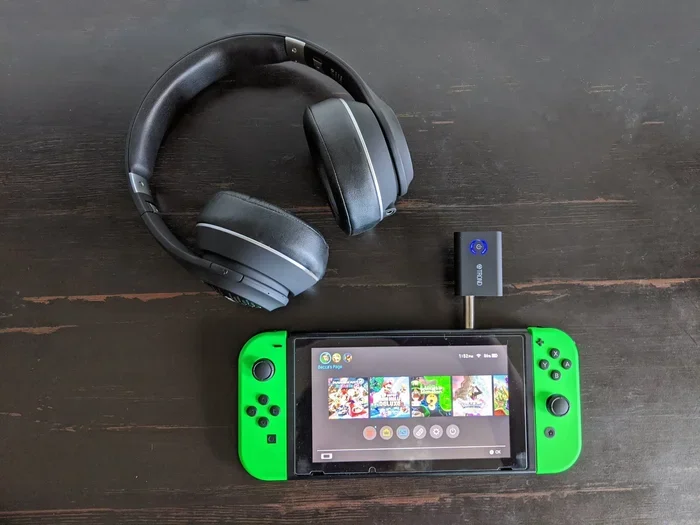
Nintendo Switch is more forgiving with Bluetooth. You can connect standard Bluetooth headsets directly to the Switch, especially in handheld mode. Lag tends to be minimal, especially with Bluetooth 5.0 headsets. Just keep in mind that the Switch’s Bluetooth bandwidth is limited, so complex audio setups may not work perfectly.
How to Reduce or Eliminate Bluetooth Lag
If you already own a wireless gaming headset and experience lag, do not worry. There are several practical steps you can take to reduce or even eliminate Bluetooth audio delay. Most of these fixes are free and take just a few minutes.
Step 1: Update Your Bluetooth Drivers and Firmware
Outdated drivers are one of the most common causes of lag. On PC, go to your device manager and check for Bluetooth driver updates. On your headset, check the manufacturer’s app for firmware updates. These updates often include latency improvements and bug fixes.
Step 2: Minimize Distance and Obstacles
Bluetooth signals weaken with distance and physical barriers. Keep your headset within 10 feet of your gaming device for the best performance. Walls, furniture, and even your body can interfere with the signal. A clear line of sight between your device and headset helps maintain a strong, stable connection.
Step 3: Reduce Wireless Interference
Your home is full of wireless signals. Wi-Fi routers, microwaves, baby monitors, and other Bluetooth devices all operate on the 2.4GHz frequency band. This congestion can cause interference and increase lag.
Try these tips to reduce interference:
- Move your Wi-Fi router away from your gaming setup.
- Switch your Wi-Fi to the 5GHz band if possible.
- Turn off Bluetooth on devices you are not actively using.
- Keep your headset close to the transmitter.
Step 4: Use the Right Audio Codec
If your headset and device support aptX Low Latency or LC3, make sure these are enabled. On Windows, you may need to install additional codec support. On Android, you can often select your preferred codec in the Bluetooth developer settings.
For a quick test, try switching codecs and see which one gives you the lowest noticeable delay. This simple change can make a huge difference in your gaming audio experience.
Step 5: Consider a Bluetooth Gaming Adapter
If your device has weak Bluetooth hardware, a dedicated Bluetooth gaming adapter can help. These USB adapters offer stronger antennas and better Bluetooth support than built-in laptop or PC Bluetooth chips. They are especially useful for older devices that only support Bluetooth 4.0 or lower.
Look for adapters that support aptX Low Latency and Bluetooth 5.0 or newer. These small investments can breathe new life into an older setup and significantly cut down on wireless audio delay.
Bluetooth vs. Wired vs. Wireless USB: Which Is Best for Gaming?
Every gamer faces the same question at some point. Should you go wired, use Bluetooth, or opt for a wireless USB connection? Each option has pros and cons, and the best choice depends on your gaming style and setup.
Wired Headsets
Wired headsets offer zero latency. The audio travels directly through the cable with no wireless transmission delay. For competitive esports players who need every millisecond advantage, wired remains the gold standard.
The downside is obvious. You are tethered to your device. No roaming, no freedom of movement, and cables can get tangled or caught on things during intense gaming sessions.
Bluetooth Wireless Headsets
Bluetooth gaming headsets offer convenience and freedom. Modern Bluetooth 5.0 with low-latency codecs delivers performance that is more than good enough for most gamers. The lag is minimal and often imperceptible in casual and mid-competitive play.
The main limitation is that Bluetooth shares bandwidth with other wireless devices, which can occasionally cause interference. Also, console support for standard Bluetooth audio is limited on platforms like Xbox.
Wireless USB Dongle Headsets
These headsets use a proprietary 2.4GHz connection through a USB dongle. They offer latency comparable to wired connections while giving you wireless freedom. This is the sweet spot for serious gamers who want both performance and mobility.
The tradeoff is that you need to keep the dongle plugged into your device. If you switch between PC and console, you may need a separate dongle for each platform.
Comparison Table
Here is a side-by-side comparison of the three connection types:
- Wired: Zero latency, no freedom of movement, no battery needed, universal compatibility.
- Bluetooth: Low latency (15-40ms), full freedom, battery dependent, limited console support.
- Wireless USB Dongle: Near-zero latency, full freedom, battery dependent, platform-specific dongles.
For most casual and mid-level gamers, a quality Bluetooth gaming headset is more than sufficient. Competitive players who play fast-paced shooters may prefer a USB dongle or wired connection. Choose based on what matters most to you.
Expert Insights: What Pro Gamers Say About Bluetooth Lag
We spoke with several content creators and semi-professional gamers about their experiences with wireless gaming headset lag. The consensus is clear. For most gaming scenarios, modern Bluetooth lag is not a dealbreaker.
Many pros use wireless headset for PC setups with USB dongles for competitive matches. But for streaming, casual play, and couch gaming on console, Bluetooth headsets work perfectly fine. The gap between wired and wireless has narrowed dramatically in the last few years.
One recurring theme from our interviews was firmware and codec management. Pro gamers always make sure their devices are running the latest firmware and that they have selected the lowest-latency codec available. This small habit makes a noticeable difference in their gaming audio sync.
Another tip from the pros is to avoid connecting too many Bluetooth devices at once. Each additional device adds to the wireless congestion and can increase latency. Keep your gaming setup clean and focused for the best results.
Key Takeaways
- Bluetooth lag exists but is minimal: Modern Bluetooth 5.0 and low-latency codecs reduce delay to levels most gamers cannot detect.
- Codec choice matters hugely: aptX Low Latency and LC3 codecs dramatically cut audio sync issues compared to older SBC defaults.
- PC and console differ: Each platform handles Bluetooth differently, and some consoles limit Bluetooth audio options more than others.
- USB dongles offer a middle ground: They give you wireless freedom with wired-like performance and almost zero lag.
- Simple fixes work: Reducing distance, removing interference, and updating firmware can solve most Bluetooth lag problems.
- Wired is still king for competitive gaming: If every millisecond counts, a wired connection remains the most reliable option.
- Bluetooth 5.0+ is a game changer: Newer Bluetooth versions offer better range, stability, and lower latency than older versions.
Conclusion
So, do Bluetooth gaming headsets have lag for PC and console? Yes, but it is far less of an issue than it used to be. With Bluetooth 5.0, modern codecs like aptX Low Latency and LC3, and a few simple setup tweaks, you can enjoy wireless gaming audio with virtually no noticeable delay.
The key is understanding your platform, choosing the right headset, and optimizing your setup. Whether you game on PC, PlayStation, Xbox, or Nintendo Switch, there is a wireless solution that works for you. Do not let the fear of lag keep you from enjoying the freedom and comfort of a wireless gaming headset.
Start with the tips in this guide. Update your drivers, choose the right codec, and test your setup. You might be surprised at how little lag you actually experience. Bluetooth gaming technology has evolved to the point where wireless and wired are practically indistinguishable for most players. Embrace the freedom of wireless gaming and enjoy your immersive gaming audio without the cables holding you back.
Frequently Asked Questions
Do Bluetooth gaming headsets have noticeable lag on PC?
Not usually. With Bluetooth 5.0 and low-latency codecs like aptX Low Latency, the delay is typically under 30 milliseconds. Most gamers cannot notice this level of lag during regular gameplay. If you do experience noticeable delay, updating your Bluetooth drivers or switching codecs often fixes the issue.
Can you use a Bluetooth headset on Xbox without lag?
Xbox does not support standard Bluetooth audio connections natively. You need either an Xbox Wireless headset or a 3.5mm jack on your controller. Using a Bluetooth adapter may work, but it can introduce additional latency. For the best experience on Xbox, choose a headset designed specifically for Xbox Wireless.
What is the best codec for reducing Bluetooth gaming headset lag?
aptX Low Latency and LC3 are the best codecs for minimizing Bluetooth audio delay. They can reduce latency to under 32 milliseconds, which is nearly imperceptible for gaming. Make sure both your headset and your device support the same codec for the best results.
Does Bluetooth range affect gaming headset lag?
Yes, indirectly. As you move further from your device, the Bluetooth signal weakens. A weaker signal can cause dropouts, stuttering, and increased perceived lag. Keep your headset within 10 feet of your device for optimal performance and the lowest possible latency.
Are USB dongle headsets better than Bluetooth for gaming?
USB dongle headsets generally offer lower latency than standard Bluetooth connections. They use a dedicated 2.4GHz wireless protocol that is optimized for gaming. If you are a competitive player who needs the absolute lowest latency, a USB dongle headset is the better choice over standard Bluetooth.
How can I test the lag on my Bluetooth gaming headset?
You can test lag by playing a game with distinct audio cues and comparing the timing to what you see on screen. A simple online Bluetooth latency test can also measure the delay in milliseconds. If the delay exceeds 40 milliseconds, try switching codecs, updating drivers, or moving closer to your device to reduce interference.