Can You Screen Mirror With Only Bluetooth Find Out Now
So, can you screen mirror with only Bluetooth? The short answer is no — Bluetooth alone cannot handle screen mirroring because it lacks the bandwidth needed to transmit video and audio simultaneously. While Bluetooth excels at audio streaming and device pairing, it simply cannot replace Wi-Fi or a wired connection for full screen mirroring. However, you can use Bluetooth for audio and pair it with other methods like Wi-Fi Direct or an HDMI adapter to achieve a complete wireless display experience.
Have you ever wanted to show your phone screen on a bigger display but only had Bluetooth available? Maybe you are at a friend’s house, in a hotel room, or somewhere with no Wi-Fi. You grab your phone, look for a way to share your screen, and think — can I just use Bluetooth for this?
The idea sounds simple enough. Bluetooth connects your devices wirelessly. It streams music. It pairs your headphones. So why not use it to mirror your screen too? Well, the answer might surprise you. Can you screen mirror with only Bluetooth? Not really. And here is exactly why.
In this guide, we will break down everything you need to know about screen mirroring with Bluetooth. We will explain what Bluetooth can and cannot do. We will share practical alternatives. And we will help you find the best solution for your situation. Whether you are trying to cast a movie, share photos, or present something at work, this article has you covered.
Key Takeaways
- Bluetooth alone cannot screen mirror: Bluetooth does not have enough bandwidth to transmit video content for screen mirroring.
- Bluetooth is great for audio streaming: You can use Bluetooth to send audio to speakers or headphones while mirroring your screen through other means.
- Wi-Fi Direct and Miracast are better alternatives: These wireless display protocols are specifically designed for screen mirroring without a router.
- HDMI adapters offer a wired backup: If Wi-Fi is not available, a simple HDMI adapter can connect your phone or laptop to a TV.
- AirPlay and Google Cast need Wi-Fi: Popular casting protocols rely on a shared Wi-Fi network for smooth performance.
- Bluetooth pairing is useful for peripherals: Use Bluetooth to connect keyboards, mice, or game controllers during your screen mirroring setup.
- Combining Bluetooth with other tech works best: A hybrid setup gives you the best of both wireless worlds.
📑 Table of Contents
- What Is Screen Mirroring and How Does It Work?
- Can You Screen Mirror With Only Bluetooth? Here Is the Truth
- What Technologies Actually Enable Screen Mirroring Without Wi-Fi?
- How Bluetooth Fits Into Your Screen Mirroring Setup
- Common Mistakes People Make When Trying to Screen Mirror
- Expert Tips for the Best Screen Mirroring Experience
- Quick Comparison: Bluetooth vs. Other Mirroring Technologies
- The Bottom Line on Screen Mirroring Without Wi-Fi
What Is Screen Mirroring and How Does It Work?
Before we dive into Bluetooth, let us talk about what screen mirroring actually means. Screen mirroring is the process of displaying your phone, tablet, or laptop screen on another device in real time. Think of it like a live video feed of everything happening on your screen.
When you mirror your screen, you are sending a constant stream of video and audio data from one device to another. This requires a lot of bandwidth. The data must travel fast and without delays. Any lag or interruption ruins the experience.
Different technologies handle this in different ways. Wi-Fi-based protocols like Miracast, AirPlay, and Google Cast are built specifically for this job. They use dedicated wireless frequencies and data channels to keep the stream smooth. Wired connections like HDMI cables provide a direct, stable link. And Bluetooth? It was never designed for heavy video transmission.
How Screen Mirroring Protocols Work
Most wireless display technologies use a process called wireless streaming. Here is a simple breakdown:
- Device A (your phone or laptop) captures the screen output.
- It compresses the video and audio into a data stream.
- The data travels through a wireless protocol to Device B (your TV or monitor).
- Device B receives the data, decompresses it, and displays it.
Each step requires speed and reliability. That is where the limitations of certain wireless technologies become obvious.
Can You Screen Mirror With Only Bluetooth? Here Is the Truth
Let us get straight to the point. Can you screen mirror with only Bluetooth? The honest answer is no. Bluetooth was designed for low-bandwidth tasks. It handles audio, keyboard inputs, and small data packets beautifully. But streaming live video? That is a completely different beast.
Here is what Bluetooth actually does well:
- Audio streaming to headphones, speakers, and earbuds.
- Device pairing for keyboards, mice, and game controllers.
- File transfers of small documents and images.
- Fitness tracker and smartwatch connections.
Now here is what Bluetooth struggles with:
- Video transmission — Bluetooth simply cannot move video data fast enough.
- High-resolution displays — even basic screen content needs more bandwidth than Bluetooth offers.
- Real-time streaming — the latency is too high for a smooth mirror experience.
Bluetooth versions 4.0 through 5.3 have improved data speeds. But even the latest Bluetooth 5.3 maxes out around 2 megabytes per second. That sounds decent until you realize that HD video streaming needs at least 5 to 10 megabytes per second. The numbers do not lie. Bluetooth alone cannot handle screen mirroring.
Why Bluetooth Was Not Built for Screen Mirroring
The Bluetooth protocol was created in the 1990s for short-range wireless audio and peripheral connections. Its designers focused on low power consumption and simple data exchange. Video streaming was not part of the plan. Over the years, Bluetooth has evolved. But its core purpose has stayed the same — it is a short-range wireless technology for lightweight tasks.
When you try to force screen mirroring through Bluetooth, you run into serious problems:
- Extreme lag — the video and audio fall out of sync.
- Low resolution — the mirrored image looks blurry or pixelated.
- Frequent disconnections — the connection drops because it cannot handle the data load.
- Battery drain — your phone works overtime trying to push data through an unsuitable channel.
No app or trick can change the physical limits of Bluetooth. If someone tells you otherwise, be skeptical. Screen mirroring requires a proper display protocol, not just a basic wireless connection.
What Technologies Actually Enable Screen Mirroring Without Wi-Fi?
So if Bluetooth cannot do it, what can? Fortunately, there are several wireless display options that work without a traditional Wi-Fi network. Let us explore the best ones.
Miracast (Wi-Fi Direct)
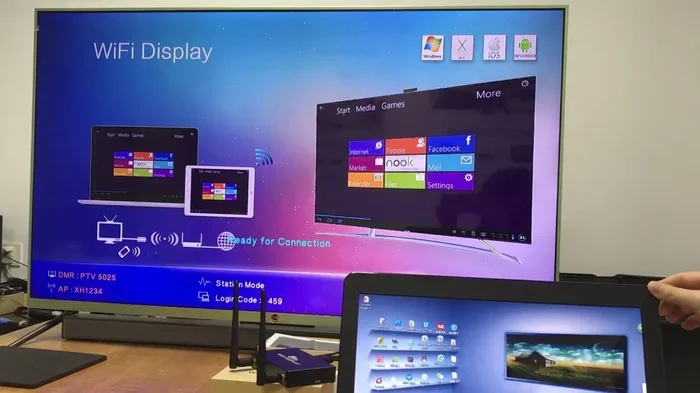
Miracast is the most popular Wi-Fi Direct screen mirroring standard. It creates a direct connection between two devices without needing a router. Your phone and your TV negotiate their own wireless link. The result is fast, smooth, and reliable.
Most Android phones and many smart TVs support Miracast. To use it:
- Open your phone’s wireless display or cast settings.
- Select your TV from the list of available devices.
- Your screen appears on the TV instantly.
Miracast handles full HD video with minimal lag. It is the go-to option for screen sharing without Wi-Fi.
AirPlay (Apple Devices)
If you use an iPhone or iPad, AirPlay is your built-in mirroring tool. AirPlay works over Wi-Fi, but Apple devices can also create a peer-to-peer AirPlay connection without a router. This means you can mirror to an Apple TV even in a location with no internet access.
AirPlay supports high-quality video and audio. It also lets you stream content directly from apps like Netflix and YouTube. For Apple users, it remains the gold standard for wireless screen sharing.
Google Cast (Chromecast)
Google Cast works a bit differently than Miracast. Instead of mirroring your entire screen, it lets you cast specific content from supported apps. Your phone sends a link to the Chromecast device, and the TV streams the content directly from the internet.
However, Google Cast also supports tab casting from Chrome, which mirrors your entire browser window. This still needs a Wi-Fi connection, but it is a great option when internet access is available.
HDMI Adapters (Wired Option)
When wireless options fail, a simple HDMI adapter saves the day. You plug a cable into your phone or laptop and connect it directly to your TV. No Wi-Fi needed. No Bluetooth needed. Just a clean, stable connection.
Popular options include:
- USB-C to HDMI adapters for modern phones and laptops.
- Lightning to HDMI adapters for iPhones and iPads.
- Mini DisplayPort to HDMI for older laptops.
Wired connections deliver the best quality and zero lag. They are perfect for presentations, gaming, and movie nights.
How Bluetooth Fits Into Your Screen Mirroring Setup
Just because Bluetooth cannot mirror your screen does not mean it is useless. In fact, Bluetooth plays a helpful supporting role in many screen mirroring setups. Here is how you can make the most of it.
Use Bluetooth for Audio While Mirroring Over Wi-Fi
One smart setup is to mirror your screen over Wi-Fi while sending audio to a Bluetooth speaker or headphones. This gives you the best of both worlds. Your video plays smoothly on the TV, and your audio comes through your preferred Bluetooth device.
This works great for:
- Watching movies without disturbing others.
- Gaming with wireless headphones for immersive sound.
- Presenting in a quiet room where you do not want speakers blasting.
Connect Bluetooth Peripherals During Mirroring
Need a wireless keyboard or mouse for your presentation? Bluetooth pairing makes this easy. Connect your peripherals to the receiving device and control everything from across the room. No cables cluttering your setup.
Some people also use Bluetooth game controllers while screen mirroring games to a TV. This creates a console-like experience without the mess of wires.
Bluetooth Audio Streaming as a Backup
If your Wi-Fi connection drops during a screen cast, you can still use Bluetooth to continue listening to audio. It is not a full mirror, but it keeps you connected. This is a handy backup plan for any wireless setup.
Common Mistakes People Make When Trying to Screen Mirror
Many people run into frustration when trying to mirror their screen wirelessly. Often, the problem comes down to simple mistakes. Here are the most common ones to avoid.
Mistake 1: Assuming Bluetooth Can Do Everything
This is the biggest mistake. People see the Bluetooth symbol and assume any wireless connection can handle any task. Remember, Bluetooth is for audio and peripherals, not for video mirroring. Always check which protocol your device actually supports.
Mistake 2: Not Checking Compatibility
Not every TV supports every mirroring standard. Before you try to cast, make sure your TV and your device share a compatible protocol. Look for labels like Miracast, AirPlay, or Chromecast built-in on your TV’s settings.
Mistake 3: Ignoring Distance and Obstacles
Wireless signals weaken through walls and over distance. Keep your devices within reasonable range. For Wi-Fi-based mirroring, stay within 30 feet of the receiving device. For Bluetooth, stay within 10 to 20 feet.
Mistake 4: Overlooking Software Updates
Old software can cause screen sharing problems. Always update your phone, TV, and any casting apps before you start. Updates fix bugs and improve compatibility between devices.
Mistake 5: Using a Crowded Wi-Fi Network
If you are at a busy office or apartment building, your Wi-Fi channel might be crowded. This causes lag and stuttering during wireless streaming. Try switching to a less crowded channel or use a direct Wi-Fi Direct connection instead.
Expert Tips for the Best Screen Mirroring Experience
Want to get the most out of your wireless display setup? Follow these practical tips from people who know their stuff.
Tip 1: Use a Dedicated Wi-Fi Network
If possible, set up a separate Wi-Fi network just for mirroring. This prevents other devices from hogging bandwidth. Your screen cast will run smoother and faster.
Tip 2: Close Unnecessary Apps
Background apps eat up processing power and memory. Before you start screen sharing, close everything you do not need. This frees up resources for a cleaner, lag-free mirror.
Tip 3: Keep Devices Cool
Screen mirroring heats up your phone or laptop. Overheating causes throttling, which leads to lag. Keep your devices in a cool, ventilated spot during long casting sessions.
Tip 4: Use the Right Cable as a Backup
Even the best wireless setups can fail. Always carry a simple HDMI adapter in your bag. It takes up no space and saves you when wireless options let you down.
Tip 5: Test Before You Go Live
If you are presenting or hosting a movie night, test your setup beforehand. Make sure the connection is stable, the audio syncs properly, and the resolution looks good. A five-minute test saves a world of trouble later.
Quick Comparison: Bluetooth vs. Other Mirroring Technologies
To make things crystal clear, here is a side-by-side look at how different technologies compare for screen mirroring.
- Bluetooth: Cannot mirror screens. Great for audio and peripherals. Range up to 30 feet. Low bandwidth.
- Miracast (Wi-Fi Direct): Full screen mirroring. No router needed. Supports HD video. Range up to 30 feet.
- AirPlay: Full screen mirroring for Apple devices. Peer-to-peer mode available. High-quality audio and video.
- Google Cast: Best for casting specific content. Tab casting available. Needs Wi-Fi for full functionality.
- HDMI Cable: Best quality and zero lag. Requires a physical connection. No wireless freedom.
As you can see, Bluetooth is not in the screen mirroring game. But it still plays a valuable supporting role in your overall setup.
The Bottom Line on Screen Mirroring Without Wi-Fi
Let us wrap this up clearly. Can you screen mirror with only Bluetooth? No. Bluetooth is a wonderful technology, but it was never built to carry video data for screen mirroring. It lacks the bandwidth, speed, and protocol support needed for a smooth, real-time display.
That does not mean you are stuck. You have plenty of options. Miracast and Wi-Fi Direct let you mirror without a router. AirPlay gives Apple users a seamless experience. HDMI adapters provide a bulletproof wired backup. And Bluetooth can still handle your audio and peripheral needs while you mirror through a better method.
The key is to match the right tool to the right job. Use Bluetooth for what it does best, and choose a proper screen mirroring protocol for your display needs. When you combine these technologies thoughtfully, you get a flexible, reliable setup that works almost anywhere.
Next time someone asks you, can you screen mirror with only Bluetooth, you will know the exact answer. And more importantly, you will know exactly what to do instead. Share this knowledge with friends and family. It might save them from a frustrating tech headache the next time they want to cast their screen.
Now go ahead and try it out. Pick the method that fits your situation. Test it. Tweak it. And enjoy the freedom of wireless screen sharing wherever you go.
Frequently Asked Questions
Can you use Bluetooth to send video to a TV?
No, Bluetooth cannot transmit video signals to a TV. Bluetooth is designed for low-bandwidth tasks like audio streaming and peripheral connections. To send video to a TV, you need Wi-Fi-based protocols like Miracast or AirPlay, or a wired connection like HDMI.
What is the difference between screen mirroring and casting?
Screen mirroring duplicates your entire device screen on another display. Casting sends specific content from an app to a TV, which then streams it directly. Miracast and AirPlay do mirroring, while Google Cast is primarily a casting technology.
Can I use Wi-Fi Direct for screen mirroring without internet?
Yes, Wi-Fi Direct creates a direct connection between two devices without needing a router or internet connection. Miracast uses Wi-Fi Direct and is one of the best options for screen mirroring without Wi-Fi or internet access.
Why does my Bluetooth connection keep dropping during screen sharing?
Bluetooth is not designed for screen sharing, so it struggles with the data load. If your device tries to push video through Bluetooth, the connection will likely drop frequently. Switch to a proper mirroring protocol like Miracast for a stable experience.
Do I need a smart TV to screen mirror?
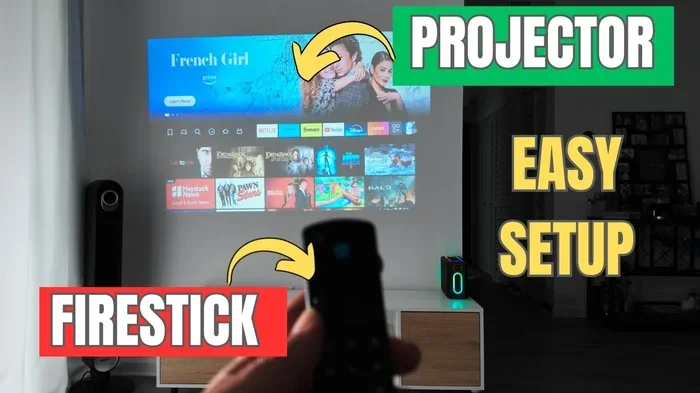
Not necessarily. You can use a streaming device like a Chromecast, Roku, or Amazon Fire Stick to add mirroring capabilities to any TV with an HDMI port. Many of these devices support Wi-Fi Direct or wireless display protocols.
Is screen mirroring safe and secure?
Most modern mirroring protocols use encrypted connections. AirPlay and Miracast both include security features to protect your data. However, avoid mirroring sensitive content on public or shared screens, and always verify you are connecting to the correct device.
=== CONCLUSION ===
So, can you screen mirror with only Bluetooth? The answer is a clear no. Bluetooth is a fantastic technology for audio and wireless peripherals, but it simply cannot handle the demands of live video mirroring. Understanding this saves you time, frustration, and a lot of failed attempts.
The good news is that you have many powerful alternatives. Miracast, AirPlay, Google Cast, and HDMI adapters all deliver excellent screen mirroring performance without relying solely on Bluetooth. Each has its strengths, and the best choice depends on your devices and situation.
Use Bluetooth as a helpful companion in your setup — for audio, for peripherals, and for backup connectivity. Pair it with the right mirroring technology, and you will have a seamless, reliable wireless display experience almost anywhere you go.
Now that you know the facts, you are ready to make smarter choices about how you share your screen. Apply what you learned here, experiment with different methods, and enjoy the freedom of wireless screen sharing with confidence.