How Do I Remove A Bluetooth Device From My Iphone Now
Removing a Bluetooth device from your iPhone is simple and takes just a few taps. This guide walks you through the exact steps to unpair and forget any wireless device connected to your phone. You will also learn how to troubleshoot common Bluetooth issues and keep your iPhone’s connection list clean and organized.
Have you ever looked at your iPhone’s Bluetooth list and felt confused? Maybe there are old devices you no longer use, or perhaps a gadget just refuses to connect properly. Whatever the reason, knowing how to remove a Bluetooth device from your iPhone is a basic skill everyone should have. It is quick, easy, and can solve a lot of connection headaches.
In this guide, we will walk you through every step. You will learn the fastest way to unpair a device, how to handle stubborn connections, and what to do when things go wrong. We will also share tips to keep your Bluetooth list tidy and your iPhone running smoothly. Let us get started.
Key Takeaways
- Quick Removal: You can remove any Bluetooth device from your iPhone in under a minute through the Settings app.
- Forget vs. Unpair: Understanding the difference helps you manage your connected devices more effectively.
- Troubleshooting Tips: Simple resets and updates can fix most Bluetooth connection problems on your iPhone.
- Multiple Methods: There are several ways to remove a device, including Settings, Control Center, and resetting network settings.
- Clean Device List: Regularly removing old Bluetooth devices keeps your iPhone running smoothly and prevents connection conflicts.
📑 Table of Contents
- Why You Might Need to Remove a Bluetooth Device
- How to Remove a Bluetooth Device from Your iPhone
- Alternative Methods to Remove Bluetooth Devices
- Troubleshooting Common Bluetooth Removal Issues
- Tips to Keep Your Bluetooth List Clean
- Bluetooth Device Removal on Different iPhone Models
- Understanding Bluetooth Pairing vs. Removing
- When to Seek Professional Help
- Final Thoughts
Why You Might Need to Remove a Bluetooth Device
There are many reasons why you would want to remove a Bluetooth device from your iPhone. Sometimes the device is old and no longer needed. Other times, the connection just causes problems. Here are some common situations where removal makes sense:
- You sold or gave away a device. If you no longer own the gadget, you should remove it from your iPhone’s memory. This keeps your list clean and prevents accidental connections.
- The device connects but does not work right. A stubborn Bluetooth connection can cause audio delays, dropped signals, or battery drain. Removing and re-pairing often fixes these issues.
- Your iPhone is running low on battery. Some Bluetooth devices drain power even when not in use. Removing them stops your phone from searching for them.
- You bought a replacement device. When you upgrade your wireless headphones or speaker, you want the old one off your list.
- You just want a clean list. A cluttered Bluetooth menu is hard to navigate. Removing unused devices makes finding the right one much easier.
No matter the reason, the process is the same. Once you know how to do it once, you will never struggle again.
How to Remove a Bluetooth Device from Your iPhone
The main method for removing a Bluetooth device is through the Settings app. This works on every iPhone model, from the oldest to the newest. Here is exactly what to do:
Step-by-Step Guide Using Settings
- Open the Settings app. Find the gear icon on your home screen and tap it.
- Tap Bluetooth. This opens your iPhone’s Bluetooth settings page. You will see a list of all paired and available devices.
- Find the device you want to remove. Look through the list under “My Devices” or “Other Devices.” The device you want to remove will have a small “i” icon next to it.
- Tap the “i” icon. This opens the device details page. You will see information about the connection and several options.
- Tap “Forget This Device.” This option appears at the bottom of the screen. Tap it to confirm.
- Confirm the action. A pop-up will ask if you are sure. Tap “Forget Device” again to complete the process.
That is it. The device is now removed from your iPhone’s Bluetooth memory. It will no longer appear in your device list, and your iPhone will not automatically connect to it.
What Happens After You Forget a Device
Once you remove a Bluetooth device, several things happen. First, the device disappears from your list entirely. Second, your iPhone stops saving its connection details. Third, if you want to use that device again, you will need to pair it fresh, just like the first time. This can actually be helpful because it clears any saved connection errors or glitches.
Some people worry that forgetting a device will delete data from the device itself. Rest assured, it does not. Your Bluetooth speaker or headphones will keep all their own settings. You are only removing the link between the two devices.
Alternative Methods to Remove Bluetooth Devices
The Settings app method is the most reliable. But there are other ways to remove a Bluetooth device from your iPhone. Let us explore them.
Using Control Center
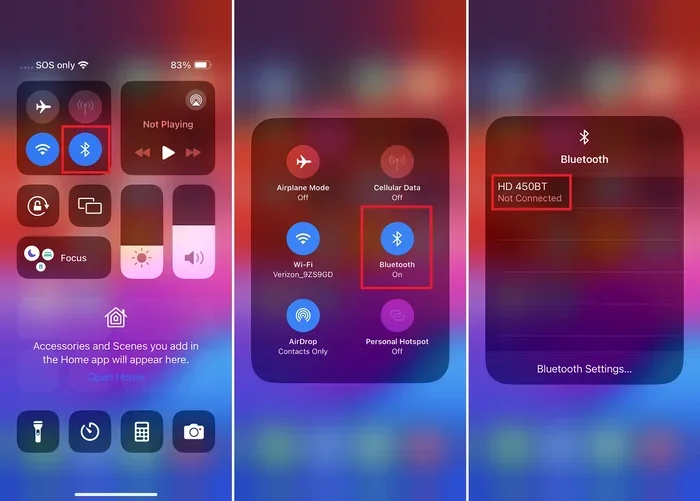
Control Center gives you quick access to Bluetooth, but it does not let you remove individual devices. You can turn Bluetooth off entirely from Control Center by swiping down from the top right corner of your screen and tapping the Bluetooth icon. However, this only disconnects devices temporarily. It does not remove them from your paired list. For full removal, you still need to use the Settings app.
Resetting Network Settings
If you have multiple Bluetooth devices causing problems, you can reset your network settings. This removes all Bluetooth pairings, Wi-Fi networks, and cellular settings. Here is how:
- Go to Settings.
- Tap General.
- Scroll down and tap Transfer or Reset iPhone.
- Tap Reset.
- Choose Reset Network Settings.
- Enter your passcode and confirm.
Warning: This method removes all saved Wi-Fi passwords too. Use it only if you have multiple Bluetooth issues or if the Settings method does not work. You will need to reconnect to Wi-Fi after resetting.
Removing a Device Through the Device Itself
Some Bluetooth devices let you remove your iPhone from their memory too. For example, many wireless headphones have a pairing button you can hold down to clear saved connections. Check your device’s manual for specific instructions. This method works well when your iPhone screen is broken or unresponsive.
Troubleshooting Common Bluetooth Removal Issues
Sometimes removing a Bluetooth device does not go smoothly. Here are the most common problems and how to fix them.
The “Forget This Device” Option Is Grayed Out
If you cannot tap “Forget This Device,” try these fixes:
- Turn Bluetooth off and back on. Go to Settings, toggle Bluetooth off, wait ten seconds, and turn it back on. Then try again.
- Restart your iPhone. A simple restart often fixes temporary glitches. Hold the power button, slide to power off, wait a few seconds, and turn it back on.
- Update your iOS. Go to Settings, tap General, then Software Update. Install any available updates. Apple frequently fixes Bluetooth bugs in new updates.
- Force restart your iPhone. The method varies by model. For iPhone 8 and newer, quickly press volume up, then volume down, then hold the side button until the Apple logo appears.
The Device Still Shows Up After Removal
After forgetting a device, it sometimes still appears under “Other Devices.” This is normal. Your iPhone is just detecting the device’s Bluetooth signal. The device will disappear from the list once it moves out of Bluetooth range, usually within a few minutes. If it stays visible for hours, try restarting your iPhone.
Bluetooth Keeps Reconnecting to a Removed Device
This is rare but can happen. If your iPhone reconnects to a device you already removed, try these steps:
- Turn off Bluetooth completely for one minute.
- Move away from the device you removed.
- Turn Bluetooth back on.
- If the problem persists, reset your network settings.
Device Will Not Pair Again After Removal
If you remove a device and then want to pair it again, but it will not connect, try this:
- Turn off Bluetooth on your iPhone.
- Turn off the Bluetooth device itself.
- Wait thirty seconds.
- Turn the Bluetooth device back on.
- Turn Bluetooth on your iPhone back on.
- Put the device in pairing mode.
- Select it from your iPhone’s Bluetooth list.
This fresh start usually resolves any lingering connection issues.
Tips to Keep Your Bluetooth List Clean
Managing your Bluetooth connections does not have to be complicated. A few simple habits will keep your iPhone’s device list organized and your connections running smoothly.
Review Your Paired Devices Monthly
Set a reminder to check your Bluetooth list once a month. Go through the list and remove any devices you no longer use. This takes just two minutes and prevents clutter from building up over time.
Name Your Devices Clearly
When you pair a new device, give it a clear name in your iPhone’s Bluetooth settings. Instead of “JBL Speaker 3847,” name it “Living Room Speaker.” This makes it much easier to identify devices later when you need to remove or switch between them.
Turn Off Bluetooth When Not in Use
Getting into the habit of turning off Bluetooth when you do not need it has several benefits. It saves battery life, reduces clutter in your device list, and prevents your iPhone from connecting to devices you do not want it to. You can toggle Bluetooth off from Control Center or the Settings app.
Keep Your iPhone Updated
Apple releases iOS updates regularly. Many of these updates include Bluetooth improvements and bug fixes. Keeping your iPhone updated ensures the best possible Bluetooth performance and makes removing devices smoother.
Use AirDrop for Quick Sharing Instead
If you only need to share files between devices, consider using AirDrop instead of Bluetooth. AirDrop is faster and does not require you to pair devices permanently. It uses Bluetooth to discover nearby devices but does not save them in your Bluetooth list.
Bluetooth Device Removal on Different iPhone Models
The process for removing a Bluetooth device is nearly identical across all iPhone models. However, there are small differences worth noting:
- iPhone 15 and 16 series. These models run the latest iOS versions. The Settings path is Settings > Bluetooth > tap the “i” icon > Forget This Device. Everything works smoothly.
- iPhone 12, 13, and 14 series. The process is the same. These models also support the latest Bluetooth features and work well with newer accessories.
- iPhone 11 and older. Older models may have slightly older Bluetooth versions. The removal process is identical, but some newer accessories might not pair correctly with these models.
- iPhone SE (all generations). The SE follows the same process. The Settings app layout is the same, making removal straightforward.
Regardless of your iPhone model, the steps remain consistent. The interface might look slightly different depending on your iOS version, but the core process does not change.
Understanding Bluetooth Pairing vs. Removing
It helps to understand how Bluetooth pairing works so you can better manage your connections. When you pair a device, your iPhone saves its unique identifier and connection details. This is what allows your phone to remember the device and reconnect automatically.
When you remove or “forget” a device, your iPhone deletes those saved details. The device is no longer recognized as a known connection. Think of it like removing a contact from your phone. The person is still out there, but your phone no longer has their information saved.
This distinction matters because it means you can always re-pair a device later. Removing it is not permanent. It just clears the stored connection data from your iPhone.
When to Seek Professional Help
Most Bluetooth removal issues are easy to fix at home. But sometimes, you might need expert assistance. Consider contacting Apple Support or visiting an Apple Store if:
- Your iPhone’s Bluetooth stops working entirely and does not turn on.
- You cannot remove any device, and the Settings app keeps crashing.
- Your iPhone shows a Bluetooth error message that does not go away after restarting.
- Multiple Bluetooth devices fail to connect even after removing and re-pairing them.
Apple Support can run diagnostics on your iPhone and identify hardware issues. In rare cases, a Bluetooth chip problem might require professional repair. But for most users, the steps in this guide will solve the problem completely.
Final Thoughts
Removing a Bluetooth device from your iPhone is one of those simple tasks that saves a lot of frustration. Whether you are cleaning up your device list, fixing a connection problem, or preparing your phone for a new gadget, the process is quick and straightforward. Just remember to go to Settings, tap Bluetooth, find the device, and choose “Forget This Device.”
Keep your Bluetooth list tidy, update your iPhone regularly, and do not be afraid to reset network settings when needed. These habits will keep your wireless connections running smoothly for years to come. Now you know exactly how to remove a Bluetooth device from your iPhone, and you are ready to take control of your connections.
Try it out today. Open your Settings, check your Bluetooth list, and remove any devices you no longer need. Your iPhone will thank you for it.
Frequently Asked Questions
Can I remove a Bluetooth device from my iPhone without going into Settings?
No, the Settings app is the only way to fully remove a Bluetooth device from your iPhone. Control Center can disconnect devices temporarily, but it does not delete them from your paired list. For complete removal, you must use Settings > Bluetooth > tap the “i” icon > Forget This Device.
Will forgetting a Bluetooth device delete any data from the device itself?
No, forgetting a device only removes the connection information from your iPhone. The Bluetooth device itself keeps all its own data and settings. You can pair it with your iPhone again at any time, and it will work as before.
How do I remove multiple Bluetooth devices at once?
There is no way to remove multiple devices simultaneously in the Settings app. You must remove each device one at a time by going through the list. However, resetting your network settings will remove all Bluetooth pairings at once, along with your saved Wi-Fi networks.
Why does a removed Bluetooth device keep showing up in my list?
This usually happens when the device is still within Bluetooth range. Your iPhone detects the device’s signal and lists it under “Other Devices.” Once the device moves out of range, it will disappear from the list automatically. If it stays visible for an extended time, try restarting your iPhone.
Can I remove a Bluetooth device if my iPhone screen is broken?
Yes, you can remove a device through the Bluetooth device itself in some cases. Many wireless headphones and speakers have a pairing button that, when held down for several seconds, clears saved connections. Check your device’s user manual for specific instructions on clearing paired devices.
What is the difference between unpairing and forgetting a Bluetooth device?
Unpairing and forgetting are essentially the same action on an iPhone. Both terms refer to removing the saved connection data from your iPhone. When you forget a device, you are unpairing it. The device will no longer automatically connect, and you will need to pair it again from scratch if you want to use it later.
=== CONCLUSION ===
Now you know exactly how to remove a Bluetooth device from your iPhone. The process is fast, simple, and works on every iPhone model. Whether you are cleaning up old connections, fixing a stubborn device, or preparing for a new one, the steps in this guide cover everything you need.
Remember to keep your Bluetooth list tidy, update your iPhone regularly, and use the troubleshooting tips when something goes wrong. These small habits make a big difference in keeping your wireless connections smooth and reliable.
Take a few minutes today to review your paired devices and remove anything you no longer need. Your iPhone will run better, connect faster, and give you fewer headaches. You have got this!