How Do I Mirror My Iphone To My Hdmi Monitor Step By Step
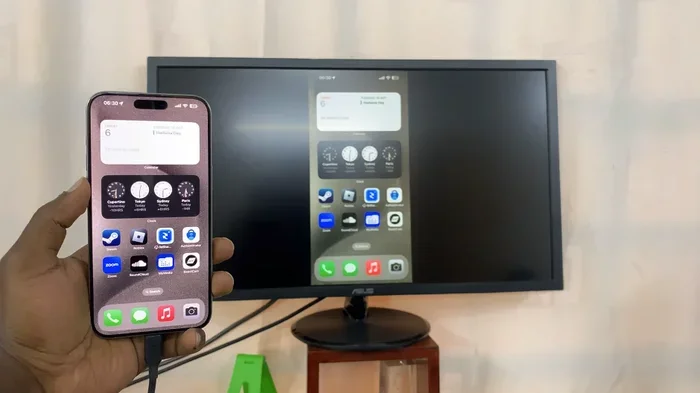
Mirroring your iPhone to an HDMI monitor is a simple process that expands your screen for work or play. You can choose between a wired connection using a Lightning to HDMI adapter or a wireless setup with AirPlay. This guide walks you through how to mirror iPhone to HDMI quickly and easily.
Key Takeaways
- Wired mirroring offers a stable and lag-free connection using a specific adapter.
- Wireless mirroring allows you to cast your iPhone screen without any cables at all.
- Apple TV is the best wireless device for seamless screen mirroring.
- Lightning to HDMI adapters are essential for older iPhone models.
- USB-C to HDMI adapters work perfectly for newer iPhone 15 and 16 models.
- AirPlay settings must be enabled on both your iPhone and monitor for wireless casting.
- Adjusting display settings ensures your mirrored content fits your monitor screen perfectly.
📑 Table of Contents
- Understanding iPhone Screen Mirroring to HDMI
- How Do I Mirror My Iphone To My Hdmi Monitor Step By Step (Wired)
- How to Mirror iPhone to HDMI Wirelessly
- Optimizing Your Mirrored Display Settings
- Fixing Common Mirroring Problems
- Comparing Wired vs Wireless Mirroring
- Final Thoughts on Connecting Your Devices
Understanding iPhone Screen Mirroring to HDMI
Have you ever wanted to share your phone screen with a big display? Maybe you want to show photos at a party or play a mobile game on a larger screen. Whatever your reason, you can easily connect your device to a television or computer monitor. The process is called screen mirroring. It sends your iPhone display right to the monitor.
When you mirror your screen, you see exactly what is on your phone. The monitor acts as a second view of your iOS device. This is super helpful for presentations or streaming videos. You do not need to be a tech expert to make it work. Anyone can learn how to do this in just a few minutes. The technology is very simple and user friendly.
HDMI stands for High Definition Multimedia Interface. It is a standard cable that carries both video and audio. Most modern TVs and monitors have an HDMI port on the back or side. This makes it the perfect choice for sharing your phone screen. You just need the right adapter to bridge the gap. Once connected, your iPhone screen output appears live on the big display.
Many people think this process is complicated. But it is really quite easy. You just need the right equipment and a few minutes of your time. Whether you are at home or in the office, you can quickly project your phone. This guide will walk you through every single step. You will be sharing your screen in no time at all.
Connecting your phone to a TV opens up a whole new world of entertainment. You can watch your favorite streaming shows on a massive screen. You can also play games with stunning visuals. The small screen of your phone limits your view. A big monitor makes everything look better and more exciting.
What Does Mirroring Actually Mean?
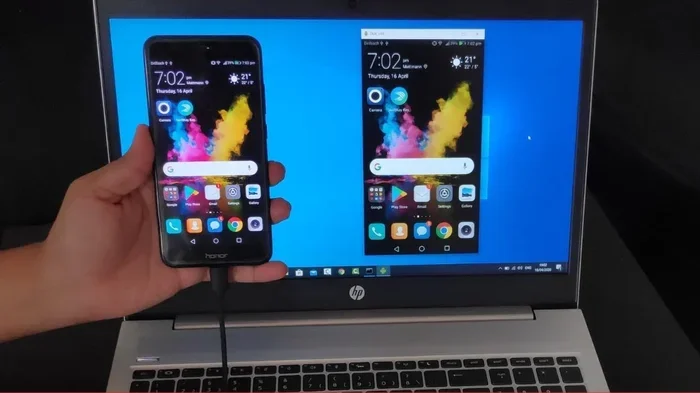
Mirroring means copying your phone screen to another display. Your iPhone display appears live on the monitor. If you tap your phone, the monitor shows the tap too. There is no delay in a good wired setup. Wireless setups might have a tiny bit of lag. But overall, the experience feels smooth and natural. You get a true 1 to 1 copy of your ios screen.
The monitor simply reflects what your phone is doing. It is like looking into a mirror. The image on your phone is the exact same image on the TV. This is different from casting, where you send a file to play on another device. With mirroring, the phone controls everything. The monitor just shows the view. This makes it very easy to share your content with others.
Why Connect Your iPhone to a Monitor?
There are many great reasons to project your phone. First, a big screen makes movies and videos much more fun. You can watch your favorite shows with family. Everyone can see the bright colors clearly. Second, you can share your photos with a whole room easily. You do not have to pass the phone around. Third, gamers can enjoy mobile titles with better visuals. A large monitor makes the game more immersive and exciting. Finally, professionals can give presentations without squinting at a small phone. iPhone projection opens up a world of possibilities for both work and fun.
Teachers also use this setup in classrooms. They can show educational videos to the entire class. Business workers use it for team meetings. Sharing ideas on a big screen helps everyone stay engaged. The small screen of your phone is just not enough for group viewing. A monitor solves this problem perfectly. You will never have to crowd around a tiny phone screen again.
How Do I Mirror My Iphone To My Hdmi Monitor Step By Step (Wired)
The most reliable way to connect your phone is through a cable. A wired connection gives you the best performance. You do not have to worry about Wi-Fi drops or signal interference. It just works every single time. This is why many people prefer the cable method. If you want to know how do I mirror my iphone to my hdmi monitor using a cable, you are in the right place.
A cable connection is very stable. You do not need a strong Wi-Fi signal. The data travels directly through the wire. This means no buffering and no lag. It is the best choice for watching fast action videos. Gamers love the wired method because it is so responsive. The controls feel instant on the big screen.
What You Need for a Wired Connection
Before you start, gather a few items. You need an adapter cable that fits your phone. You also need a standard HDMI cable. Most modern TVs have an HDMI port on the back or side. Here is a quick list of what you need to buy:
- The right adapter cable for your iPhone model
- A high-speed HDMI cable
- Your HDTV or computer monitor
- The power cable for your iPhone
For older iPhones, you need a Lightning to HDMI adapter. If you have a newer iPhone 15 or 16, you need a USB-C to HDMI adapter. Check your phone model before buying any gear. Using the wrong adapter cable will not work. Always buy from trusted brands to avoid problems. Cheap adapters sometimes fail or do not support video output.
You should also make sure your HDMI cable is high speed. A standard cable might not handle the video resolution well. Look for cables that support 4K or at least 1080p. This ensures your picture looks sharp and clear. A good HDMI cable is a small investment for a great result. You can find these cables at most electronics stores or online.
Setting Up the Lightning to HDMI Adapter
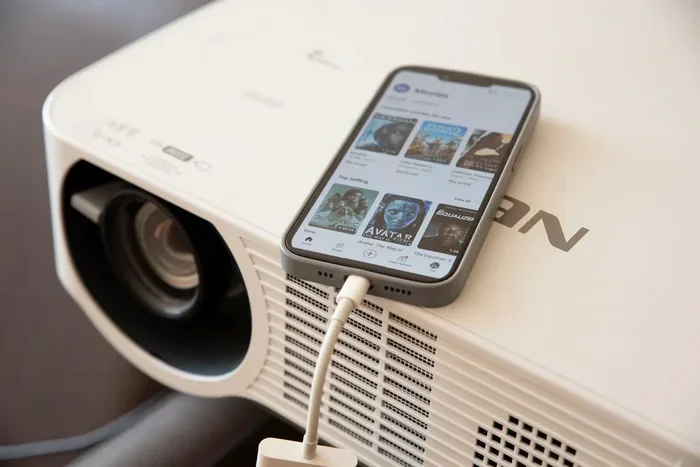
Start by plugging the Lightning to HDMI adapter into the bottom of your iPhone. Next, connect one end of your HDMI cable to the adapter. Then, plug the other end of the HDMI cable into your TV or monitor. Make sure the monitor is turned on and set to the correct HDMI input. Your phone screen should now appear on the big display.
You might need to adjust the TV volume. The Lightning to HDMI adapter carries both video and sound. If you do not see anything, check the cable connections. A loose cable is the most common problem. Once everything is plugged in tight, you are ready to go. You can now browse your photos or start a video.
Make sure your iPhone is unlocked when you plug in the adapter. Sometimes the phone asks you to trust the connected device. Tap “Trust” on the screen to allow the connection. This is a security feature that keeps your data safe. Once you trust the device, the screen will mirror right away.
Connecting the USB-C to HDMI Adapter for Newer iPhones
The process is very similar for newer phones. Plug the USB-C to HDMI adapter into your iPhone 15 or 16. Attach the HDMI cable from the adapter to your TV. Switch your TV to the right HDMI input. You will see your iOS screen on the monitor immediately. This wired method is perfect for display mirroring during important meetings.
Newer iPhones have a powerful USB-C port. This means you can connect to high resolution monitors easily. You can even charge your phone while it is connected. Just plug the power cable into the adapter if it has a passthrough port. This keeps your battery full while you project. The USB-C connection is very fast and reliable.
You can also use a docking station if you have one. A docking station gives you extra ports. You can connect your HDMI cable, a power cable, and a USB drive all at once. This is great for people who work at a desk. It keeps your setup neat and organized.
How to Mirror iPhone to HDMI Wirelessly
Not everyone wants to deal with cables. Wireless mirroring offers a lot of freedom. You can move around the room without being tied to a desk. You also avoid cable clutter on your floor. Setting up a wireless connection is very simple. It is a great choice for casual use at home.
Wireless setups are perfect for people who like to share photos quickly. You can show your vacation pictures to friends without plugging anything in. The convenience factor is huge. You just need a Wi-Fi connection and a compatible TV. Most modern smart TVs support this feature natively.
Using AirPlay with an Apple TV
Apple has a built-in wireless system called AirPlay. It works perfectly if you own an Apple TV. Both your iPhone and the Apple TV must be on the same Wi-Fi network. Follow these steps to cast your screen:
- Open the Control Center on your iPhone.
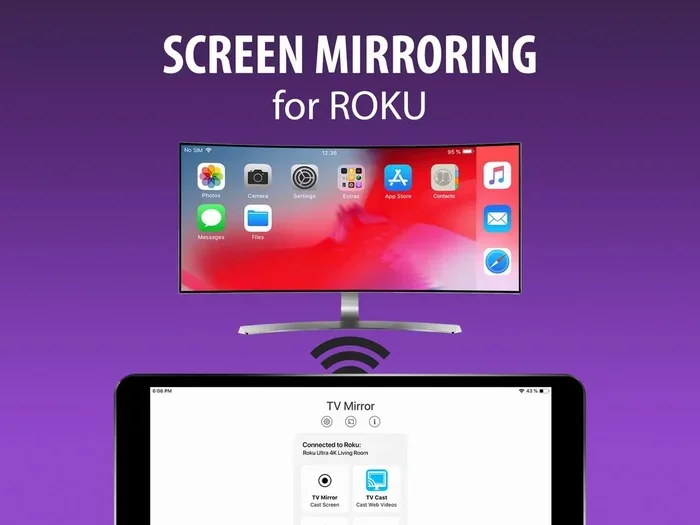
- Tap the Screen Mirroring button.
- Select your Apple TV from the list.
- Enter the code if prompted.
Once connected, your iPhone display will show on your TV. You can now browse photos or watch videos on the big screen. AirPlay is the easiest way to share content wirelessly. It is built right into your iOS device. You do not need to download any extra apps.
The quality of AirPlay is usually very good. The video stays smooth and the audio is clear. As long as your Wi-Fi is strong, you will not notice any lag. This is the most popular wireless method for Apple users. It just works seamlessly every time. You can also use AirPlay to stream music to your TV speakers.
Wireless HDMI Adapters for Non-Apple TVs
What if you do not have an Apple TV? You can still go wireless. Many modern smart TVs support screen mirroring directly. You just need to find the mirroring option in your TV settings. You can also buy a wireless HDMI adapter. These small devices plug into the HDMI port on your TV. They connect to your phone through Wi-Fi. This gives you the freedom of wireless iPhone projection without expensive equipment.
Some adapters come with their own app. You just download the app on your phone and follow the prompts. This makes the setup very easy. Wireless options are great for people who move around a lot. You can share your screen from anywhere in the room. Just make sure your Wi-Fi signal is strong for the best experience. A weak signal will cause the video to stutter.
Optimizing Your Mirrored Display Settings
Once your connection is live, you might notice some issues. The picture might not fit the screen perfectly. Or the text might look a little small. Adjusting a few settings can fix these problems easily. A little tweaking goes a long way for a better viewing experience.
Adjusting Resolution and Aspect Ratio
Sometimes you see black bars on the sides of your monitor screen. This happens when the aspect ratios do not match. Your phone screen is usually taller than a TV screen. To fix this, you need to adjust the display settings on your TV. Use your TV remote to change the aspect ratio. Look for options like “Just Scan” or “1 to 1 Pixel Mapping.”
These settings stretch the image to fill the screen. It removes the annoying black bars. Your iPhone display will now look perfect on the TV. You will see the full picture without any borders. This simple trick makes a huge difference in how your content looks. Your friends will notice how much better the picture appears.
You can also adjust the resolution on your TV. Higher resolution makes the picture sharper. Look for 1080p or 4K in your TV settings. Your phone will automatically send the best resolution it can. This ensures you get the clearest possible image on your big screen.
Extending vs Mirroring Your Screen
It is important to know the difference between mirroring and extending. Mirroring means showing the exact same thing on both screens. Your phone and the monitor show the same image. Extending means using the monitor as a second screen. You can drag windows from your phone to the TV. This is great for multitasking. However, extending requires special software or a docking station.
For most people, mirroring is the best choice. It is simple and works right out of the box. You just want to show your ios screen on a bigger display. Keep your settings on mirror mode for the easiest experience. Extending is more for power users who need extra screen space for work.
Fixing Common Mirroring Problems
Sometimes things do not go as planned. You might connect the cables and see nothing on the monitor. Do not panic. Most mirroring issues are easy to fix. Here are the most common problems and their solutions. A little patience will get you back on track quickly.
Why Is My iPhone Screen Not Mirroring?
If your monitor screen stays black, check a few things first. Make sure all cables are firmly plugged in. A loose connection is the most common culprit. Also, ensure your TV is set to the correct HDMI input. Sometimes the TV is on the wrong channel. Restarting both your phone and the TV often solves the problem too.
Try unplugging the adapter and plugging it back in. This refreshes the connection. If you are using a wireless setup, check your Wi-Fi signal. A weak Wi-Fi signal can stop the connection. Move closer to your router if the signal is low. Sometimes simply turning your Wi-Fi off and back on fixes the issue.
Software updates can also cause mirroring problems. Make sure your iPhone and TV are running the latest software. An outdated system might not support the connection. Check for updates in your phone settings. Keeping your devices updated ensures smooth display mirroring every time.
Dealing with Audio Issues
What if the video plays but you hear no sound? This is a common display mirroring issue. First, check the volume on your TV. Sometimes the TV is muted. Next, look at your iPhone settings. Go to Settings and tap on Sounds. Make sure the ringer is not set to silent. If you are using an adapter, make sure it supports audio. Some cheap adapter cables only carry video and no sound.
You can also check the audio output settings on your phone. Swipe up to open the Control Center. Tap the audio icon and select your TV or monitor. This forces the sound to come through the external display. It is a quick fix that solves the problem most of the time. You will hear your movies and games with great sound.
Fixing Lag and Stuttering
If your video stutters or lags, your network might be the issue. Wireless mirroring depends on a strong Wi-Fi connection. If other devices are using the network, the stream might slow down. Try disconnecting other devices from the Wi-Fi. This gives your phone more bandwidth for a smooth connection.
If you are using a cable and still see lag, the cable might be damaged. Try a different HDMI cable. A faulty cable can cause display issues. Also, make sure your adapter is not overheating. Unplug it for a few minutes and try again. Heat can sometimes cause temporary connection drops. A cool adapter works much better.
Comparing Wired vs Wireless Mirroring
Which method is better for you? It depends on what you need. Both wired and wireless options have their own strengths. Let us look at the main differences to help you choose. Understanding the pros and cons makes the decision much easier.
Speed and Reliability
A wired connection is much faster and more reliable. There is zero lag when you use a cable. The video and audio stay perfectly in sync. This is why wired setups are great for gaming or high-definition video playback. Wireless connections can sometimes stutter if the Wi-Fi signal is weak.
If you need a perfect copy of your iphone screen output, always choose a cable. It is the most dependable method. You never have to worry about the connection dropping in the middle of a movie or a presentation. Reliability is the biggest advantage of a wired connection. For serious viewing or gaming, wires are the way to go.
Convenience and Setup
Wireless mirroring wins for convenience. You do not need any extra cables to buy. You just need a Wi-Fi connection. This is perfect for casual use at home. You can quickly share a photo or a video with friends. For daily use, wireless is often the simpler choice.
Think about how you will use the connection. If you need it for a quick moment, go wireless. If you need it for a long movie, go wired. Both methods have their place. You can even switch between them depending on your needs that day. The best setup is the one that fits your lifestyle.
Final Thoughts on Connecting Your Devices
Now you know exactly how to share your phone with a big screen. You can use a cable for the best performance. Or you can go wireless for the most convenience. Either way, mirroring your iPhone to an HDMI monitor is a great skill to have. It makes your device so much more versatile.
Try both methods and see which one you prefer. You might find that you use the wired setup for movies. But you might use the wireless setup for sharing photos with family. The choice is yours. Enjoy your expanded screen and happy streaming!
Frequently Asked Questions
Can I mirror my iPhone to any HDMI monitor?
Yes, you can mirror your iPhone to almost any HDMI monitor. You just need the right adapter for your phone model. Older iPhones require a Lightning to HDMI adapter, while newer models use a USB-C to HDMI adapter. Once you plug the adapter into your phone and the HDMI cable into the monitor, your screen will appear instantly.
Do I need an Apple TV to mirror wirelessly?
No, you do not need an Apple TV to mirror wirelessly. An Apple TV is one of the easiest ways to use AirPlay, but it is not the only option. Many modern smart TVs have built-in screen mirroring features. You can also buy a wireless HDMI adapter that plugs directly into your TV’s HDMI port.
Why is there no sound when I mirror my iPhone?
No sound usually happens when the audio output is not set correctly. First, check that your TV or monitor is not muted. Then, open your iPhone Control Center and tap the audio icon. Select your TV or monitor from the list to force the sound to play through the external display.
What is the difference between screen mirroring and extending?
Mirroring shows the exact same image on both your phone and the monitor. Extending uses the monitor as a second screen where you can drag windows. For most people, mirroring is the best choice because it is simple and works right out of the box without extra software.
Can I use a wireless HDMI adapter with any TV?
Most wireless HDMI adapters work with any TV that has an available HDMI port. You just plug the small receiver into the HDMI port on your TV and connect it to your phone via Wi-Fi. Always check the adapter’s compatibility list before buying to be sure it works with your specific TV model.
Does mirroring my iPhone drain the battery faster?
Yes, mirroring your screen does use more battery than normal use. Sending video and audio to another display takes extra processing power. If you are mirroring for a long time, keep your phone plugged into a charger. This ensures your battery stays full while you enjoy your content on the big screen.