How Do I Find Devices On My Iphone Quickly And Easily
Finding devices on your iPhone is simple once you know the right tools and settings. Whether you want to locate a lost iPhone, manage Bluetooth accessories, or see all devices linked to your iCloud account, this guide walks you through every method step by step. You will learn how to use Find My, navigate iPhone settings, and troubleshoot common issues so you always know where your gadgets are.
Have you ever stared at your desk wondering where your iPhone charger went again? Or maybe you misplaced your AirPods and cannot find them anywhere in the house. We have all been there. The good news is that your iPhone has powerful built-in tools that make finding devices quick and painless. In this guide, we will show you exactly how to find devices on your iPhone using every available method. Whether you are tracking a lost gadget, managing Bluetooth accessories, or just trying to keep your Apple ecosystem organized, you are in the right place.
We will cover everything from the Find My app to iCloud device management and Bluetooth pairing. Each section gives you clear, step-by-step instructions that anyone can follow. No tech expertise is needed. By the end of this article, you will feel confident locating and managing every device connected to your iPhone. Let us get started.
Key Takeaways
- Use the Find My app: It is the fastest and most reliable way to locate your iPhone, iPad, Mac, and AirPods.
- Check Bluetooth settings: You can see all paired Bluetooth devices right from your iPhone’s main settings menu.
- Manage devices through iCloud: Signing into iCloud.com gives you a full list of all Apple devices connected to your account.
- Enable Find My network: This feature helps you locate even offline or turned-off devices with precision.
- Troubleshoot common issues: Restarting your iPhone, updating iOS, and checking network settings solves most device-finding problems.
- Keep devices organized: Naming your gadgets and updating software regularly prevents confusion and improves tracking accuracy.
📑 Table of Contents
- Understanding How to Find Devices on Your iPhone
- Using Find My to Locate Your iPhone and Other Apple Devices
- Finding Bluetooth and Connected Devices
- Managing Devices Through iCloud
- Troubleshooting When Devices Don’t Show Up
- Tips to Keep Your Devices Organized and Secure
- Key Takeaways
- Frequently Asked Questions
- Conclusion
Understanding How to Find Devices on Your iPhone
Before diving into the steps, it helps to understand what tools Apple provides for device discovery. Your iPhone acts as a central hub for all your Apple gadgets. It can find other iPhones, iPads, Macs, Apple Watches, AirPods, and even Bluetooth accessories. Apple built these features right into the operating system, so you do not need to download third-party apps for the basics.
The main tools you will use include the Find My app, Bluetooth settings, iCloud device lists, and the Settings app itself. Each tool serves a different purpose. Find My is best for locating lost devices. Bluetooth settings show you what is currently paired. iCloud gives you a broader overview of everything linked to your account. Understanding these differences helps you pick the right tool for the right job.
Why Finding Devices Matters
Losing a device can be stressful. Smartphones and headphones are expensive, and the data on them is often irreplaceable. Knowing how to locate your devices fast saves time, money, and anxiety. It also helps you keep track of multiple gadgets in a busy household. When everyone knows where things are, life runs much smoother.
Beyond just finding lost items, device tracking also helps with security. If your iPhone is stolen, you can lock it, erase it, or play a sound to locate it. These features give you peace of mind every single day. That is why learning how do I find devices on my iPhone is such an essential skill for every user.
Using Find My to Locate Your iPhone and Other Apple Devices
The Find My app is the crown jewel of Apple’s device tracking system. It comes pre-installed on every iPhone and works seamlessly across all Apple products. You can use it to find your iPhone, iPad, Mac, Apple Watch, AirPods, and even MacBooks. It also supports Find My network, which uses crowdsourced location data from millions of Apple devices worldwide.
Here is how to open and use the Find My app on your iPhone:
- Unlock your iPhone and swipe down from the middle of the home screen.
- Type “Find My” in the search bar and tap the app when it appears.
- You will see a list of all your devices on the bottom screen.
- Tap on any device to see its current location on a map.
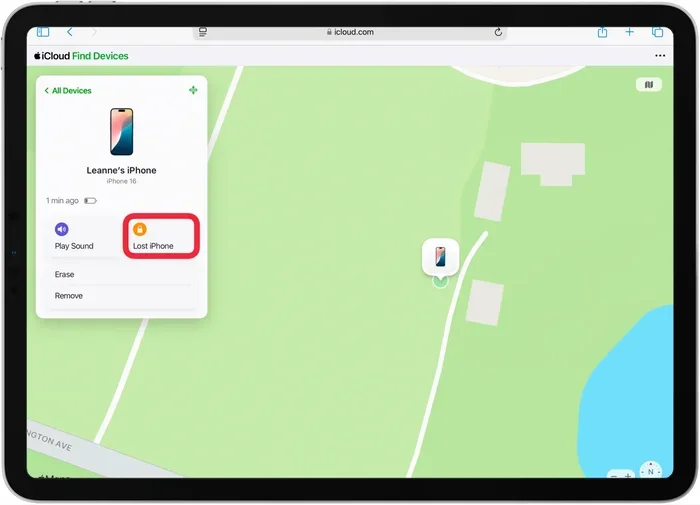
- Use the options below the map to play a sound, enable Lost Mode, or erase the device.
The Find My app also works on iPad and Mac, so you can track your devices from any Apple screen you have handy. If you are using an older iPhone, you might need to download the Find My app from the App Store. But most modern iPhones running iOS 13 or later already have it built in.
How Find My Network Works
The Find My network is one of Apple’s most impressive features. It uses Bluetooth signals from nearby Apple devices to locate your lost gadget, even if it is offline. Here is how it works in simple terms:
- When your iPhone goes missing, it sends out a secure Bluetooth signal.
- Other Apple devices nearby pick up that signal.
- Those devices send the location data back to iCloud anonymously.
- You then see the approximate location on your Find My map.
This means you can find your device even if it is turned off or not connected to Wi-Fi or cellular data. It is a powerful feature that works best in populated areas where other Apple devices are nearby. To make sure it is enabled, go to Settings > [Your Name] > Find My > Find My iPhone and toggle on Find My network.
Finding Bluetooth and Connected Devices
Not all devices you use with your iPhone are Apple products. You might have wireless earbuds, a smartwatch, a keyboard, or a speaker that connects through Bluetooth. Finding these connected devices is just as easy. Your iPhone keeps a running list of every Bluetooth gadget it has ever paired with.
Here is how to see all Bluetooth devices on your iPhone:
- Open the Settings app on your iPhone.
- Tap on Bluetooth at the top of the menu.
- Make sure Bluetooth is turned on by tapping the toggle switch.
- Look at the list under “My Devices” to see all paired gadgets.
- Scroll down to see other available devices that are nearby.
If you want to connect to a new device, make sure it is in pairing mode. Then tap on its name from the list of available devices. Your iPhone will handle the rest. You can also tap the small “i” icon next to any paired device to change its name, check battery level, or disconnect it.
Managing Bluetooth Accessories
Once a Bluetooth device is paired, it will automatically reconnect whenever you turn it on near your iPhone. This makes the experience seamless. But sometimes devices get stuck or show up incorrectly. Here are a few quick tips for Bluetooth device management:
- Rename devices: Go to Settings > Bluetooth, tap the “i” icon, and choose “Rename.” This helps you tell your devices apart.
- Forget a device: If a gadget is acting up, tap “Forget This Device” and then pair it again fresh.
- Check battery levels: Many Bluetooth accessories show their battery percentage right in the Bluetooth settings.
- Update firmware: Some devices need firmware updates. These usually happen automatically when the device is connected to your iPhone.
Managing Devices Through iCloud
iCloud is more than just a storage service. It is also your central command center for device management. When you sign into iCloud, every Apple device linked to your account shows up in your device list. This is incredibly helpful when you want to see the big picture of all your Apple gadgets.
To view your devices on iCloud.com:
- Open any web browser on your computer or phone.
- Go to icloud.com and sign in with your Apple ID.
- Click on the “Find iPhone” icon.
- At the top of the screen, click “All Devices.”
- You will see a dropdown list of every device linked to your account.
From this screen, you can select any device and see its location, battery status, and connection status. You can also play a sound, lock the device, or erase it remotely. This is especially useful when you have multiple Apple products and need to quickly switch between them.
Adding and Removing Devices from iCloud
Over time, you might accumulate devices you no longer use. It is a good practice to clean up your iCloud device list regularly. Here is how to add or remove devices:
- To add a device: Simply sign into your Apple ID on the new device. It will automatically appear in your iCloud device list.
- To remove a device: Go to Settings > [Your Name] > iCloud > Manage Storage > Backups. Tap the device you want to remove and select “Turn Off & Delete.”
- To remove from Find My: Go to Settings > [Your Name] > Find My > Find My iPhone and turn it off. You will need your Apple ID password to confirm.
Keeping your iCloud device list tidy helps you stay organized. It also ensures that old gadgets do not receive notifications meant for your current devices.
Troubleshooting When Devices Don’t Show Up
Sometimes things do not go as planned. You might open the Find My app and notice a device is missing. Or perhaps your Bluetooth accessory refuses to show up on your iPhone. Do not panic. Most device-finding issues have simple solutions.
Common Reasons Devices Don’t Appear
Before jumping to fixes, it helps to understand why a device might not show up:
- The device is turned off or out of battery.
- It is not connected to Wi-Fi or cellular data.
- Find My was never enabled on that device.
- The device is signed out of your Apple ID.
- Bluetooth is disabled or the accessory is out of range.
- Your iPhone is running an outdated version of iOS.
Once you identify the cause, fixing it becomes much easier. Let us walk through the most common troubleshooting steps.
Step-by-Step Fixes
Try these solutions in order. Most issues resolve within the first few steps:
- Restart your iPhone: Hold down the power button and volume button until the slider appears. Slide to power off, wait 30 seconds, then turn it back on.
- Check your network connection: Make sure your iPhone is connected to Wi-Fi or cellular data. Go to Settings > Wi-Fi and confirm the connection.
- Update iOS: Go to Settings > General > Software Update and install any available updates. New updates often fix bugs that affect device discovery.
- Sign out and back into iCloud: Go to Settings > [Your Name] > Scroll down and tap “Sign Out.” Then sign back in with your Apple ID.
- Reset network settings: Go to Settings > General > Transfer or Reset iPhone > Reset > Reset Network Settings. This clears all Wi-Fi and Bluetooth connections and forces them to rebuild.
- Check Find My settings: Go to Settings > [Your Name] > Find My > Find My iPhone and make sure all toggles are turned on.
If none of these steps work, the device might need to be unpaired and re-paired. For Bluetooth devices, go to Settings > Bluetooth, tap the “i” icon, select “Forget This Device,” and pair it again. For Apple devices, you may need to sign back into your Apple ID on the missing device.
Tips to Keep Your Devices Organized and Secure
Finding devices is one thing. Keeping them organized is another. A little proactive management goes a long way in making your digital life smoother. Here are some practical tips that every iPhone user should follow.
Name Your Devices Clearly
Apple lets you rename any device connected to your account. Instead of seeing “iPhone” or “iPad” in your device list, give each one a personal name. Call your work iPhone “Work Phone” and your personal iPad “Living Room iPad.” This small change makes a huge difference when you are managing multiple gadgets.
To rename a device, go to Settings > [Your Name] > iCloud > Manage Storage > Backups. Tap the device name and enter a new one. You can also rename Bluetooth accessories from the Bluetooth settings menu.
Keep Software Updated
Software updates often include improvements to device tracking and connectivity. An outdated iPhone may struggle to find newer Bluetooth devices or properly display iCloud-connected gadgets. Make it a habit to check for updates at least once a week. You can turn on automatic updates by going to Settings > General > Software Update > Automatic Updates.
Enable Location Services for Find My
For Find My to work properly, your iPhone needs access to location services. Go to Settings > Privacy & Security > Location Services and make sure it is turned on. Then scroll down to Find My and ensure it has “While Using the App” permission. This allows the app to access your location whenever you need it.
Use Family Sharing for Household Devices
If you have a family, Apple Family Sharing is a game-changer. It lets you share your location with up to six family members. Each person can find other family members’ devices through their own Find My app. This is especially helpful for parents tracking children’s iPhones or families managing shared iPads.
To set up Family Sharing, go to Settings > [Your Name] > Family Sharing and follow the prompts. Once set up, everyone in the family group can see each other’s devices and locations in real time.
Secure Your Devices with Strong Passcodes
Device tracking is only effective if your gadgets are secure. A strong passcode prevents unauthorized access to your location data and personal information. Use a six-digit passcode at minimum, or better yet, enable Face ID or Touch ID. You can also set up a custom alphanumeric password for extra security. Go to Settings > Face ID & Passcode to update your lock screen settings.
Back Up Your Devices Regularly
Even with the best tracking tools, devices can still be lost or stolen. Regular backups ensure you never lose important data. iCloud backs up your iPhone automatically when it is locked, connected to Wi-Fi, and charging. You can check your backup status by going to Settings > [Your Name] > iCloud > iCloud Backup.
For extra peace of mind, also back up your device to your computer using Finder (on Mac) or iTunes (on Windows). Having both cloud and local backups gives you the best protection against data loss.
Key Takeaways
- Use the Find My app: It is the fastest and most reliable way to locate your iPhone, iPad, Mac, and AirPods.
- Check Bluetooth settings: You can see all paired Bluetooth devices right from your iPhone’s main settings menu.
- Manage devices through iCloud: Signing into iCloud.com gives you a full list of all Apple devices connected to your account.
- Enable Find My network: This feature helps you locate even offline or turned-off devices with precision.
- Troubleshoot common issues: Restarting your iPhone, updating iOS, and checking network settings solves most device-finding problems.
- Keep devices organized: Naming your gadgets and updating software regularly prevents confusion and improves tracking accuracy.
Frequently Asked Questions
Can I find my iPhone if it is turned off?
Yes, you can. If you have Find My network enabled, your iPhone can still be located using Bluetooth signals from nearby Apple devices. The last known location will show on your Find My map. This feature works even when your phone is powered off or not connected to the internet.
How do I see all devices connected to my Apple ID?
Go to Settings > [Your Name] at the top of your iPhone screen. Scroll down to see a list of all devices linked to your Apple ID. You can also visit icloud.com on any browser, sign in, and click “All Devices” to see the complete list from any computer or phone.
Why is my Bluetooth device not showing up on my iPhone?
There are a few common reasons. The device might be out of range, out of battery, or already connected to another phone. Try turning Bluetooth off and back on, restarting your iPhone, or resetting the Bluetooth accessory. If the problem persists, go to Settings > Bluetooth, tap the “i” icon next to the device, and select “Forget This Device,” then pair it again fresh.
Is Find My free to use?
Yes, the Find My app is completely free and comes pre-installed on all iPhones. There are no subscription fees or hidden costs. You just need an Apple ID and an internet connection to track your devices. All the core features, including location tracking and Lost Mode, are available at no extra charge.
Can I track someone else’s iPhone without them knowing?
No, Apple has built strong privacy protections into the Find My system. To share your location with someone, you must explicitly invite them through the Find My app. They must accept the invitation before they can see your location. You can also stop sharing at any time from your own settings. Tracking someone without their consent is not possible through official Apple features.
What should I do if my iPhone is stolen and I cannot find it?
First, open the Find My app on another Apple device or visit icloud.com on any browser. Select your stolen iPhone and mark it as Lost Mode. This locks the device with a passcode and displays a custom message with a phone number. You can also erase the device remotely if you believe it will never be recovered. Report the theft to local law enforcement and provide them with your device’s serial number for their records.
Conclusion
Learning how do I find devices on my iPhone is one of the most useful skills you can build as an Apple user. Whether you are using the Find My app, managing Bluetooth accessories, or checking your iCloud device list, each method gives you powerful control over your gadgets. These tools are built right into your iPhone, and they work beautifully together to keep you connected and organized.
Remember to keep your software updated, name your devices clearly, and enable Find My network for the best tracking experience. If a device ever goes missing, the steps in this guide will help you recover it quickly and safely. Take a few minutes today to review your device settings and make sure everything is set up correctly. A little preparation now can save you a lot of stress later.
Your iPhone is more than just a phone. It is the command center for your entire digital life. Treat it that way, and you will always know exactly where your devices are. Happy tracking!