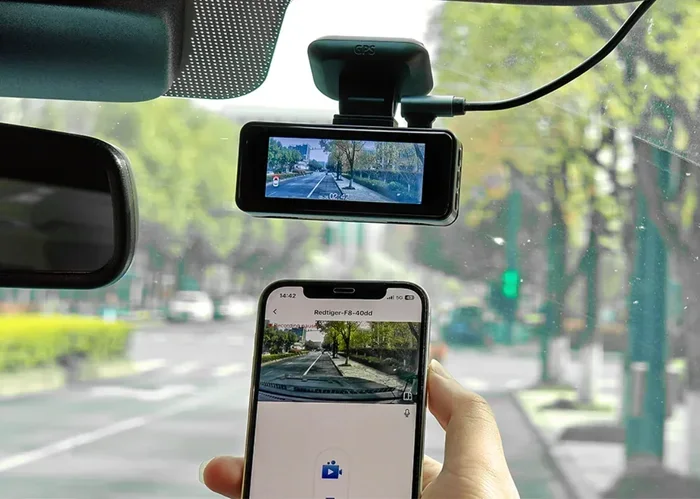
How Do I Connect My iPhone to My Dash Cam Wirelessly
Connecting your iPhone to your dash cam wirelessly is easier than you think. This guide walks you through every step, from choosing the right WiFi dash cam to troubleshooting common connection issues. You will learn how to stream live footage, control settings, and download clips directly from your phone without any cables.
Have you ever wondered how to connect your iPhone to your dash cam wirelessly? It is a game changer. No more fumbling with cables. No more pulling out your SD card just to review footage. A wireless connection lets you view your dash cam live, download clips, and adjust settings right from your phone.
Whether you just bought a new wireless dash cam or are thinking about upgrading, this guide has you covered. We will walk through every step of the process. You will learn how WiFi dash cams work, which apps to use, and how to fix common problems. By the end, you will be streaming dash cam footage to your iPhone like a pro.
The process is simpler than most people expect. Most modern dash cams come with built-in WiFi. You just need the right app and a few minutes of your time. Let us dive in and get your iPhone paired with your dash cam.
Key Takeaways
- Wireless dash cams let you connect iPhone to dash cam seamlessly using built-in WiFi or Bluetooth technology for real-time viewing and control.
- Most wireless dash cams use a dedicated app that you download from the App Store to establish a connection between your iPhone and the camera.
- Setting up a WiFi dash cam connection takes under 10 minutes once you know the right steps and have the correct app installed.
- Common connection problems include signal interference, outdated apps, and incorrect WiFi passwords — all of which have simple fixes.
- Top wireless dash cam brands for iPhone users include Garmin, BlackVue, and Nexar, each offering unique features and solid app support.
- You can stream live footage, save clips, and adjust settings remotely once your iPhone is paired with your dash cam.
📑 Table of Contents
- How Wireless Dash Cams Connect to Your iPhone
- Choosing the Right Wireless Dash Cam for iPhone
- Step-by-Step Guide to Connect iPhone to Dash Cam Wirelessly
- Troubleshooting Common Connection Problems
- Best Practices for Wireless Dash Cam iPhone Use
- Comparison of Popular Wireless Dash Cams for iPhone
- What You Can Do Once Your iPhone Is Connected
- Frequently Asked Questions
- Final Thoughts
How Wireless Dash Cams Connect to Your iPhone
Understanding how the connection works makes the setup much easier. Wireless dash cams use one of two technologies to link with your iPhone. Most commonly, they use built-in WiFi. Some newer models also support Bluetooth. Both methods let you connect your iPhone to your dash cam without any cables.
Here is how it works in simple terms. Your dash cam creates its own WiFi network. Your iPhone detects that network. You open the dash cam app and connect to it. Once connected, you can see a live feed, save clips, and change settings. It is just like connecting to any other WiFi network.
WiFi vs Bluetooth Dash Cam Connections
Not all wireless connections are the same. WiFi offers a stronger and faster connection. It lets you stream live video smoothly. You can also download larger files quickly. Bluetooth, on the other hand, uses less battery. It works well for basic tasks like viewing thumbnails and downloading short clips.
Most dash cams use WiFi because it handles video data better. If you want live streaming and fast downloads, go with a WiFi dash cam. Bluetooth is fine if you only need occasional access to your footage.
Why Wireless Connection Beats Wired Options
Wired connections have their place. But wireless has clear advantages. You do not need to plug in a USB cable every time. You can check your dash cam from across the room. You can even monitor your car while it is parked. The convenience factor is huge.
Wireless also means no cable clutter. Your dashboard stays clean. You do not have to worry about cables getting tangled or pulled loose while driving. It is a cleaner setup overall.
Choosing the Right Wireless Dash Cam for iPhone
Not all dash cams work equally well with iPhones. Before you buy, check that the dash cam supports iPhone connectivity. Look for models with a dedicated iOS app. This is essential for a smooth wireless experience.
Here are some things to consider when picking a dash cam:
- WiFi compatibility: Make sure the dash cam has built-in WiFi. This is non-negotiable for wireless connection.
- App availability: Check the App Store for a dedicated dash cam app. Read the reviews to see if iPhone users report good experiences.
- Live streaming support: Some dash cams only let you view saved clips. If you want live view, confirm the model supports it.
- Battery impact: WiFi uses battery. Choose a dash cam that manages power well so it does not drain your iPhone quickly.
- Range: WiFi dash cams typically work within 30 to 50 feet. Check the range if you plan to walk away from your car.
Popular wireless dash cam brands include BlackVue, Garmin, Nexar, and Thinkware. All of these offer solid iPhone apps and reliable WiFi connections. Do some research on dash cam reviews before buying to find the best fit for your needs.
Step-by-Step Guide to Connect iPhone to Dash Cam Wirelessly
Now for the part you have been waiting for. Here is exactly how to connect your iPhone to your dash cam wirelessly. Follow these steps carefully and you will be up and running in no time.
Step 1: Download the Dash Cam App
Open the App Store on your iPhone. Search for your dash cam brand. For example, search “BlackVue” or “Garmin Dash Cam.” Download the official app. Avoid third-party apps unless the manufacturer recommends them. Official apps are safer and more reliable.
Step 2: Power On Your Dash Cam
Make sure your dash cam is turned on. It needs to be running to create its WiFi network. Most dash cams power on automatically when you start your car. If yours does not, press the power button on the device itself.
Step 3: Enable WiFi on the Dash Cam
Go to the dash cam menu. Look for a WiFi or Network setting. Turn on the WiFi hotspot. The dash cam will start broadcasting its own network. You should see the network name appear on the dash cam screen.
Step 4: Connect iPhone to the Dash Cam WiFi
Open the Settings app on your iPhone. Tap WiFi. Look for the dash cam network in the list. Tap on it and enter the password if required. The password is usually printed on the dash cam or in the manual.
Once connected, you will see a WiFi icon next to the network name. Your iPhone is now linked to the dash cam. You can open the app to start using it.
Step 5: Open the App and Pair
Launch the dash cam app on your iPhone. It should detect the dash cam automatically. Follow any on-screen prompts to complete the pairing. You may need to grant permissions for camera access and location. These are normal and necessary for the app to work properly.
Once paired, you should see a live feed from your dash cam on your iPhone screen. Congratulations, you are connected!
Troubleshooting Common Connection Problems
Sometimes things do not go smoothly. Do not worry. Most connection issues have simple fixes. Here are the most common problems and how to solve them.
iPhone Cannot Find the Dash Cam WiFi Network
This is the most common issue. First, make sure the dash cam WiFi is turned on. Check the dash cam screen for the network name. If it is not broadcasting, restart the dash cam. Also, make sure your iPhone WiFi is turned on and you are not connected to another network.
If the network still does not appear, try moving closer to the dash cam. WiFi range can be limited. Standing right next to the dash cam often solves this problem.
Connection Keeps Dropping
A weak connection usually means interference. Other WiFi networks, Bluetooth devices, and even your car’s electronics can cause interference. Try turning off other wireless devices temporarily to see if that helps.
Also, check if your dash cam firmware is up to date. Manufacturers release updates that improve WiFi stability. Open the app and look for a firmware update option.
App Crashes or Freezes During Live View
Live streaming uses a lot of data and processing power. Close other apps on your iPhone before using the dash cam app. Restart the app if it freezes. If the problem continues, uninstall and reinstall the app.
Make sure your iPhone is running the latest iOS version. Older software can cause compatibility issues with newer dash cam apps.
Paired But Cannot Download Clips
If you are connected but cannot download footage, check your storage. Dash cam clips can be large. Free up space on your iPhone if needed. Also, try switching from live view to gallery mode within the app. Some apps handle downloads better in specific modes.
Best Practices for Wireless Dash Cam iPhone Use
Once you have your iPhone connected, a few habits will keep everything running smoothly. These tips come from real-world experience and will save you headaches down the road.
Keep the App Updated
Dash cam app updates often fix bugs and improve connection stability. Check the App Store regularly for updates. Turn on automatic updates if you can. This ensures you always have the latest features and fixes.
Manage Your iPhone Battery
WiFi connections drain battery. If you are using the dash cam app for a long time, keep your iPhone plugged in. You can also reduce screen brightness in the app to save power. Closing background apps helps too.
Secure Your WiFi Network
Change the default WiFi password on your dash cam. Default passwords are easy to guess. A strong password keeps your dash cam network private. This is especially important if you park in public places.
Use the App to Review Footage Regularly
Do not wait until you need footage to check your dash cam. Open the app once a week and review recent clips. This helps you spot issues early. You can also back up important clips to iCloud or your computer.
Understand WiFi Range Limitations
Most dash cams have a WiFi range of 30 to 50 feet. This means you can view footage from inside your home if you are close enough. But if you walk too far away, the connection drops. Keep this in mind when checking your dash cam remotely.
Comparison of Popular Wireless Dash Cams for iPhone
Not sure which dash cam to choose? Here is a quick comparison of popular wireless dash cams that work well with iPhones.
- BlackVue DR970X-2CH LTE: Premium dual-channel dash cam with excellent WiFi range and a polished iPhone app. Supports live streaming and cloud uploads.
- Garmin Dash Cam X2: Solid single-channel dash cam with reliable WiFi connectivity. The Garmin app is user-friendly and works great with iPhone.
- Nexar Dash Cam: A smart dash cam with built-in AI features. The Nexar app offers excellent iPhone integration and automatic clip sharing.
- Thinkware U3000: High-quality video with strong WiFi performance. The Thinkware app is well-designed for iPhone users.
Each of these dash cams offers wireless connection to iPhone. Your choice depends on your budget and features you need. Read dash cam reviews to compare performance and value before making a decision.
What You Can Do Once Your iPhone Is Connected
Once you have successfully connected your iPhone to your dash cam, a whole world of features opens up. You are no longer limited to just recording. The wireless connection transforms your dash cam into a smart device you can control from your pocket.
You can stream the live feed from your dash cam right on your iPhone. This is incredibly useful when you are parking or walking away from your car. You can also download individual clips to share with insurance companies or loved ones. The app lets you adjust recording settings, change resolution, and toggle features like parking mode.
Some dash cam apps even send you alerts when motion is detected. You can view those alerts on your iPhone instantly. This adds a layer of security that wired dash cams simply cannot match. The wireless connection makes your dash cam part of your smart car ecosystem.
Over time, get in the habit of checking your dash cam app daily. Review clips, clear old footage, and keep the app updated. This small routine goes a long way in keeping everything running smoothly.
Frequently Asked Questions
Can I connect any dash cam to my iPhone wirelessly?
Not all dash cams support wireless iPhone connection. You need a dash cam with built-in WiFi and a compatible iOS app. Check the product specifications before buying to confirm iPhone support. Most modern wireless dash cams clearly list their connectivity options on the packaging.
Does connecting my iPhone to a dash cam use a lot of battery?
WiFi connections do use some battery, but not excessively. The dash cam app uses more power during live streaming than when idle. To conserve battery, disconnect from the dash cam WiFi when you are not actively using it. You can also lower the app brightness and close it when finished.
How far can my iPhone be from the dash cam while connected?
Most WiFi dash cams have a range of 30 to 50 feet. This range can vary based on interference from other devices and your car’s structure. If you need a longer range, consider dash cams with LTE connectivity, which use cellular data to stream footage to your phone from anywhere.
Do I need internet to connect my iPhone to my dash cam wirelessly?
No, you do not need internet. The dash cam creates its own local WiFi network. Your iPhone connects directly to this network without using your cellular data or home WiFi. This means you can use your dash cam in areas without internet access.
Can I connect multiple iPhones to one dash cam?
Most dash cams allow only one iPhone connection at a time. Some newer models support multiple device connections, but this varies by brand and model. If you need multiple users, check the dash cam specifications for multi-device support before purchasing.
What should I do if my dash cam app will not connect to the camera?
Start by restarting both your dash cam and iPhone. Make sure the dash cam WiFi is on and your iPhone is connected to the correct network. Update the app to the latest version. If the problem persists, reset the dash cam WiFi settings and try pairing again. Contact the manufacturer’s support team if none of these steps work.
Final Thoughts
Connecting your iPhone to your dash cam wirelessly is one of the most useful upgrades you can make. It adds convenience, security, and peace of mind to your daily driving. Once you experience the ease of viewing live footage and downloading clips from your phone, you will never go back to a wired setup.
The process is straightforward. Download the app, power on your dash cam, connect to its WiFi network, and open the app. Within minutes, you will be streaming dash cam footage to your iPhone. If you run into issues, the troubleshooting tips in this guide should help you resolve them quickly.
Take some time today to set up your wireless connection. You will wonder why you did not do it sooner. A wireless dash cam and iPhone pairing makes your driving safer and your footage more accessible. Enjoy the convenience and stay connected to your car wherever you go.