How Do I Connect My Beats To My Iphone Step By Step
Connecting your Beats headphones to your iPhone is simple and takes just a few minutes. This guide walks you through the entire process from turning on Bluetooth to enjoying your favorite music. You will learn the quick pairing method, step-by-step instructions, and how to fix common issues. Whether you own Beats Studio, Beats Solo, or Beats Fit Pro, this guide has you covered. Read on to get your Beats paired and streaming in no time.
Key Takeaways
- Fast Pairing: Most Beats models support one-button pairing, making iPhone connection instant.
- Bluetooth is Key: You only need to toggle Bluetooth on your iPhone and press the power button on your Beats.
- Troubleshooting is Easy: Resetting your Beats and updating firmware solves most connection problems.
- Best Audio Settings: Enable spatial audio and low latency mode for the best listening experience.
- Multiple Devices: Beats can auto-switch between Apple devices signed into the same iCloud account.
- Battery Matters: Keep your Beats charged for a stable and uninterrupted connection.
📑 Table of Contents
- How Do I Connect My Beats To My iPhone: The Complete Guide
- Step-by-Step Bluetooth Pairing Process
- Troubleshooting Common Connection Issues
- Tips to Get the Best Audio Experience
- Managing Your Beats After Connection
- Comparison Table: Beats Models and iPhone Compatibility
- Quick Tips for a Smooth Connection
- Common Mistakes to Avoid
- Expert Insights: Getting the Most from Your Beats and iPhone Setup
- Conclusion
How Do I Connect My Beats To My iPhone: The Complete Guide
So you just got a shiny new pair of Beats headphones. Maybe they are the Beats Studio Buds, the Beats Fit Pro, or maybe the classic Beats Solo. Either way, you are probably eager to start listening to music, podcasts, and calls right away. The good news is that connecting your Beats to your iPhone is one of the easiest things you can do. Apple designed their devices to work together seamlessly, and Beats headphones are no exception.
In this guide, we will walk you through every step of the process. You will learn the quick way to pair your Beats, what to do if the connection fails, and how to get the best sound quality from your setup. We also cover common mistakes and expert tips that most guides skip. By the end of this article, you will be an expert at connecting your Beats to your iPhone. Let us get started.
Why Connecting Beats to iPhone Is So Easy
Apple and Beats have a close relationship. Beats is owned by Apple, so the integration is built right into the software. When you open your Beats near your iPhone, the setup animation appears automatically. This is called Fast Pair, and it works on most modern Beats models. You do not need to download extra apps or enter complicated codes. Just open the case, and your iPhone handles the rest.
The Bluetooth technology behind this connection is called Bluetooth 5.0 or higher on newer models. This means a stronger signal, longer range, and less battery drain. You can be up to 30 feet away from your iPhone and still hear your music clearly. Plus, Apple devices use a special chip called the H1 or W1 chip in many Beats models. This chip makes pairing faster and keeps the connection stable.
Step-by-Step Bluetooth Pairing Process
Now let us get into the actual steps. This section covers the standard method for connecting your Beats to your iPhone. Follow along carefully, and you will be listening in minutes.
Step 1: Turn on Your Beats
First, make sure your Beats are powered on. For most models, you press and hold the power button for a few seconds. You will see a light blink, usually white or red, depending on the model. This blinking light means your Beats are ready to be discovered. If your Beats are new and unboxed, they may already be in pairing mode.
Here are some model-specific tips:
- Beats Studio Buds: Open the charging case. The LED light on the front will blink white.
- Beats Fit Pro: Press and hold the power button until the light flashes.
- Beats Solo Pro: Press and hold the power button for about five seconds.
- Beats Flex: The earbuds are always ready to pair when not in the case.
Step 2: Open Bluetooth on Your iPhone
Next, you need to turn on Bluetooth on your iPhone. Swipe down from the top right corner of your screen to open Control Center. Tap the Bluetooth icon. It should turn blue, meaning Bluetooth is active. Alternatively, you can go to Settings and then tap Bluetooth. Make sure the toggle switch is green.
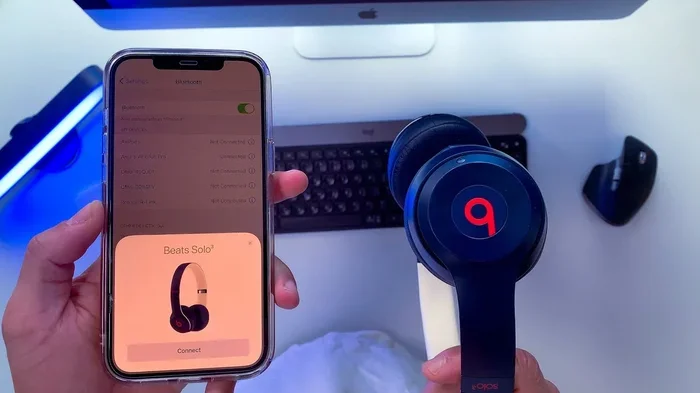
Your iPhone will now start scanning for nearby devices. Within a few seconds, your Beats should appear on the screen under Other Devices or My Devices. If you see your Beats listed, tap on them to connect.
Step 3: Complete the Pairing
Once you tap on your Beats, your iPhone will finish the pairing process. You may see a confirmation message that says the device is connected. Some Beats models will play a short sound to confirm the connection. You will also see the Beats name appear under My Devices in the Bluetooth settings.
At this point, your Beats are connected and ready to use. Play some music, and you should hear it through your headphones. If the sound comes through your iPhone speakers instead, go back to Bluetooth settings and make sure Beats is selected as the audio output device.
Step 4: Test the Connection
Always do a quick test after pairing. Play a song or a video and check the audio quality. Move around your room to see if the connection stays stable. Try walking about 15 feet away from your iPhone. If the music keeps playing without interruptions, your connection is solid. If you hear crackling or dropouts, there may be an issue we need to address.
Troubleshooting Common Connection Issues
Sometimes things do not go as smoothly as we hope. Maybe your Beats will not show up on your iPhone. Or perhaps they connect but the sound keeps cutting out. Do not worry. These issues are common and usually easy to fix. Let us look at the most frequent problems and their solutions.
Beats Not Showing Up on iPhone
This is the most common complaint. If your Beats do not appear in the Bluetooth list, try these steps:
- Make sure your Beats are in pairing mode. The blinking light is your clue.
- Turn Bluetooth off and back on from your iPhone settings.
- Restart your iPhone. This clears minor software glitches.
- Move closer to your iPhone. Distance can weaken the Bluetooth signal.
- Check if your Beats are connected to a different device. Disconnect them from other devices first.
Connection Keeps Dropping
If your Beats connect but keep disconnecting, the issue is usually signal interference. Other Bluetooth devices, Wi-Fi routers, and even microwaves can interfere with the signal. Try moving away from these devices. Also, make sure your Beats firmware is up to date. You can update the firmware through the Beats app on your iPhone.
Audio Sounds Distorted or Low Quality
Sometimes the connection is fine, but the sound quality is poor. This can happen if your Beats are low on battery. Charge them fully and try again. Also, check your iPhone sound settings. Go to Settings, then Sounds and Haptics, and make sure the volume is turned up. If you use the Beats app, check that the equalizer settings are not set too low.
Resetting Your Beats
If none of the above works, a factory reset often solves the problem. Resetting your Beats clears all paired devices and settings. Here is how to do it for popular models:
- Beats Studio Buds: Hold the button on the back of the case for 10 seconds until the LED flashes red and white.
- Beats Fit Pro: Hold the power button and the volume down button for 10 seconds.
- Beats Solo Pro: Hold the power button and the volume down button for 10 seconds.
- Beats Flex: Place all earbuds in the charging case and hold the button on the case for 10 seconds.
After resetting, try pairing your Beats to your iPhone again from scratch. This almost always fixes stubborn connection issues.
Tips to Get the Best Audio Experience
Once your Beats are connected, you want to get the most out of them. Apple has built some great features into iOS that work perfectly with Beats headphones. Here are tips to enhance your listening experience.
Enable Spatial Audio
Spatial audio creates a surround-sound effect. It makes music and movies feel like the sound is all around you. To enable this, go to Settings on your iPhone, then Accessibility, then Audio/Visual. Turn on Headphone Accommodations. You can also enable spatial audio directly in the Music app or Apple TV app when playing supported content.
Spatial audio works best with Dolby Atrix content. Many streaming services like Apple Music, Netflix, and Disney+ support this format. When you watch a movie with spatial audio through your Beats, the dialogue stays centered while the music moves around you. It is a truly immersive experience.
Use Low Latency Mode for Gaming
If you use your Beats to play games on your iPhone, you may notice a slight delay between the action on screen and the sound. This is called audio latency. Apple has a low latency mode that reduces this delay. You can find this in the Bluetooth settings when your Beats are connected. Tap on the info icon next to your Beats device and enable Low Latency Mode.
Adjust the Equalizer
The Beats app for iPhone lets you customize the sound profile. You can boost bass, enhance vocals, or adjust treble. Open the Beats app and go to the Settings tab. From there, tap on EQ and choose a preset or create a custom one. If you listen to a lot of hip hop or EDM, boosting the bass makes a big difference. For podcasts, enhancing the midrange helps you hear voices more clearly.
Keep Your Firmware Updated
Apple regularly releases firmware updates for Beats headphones. These updates fix bugs, improve battery life, and add new features. To check for updates, place your Beats in their case near your iPhone. Open the Beats app. If an update is available, it will show up automatically. Always keep your firmware current for the best performance.
Managing Your Beats After Connection
Once your Beats are connected, there are a few things you should know about managing them day to day. These tips will help you get the most out of your investment.
Auto-Switching Between Devices
If you own multiple Apple devices, your Beats can auto-switch between them. For example, if you are listening to music on your iPhone and then answer a call on your iPad, the audio will switch automatically. This feature works when all your devices are signed into the same iCloud account and have Bluetooth turned on.
To make sure auto-switching is enabled, go to Settings on your iPhone, then Bluetooth, then tap the info icon next to your Beats. Turn on Automatically Switch. This is a incredibly handy feature that most people do not even know about.
Battery Management
Your Beats battery health affects your connection quality. A low battery can cause dropouts and poor sound quality. Make it a habit to charge your Beats regularly. Most Beats models give you several hours of playback on a single charge. The charging case for models like Beats Studio Buds and Beats Fit Pro provides extra charges on the go.
You can check your Beats battery level right from your iPhone. Swipe down from the top right corner of your screen to open Control Center. The battery level of your connected Beats will show up next to the Bluetooth icon. You can also check it in the Bluetooth settings under My Devices.
Cleaning and Maintenance
Keeping your Beats clean helps them last longer and perform better. Wipe the ear cushions and mesh with a soft, damp cloth after heavy use. Avoid using harsh chemicals that can damage the material. Store your Beats in the charging case when not in use. This protects them from dust and accidental damage.
Comparison Table: Beats Models and iPhone Compatibility
Not all Beats models are the same. Here is a quick comparison of popular Beats models and how well they work with iPhones.
| Beats Model | Bluetooth Version | Chip | Battery Life | iPhone Auto-Switch | Spatial Audio |
|---|---|---|---|---|---|
| Beats Studio Buds | 5.0 | Apple H1 | 5 hours (24 with case) | Yes | Yes |
| Beats Fit Pro | 5.0 | Apple H1 | 7 hours (31 with case) | Yes | Yes |
| Beats Solo Pro | 5.0 | Apple W1 | 22 hours (with ANC on) | Yes | Yes |
| Beats Flex | 5.0 | Apple W1 | 12 hours | Yes | No |
| Beats Powerbeats Pro | 5.0 | Apple H1 | 9 hours (24 with case) | Yes | Yes |
As you can see, all modern Beats models work great with iPhones. The newer models with the H1 chip offer the best experience. They support features like auto-switching, spatial audio, and low latency mode. If you are buying new Beats, look for models that mention the H1 or W1 chip for the best iPhone integration.
Quick Tips for a Smooth Connection
Here are some quick tips that will make your Beats-to-iPhone experience even better:
- Keep your iPhone updated. iOS updates often include Bluetooth improvements and bug fixes.
- Restart both devices. A simple restart fixes most minor glitches.
- Forget old pairings. If your Beats connect to a device you no longer use, go to Bluetooth settings and forget that device.
- Use the Beats app. It gives you access to firmware updates, EQ settings, and battery status.
- Avoid overcrowded Bluetooth spaces. In places like airports or malls, Bluetooth signals can get crowded and cause issues.
Common Mistakes to Avoid
Even though connecting Beats to an iPhone is simple, people still make mistakes. Here are the most common ones and how to avoid them.
- Not putting Beats in pairing mode. This is the number one reason for failed connections. Always check for the blinking light.
- Connecting to the wrong device. If your Beats are already paired to a friend’s phone, they may auto-connect to it instead of your iPhone. Make sure to disconnect them first.
- Ignoring firmware updates. Old firmware can cause connection problems. Always keep your Beats updated through the Beats app.
- Letting the battery die completely. This can damage the battery over time and cause connection instability. Charge your Beats before they hit zero.
- Placing Beats near interference sources. Keep them away from Wi-Fi routers, microwaves, and other Bluetooth devices for a cleaner signal.
Expert Insights: Getting the Most from Your Beats and iPhone Setup
Apple experts recommend a few best practices for anyone using Beats with an iPhone. First, always use Apple-certified charging cables. Third-party cables can sometimes cause charging issues that affect Bluetooth performance. Second, if you are having persistent problems, try resetting your iPhone network settings. Go to Settings, General, Transfer or Reset iPhone, Reset, and then Reset Network Settings. This clears all Bluetooth pairings and Wi-Fi passwords, giving you a fresh start.
Another pro tip is to use the Find My app to locate your Beats if you lose them. Since Beats are Apple devices, they show up in the Find My network. This is a great feature that many Beats owners do not use.
Finally, consider using Apple Music or another high-quality streaming service. Beats headphones are capable of delivering rich, detailed sound. Pair them with a service that offers lossless audio, and you will hear a noticeable difference. Apple Music supports lossless audio up to 24-bit/192 kHz, which is perfect for Beats headphones.
Conclusion
Connecting your Beats to your iPhone is a straightforward process that anyone can do. Whether you use the quick Fast Pair method or the manual Bluetooth pairing steps, the experience is designed to be simple and fast. If you run into issues, resetting your Beats and updating firmware will solve most problems. Take advantage of features like spatial audio, low latency mode, and auto-switching to get the most out of your setup.
Now that you know how do I connect my beats to my iPhone, you are ready to enjoy your music, podcasts, and calls with crystal-clear sound. Keep your devices updated, manage your battery well, and your Beats will serve you reliably for years. Share this guide with friends who just got their first pair of Beats. They will thank you for it.
Frequently Asked Questions
Why won’t my Beats connect to my iPhone?
Most connection issues are caused by Beats not being in pairing mode. Make sure the LED light is blinking. Also, try turning Bluetooth off and back on, or restart your iPhone. If the problem persists, reset your Beats and try pairing again.
Can I connect my Beats to multiple Apple devices?
Yes, Beats headphones can connect to multiple Apple devices. They support auto-switching when all devices are signed into the same iCloud account. Your Beats will automatically connect to the device you are using.
How do I update the firmware on my Beats?
Place your Beats in their charging case near your iPhone. Open the Beats app. If a firmware update is available, it will appear automatically. Make sure your iPhone is connected to Wi-Fi and has enough battery before updating.
How long does it take to pair Beats with an iPhone?
The pairing process takes less than one minute for most Beats models. If you are using Fast Pair, the setup animation appears as soon as you open the case near your iPhone. Manual pairing may take a few extra minutes.
What should I do if my Beats keep disconnecting from my iPhone?
Interference from other Bluetooth devices is the most common cause. Move away from Wi-Fi routers and other electronics. Also, make sure your Beats firmware is updated and your battery is charged. Resetting your Beats can also resolve frequent disconnections.
Do Beats work with non-Apple phones?
Yes, Beats headphones use standard Bluetooth and work with any Bluetooth-enabled device. However, some features like auto-switching and spatial audio are exclusive to Apple devices. The basic connection and audio playback work on all phones.
=== CONCLUSION ===
Connecting your Beats to your iPhone does not have to be complicated. With the steps outlined in this guide, you can pair your headphones quickly and enjoy a seamless listening experience. Remember to keep your firmware updated, manage your battery, and explore the advanced features that make Beats and iPhones such a powerful combination. Now go enjoy your music the way it was meant to be heard.