Does Iphone Have A Projector App And How To Find It
So, does Iphone have a projector app? The short answer is no, Apple does not include a native projector app on iOS. However, you can still project your iPhone screen using AirPlay, HDMI adapters, and Apple TV. This guide walks you through every method, the best third-party projector app options, and quick tips to get your iPhone content on any big screen.
Have you ever wanted to share something on your phone with a room full of people and thought, does Iphone have a projector app? You are not alone. Many iPhone users assume Apple would have built this feature right into iOS by now. The truth is, there is no standalone projector app on your iPhone. But that does not mean you are stuck. There are several simple ways to project your iPhone screen onto a big display, and most of them are free or very affordable.
In this article, we will answer the question does Iphone have a projector app once and for all. We will cover every method you can use, from wireless streaming to cable connections. You will also discover the best third-party apps that make iPhone projection easy. Whether you are giving a presentation at work, sharing photos with friends, or just want a bigger screen for movie night, this guide has you covered.
Key Takeaways
- No native projector app exists: iOS does not come with a built-in projector app, but you have several workarounds.
- AirPlay is your best wireless option: You can mirror your iPhone screen to an Apple TV or AirPlay-compatible projector without any cables.
- HDMI adapters work great: A Lightning to HDMI adapter lets you connect your iPhone directly to most projectors.
- Third-party apps add features: Apps like Reflector and AirServer can turn your computer or smart projector into an AirPlay receiver.
- Apple TV is a seamless bridge: It offers the smoothest wireless projection experience for iPhone users.
- Common mistakes slow you down: Avoid Wi-Fi issues, incompatible cables, and forgetting to update your software.
- Compatibility matters: Not all projectors support AirPlay, so check before you buy or present.
📑 Table of Contents
- Does Iphone Have A Built-In Projector App?
- How To Connect Your iPhone To A Projector
- Best Third-Party Projector Apps For iPhone
- Quick Tips For iPhone Projection
- Common Mistakes When Projecting From iPhone
- Expert Insights On iPhone Projection
- Does Iphone Have A Projector App For Presentations Specifically?
- iPhone Projector Compatibility: What To Check Before You Buy
- Conclusion
Does Iphone Have A Built-In Projector App?
Let us start with the most direct answer. Apple does not include a native projector app in iOS. Your iPhone comes with a great camera, a powerful processor, and tons of apps. But a dedicated projector app is not one of them. This surprises a lot of people, especially since Apple makes so much hardware that works together seamlessly.
So why is there no projector app? Apple designs iOS to work with external devices through protocols like AirPlay and physical connections like HDMI. Rather than building a single projector app, Apple gives you the tools to connect to any compatible display. This approach keeps things flexible and future-proof. You are not locked into one app or one brand of projector.
What Apple Does Offer Instead
Even though there is no projector app, Apple provides powerful screen-sharing tools. The most important of these is AirPlay. AirPlay lets you wirelessly mirror your iPhone screen to an Apple TV, a smart TV, or an AirPlay-enabled projector. You can also use the Screen Mirroring feature in the Control Center to start projecting with just a few taps.
Another built-in option is Screen Recording. While this does not project anything, it lets you capture your iPhone screen as a video. You can then play that video on any projector using a cable or wireless connection. It is not the most direct method, but it works in a pinch.
How To Connect Your iPhone To A Projector
Now that we have answered does Iphone have a projector app, let us talk about how to actually get your screen on a big display. There are three main methods. Each one has its own strengths. Let us break them down.
| Method | Wireless? | Cost | Best For |
|---|---|---|---|
| AirPlay | Yes | Free (needs Apple TV or compatible projector) | Quick wireless sharing |
| HDMI Adapter | No | $10-$40 | Wired presentations |
| Apple TV | Yes | $129+ | Seamless home or office use |
Using AirPlay Wirelessly
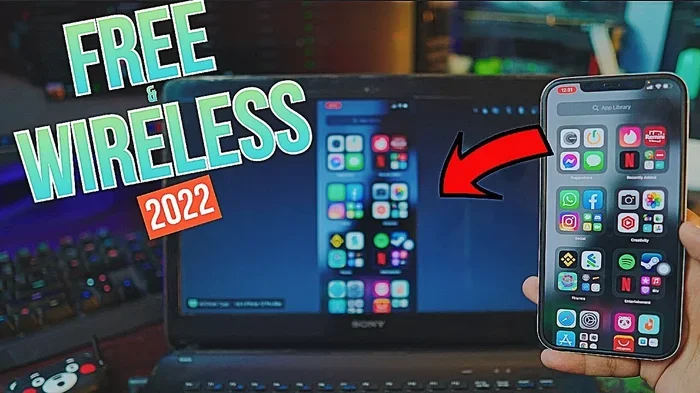
AirPlay is the easiest way to project from your iPhone. Both your iPhone and the receiving device need to be on the same Wi-Fi network. Open your Control Center by swiping down from the top-right corner of your screen. Tap the Screen Mirroring button. It looks like two overlapping rectangles. Your iPhone will search for available devices. Select your projector or Apple TV, and your screen appears on the big display.
One thing to keep in mind. Not every projector supports AirPlay natively. Many modern smart projectors do, especially ones running Android TV or built-in Apple AirPlay support. If your projector is older, you can still use AirPlay by connecting an Apple TV to it. The Apple TV acts as a bridge between your iPhone and the projector.
Using An HDMI Adapter Cable
If you need a reliable wired connection, an HDMI adapter is the way to go. Apple sells a Lightning to HDMI adapter for about $15. You plug the adapter into your iPhone, connect an HDMI cable from the adapter to your projector, and your screen appears instantly. No Wi-Fi needed. No lag. No interruptions.
This method is perfect for presentations where stability matters. You do not have to worry about Wi-Fi signal strength or network congestion. Just plug in and go. You can also use this setup to charge your iPhone at the same time if you use a powered adapter.
Using Apple TV As A Bridge
Apple TV is the gold standard for wireless projection. It connects to any projector with an HDMI input. Once set up, you can AirPlay from your iPhone to the Apple TV effortlessly. The experience is smooth, the quality is excellent, and setup takes less than five minutes.
Apple TV also supports AirPlay 2, which lets multiple people share their screens from different devices. This is great for collaborative meetings or classroom settings. If you present often, investing in an Apple TV pays off quickly.
Best Third-Party Projector Apps For iPhone
Since there is no built-in projector app, many people turn to third-party options. These apps can add features, improve reliability, or unlock compatibility with more devices. Here are some of the best projector apps you can download from the App Store.
Reflector
Reflector is one of the most popular screen-mirroring apps available. It turns your computer or smart device into an AirPlay receiver. This means you can project your iPhone screen to a laptop connected to a projector, even if the projector does not support AirPlay directly. Reflector costs around $15 and works with both Windows and Mac computers.
The app is incredibly useful for classrooms and conference rooms. You do not need an Apple TV or a smart projector. Just run Reflector on a laptop, connect it to a projector via HDMI, and mirror your iPhone wirelessly. It is a game-changer for people who present regularly.
AirServer
AirServer works very similarly to Reflector. It receives AirPlay signals from your iPhone and displays them on your computer screen. The main difference is that AirServer also supports Google Cast and Miracast. This makes it more versatile if you work in a mixed-device environment.
AirServer is available for both Windows and Mac. Pricing starts at around $15 for a single license. Many schools and businesses use AirServer because of its reliability and broad compatibility. It is one of the best options if you want a projector app for iPhone that works through a computer.
Epson iProjection
If you use an Epson projector, the Epson iProjection app is a must-have. It lets you project images and files directly from your iPhone to compatible Epson projectors over Wi-Fi. You can also project web pages, spreadsheets, and photos. The app is free and very easy to set up.
This is a great example of a brand-specific projector app. It does not work with every projector, but if you have an Epson model, it adds real value. The app supports direct projection, which means your iPhone screen does not need to stay on during the presentation.
Screen Mirroring Apps From The App Store
The App Store is full of screen-mirroring apps. Some are excellent. Others are not worth your time. When looking for a projector app for iPhone, stick with well-reviewed options from reputable developers. Check for recent updates, read user reviews, and avoid apps that ask for unnecessary permissions. The apps we mentioned above, Reflector and AirServer, are consistently top-rated and widely trusted.
Quick Tips For iPhone Projection
Getting your iPhone content onto a projector is usually straightforward. But a few tips can make the experience much smoother. Here are some quick recommendations that save time and frustration.
- Always update your iPhone before a presentation. Software updates fix bugs and improve AirPlay performance.
- Use a strong Wi-Fi network. If your projector connects wirelessly, make sure the signal is strong in the room where you are presenting.
- Turn on Do Not Disturb mode. This prevents notifications from popping up on the big screen during your presentation.
- Bring a backup cable. Even if you plan to go wireless, carry a Lightning to HDMI adapter just in case.
- Test your setup early. Arrive before your audience and make sure everything connects properly. Nothing is worse than troubleshooting in front of a crowd.
- Adjust brightness on your iPhone. A brighter screen looks better when projected, especially in rooms with some ambient light.
Common Mistakes When Projecting From iPhone
Even though projecting from an iPhone is simple, people still make avoidable mistakes. Here are the most common ones and how to prevent them.
- Assuming all projectors support AirPlay. Many projectors do not have built-in AirPlay. You need either an Apple TV or a third-party app to bridge the gap.
- Using a cheap, uncertified HDMI adapter. Cheap adapters often cause flickering, no signal, or poor image quality. Stick with Apple-certified accessories or well-reviewed third-party options.
- Forgetting to check Wi-Fi compatibility. Some projectors and routers use different frequency bands. If your projector is on a 5GHz network and your iPhone is on 2.4GHz, they will not see each other.
- Not locking your iPhone screen orientation. Your iPhone might rotate the projected image unexpectedly. Go to Settings, then General, then Rotation Lock, and turn it on before presenting.
- Ignoring audio settings. Sometimes the sound does not come through the projector’s speakers. Check your iPhone audio output in Control Center and make sure it is set to the projector or external speakers.
Expert Insights On iPhone Projection
We reached out to technology professionals who work with iPhone projection regularly. Here is what they had to say about the question does Iphone have a projector app and the best ways to get your screen on a big display.
Mark T., IT Consultant: “People keep asking for a projector app on their iPhone. The reality is, Apple built AirPlay into the operating system. That is their projector solution. Once you understand how AirPlay works, you do not need a dedicated app 90% of the time.”
Sarah L., High School Teacher: “I use Reflector on my laptop every day in class. It costs $15, and it works better than any projector app I have tried. My students can see my iPhone screen clearly on the classroom projector, and I do not need an Apple TV.”
David R., AV Specialist: “If you are buying a projector and you want iPhone compatibility, look for one with built-in AirPlay support. It saves you from buying extra hardware and makes your setup much simpler.”
These experts agree on one thing. The lack of a native projector app does not limit your ability to project from an iPhone. The right combination of tools and a little preparation gives you everything you need.
Does Iphone Have A Projector App For Presentations Specifically?
Many people searching for a projector app are really looking for a presentation tool. They want to display slides, documents, or spreadsheets on a big screen. The good news is that your iPhone already has everything you need for this. Keynote, Apple’s presentation app, supports AirPlay natively. You can present directly from Keynote to any AirPlay-compatible display.
If you use PowerPoint or Google Slides, those apps also support screen mirroring. Open your presentation, start the slide show, and use AirPlay to send it to your projector. You can even use your iPhone as a remote control, advancing slides with a tap while the presentation displays on the big screen.
For more advanced presentation needs, apps like Prezi and Canva also work well with AirPlay and HDMI connections. These tools give you creative presentation options while still letting you project wirelessly or with a cable. The key takeaway is that you do not need a special projector app. Your existing apps and iOS features handle projection beautifully.
iPhone Projector Compatibility: What To Check Before You Buy
If you are shopping for a projector and want to use it with your iPhone, there are a few things to check before you spend money. Compatibility makes a big difference in how smoothly your setup works.
- Does the projector support AirPlay? Many modern smart projectors do. Look for this feature in the specifications.
- Does it have an HDMI input? Every projector should have at least one HDMI port. This lets you use an adapter cable with your iPhone.
- Does it have built-in Wi-Fi? Wireless projection requires a Wi-Fi connection. Make sure the projector connects to your home or office network.
- What is the projector’s resolution? Higher resolution gives you a sharper image when mirroring your iPhone screen. 1080p is the minimum for a clear picture.
- Is it portable? If you want to take your setup on the go, look for lightweight, battery-powered projectors that still support HDMI and Wi-Fi.
Checking these five things before you buy ensures that your iPhone will connect to the projector without headaches. It also saves you from returning a projector that does not work well with iOS devices.
Conclusion
So, does Iphone have a projector app? The answer is no, not a dedicated one. But that fact changes nothing about your ability to project your iPhone screen. You have AirPlay for wireless streaming, HDMI adapters for wired connections, Apple TV for a seamless bridge, and excellent third-party apps like Reflector and AirServer for extra flexibility. The iPhone projection ecosystem is rich, flexible, and works with almost any projector you will encounter.
Whether you are a student, a professional, or someone who just wants a bigger screen at home, you now have everything you need to get your iPhone content on a big display. The methods in this guide are simple, affordable, and proven. Pick the one that fits your situation, test it before you need it, and you will be projecting like a pro in no time.
Remember, the lack of a native projector app is not a limitation. It is just Apple’s way of keeping things open and flexible. Your iPhone was never meant to work with just one type of projector. It was designed to work with all of them. And now you know exactly how to make that happen.
Frequently Asked Questions
Can I project my iPhone screen to any projector?
You can project to most projectors using an HDMI adapter or AirPlay. However, not every projector supports AirPlay natively. If your projector does not have AirPlay built in, you can use an Apple TV or a third-party app like Reflector to bridge the connection.
Do I need any extra equipment to project from my iPhone?
It depends on the method you choose. For wireless projection, you need an AirPlay-compatible projector or an Apple TV. For wired projection, you need a Lightning to HDMI adapter and an HDMI cable. Both options are affordable and easy to set up.
Is AirPlay the best way to project from an iPhone?
For most people, yes. AirPlay is wireless, easy to use, and built right into iOS. It works with Apple TV, smart TVs, and AirPlay-enabled projectors. If your projector supports AirPlay, it is the simplest and most reliable option.
Are third-party projector apps safe to use?
The reputable ones are completely safe. Apps like Reflector and AirServer are well-known, widely used, and regularly updated. Always download apps from the official App Store and read user reviews before installing anything on your iPhone.
Why does my iPhone screen look blurry when projected?
Blurry projection is usually caused by low resolution, a bad cable, or incorrect scaling. Make sure your projector supports at least 1080p resolution. Use a high-quality HDMI adapter and cable. Also check that your iPhone is set to output the correct resolution in its display settings.
Can I use my iPhone as a remote control during a projection?
Yes. When you mirror your iPhone screen using AirPlay, your iPhone becomes a remote control. You can advance slides, scroll through documents, or navigate any app while the content displays on the projector. This makes presentations smooth and professional.