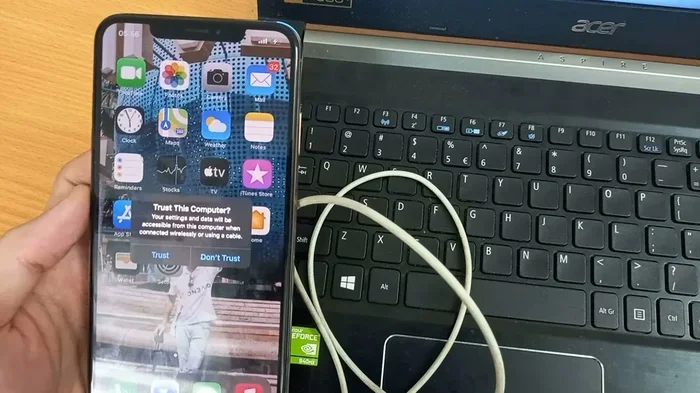
Find Out How to Share Wifi Password From Iphone To Computer
You can easily share wifi password from iPhone to computer using built-in Apple features, iCloud sync, or QR code methods. This guide walks you through every method step by step, so you can connect any device fast. Whether you use a Mac or a Windows PC, simple solutions are here for you.
Have you ever stood in front of your computer, staring at the wifi login screen, and wished you could just grab the password from your iPhone? You are not alone. Millions of people face this problem every single day. The good news is that sharing wifi password from iPhone to computer is easier than you think. Whether you use a Mac or a Windows PC, there are simple methods that work like a charm.
In this guide, we will walk you through every way to share wifi password from iPhone to computer. We cover the easiest built-in options, handy workarounds for Windows users, and quick tips to keep your wireless network secure. By the end, you will know exactly which method fits your setup best. Let us dive right in.
Key Takeaways
- iCloud Keychain makes sharing seamless: When both devices are signed into the same Apple ID, your wifi password syncs automatically between your iPhone and Mac.
- Mac users get a built-in option: You can retrieve your saved wifi password directly from your Mac’s Keychain Access or System Settings.
- Windows PC users need a workaround: Since Windows doesn’t natively pull from iCloud, you can use QR codes or manually type in the password.
- QR code sharing is quick and wireless: You can generate a QR code on your iPhone and scan it with any device camera to connect instantly.
- Security matters when sharing passwords: Always use trusted methods and avoid sharing your password over unsecured channels.
- Third-party apps add extra features: Apps like WiFi Password Share and AirDrop tools can simplify the process further.
- Avoid common mistakes: Don’t forget to check your router settings, and always verify the password after sharing.
📑 Table of Contents
- How to Share Wifi Password From iPhone to Computer
- Share Wifi Password From iPhone to Mac
- Share Wifi Password From iPhone to Windows PC
- Alternative Methods for Sharing Your Wifi Password
- Quick Tips for Safe and Easy Wifi Password Sharing
- Common Mistakes People Make When Sharing Wifi Passwords
- Why Your Devices May Not Find the Password
- How to Keep Your Wireless Network Secure After Sharing
- Final Thoughts
How to Share Wifi Password From iPhone to Computer
The most direct way to share wifi password from iPhone to computer depends on what kind of computer you own. Apple makes it very smooth if you use a Mac. Windows users need a slightly different approach, but it is still simple. Let us break it down by device type.
Why Sharing Wifi Passwords Matters
Every time you buy a new device or reset your computer, you need the wireless network password. Typing a long, complex password on a small keyboard is frustrating. Sharing it wirelessly saves time and reduces errors. Plus, it keeps your network credentials safe since you do not have to write them on sticky notes or text them to yourself.
Modern smartphones and computers support several wifi password sharing methods. Apple’s ecosystem is especially good at this. But even if you mix Apple and Windows devices, you have options. The key is knowing which tool to use and when.
Share Wifi Password From iPhone to Mac
If both your iPhone and Mac are Apple devices, you are in luck. Apple built a feature that makes sharing wifi between Apple devices almost magical. Here is how it works.
Method 1: iCloud Keychain Sync
When iCloud sync passwords is turned on, your saved wifi networks move between your iPhone and Mac automatically. You do not even have to think about it. Here is what to check:
- On your iPhone, go to Settings and tap your name at the top.
- Select iCloud, then tap Passwords & Keychain.
- Make sure iCloud Keychain is switched on.
- On your Mac, open System Settings and click Apple ID.
- Go to iCloud and confirm that Passwords & Keychain is enabled.
Once both devices are set up, your Mac will suggest the wifi password on your Mac whenever you try to connect to a network your iPhone has already joined. You just click “Join” and enter your Mac password. Done.
Method 2: Keychain Access on Mac
You can also find your saved Mac wifi password using Keychain Access. This is a built-in tool that stores all your passwords. Here is how to use it:
- Open Keychain Access on your Mac. You can find it by searching in Spotlight.
- In the search bar, type the name of your wifi network.
- Double-click the network name.
- Check the box that says “Show password.”
- Enter your Mac login password when prompted.
This method works great when you need to find wifi password on laptop for another device too. Your password management stays organized and secure inside Apple’s ecosystem.
Share Wifi Password From iPhone to Windows PC
Windows does not talk directly to iCloud. So you cannot pull your iPhone’s wifi password straight into a Windows machine the same way you can with a Mac. But do not worry. You still have several easy options.
Method 1: Use a QR Code
This is one of the fastest ways to share wifi password from iPhone to computer, even if the computer runs Windows. Your iPhone can turn your wifi details into a scannable QR code. Any device with a camera can read it.
Here is how to do it:
- Open the Settings app on your iPhone.
- Tap Wi-Fi and find your connected network.
- Tap the Info icon (the blue “i”) next to the network name.
- Tap “Share Password” or the Share button.
- Select the QR code option if available.
- Hold your iPhone screen up to your computer’s webcam or phone camera.
- Only share with trusted people. Your wifi password gives access to your entire network. Be careful who you give it to.
- Use a strong, unique password. A good wireless network security practice is to use a mix of letters, numbers, and symbols. This keeps strangers out.
- Change your password regularly. If you ever share it with guests, consider changing it afterward. Most routers let you do this through the admin panel.
- Avoid public sharing methods. Do not post your password on social media or public forums. Keep it private.
- Use a guest network when possible. Many modern routers let you create a separate guest network. This way, visitors get internet access without reaching your personal files.
- Forgetting to turn on iCloud Keychain. If this setting is off, your Mac will not see your saved wifi passwords. Always double-check this first.
- Using the wrong Apple ID. Both devices must be signed into the same Apple ID for iCloud sync to work. Check this on both devices.
- Not updating your iOS or macOS. Older software versions sometimes have bugs that break password sharing. Keep your devices updated.
- Typing the password incorrectly. Wifi passwords are case-sensitive. A single wrong uppercase letter will cause a connection failure. Use the copy-paste method when possible.
- Ignoring the router restart. If your computer still cannot connect after entering the password, try restarting your router. This fixes many wifi network troubleshooting issues.
- Sharing over unsecured channels. Sending your password through unsecured public Wi-Fi or sketchy apps can expose it to hackers. Stick to trusted methods.
- Restart both your iPhone and computer if the password does not work the first time.
- Turn off “Hidden Network” in your router settings if your computer cannot find the wifi.
- Use the “Forget This Network” option on both devices and reconnect fresh if you run into issues.
- Keep your iPhone and computer within close range when using AirDrop or QR code methods.
- Different Apple IDs: iCloud Keychain only syncs within the same Apple ID. Check both devices.
- Old software: Update your iPhone and Mac to the latest iOS and macOS versions.
- Network type mismatch: Some enterprise or public networks do not allow password sharing through iCloud.
- Keychain glitches: Restarting both devices often fixes temporary sync issues.
- Router settings: Some routers block certain types of network discovery. Check your router’s security settings.
- Check your connected devices list. Log into your router admin panel and see all devices currently connected. Remove any you do not recognize.
- Change your password periodically. Every few months, update your wireless network password to keep unauthorized users out.
- Enable WPA3 encryption. If your router supports it, WPA3 is the latest and most secure wifi encryption standard.
- Disable WPS. Wi-Fi Protected Setup is convenient but has known security vulnerabilities. Turn it off in your router settings.
- Use a strong router admin password. Your wifi password and your router admin password are different. Make sure both are strong and unique.
Many Windows laptops now have cameras built in. You can also use your phone to scan the code. The wifi connection will start automatically without you typing a single character.
Method 2: Use a Third-Party QR Code Generator
If your iPhone does not show a QR code option directly, you can use a free app or website to generate one. Apps like WiFi Password Share let you create a QR code from your network name and password. You then display the code on your iPhone screen and scan it with any device.
This method works for share wifi with PC in seconds. It is wireless, no cables needed, and very beginner-friendly.
Method 3: Manually Type the Password
The old-school way still works. On your iPhone, go to Settings, then Wi-Fi, and tap the “i” icon next to your network. Copy the password and paste it into your Windows wifi setup screen. It is not the most exciting method, but it gets the job done every time.
Alternative Methods for Sharing Your Wifi Password
Beyond the direct device-to-device methods, there are other ways to share wifi password from iPhone to computer. Let us look at a few more options that might fit your situation.
Using AirDrop
AirDrop is Apple’s wireless sharing tool. You can send text, photos, and even wifi details to nearby Apple devices. While AirDrop does not send the actual wifi password directly in a connect-able format, you can share the password text to your Mac and then type it in. It is a quick middle-ground option.
Using Email or Messaging Apps
You can send the password to yourself through iMessage, Email, or any messaging app. On your iPhone, go to Settings > Wi-Fi, tap the info icon, and copy the password. Paste it into a message and send it to the email address linked to your computer. Open the email on your computer and type the password in. Simple and effective.
Using Router Admin Panel
Every router has a settings page you can access through a web browser. You can log in and find your wireless network password listed there. The default router address is usually 192.168.1.1 or 192.168.0.1. Check the sticker on the back of your router for the login details if you have not changed them.
This method is helpful when you need the router password recovery for multiple devices at once. It also lets you change the password if you want to.
Comparison Table: Methods for Sharing Wifi Password
| Method | Device Compatibility | Speed | Ease of Use |
|---|---|---|---|
| iCloud Keychain | iPhone to Mac only | Instant | Very Easy |
| Keychain Access | Mac only | Fast | Easy |
| QR Code | Any device with a camera | Very Fast | Easy |
| AirDrop | Apple devices only | Fast | Easy |
| Email / Messaging | Any device | Moderate | Very Easy |
| Router Admin Panel | Any device on the network | Moderate | Medium |
Quick Tips for Safe and Easy Wifi Password Sharing
Sharing your wireless network password is convenient, but you should always keep security in mind. Here are some quick tips to follow:
Expert Insight
Network security expert tip: When you share wifi password from iPhone to computer, always make sure both devices are on the same Apple ID or using a secure connection. Never share passwords over open, unsecured networks. A little caution goes a long way in protecting your home network.
Common Mistakes People Make When Sharing Wifi Passwords
Even simple tasks can go wrong if you do not pay attention. Here are the most common mistakes people make when trying to share wifi password from iPhone to computer:
Quick Tips Box
Why Your Devices May Not Find the Password
Sometimes, even when you follow all the steps, your computer will not find the wifi password from iPhone. This can be frustrating, but it usually has a simple fix. Here are the most common reasons:
If none of these fixes work, the manual QR code or email method will always get you connected. These backup options are reliable every time.
How to Keep Your Wireless Network Secure After Sharing
Once you have shared wifi password from iPhone to computer, it is smart to take a few extra steps to protect your network. Here is what you should do:
Taking these steps means you can enjoy the convenience of wifi password sharing without putting your home network at risk. Security and convenience can go hand in hand.
Final Thoughts
Sharing wifi password from iPhone to computer is a simple process once you know the right method. Apple users have it the easiest with iCloud Keychain and Keychain Access. Windows users can rely on QR codes, email, or the router admin panel to get the same result. Every method we covered is free and works in just a few minutes.
The key is to pick the method that matches your setup. If you use a Mac, iCloud sync is your best friend. If you use Windows, the QR code method is fast and wireless. And no matter what, always keep your wireless network security strong by using complex passwords and checking your connected devices regularly.
Now that you know all the ways to connect your devices, try the method that works best for you. You will never have to squint at a tiny keyboard or ask a friend for the password again. Happy connecting.
Frequently Asked Questions
Can I share my wifi password from iPhone to a Windows PC?
Yes, you can. The easiest way is to use a QR code. Your iPhone can generate a scannable QR code for your wifi network. Hold your phone’s screen up to your Windows PC’s camera or use your phone to scan it. The PC will connect automatically without typing the password.
Do I need an internet connection to share the wifi password?
No, you do not. Methods like AirDrop, iCloud Keychain, and QR code sharing work over local connections. You only need wifi to be turned on, not an active internet connection. This makes sharing easy even when you are offline.
Why is iCloud Keychain not syncing my wifi password to my Mac?
This usually happens when the two devices use different Apple IDs. Check that both your iPhone and Mac are signed into the same Apple ID. Also make sure iCloud Keychain is turned on in Settings on both devices. Restarting both devices often fixes the issue too.
Is it safe to share my wifi password using a QR code?
Yes, it is very safe. QR codes generated on your iPhone only contain your network name and password in an encrypted format. No one can intercept the code unless they physically see your screen. Avoid displaying the code in public places for extra safety.
Can I share my wifi password with more than one computer?
Absolutely. You can share the same password with as many devices as you want. If you use iCloud Keychain, all Apple devices on the same Apple ID will receive the password automatically. For Windows PCs, simply generate a new QR code or send the password through email for each device.
What should I do if my computer still will not connect after getting the password?
First, double-check that you typed the password correctly. Wifi passwords are case-sensitive. If the password is right, try forgetting the network on your computer and reconnecting. Restarting your router can also fix connection issues. If the problem continues, check your router’s admin panel for any restrictions.
=== CONCLUSION ===
Sharing wifi password from iPhone to computer is a quick, easy process that saves you time and frustration. Whether you use a Mac or a Windows PC, the methods in this guide will get you connected in no time. iCloud Keychain and Keychain Access make life simple for Apple users, while QR codes and email work perfectly for Windows machines.
Remember to keep your wireless network security strong, use trusted sharing methods, and avoid common mistakes. With these tips in your toolkit, you will handle any wifi connection task like a pro. Try the method that works best for your setup today and enjoy seamless connectivity across all your devices.