Can You Put A Data Plan On A Laptop Heres The Full Guide
Yes, you can put a data plan on a laptop using built-in cellular modules, USB mobile hotspots, or portable routers. This guide covers every method, plan options, and practical tips to keep your laptop connected to the internet anywhere.
Key Takeaways
- Built-in cellular: Some laptops have a SIM card slot or eSIM support for direct data plan activation.
- USB mobile hotspot: A USB dongle or mobile hotspot device is the easiest way to add cellular data to any laptop.
- Plan selection matters: Choose a carrier data plan based on your usage, coverage area, and budget.
- Tethering works too: You can share your phone’s data connection with your laptop via USB or Wi-Fi.
- Avoid common mistakes: Watch out for data overages, wrong hardware, and ignoring network coverage.
- Performance tips: Keep firmware updated, use external antennas, and monitor data usage for best results.
📑 Table of Contents
- Can You Put a Data Plan on a Laptop? Heres The Full Guide
- What Does It Mean to Put a Data Plan on a Laptop?
- How to Add a Data Plan to Your Laptop
- Types of Cellular Connections for Laptops
- Choosing the Right Data Plan for Your Needs
- Common Mistakes to Avoid
- Expert Tips for Getting the Best Performance
- Expert Insights on Laptop Data Plans
- Conclusion
Can You Put a Data Plan on a Laptop? Heres The Full Guide
Getting internet on your laptop without relying on Wi-Fi is totally possible. Many people wonder, can you put a data plan on a laptop, and the answer is a clear yes. Whether you travel often, work remotely, or just want backup internet, cellular connectivity gives you freedom. You can stay online in parks, on road trips, or in places where Wi-Fi simply is not available.
In this guide, we will walk you through every method available. You will learn about built-in cellular modules, USB mobile hotspots, tethering from your phone, and portable routers. We will also help you pick the right carrier plan and avoid common pitfalls. By the end, you will know exactly how to get a data plan running on your laptop.
Let us break it all down step by step. No technical background needed. Just practical advice to keep you connected.
What Does It Mean to Put a Data Plan on a Laptop?
When we say “put a data plan on a laptop,” we mean giving your laptop its own cellular internet connection. Think of it like adding a SIM card to a smartphone, but for your computer. Instead of relying on home Wi-Fi or public hotspots, your laptop connects directly to a mobile network.
Why Would You Want This?
There are many reasons to add mobile broadband to a laptop:
- Remote work: Not every workspace has reliable Wi-Fi. A data plan keeps you productive anywhere.
- Travel: Hotels and airports often charge for internet. A personal data plan saves money on the road.
- Backup connectivity: Your home internet goes down sometimes. Cellular data acts as a backup.
- Rural living: Broadband coverage may be limited where you live. Mobile networks often reach farther.
- Flexibility: You are not tied to one location. Work from a beach, a cabin, or a parking lot.
What You Need Before Starting
Before diving in, check a few things on your laptop:
- Does it have a SIM card slot or eSIM support?
- Does it support USB tethering?
- Is your operating system compatible with cellular adapters?
- Do you have a carrier that offers coverage in your area?
Knowing these details helps you choose the right method. It also saves you from buying hardware that will not work.
How to Add a Data Plan to Your Laptop
There are several ways to get wireless data on your laptop. Each method has pros and cons. Let us look at the most popular options.
Method 1: Built-in Cellular Module
Some laptops come with a built-in cellular modem. Think of models like certain Lenovo ThinkPads or Dell Latitude laptops. These machines have a physical SIM card slot or eSIM support right inside.
This is the cleanest solution. You insert a SIM card, activate a plan, and your laptop connects to the mobile network automatically. No extra devices needed.
Steps to set it up:
- Check your laptop specs for LTE or 5G support.
- Open your network settings and look for cellular options.
- Insert the SIM card or scan the eSIM QR code.
- Select your carrier and activate the plan.
- Connect to the internet through the cellular interface.
The main advantage is convenience. The downside? These laptops cost more upfront, and not every model supports this feature.
Method 2: USB Mobile Hotspot or Dongle
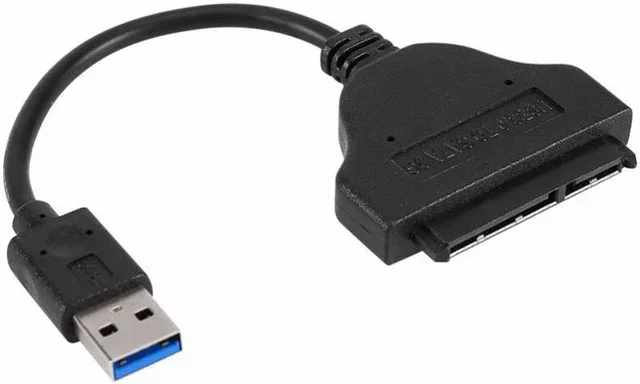
A USB mobile hotspot is a small device that plugs into your laptops USB port. It contains a SIM card slot and a modem inside. Once plugged in, your laptop recognizes it as a network adapter.
This method works on almost any laptop. Even older machines without built-in cellular can use a USB modem. Popular brands include Netgear, Huawei, and ZTE.
Steps to set it up:
- Buy a USB dongle that supports your carriers network (4G LTE or 5G).
- Insert a SIM card into the dongle.
- Plug the dongle into your laptops USB port.
- Install any required drivers (most modern systems auto-detect).
- Select the new network connection and connect.
This is a great budget-friendly option. The device costs between 30 and 80 dollars in many cases. You just need a compatible data plan from a carrier.
Method 3: Tethering from Your Phone
If you already have a data plan on your phone, you can share it with your laptop. This is called tethering. There are three ways to tether:
- USB tethering: Connect your phone to your laptop with a USB cable. Share the connection through settings.
- Wi-Fi hotspot: Turn your phone into a portable Wi-Fi router. Your laptop connects like any other device.
- Bluetooth tethering: Pair your phone and laptop via Bluetooth. This is slower but works in a pinch.
Tethering is free with most phone plans, but some carriers charge extra. Check your plan details before you rely on it daily. Also, your phone battery drains faster when tethering.
Method 4: Portable Wi-Fi Router
A portable router (sometimes called a mobile hotspot device) is a standalone gadget. It creates a Wi-Fi network using a SIM card. Your laptop connects to it just like it would connect to any home router.
Devices like the Nighthawk M6 or TP-Link MR6400 are popular choices. They support multiple devices, strong batteries, and external antenna ports. This is ideal if you travel with a laptop and a tablet.
Types of Cellular Connections for Laptops
Not all cellular connections are the same. The type of network your laptop uses affects download speeds, reliability, and coverage. Here is a quick breakdown.
4G LTE vs 5G
4G LTE is the most widely available mobile data standard. It offers solid speeds of 10 to 50 Mbps in most areas. Almost every carrier supports it. It is reliable and covers large geographic areas.
5G is faster but still rolling out. In covered areas, you can see speeds of 100 Mbps or more. However, 5G coverage is still limited in rural regions. If you need wide coverage today, 4G LTE is the safer choice.
Comparison Table: Connection Methods
| Method | Best For | Speed Range | Cost | Setup Difficulty |
|---|---|---|---|---|
| Built-in Cellular | Frequent travelers | 4G LTE to 5G | High (laptop cost) | Easy |
| USB Dongle | Any laptop user | 4G LTE | Low to medium | Very easy |
| Phone Tethering | Budget users | Depends on phone | Free or low | Easy |
| Portable Router | Multi-device users | 4G LTE to 5G | Medium to high | Moderate |
Network Coverage Considerations
Before picking a method, check your carriers network coverage. Use online coverage maps from AT&T, Verizon, T-Mobile, or your local carrier. Look at your most-used locations. A strong signal at home and work matters more than peak speeds on paper.
Choosing the Right Data Plan for Your Needs
Picking a carrier plan is just as important as picking the right hardware. The wrong plan can lead to overages, slow speeds, or dropped connections.
Understanding Data Limits
Most carrier plans fall into these categories:
- Unlimited plans: You get unlimited data, but speeds may slow after a certain threshold (usually 50 GB). These are great for heavy users.
- Fixed data plans: You get a set amount, like 5 GB, 10 GB, or 20 GB per month. These work well for light browsing and email.
- Prepaid plans: You pay upfront with no contract. Great for flexibility and avoiding surprise bills.
Think about how you actually use the internet. If you stream videos daily, you need more data. If you mostly check email and write documents, a smaller plan works fine.
Popular Carriers for Laptop Data Plans
Here are some options to consider:
- Verizon: Strong coverage nationwide. Good for rural areas. Unlimited plans start around 60 dollars per month.
- AT&T: Competitive pricing and solid 4G LTE coverage. They offer flexible prepaid options.
- T-Mobile: Often the cheapest unlimited plans. Great for urban and suburban users.
- Mint Mobile: Budget-friendly prepaid plans. Uses T-Mobile’s network. Plans start as low as 15 dollars per month.
- US Cellular: Good rural coverage in select regions. Often overlooked but reliable.
Quick Tips for Saving on Data
- Use Wi-Fi whenever it is available. Save your cellular data for when you need it.
- Set data usage limits on your laptop. Windows and Mac both have built-in tools for this.
- Turn off background app syncing. Many apps use data without you knowing.
- Consider a plan with a mobile hotspot feature included. It often costs less than a separate plan.
- Watch for promotional pricing. Many carriers offer discounts for the first few months.
Common Mistakes to Avoid
Adding a data plan to your laptop sounds simple, but people make avoidable mistakes. Here are the most common ones.
Ignoring Network Coverage
Never pick a carrier without checking coverage in your area. A cheap plan means nothing if you have no signal where you need it. Always verify coverage maps before committing.
Buying the Wrong Hardware
Not every USB dongle works with every laptop. Some only support Windows. Others need specific drivers. Before you buy, confirm compatibility with your devices operating system and USB ports.
Overlooking Data Overages
Some plans charge steep fees for going over your data limit. Others slow your speeds to a crawl. Read the fine print. Know exactly what happens when you exceed your limit.
Forgetting Security
Public mobile networks are not inherently secure. Always use a VPN when connecting through cellular. This encrypts your traffic and protects your personal information.
Setting and Forgetting
Your data needs change over time. A plan that works for you today may not work in six months. Review your usage every few months. Switch plans if your habits change.
Expert Tips for Getting the Best Performance
Once your data plan is running, a few pro tips can boost your experience. These insights come from real-world usage and IT professional recommendations.
Position Matters
If you use a USB dongle or portable router, placement affects signal strength. Keep the device near a window. Avoid placing it inside metal bags or drawers. The better the signal, the faster your connection.
Use an External Antenna
Some portable routers support external antennas. If you are in a weak signal area, this upgrade can make a big difference. A simple external antenna costs 20 to 40 dollars and dramatically improves laptop connectivity.
Keep Everything Updated
Update your dongle firmware, laptop drivers, and carrier apps regularly. Manufacturers often release fixes for performance issues. A simple update can improve speeds and reduce disconnections.
Monitor Your Data Usage
Use built-in tools to track consumption. On Windows, go to Settings and look at Network & Internet. On Mac, check Activity Monitor. Understanding where your data goes helps you stay within limits.
Restart Your Connection Regularly
Leaving a cellular connection active for days can cause slowdowns. Restart your dongle or router once a week. This clears cached data and refreshes the network connection.
Expert Insights on Laptop Data Plans
Industry professionals have a few things to say about using mobile broadband on laptops. These insights can help you make smarter decisions.
First, IT specialists recommend starting with a prepaid plan. You avoid contracts and can cancel anytime. If the plan does not work for you, switch without penalty. This approach minimizes risk while you figure out your needs.
Second, professionals emphasize the value of eSIM technology. Newer laptops from Apple, Dell, and HP support eSIM. You can activate a plan digitally without a physical card. This is a game-changer for frequent travelers who need connectivity in multiple countries.
Third, network engineers suggest having two sources of internet. Use your cellular plan as primary and a cloud backup solution or a second carrier as fallback. Redundancy keeps you online when one network fails. This is especially important for people who work from home and cannot afford downtime.
Finally, experts warn about “unlimited” plans that throttle speeds. Read reviews and real user experiences before picking a plan. Some carriers advertise unlimited but cut speeds after 10 GB. That is not truly unlimited. Look for plans that offer at least 50 GB of high-speed data before throttling begins.
Conclusion
So, can you put a data plan on a laptop? Absolutely yes. You have multiple methods to choose from, including built-in cellular modules, USB dongles, phone tethering, and portable routers. Each option fits different needs and budgets. The key is matching the right method and plan to your lifestyle.
Adding cellular internet to your laptop gives you independence from Wi-Fi. It keeps you working, streaming, and browsing no matter where life takes you. Start simple. A USB hotspot and a prepaid plan are easy entry points. Upgrade later if you need more speed or built-in convenience.
Take action today. Check your laptop compatibility, explore carrier options, and get connected. The internet should not be a luxury tied to one location. With a data plan on your laptop, it becomes a constant companion wherever you go.
Frequently Asked Questions
Can I use any SIM card on my laptop for a data plan?
Not necessarily. Your laptop must support either a physical SIM slot or eSIM technology to use a carrier SIM card. Check your laptops specifications before buying a SIM. If your laptop does not have a SIM slot, a USB mobile hotspot is a great alternative.
Is it cheaper to tether from my phone than to get a separate data plan?
It can be, but it depends on your phone plan. Many carriers include tethering at no extra cost, while others charge a monthly fee. Tethering also drains your phone battery faster. A dedicated data plan on a USB dongle or built-in module is often more convenient for daily use.
How much data do I need per month for laptop use?
For light users who browse and check email, 5 to 10 GB per month is usually enough. If you stream videos, join video calls, or download large files regularly, aim for 20 to 50 GB or an unlimited plan. Track your current phone usage as a baseline to estimate your laptop needs.
Can I use a data plan on a laptop for international travel?
Yes, but check roaming charges carefully. Some carriers offer international data passes, while others charge high fees. Consider buying a local SIM card at your destination or using an eSIM provider that supports global roaming. A portable router with multi-carrier support can also help.
Does a USB mobile hotspot slow down my laptop performance?
Generally no. USB dongles use minimal system resources. Your laptop should handle a USB hotspot without any noticeable slowdown. However, make sure you install the correct drivers. Outdated drivers can occasionally cause connection issues or reduced speeds.
What is the best data plan for a laptop with heavy video calling?
Video calling uses a lot of data, typically 1 to 3 GB per hour depending on quality. An unlimited plan with at least 50 GB of high-speed data is ideal. Consider carriers like Verizon, AT&T, or Mint Mobile that offer generous high-speed data allowances suitable for frequent video conferences.