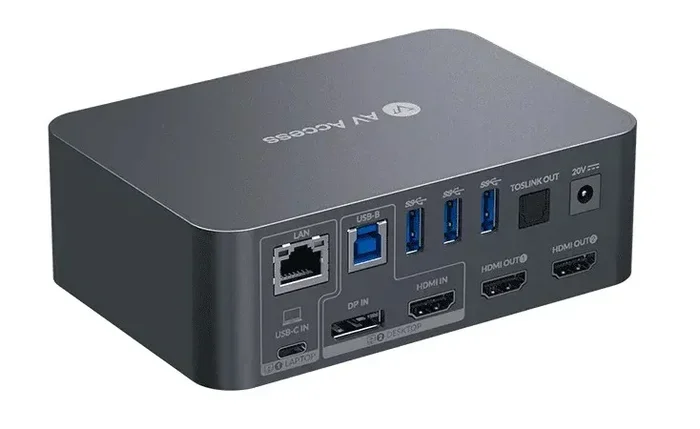
Can I Plug My Desktop Into A Docking Station Easily
Yes, you can plug your desktop into a docking station and gain access to multiple monitors, fast data transfers, and peripheral connections through a single cable. A desktop docking station transforms your computer into a powerful workstation setup with minimal effort. This guide covers compatibility, setup steps, top picks, and common mistakes to help you get it right the first time.
Can I plug my desktop into a docking station? The short answer is yes. But the full answer is a lot more interesting than that. Whether you want extra monitors, faster file transfers, or a cleaner desk setup, a docking station can change the way you work. Let us walk through everything you need to know.
A desktop docking station acts like a central hub. You connect all your peripheral devices to the dock, and then you plug the dock into your computer. This means one cable does the work of a tangle of cords. It is a simple idea that makes a huge difference in how your desk looks and feels.
Many people think docking stations are only for laptops. That is not true at all. Modern desktops benefit just as much from desktop expansion through a dock. Whether you use a USB-C hub or a full Thunderbolt dock, the right setup gives you more ports, better display options, and a tidier workspace. Let us dive into the details.
Key Takeaways
- Desktop compatibility is key: Most modern desktops with USB-C or Thunderbolt ports work with docking stations.
- Thunderbolt docks offer the best performance: They support multiple 4K monitors and fast data speeds.
- Setup is simple: Plug in the dock, connect your peripherals, and your desktop is ready to go.
- Power delivery saves desk space: Many docks charge your desktop through a single cable.
- Not all docks are equal: Check port types, bandwidth, and monitor support before buying.
- Common mistakes cause problems: Using the wrong cable or ignoring power limits can lead to frustration.
- Expert tips help you succeed: Small choices like cable length and dock placement make a big difference.
📑 Table of Contents
- What Is a Desktop Docking Station?
- Can You Plug a Desktop Into a Docking Station?
- Benefits of Plugging Your Desktop Into a Docking Station
- How to Choose the Right Docking Station for Your Desktop
- Step-by-Step Setup Guide
- Common Mistakes to Avoid
- Expert Tips for the Best Docking Experience
- Frequently Asked Questions
- Conclusion
What Is a Desktop Docking Station?
A docking station is a device that expands your computer’s connectivity. Think of it as a bridge between your desktop and all the gadgets you use every day. You plug the dock into your computer, and then you connect monitors, keyboards, mice, printers, and more to the dock.
There are two main types of docks you will come across:
- USB-C hubs: These are compact and affordable. They add a few extra ports like USB-A, HDMI, and SD card readers. They work well for basic needs.
- Thunderbolt docks: These are more powerful. They offer higher bandwidth, support for multiple 4K monitors, and faster data transfer speeds. They cost more but deliver serious performance.
Both types serve the same core purpose. They give your desktop more connectivity options without cluttering your desk with cables.
How Does a Docking Station Work?
A dock connects to your desktop through one primary cable. This cable carries data, video signals, and sometimes power all at once. The dock then splits those signals into individual ports. Each port serves a different device or function.
For example, you might plug one USB-C cable from the dock into your desktop. Then you connect two monitors via HDMI or DisplayPort, a keyboard and mouse through USB-A ports, and an ethernet cable for internet. All of this happens through a single connection point.
Can You Plug a Desktop Into a Docking Station?
This is the big question, and the answer depends on your desktop’s ports. Most modern desktops come with USB-C ports or Thunderbolt ports. If your desktop has either of these, you can use a docking station. Let us break it down by port type.
Desktops with USB-C Ports
USB-C is the most common port on newer desktops. Almost any USB-C docking station will work with a USB-C port. You get data transfer, video output, and sometimes power delivery through that one port.
However, not all USB-C ports are the same. Some only support data. Others support video output. And the best ones support everything, including charging. Check your desktop’s specs to know what your USB-C port can handle.
Desktops with Thunderbolt Ports
Thunderbolt ports are the gold standard for docking. They offer the fastest speeds and the widest compatibility. A Thunderbolt dock can handle multiple high-resolution monitors and large data transfers without breaking a sweat.
If your desktop has a Thunderbolt port, you are in great shape. You can use any Thunderbolt-compatible dock and enjoy the full range of features. These docks are especially popular for workstation setups where performance matters most.
Desktops Without USB-C or Thunderbolt
What if your desktop only has older ports like VGA or DVI? You can still use a dock, but you may need an adapter. Some docks come with legacy ports or include adapters in the box. Another option is to use a display adapter or a USB-to-HDMI converter alongside the dock.
It is not as seamless, but it works. The key is to check your desktop’s available ports before buying a dock.
Benefits of Plugging Your Desktop Into a Docking Station
There are many reasons to use a docking station with your desktop. Here are the biggest benefits that make it worth the investment.
1. Cleaner Desk Setup
One of the best things about a dock is the cable management. Instead of plugging five or six cables into the back of your computer, you plug in one. This alone can transform your desk from messy to clean.
Less cable clutter means less distraction. A tidy workspace helps you focus and feel more organized every day.
2. Multiple Monitor Support
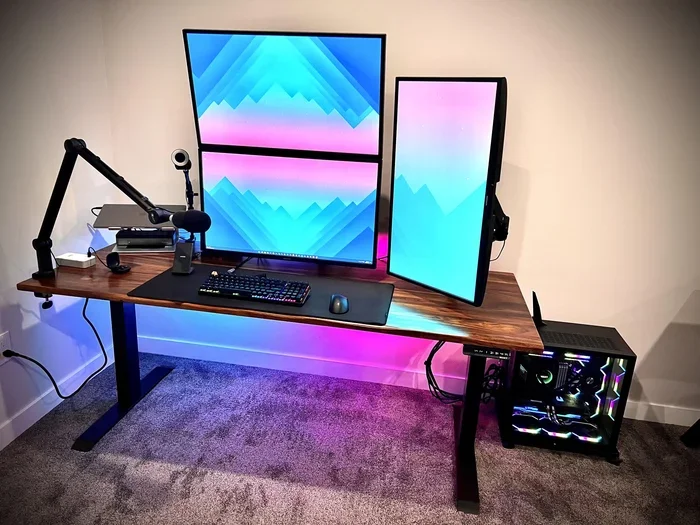
Want to run three monitors from your desktop? A docking station makes this easy. Most modern docks support two or even three external displays. This is a game changer for multitasking, video editing, and coding.
You can set up your monitors in different configurations. Side by side, stacked, or in an extended display layout. The dock handles the video output, so you do not need a separate graphics card for each screen.
3. Single Cable Connection
The single cable connection is a huge convenience. You unplug from the dock and move to another desk or room. When you return, you plug back in and everything reconnects instantly.
This is especially useful in hot-desking environments or shared office spaces. It saves time and reduces wear on your ports.
4. Power Delivery
Many docking stations include power delivery (PD) features. This means the dock can charge your desktop through the same cable that carries data and video. You eliminate the need for a separate power cable to your computer.
Keep in mind that power delivery depends on the dock and your desktop’s power requirements. Some desktops need more wattage than a dock can provide. Always check the power specs before relying on a dock for charging.
5. Easy Peripheral Management
A dock gives you a permanent home for all your peripheral devices. Your keyboard, mouse, printer, webcam, and external hard drive all stay connected to the dock. You never have to unplug and replug them.
This also means your desktop’s internal ports stay protected. Fewer plug-and-unplug cycles means less wear on your computer’s ports over time.
How to Choose the Right Docking Station for Your Desktop
Not all docks are created equal. Choosing the right one depends on your desktop’s ports, your workflow, and your budget. Here is what to look for.
Check Your Desktop’s Ports
Start by identifying the ports on your desktop. Look at the back panel. Do you see USB-C? Thunderbolt 3? Thunderbolt 4? The port type determines which dock you need.
Here is a quick comparison to help you decide:
| Desktop Port | Dock Type | Max Monitors | Speed |
|---|---|---|---|
| USB-C | USB-C Hub | 1-2 | Up to 10 Gbps |
| Thunderbolt 3 | Thunderbolt Dock | 2-3 | Up to 40 Gbps |
| Thunderbolt 4 | Thunderbolt Dock | 2-3 | Up to 40 Gbps |
| HDMI/DisplayPort | Adapter + Dock | Varies | Varies |
This table gives you a quick way to match your desktop with the right dock type. Always double-check your desktop’s specifications before purchasing.
Consider Your Monitor Needs
How many monitors do you need? What resolution do you use? These questions guide your dock choice. If you work with 4K displays, you need a dock with enough bandwidth to support them.
For most office workers, a dock that supports two 1080p or 1440p monitors is plenty. Creative professionals and developers often need three or more high-resolution displays. Make sure the dock you choose can handle your display setup.
Think About Power Delivery
If you want the dock to charge your desktop, look for one with adequate wattage. Most desktops need between 65 and 100 watts. Premium docks offer up to 100W or more through USB-C PD.
However, some desktops draw more power than a dock can supply. In those cases, you will still need to keep your desktop plugged into a wall outlet. The dock handles the peripherals, not the main power load.
Budget Considerations
USB-C hubs start around $30 and go up from there. Thunderbolt docks range from $150 to $400 or more. You get what you pay for in most cases. A cheaper hub works fine for basic tasks. A premium Thunderbolt dock is worth it if you need maximum performance.
Set a budget based on your needs. You do not need a top-tier dock if you only use one monitor and a few USB devices. But if your workflow depends on multiple displays and fast transfers, invest in a quality Thunderbolt dock.
Step-by-Step Setup Guide
Setting up a docking station with your desktop is straightforward. Follow these steps and you will be up and running in minutes.
Step 1: Choose the Right Dock
Pick a dock that matches your desktop’s ports and your connectivity needs. Refer to the comparison table above if you are unsure.
Step 2: Connect the Dock to Your Desktop
Plug the dock’s primary cable into your desktop’s USB-C or Thunderbolt port. Make sure the connection is firm and secure.
Step 3: Attach Your Peripherals
Connect your monitors, keyboard, mouse, and any other devices to the dock’s ports. Use HDMI, DisplayPort, or USB-C cables depending on your monitor inputs.
Step 4: Power On and Configure
Turn on your desktop and the dock. Your operating system should recognize the connected devices automatically. Go to your display settings to arrange your monitors if needed.
Step 5: Install Drivers (If Needed)
Most docks work plug-and-play. But some advanced features may require drivers or firmware updates. Check the manufacturer’s website for the latest software.
Common Mistakes to Avoid
Even with a simple setup, people make mistakes that cause frustration. Here are the most common ones and how to avoid them.
Buying the Wrong Dock for Your Ports
This is the number one mistake. If your desktop has a USB-C port but not Thunderbolt, a Thunderbolt dock will still work. But you will not get the full Thunderbolt speed benefits. Always match the dock to your port type.
Ignoring Power Limits
Some users expect a dock to power their entire desktop setup including high-performance components. Most docks are designed for data and video, not heavy power delivery. Check the wattage rating before assuming your desktop will charge through the dock.
Using Low-Quality Cables
The cable that connects your dock to your desktop matters a lot. A cheap or short cable can limit speed and video quality. Use the cable that comes with the dock or buy a certified high-quality replacement.
Overloading the Dock
Every dock has limits. It can only handle so many devices at once. If you connect too many power-hungry peripherals, you may experience slowdowns or disconnections. Spread devices across multiple docks if needed.
Expert Tips for the Best Docking Experience
Here are some insider tips that make a real difference in your daily workflow.
- Place the dock close to your desktop: This keeps the primary cable short and reduces signal loss.
- Use a powered USB hub for extra devices: If you need more ports than the dock provides, add a small powered hub.
- Label your cables: It sounds small, but knowing which cable goes where saves time when troubleshooting.
- Update dock firmware regularly: Manufacturers release updates that fix bugs and improve compatibility.
- Invest in a good cable management solution: A cable tray or Velcro ties keep your setup neat and professional.
Frequently Asked Questions
Can any desktop work with a docking station?
Most modern desktops can work with a dock if they have a USB-C or Thunderbolt port. Older desktops without these ports may need an adapter or a different type of dock. Check your desktop’s available ports before buying a docking station.
Do I need a Thunderbolt dock for my desktop?
You only need a Thunderbolt dock if your desktop has a Thunderbolt port and you want the highest speeds and monitor support. A standard USB-C hub works well for most everyday tasks and is more affordable.
Can a docking station charge my desktop?
Some docks with power delivery can charge your desktop, but it depends on the wattage. Most desktops need 65W or more, and not all docks can supply that much power. Check the dock’s power specs to be sure.
How many monitors can I connect through a dock?
This varies by dock. Most USB-C hubs support one or two monitors. Thunderbolt docks can often support two or three monitors at higher resolutions. Always check the dock’s specifications for the exact number of supported displays.
Is setup difficult with a desktop docking station?
Not at all. Most docking stations are plug-and-play. You connect the dock to your desktop, attach your peripherals, and you are ready to go. Some advanced features may require driver installation, but the basic setup takes only a few minutes.
Will a docking station slow down my desktop’s performance?
A good docking station will not slow down your desktop. In fact, it can improve your workflow by reducing cable clutter and making peripheral connections faster. Cheap or overloaded docks may cause minor slowdowns, but quality docks perform reliably.
Conclusion
Can I plug my desktop into a docking station? Absolutely yes. A desktop docking station gives you more ports, better monitor support, and a cleaner workspace. Whether you choose a simple USB-C hub or a powerful Thunderbolt dock, the setup process is quick and easy.
The key is matching the right dock to your desktop’s ports and your workflow needs. Check your ports, consider your monitor setup, and pick a dock with the features that matter most to you. Avoid the common mistakes, follow the setup steps, and you will enjoy a better desktop experience from day one.
A docking station is one of the best upgrades you can make for your desktop. It is affordable, practical, and immediately improves how you work. Give it a try and see the difference for yourself.