Can I Connect 2 Monitors To My Laptop With 1 Hdmi
Yes, you can connect 2 monitors to your laptop with 1 HDMI port, but it requires the right tools and setup. Most laptops have only one HDMI output, so you need an HDMI splitter, a USB-C adapter, or a docking station to make it work. The method you choose depends on whether you want to mirror or extend your display. This guide walks you through every option, step by step, so you can set up your dual monitor rig the right way.
You just bought a second monitor. You want more screen space for work, gaming, or multitasking. Then you look at your laptop and see only one HDMI port. Panic sets in. Can I connect 2 monitors to my laptop with 1 HDMI? That is the question running through your head right now.
The short answer is yes, but it is not as simple as plugging in two cables. Your laptop’s single HDMI port can only send a signal to one display at a time. To connect a second monitor, you need a helper device. This could be an HDMI splitter, a USB-C adapter, or a docking station. Each option has its pros and cons. Let us walk through them all so you can pick the best solution for your setup.
Connecting dual monitors to a laptop boosts productivity significantly. Studies show that dual screen setups can increase workflow efficiency by up to 30 percent. Whether you are a programmer, designer, or just someone who loves having extra space, this guide has you covered. We will explain every method in plain language. No tech jargon. No confusing manuals. Just clear, actionable steps you can follow right now.
Key Takeaways
- A single HDMI port limits you to one direct connection. You need extra hardware like a splitter or adapter to add a second monitor.
- An HDMI splitter duplicates your screen. It mirrors the same image on both monitors but does not extend your display.
- USB-C to HDMI adapters offer a better solution. They allow you to connect a second monitor through a different port on your laptop.
- A docking station is the most reliable option. It gives you multiple video outputs and often adds extra USB ports and charging capability.
- Display settings matter a lot. You must configure your laptop to extend or mirror displays correctly after connecting.
- Not all laptops support dual monitors. Check your graphics card and port options before buying any hardware.
- Wireless display options exist too. Miracast and Chromecast can cast your laptop screen to a second display without cables.
📑 Table of Contents
- Understanding Your Laptop HDMI Port
- The HDMI Splitter Solution
- Better Alternatives to Connect Two Monitors
- Setting Up Dual Monitors with One HDMI
- Common Mistakes and How to Avoid Them
- Expert Tips for the Best Dual Monitor Experience
- Comparison Table: HDMI Splitter vs USB-C Adapter vs Docking Station
- Can I Connect 2 Monitors To My Laptop With 1 HDMI? The Final Word
Understanding Your Laptop HDMI Port
Before you buy any gear, you need to understand what your laptop’s HDMI port can actually do. Most modern laptops come with just one HDMI output. That single port sends a video signal to one external display. It does not magically create a second output. So connecting two monitors with one HDMI cable directly is not possible without extra help.
What Does a Single HDMI Port Mean?
Your HDMI port is a video and audio output. It sends signals from your laptop’s graphics card to a display. One port equals one output. That is the basic rule. If you want two monitors, you need two outputs. Since your laptop has only one HDMI port, you must find a second output somewhere else. This is where adapters, splitters, and docking stations come into play.
Check If Your Laptop Supports HDMI Output
Not all HDMI ports on laptops are created equal. Some laptops have HDMI output only. Others have HDMI input, which is different. You need to confirm yours is an output port. Look for a small “screen” icon next to the port. If you are unsure, check your laptop manual or visit the manufacturer’s website. Knowing this before you buy anything saves you time and money.
The HDMI Splitter Solution
An HDMI splitter is the most common way people try to connect two monitors with one HDMI cable. It is a small box with one HDMI input and two HDMI outputs. You plug your laptop into the splitter, then connect two monitors to the splitter’s outputs. Simple, right? Well, not quite. There is a big catch you need to know about.
How Does an HDMI Splitter Work?
An HDMI splitter takes one video signal and duplicates it. Both monitors show the exact same image. This is called mirroring or cloning. You are not extending your desktop across two screens. You are just copying the same picture twice. Think of it like looking in two mirrors facing each other. Same image, no extra workspace.
When an HDMI Splitter Makes Sense
Mirroring works well in certain situations. If you are giving a presentation and want the same image on a projector and a monitor, a splitter is perfect. If you are sharing a screen with someone sitting across from you, mirroring helps. But if you want to extend your display and have two separate workspaces, a splitter will not do the job. You need a different solution for that.
Better Alternatives to Connect Two Monitors
If you want to extend your display and get real dual monitor functionality, you have several better options. Let us explore them one by one. Each has its own advantages and price point. Pick the one that fits your laptop, your budget, and your workflow.
Use a USB-C to HDMI Adapter
Many modern laptops have USB-C or Thunderbolt ports. These ports can carry video signals. You can buy a USB-C to HDMI adapter for under 20 dollars. Plug the adapter into your USB-C port, then connect your second monitor with an HDMI cable. Now you have two outputs: your HDMI port and your USB-C adapter. This gives you a true extended display setup.
This is one of the cheapest and easiest solutions. It works great on laptops with USB-C ports. Just make sure your USB-C port supports video output. Not all USB-C ports are the same. Some are data-only. Look for ports labeled “DisplayPort” or “Thunderbolt” for best results.
Try a Docking Station
A docking station is the most powerful solution. It connects to your laptop through one cable, usually USB-C. The dock then provides multiple ports, including HDMI, DisplayPort, and USB ports. You can connect two monitors, a keyboard, a mouse, and other peripherals all at once. It turns your laptop into a desktop workstation.
Docking stations cost more than adapters. A good one runs between 100 and 300 dollars. But the convenience and reliability are worth it for many users. If you work from home and want a clean, organized setup, a docking station is the way to go. Brands like CalDigit, Anker, and Belkin make excellent options.
Wireless Display Options
Not all dual monitor setups need cables. Wireless display technology lets you cast your laptop screen to a second monitor without any physical connection. Windows has a built-in feature called Miracast. Chromecast devices also work well for this. You just need a compatible wireless display or smart TV on the other end.
Wireless setups are convenient but not perfect. There can be a slight delay or lag. The image quality may not be as sharp as a wired connection. If you are doing fast-paced gaming or video editing, wired is better. But for general productivity and browsing, wireless works surprisingly well.
Setting Up Dual Monitors with One HDMI
Once you have chosen your method, it is time to set everything up. The setup process is straightforward, but you need to follow the right steps. Here is a clear guide to get both monitors working with your laptop.
Extending vs Mirroring Your Display
Before you start plugging things in, decide what you want to do. Do you want to extend your desktop across two screens? Or do you want the same image on both? Extending gives you more workspace. Mirroring shows the same content on both screens. Your choice depends on your needs.
For productivity and multitasking, extending is almost always better. You can have different apps on each screen. For example, you can write an email on one screen while referencing a document on the other. Mirroring is better for presentations or watching movies with friends.
Step-by-Step Setup Guide
Follow these steps to get your dual monitor setup running smoothly. These steps apply to Windows laptops, which are the most common.
- Connect your first monitor to your laptop’s HDMI port using an HDMI cable.
- Connect your second monitor using your chosen method. This could be a USB-C adapter, a docking station, or an HDMI splitter.
- Turn on both monitors and your laptop.
- Right-click on your desktop and select “Display settings.”
- You should see two display icons on the screen. If you do not, click “Detect.”
- Choose “Extend these displays” for a dual workspace setup.
- Arrange the display icons to match the physical position of your monitors.
- Click “Apply” and then “Keep changes.”
That is it. Your dual monitor setup is ready. You can now drag windows between screens and enjoy your expanded workspace.
Common Mistakes and How to Avoid Them
Setting up dual monitors is not always smooth the first time. Many people run into common pitfalls. Knowing these mistakes ahead of time helps you avoid frustration and wasted money.
Buying the Wrong Adapter
The most common mistake is buying the wrong adapter. Not all HDMI adapters work with all laptops. Some adapters only support certain resolutions or refresh rates. Before you buy, check your laptop’s specifications. Make sure the adapter supports your laptop’s output and your monitor’s input. Reading the product description carefully saves you from returning an incompatible product.
Ignoring Display Settings
Another big mistake is skipping the display settings. Even with the right hardware, your monitors will not work properly if the settings are wrong. Always go to Display settings after connecting. Make sure both monitors are detected. Choose “Extend” instead of “Duplicate” if you want more screen space. Adjust the resolution and scaling to match both screens.
Using a Low-Quality HDMI Cable
Cheap HDMI cables can cause signal problems. You might experience flickering, black screens, or no signal at all. Invest in a good quality HDMI cable from a reputable brand. A 10-dollar cable from a trusted maker is far better than a 3-dollar no-name cable. Your connection stability depends on it.
Expert Tips for the Best Dual Monitor Experience
You have your two monitors connected. Now let us make sure everything runs smoothly and looks great. These expert tips help you get the most out of your dual monitor setup.
Resolution and Display Settings
Match the resolution of both monitors for the best experience. If one monitor is 1080p and the other is 4K, you might notice differences in sharpness and scaling. Go to Display settings and set both monitors to their native resolution. This ensures everything looks crisp and clear on both screens.
Adjust the scaling if needed. On high-resolution monitors, text and icons can appear too small. Windows lets you scale the display to 125 percent or 150 percent. Find the setting that feels comfortable for your eyes. Consistency between both monitors reduces eye strain during long work sessions.
Cable Quality Matters
Use high-quality cables for the best signal transmission. HDMI cables come in different versions. HDMI 2.0 supports 4K at 60Hz. HDMI 2.1 supports even higher resolutions and refresh rates. For most office work and casual use, HDMI 2.0 is more than enough. For gaming or creative work, consider HDMI 2.1 cables.
Keep your cables as short as possible without sacrificing your setup. Longer cables can degrade the signal. If you need a cable longer than 15 feet, consider an active HDMI cable or a signal booster. These small investments make a big difference in display quality.
Monitor Placement and Ergonomics
Where you place your monitors matters for comfort and productivity. Position your primary monitor directly in front of you. Place the second monitor at a slight angle to the side. The top of both screens should be at or slightly below eye level. This reduces neck strain and keeps you comfortable throughout the day.
Use a monitor arm or stand to adjust height and angle easily. Good ergonomics prevent headaches, back pain, and eye fatigue. A comfortable setup means you can work longer and more efficiently. Do not overlook this aspect of your dual monitor experience.
Comparison Table: HDMI Splitter vs USB-C Adapter vs Docking Station
| Feature | HDMI Splitter | USB-C Adapter | Docking Station |
|---|---|---|---|
| Display Mode | Mirroring Only | Extended Display | Extended Display |
| Number of Monitors | 2 (mirrored) | 2 (extended) | 2 or more (extended) |
| Price Range | 10 to 30 dollars | 10 to 25 dollars | 80 to 300 dollars |
| Ease of Setup | Very Easy | Easy | Moderate |
| Extra Ports | No | No | Yes (USB, Ethernet, etc.) |
| Best For | Presentations, sharing screen | Budget dual monitor setup | Full workstation expansion |
| Reliability | Good | Very Good | Excellent |
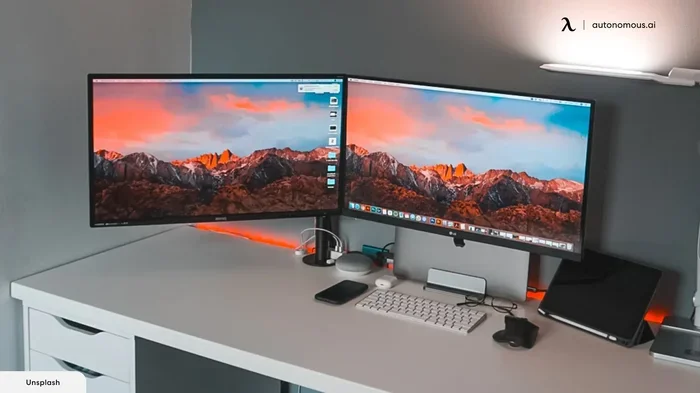
As you can see, each solution serves a different purpose. The HDMI splitter is the cheapest option but limited to mirroring. The USB-C adapter is affordable and gives you extended display capability. The docking station is the most expensive but offers the best overall experience. Choose based on your needs and budget.
Can I Connect 2 Monitors To My Laptop With 1 HDMI? The Final Word
So, can I connect 2 monitors to my laptop with 1 HDMI? The answer is yes, but with the right approach. A direct connection with a single HDMI cable will not work. You need an HDMI splitter for mirroring, a USB-C adapter for extending, or a docking station for the full experience. Each option has its place depending on what you want to achieve.
For most users who want real dual monitor productivity, a USB-C adapter or a docking station is the best choice. These solutions give you an extended display, which means more workspace and better multitasking. An HDMI splitter works only if you need the same image on both screens, like during a presentation.
Setting up dual monitors is easier than you think. With the right hardware and a few minutes of configuration, you can transform your laptop into a powerful dual-screen workstation. Follow the steps in this guide, avoid the common mistakes, and you will be up and running in no time. Your productivity will thank you.
Take action today. Check your laptop ports. Pick the right solution from this guide. Connect your second monitor and enjoy the expanded workspace. The extra screen space makes a real difference in how you work, play, and create. You will wonder how you ever managed with just one screen.
Frequently Asked Questions
Can I connect two monitors to my laptop with just one HDMI cable?
No, you cannot connect two monitors with a single HDMI cable directly. Your laptop’s HDMI port can only output to one display at a time. You need additional hardware like an HDMI splitter, USB-C adapter, or docking station to connect a second monitor.
Does an HDMI splitter extend my display or mirror it?
An HDMI splitter only mirrors your display. It duplicates the same image on both monitors. If you want to extend your desktop across two screens for more workspace, you need a different solution like a USB-C adapter or docking station.
Do I need a special HDMI cable for dual monitors?
You do not need a special cable, but a high-quality HDMI cable helps. Standard HDMI 2.0 cables work well for most setups. Make sure the cable is not too long, as very long cables can lose signal quality. A good brand cable from a reputable seller is recommended.
Can I use a USB-C to HDMI adapter if my laptop has only one HDMI port?
Yes, absolutely. If your laptop has a USB-C or Thunderbolt port, you can use a USB-C to HDMI adapter. This gives you a second video output, allowing you to connect two monitors. One goes to your HDMI port and the other goes to the USB-C adapter.
Will a docking station work with any laptop?
Most docking stations work with laptops that have USB-C or Thunderbolt ports. However, compatibility varies. Check that your laptop supports video output through USB-C before buying a dock. Some docking stations also require specific drivers for full functionality.
Can I connect two monitors wirelessly without any cables?
Yes, you can use wireless display technology like Miracast or Chromecast. These let you cast your laptop screen to a second monitor without cables. However, wireless connections may have slight lag and lower image quality compared to wired connections. They work best for general productivity tasks.
=== CONCLUSION ===
Connecting 2 monitors to your laptop with 1 HDMI is absolutely possible. You just need the right tool for the job. Whether you choose an HDMI splitter, a USB-C adapter, or a docking station, each option opens up new possibilities for your workflow. The key is understanding your laptop’s ports and choosing a solution that matches your needs.
Start by checking your laptop’s HDMI and USB-C capabilities. Then pick the method that fits your budget and goals. Follow the setup steps carefully, and configure your display settings properly. Avoid the common mistakes outlined in this guide, and you will have a smooth dual monitor experience in no time.
Remember, the goal is to boost your productivity and make your work easier. A well-set-up dual monitor desk gives you the space to work smarter, not harder. Take the steps today, and enjoy the benefits of an expanded workspace tomorrow.