Can A Laptop Be Used As A Desktop For All Your Needs
Using a laptop as a desktop is absolutely possible and can transform how you work and play. With the right docking station, external monitor, and peripherals, your portable computer becomes a powerful home workstation. This guide walks you through every step, from initial setup to maximizing performance, so you can make an informed choice about your computing setup.
This is a comprehensive guide about Can A Laptop Be Used As A Desktop.
Key Takeaways
- A laptop can fully replace a desktop: With the right accessories and setup, you get a full desktop experience from a portable machine.
- Docking stations are the key: A quality USB-C or Thunderbolt dock connects everything — monitors, keyboard, mouse, and peripherals — with one cable.
- Performance varies by model: High-end laptops with dedicated GPUs can handle demanding tasks, but they still lag behind similarly priced desktops.
- Ergonomics matter: Using a laptop on a flat surface for hours causes strain; a laptop stand and external keyboard fix this.
- Portability is the real advantage: You get the power of a desktop at home and the freedom to move your work anywhere.
- Not ideal for hardcore gaming or heavy rendering: If your work demands maximum graphics power, a dedicated desktop still wins.
[FEATURED_IMAGE_PLACEHOLDER]
Can A Laptop Be Used As A Desktop For Everyday Work and Beyond
More people are asking a simple question: can a laptop be used as a desktop for all their daily tasks? The short answer is yes. The longer answer is that it depends on what you need, how you set things up, and which laptop you choose. Over the last few years, laptops have become incredibly powerful. Some models now rival mid-range desktops in performance. This shift has made it possible for millions of people to ditch the bulky tower and go fully portable.
Whether you are a freelancer, a student, a remote worker, or a creative professional, using your laptop as a desktop replacement makes a lot of sense. You get a full-sized screen, a comfortable keyboard, and a mouse — all powered by a single machine you can pack up and take with you. In this guide, we will walk you through everything you need to know. We will cover setup steps, performance comparisons, benefits, challenges, and expert tips to help you get the most out of your setup.
The idea of a laptop as desktop setup is not new. Many professionals have been doing it for years. But recent advances in connectivity, cooling, and processing power have made the experience much closer to a true desktop. Let us dive into how you can make this work for your needs.
What It Means to Use a Laptop as a Desktop
When we talk about using a laptop as a desktop, we mean connecting it to external peripherals to create a full workstation. You plug in a monitor, an external keyboard, a mouse, and often a docking station. From that point on, your laptop sits on your desk like a desktop computer. You interact with it through the larger screen and better input devices, but the brain of the operation is still your portable machine.
This setup is sometimes called a desktop replacement laptop configuration. It gives you the best of both worlds. You get the portability of a laptop and the comfort and screen space of a desktop. Many people keep their laptop closed when using it this way. Others leave it open at a slight angle and use an external keyboard. Both approaches work well, but closing the lid and using an external display is the more popular choice.
Why People Choose This Setup
There are several reasons people prefer a laptop as desktop arrangement:
- Space savings: You only need one device on your desk instead of a separate tower and monitor.
- Flexibility: You can disconnect and move your setup to a coffee shop, a different room, or even on vacation.
- Cost efficiency: A good laptop serves double duty. You get a portable machine for travel and a full workstation at home.
- Simpler cable management: With a docking station, one cable connects everything to your laptop.
- Future-proofing: You can upgrade your laptop over time without replacing your entire desktop setup.
Setting Up Your Laptop as a Desktop Workstation
Setting up a laptop desktop setup is easier than most people think. You do not need to be a tech expert. With the right gear and a few simple steps, you can have a full workstation running in minutes. Let us break down exactly what you need and how to get started.
Step 1: Choose the Right Docking Station
A docking station is the heart of any laptop as desktop setup. It connects your laptop to all your peripherals through a single cable. When you sit down at your desk, you plug in one connection and everything powers up — your monitor, keyboard, mouse, speakers, and more. When you leave, you unplug one cable and go.
Look for a dock that matches your laptop’s ports. USB-C and Thunderbolt docks are the most common today. They offer fast data transfer, video output, and charging through one cable. Some popular options include the CalDigit TS4, the Anker 777 Thunderbolt Dock, and the Dell WD22TB4. Each of these supports multiple monitors, fast charging, and plenty of USB ports for peripherals.
Step 2: Connect an External Monitor
One of the biggest advantages of a desktop replacement laptop setup is the larger screen. Most modern laptops can output to one or even two external monitors. A 27-inch 4K monitor gives you plenty of screen space for multitasking. You can have your email open on one side and your main work app on the other.
If you want a true dual-monitor experience, make sure your laptop supports it. Many Windows laptops and MacBook Pros can drive two external displays. Check your laptop’s specifications before buying a second monitor. A USB-C to HDMI adapter or a DisplayLink dock can help if your laptop has limited video outputs.
Step 3: Add an External Keyboard and Mouse
Using a laptop keyboard and trackpad all day is not comfortable. An ergonomic setup with an external keyboard and mouse makes a huge difference. You can choose a full-size mechanical keyboard for typing comfort or a compact wireless keyboard to save desk space. For the mouse, a vertical mouse reduces wrist strain during long work sessions.
Wireless options are great because they reduce cable clutter. Bluetooth keyboards and mice connect easily to most laptops. If you want zero lag, a wired USB option is always reliable. The key is to set up your peripherals at the right height and distance to avoid strain.
Step 4: Optimize Your Desk Setup
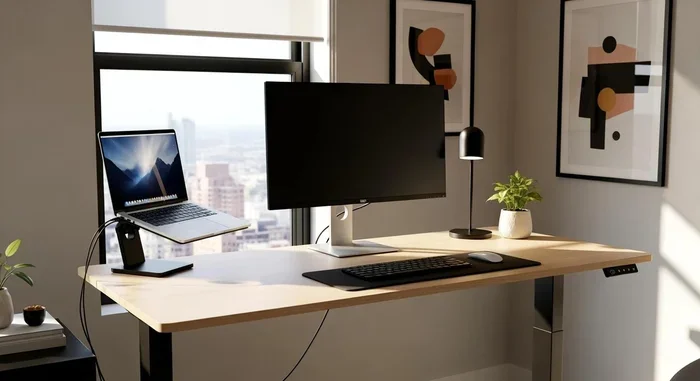
A good laptop desk or stand raises your laptop to eye level when using an external monitor. This keeps your neck in a neutral position and reduces strain. You can use a simple laptop stand, a monitor arm, or even a custom desk riser. Combine this with a comfortable chair and good lighting, and you have a workstation that rivals any office setup.
Performance Comparison: Laptop vs Desktop
One of the most common questions people have is whether a laptop can match desktop performance. The honest answer is: it depends. High-end laptops come very close, but they still have physical limitations. Let us look at how they compare across key areas.
Processing Power
Modern laptop processors from Intel and AMD are incredibly capable. The Intel Core i9 and AMD Ryzen 9 chips found in premium laptops deliver desktop-level performance for most tasks. If you are doing office work, web browsing, video calls, and light photo editing, a laptop desktop setup will feel just as fast as a desktop computer.
However, desktops still hold an edge in sustained workloads. Desktop processors run at higher power limits and stay cooler because they have bigger chassis and better cooling. A laptop processor may slow down after running at full speed for a while. This is called thermal throttling. For short bursts of heavy work, the difference is minimal. For long rendering sessions or compiling large codebases, desktops pull ahead.
Graphics Performance
Laptop graphics cards have improved dramatically. NVIDIA’s RTX 40-series and AMD’s Radeon RX 7000-series mobile GPUs are powerful enough for most creative work and even some gaming. But they use less power and have fewer CUDA cores or stream processors than their desktop counterparts.
If you are doing laptop productivity like video editing, 3D modeling, or graphic design, a laptop with a dedicated GPU handles most tasks well. If you are a hardcore gamer or a professional 3D renderer, a desktop GPU will give you noticeably better frame rates and faster render times.
Memory and Storage
Most modern laptops come with 16GB or 32GB of RAM, which is more than enough for everyday use and many professional tasks. Desktops can hold much more RAM and can be upgraded more easily. When it comes to storage, laptops use fast NVMe SSDs that are just as quick as desktop SSDs. The main difference is that laptops usually have one or two drive slots, while desktops often have four or more.
Quick Comparison Table
| Feature | Laptop (Desktop Setup) | Desktop PC |
|---|---|---|
| Portability | Excellent | Poor |
| Raw CPU Power | Good to Excellent | Excellent |
| GPU Performance | Good | Excellent |
| Upgradeability | Limited | Excellent |
| Screen Size | External Monitor (Flexible) | Built-in or External |
| Setup Complexity | Simple | Moderate |
| Cost for Similar Performance | Higher | Lower |
| Power Consumption | Lower | Higher |
Benefits of Using a Laptop as a Desktop
There are many real-world advantages to using a laptop as a desktop. Let us explore the biggest benefits that make this setup so appealing to millions of users.
1. Portability Without Sacrificing Power
The number one benefit is freedom. You can have a powerful workstation at your desk and take it with you wherever you go. Need to work from a cafe? Pack up your laptop and go. Going on a business trip? Your entire setup fits in one bag. No other setup offers this kind of flexibility. Portable workstation capabilities are the main reason most people choose a laptop in the first place, and using it as a desktop at home does not take that away.
2. Cost Savings Over Time
Buying one powerful machine instead of two saves money upfront. A good desktop replacement laptop can serve you for five to seven years. You do not need to replace your desktop every time you want a new laptop. The docking station and peripherals you buy once can be reused for years, even if you upgrade your laptop.
3. Cleaner, Simpler Workspace
A laptop desktop setup with a single docking station means fewer cables and less clutter on your desk. One cable connects your laptop to the dock. Everything else — monitors, keyboard, mouse, webcam, headset — plugs into the dock. When you leave your desk, you unplug one cable. When you return, you plug it back in. It is clean, simple, and efficient.
4. Better Ergonomics With the Right Accessories
When you set up your laptop with an external monitor at eye level, a separate keyboard, and a mouse, you create an ergonomic setup that is healthier for long work sessions. Your neck stays neutral, your wrists stay straight, and your eyes are at the right distance from the screen. This is something a laptop used on its own cannot offer. A laptop cooling pad also helps keep your machine at a safe temperature during long work sessions.
5. Seamless Work-Life Balance
You can work from your home office with a full monitor setup and then easily move to the kitchen table or a cozy couch when you want a change of scenery. This laptop connectivity flexibility helps many people maintain a better work-life balance. You are not tied to one desk all day.
Common Challenges and How to Overcome Them
Using a laptop as a desktop is not without its challenges. Being aware of them helps you plan and avoid frustration. Here are the most common issues and practical solutions.
Thermal Throttling Under Heavy Load
Laptops run hotter than desktops because their components are packed tightly together. Under sustained heavy workloads, the fans spin up and the system may slow down to protect itself. This is called thermal throttling. To reduce this, use a laptop cooling pad with strong fans. Also, keep your laptop on a hard surface — never on a bed or couch — to allow proper airflow.
Limited Upgrade Options
Most laptops cannot be upgraded easily. You may be stuck with the RAM and storage you bought. Before purchasing a laptop for desktop use, choose the highest specs you can afford. If you need more RAM or storage later, you may need to replace the entire machine.
Single Cable Dependency
When you rely on one docking station cable, a bad dock or a faulty cable can disable your entire setup. Buy a high-quality dock from a reputable brand. Keep a spare USB-C cable in your bag. If your dock fails, you can temporarily connect peripherals directly to your laptop until you get a replacement.
Battery Wear From Constant Charging
Leaving your laptop plugged in all the time can degrade the battery faster. Many modern laptops have battery health modes that limit charging to 80 percent. Enable this feature if your laptop supports it. You can also use your laptop on battery power periodically to keep the battery active.
Not Ideal for Heavy Gaming or 3D Rendering
If your primary use case is gaming at high settings or professional 3D rendering, a laptop will struggle compared to a similarly priced desktop. Mobile GPUs are powerful but not as capable as their desktop versions. For casual gaming and light creative work, a laptop is fine. For professional-grade rendering or competitive gaming, a desktop still offers better value and performance.
Who Should Use a Laptop as a Desktop Setup
Not everyone needs a laptop as desktop configuration, but many people benefit from it. Here is a look at who gets the most value from this approach.
Remote Workers and Freelancers
If you work from home most days but occasionally travel or work from different locations, a laptop used as a desktop is perfect. You get a full workstation at home and a portable machine when you are on the go. Laptop productivity is maximized when you pair it with a good monitor and keyboard.
Students and Educators
Students need a machine that works in the dorm room, the library, and the classroom. A laptop set up as a desktop in the dorm gives them a comfortable study space, and they can easily pack it up for classes. It is one of the best laptop desktop setup use cases for this group.
Creative Professionals
Photographers, video editors, and graphic designers benefit from the larger screen real estate of an external monitor while still having a portable machine. Many modern laptops with dedicated GPUs handle creative software like Adobe Premiere Pro, Photoshop, and DaVinci Resolve very well. A dual monitor setup with a laptop gives editors extra space for timelines, tool panels, and previews.
Small Business Owners
Small business owners often wear many hats. They work from the office, from home, and on the road. A laptop used as a desktop at the office or home office gives them a professional setup without the bulk of a desktop tower. It also simplifies IT management since there is only one device to maintain.
Expert Tips to Maximize Your Laptop Desktop Experience
Want to get the most out of your laptop as desktop arrangement? Here are some expert-backed tips that make a real difference.
- Use a Thunderbolt 4 dock whenever possible. Thunderbolt 4 offers the fastest data transfer, best video output, and reliable charging. It is the gold standard for a laptop desktop setup.
- Invest in a quality monitor. A 27-inch 4K IPS monitor with good color accuracy makes a huge difference for both productivity and entertainment. Your laptop screen may be great, but a dedicated external monitor transforms your workspace.
- Keep your laptop elevated. Use a laptop stand or a monitor arm with a laptop clamp to raise your laptop to a comfortable viewing angle. This improves airflow and reduces neck strain.
- Use keyboard shortcuts. When working with an external monitor and keyboard, learn the shortcuts for your operating system. They speed up your workflow significantly.
- Keep your software updated. Regular updates improve performance, fix bugs, and keep your system secure. This is especially important when your laptop serves as your primary workstation.
- Back up your data regularly. Since your laptop is your only machine in a desktop setup, data loss would be catastrophic. Use cloud storage and an external hard drive for backups.
- Clean your laptop vents monthly. Dust buildup blocks airflow and causes overheating. Use compressed air to clean the vents and keep your laptop running cool.
Final Thoughts
So, can a laptop be used as a desktop for all your needs? The answer is a clear yes for most people. With the right docking station, external monitor, keyboard, and mouse, your laptop becomes a fully functional desktop workstation. You get the power and comfort of a desktop setup with the freedom to take your work anywhere.
It is not perfect for every use case. Hardcore gamers and professional 3D renderers will still want a dedicated desktop for peak performance. But for the vast majority of users — remote workers, students, creatives, and business professionals — a laptop desktop setup delivers everything they need and more.
The key is to invest in the right accessories and set up your workspace ergonomically. Choose a quality dock, pair your laptop with a great monitor, and use comfortable peripherals. Once you experience the convenience and flexibility of a laptop as desktop arrangement, you may never want to go back to a traditional desktop setup.
Give it a try. Set up your laptop as a desktop today and see how it transforms your workflow. You might be surprised at how well it works and how much you enjoy the freedom it brings to your daily routine.
Can A Laptop Be Used As A Desktop For Gaming?
A laptop can handle casual and moderate gaming when set up as a desktop, especially if it has a dedicated GPU. However, for high-end gaming at maximum settings, a desktop PC still offers better performance and value. A laptop desktop setup works well for indie games, esports titles, and older AAA games.
Do I Need a Special Docking Station to Use My Laptop as a Desktop?
You do not need a special dock, but one makes the setup much more convenient. A USB-C or Thunderbolt docking station lets you connect your monitor, keyboard, mouse, and other peripherals with a single cable. Without a dock, you would need to plug in each device separately every time.
Can I Use a MacBook as a Desktop?
Yes, MacBooks work excellently as desktop replacements. You can connect them to an external monitor, keyboard, and mouse using a USB-C or Thunderbolt dock. macOS supports external displays and full desktop workflows, making the MacBook one of the best laptops for a laptop as desktop setup.
Will Using My Laptop as a Desktop Damage the Battery?
Not if you take proper precautions. Most modern laptops have battery health management features that limit charging when plugged in all the time. You can also remove the battery if your laptop allows it, though this is rare in newer models. Keeping your laptop cool with a laptop cooling pad also helps preserve battery health.
What Kind of Laptop Is Best for a Desktop Setup?
Look for a laptop with a powerful processor, at least 16GB of RAM, and a dedicated GPU if you do demanding tasks. Models like the Dell XPS 15, MacBook Pro 16, Lenovo ThinkPad P-series, and ASUS ZenBook Pro are excellent choices for a desktop replacement laptop configuration.
Can I Use Two External Monitors with My Laptop as a Desktop?
Many modern laptops support two external monitors, especially Windows laptops with dedicated GPUs and Apple Silicon MacBooks. Check your laptop’s specifications to confirm. A Thunderbolt dock with multiple video outputs makes setting up a dual monitor setup simple and clean.
Frequently Asked Questions
What is Can A Laptop Be Used As A Desktop?
Can A Laptop Be Used As A Desktop is an important topic with many practical applications.