Can You Use An Ap Without A Router And Still Get Online
Can you use an AP without a router? Yes, you can get online with just an access point. An AP connects directly to a modem or switch to broadcast Wi-Fi. This guide covers setup, benefits, and when using an AP without a router is the right choice.
Can you use an AP without a router and still get online? The answer is a resounding yes. If you have a modem from your internet service provider and a standalone access point, you can create a wireless network without a traditional router. This setup works perfectly for many homes and small offices. Using an AP without a router simplifies your network and reduces gear. You just need a few cables and a basic understanding of how the devices talk to each other.
Many people assume a router is mandatory for Wi-Fi. That’s not true. A router’s main job is to direct traffic between your local network and the internet. But an access point only needs to broadcast a Wi-Fi signal. It can get that signal from a modem or a network switch. So, can you use an AP without a router? Absolutely. This guide will show you exactly how, when it makes sense, and what to watch out for.
We’ll cover the setup process, the pros and cons, and expert tips to keep your network running smoothly. Whether you’re extending coverage in a large space or setting up a simple home network, you’ll find practical advice here. Let’s dive in.
- Yes, you can go routerless: A standalone access point provides Wi-Fi without a traditional router.
- You still need a modem: The AP connects to your ISP modem or a network switch to reach the internet.
- Setup is simple: Just plug in the AP, configure the SSID and password, and you are online.
- Best for simple networks: Ideal for extending Wi-Fi in offices, guest areas, or small homes.
- Know the limits: A solo AP lacks a firewall, DHCP server, and advanced routing features.
- Security matters: Always enable WPA3 and change default passwords on a standalone AP.
📑 Table of Contents
What Is an Access Point and How Does It Work?
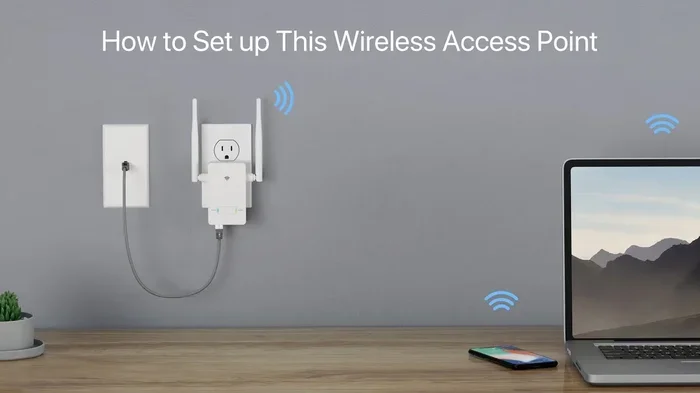
An access point, or AP, is a device that creates a wireless local network. It lets Wi-Fi devices like phones, laptops, and smart home gadgets connect to the internet. Think of it as a wireless bridge between your wired network and your wireless devices. The AP plugs into a router, switch, or modem using an Ethernet cable. Then it broadcasts a Wi-Fi signal, or SSID, that devices can see and join.
A wireless access point does not route traffic between networks. It simply bridges wireless clients to the wired network. This is a key difference from a router. A router performs network address translation, or NAT, and acts as a firewall. It assigns IP addresses through DHCP and directs data packets. An AP skips all of that. It just sends and receives wireless signals. This makes it a lightweight, focused tool for Wi-Fi coverage.
How an AP Differs from a Router
Most home routers today include a built-in access point. That’s why people often use the terms interchangeably. But they are different devices with different jobs. A router connects your local network to the wider internet. It manages traffic, blocks unwanted connections, and lets multiple devices share one public IP address. An AP only provides wireless access to an existing wired network.
Here is a quick look at the core differences.
| Feature | Router | Access Point |
|---|---|---|
| Primary Function | Routes traffic between networks | Broadcasts Wi-Fi to a wired network |
| NAT & Firewall | Yes | No |
| DHCP Server | Yes | Usually disabled |
| Wired Ports | Multiple LAN/WAN ports | One or two Ethernet ports |
| Wi-Fi Broadcasting | Yes | Yes |
| Complexity | Higher | Lower |
When you use an AP alone, you rely on the modem or upstream device to handle routing and security. The AP just adds wireless capability. This is perfectly fine for many situations.
Can You Use an AP Without a Router?
The short answer is yes. You can use an AP without a router and still get online. The AP needs a source of internet, which is usually a modem from your ISP. You connect the modem to the AP with an Ethernet cable. The AP then creates a Wi-Fi network. Devices connect to that Wi-Fi and can reach the internet. No router is in the middle.
This setup works because the modem already performs the routing and NAT functions. It has a public IP address from your ISP and a private network behind it. The AP simply joins that private network as a wireless bridge. It does not need to do any routing itself.
So, can you use an AP without a router? Yes, as long as you have a modem or a switch connected to an upstream router. The AP just adds the wireless layer. Many businesses use this approach. They connect a modem to a network switch, and then plug multiple APs into the switch. This creates a large wireless network without needing a bunch of routers.
Direct Connection Method
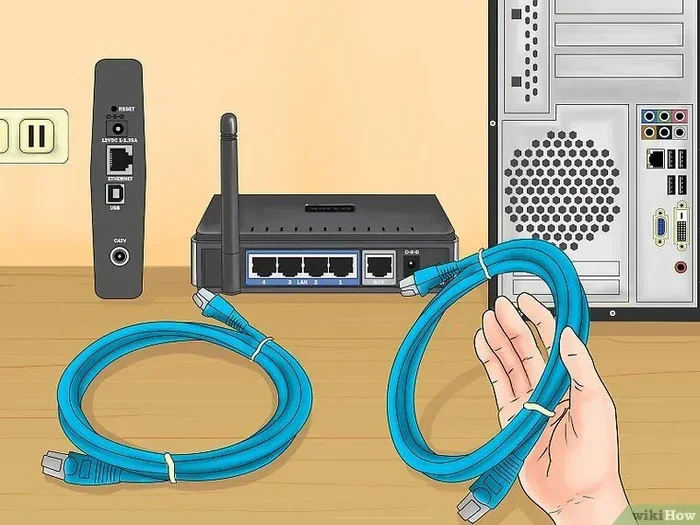
The simplest way to set up an AP without a router is a direct connection. You take your ISP modem and plug one end of an Ethernet cable into the modem’s LAN port. Plug the other end into the AP’s Ethernet port. Power on the AP. The AP will get an IP address from the modem (if the modem has a built-in DHCP server). It will then broadcast its own Wi-Fi network. Devices connect to the AP’s Wi-Fi and can browse the internet.
This method is great for a single-room setup or a small office. It avoids the complexity of managing two routing devices. There is no double NAT issue because there is only one device doing the routing—the modem.
Using a Switch or Hub
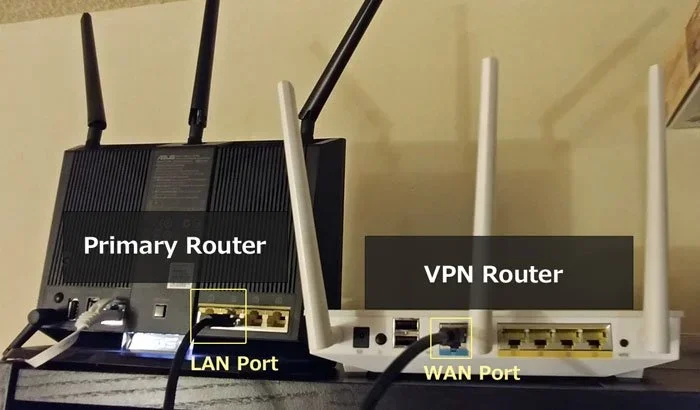
You can also connect the AP to a network switch. The switch plugs into the modem. Then the AP plugs into the switch. This allows you to add wired devices like desktop computers or printers to the same network. The AP still just provides Wi-Fi. The switch expands the number of wired ports. This is a common setup in small businesses or home labs.
Just make sure the modem or upstream device is the only one running a DHCP server. If two devices hand out IP addresses, you will get conflicts and devices may not connect properly.
How to Set Up an Access Point Without a Router
Setting up an AP without a router is straightforward. You do not need advanced networking skills. Follow these simple steps to get online in minutes.
Step-by-Step Setup Guide
- Gather your gear. You need an ISP modem, a standalone access point, and an Ethernet cable. Some APs support PoE, or Power over Ethernet, which lets the cable carry both data and power. If your AP uses PoE, you also need a PoE injector or a PoE switch.
- Connect the AP to the modem. Plug one end of the Ethernet cable into the modem’s LAN or Ethernet port. Plug the other end into the AP’s WAN or Ethernet port. If the AP has only one port, it likely auto-detects the connection.
- Power on the devices. Turn on the modem first. Wait for it to fully boot and show a stable internet light. Then power on the AP.
- Access the AP’s admin panel. Open a web browser on a wireless or wired device. Look for the AP’s default IP address in the manual. It is often 192.168.0.1 or 192.168.1.1. Log in with the default username and password.
- Configure the Wi-Fi settings. Set a unique SSID, or network name. Choose a strong password. Select WPA3 or WPA2 encryption. Avoid using WEP, which is outdated and insecure.
- Disable DHCP on the AP. Since the modem will hand out IP addresses, the AP should not also act as a DHCP server. This prevents IP conflicts. Leave the AP’s IP address in the same subnet as the modem, but pick a free address like 192.168.1.2.
- Save and reboot. Apply the settings and restart the AP. Wait a minute for it to reconnect.
- Test the connection. On a phone or laptop, find the new SSID and enter the password. Open a browser and visit a website. If it loads, you are online.
Quick Tips for a Smooth Setup
- Place the AP centrally. Wi-Fi signals spread outward. A central location gives the best coverage. Avoid putting the AP in a corner or behind thick walls.
- Use a short Ethernet cable. Keep the cable run under 100 feet (30 meters) for the best signal quality between the modem and AP.
- Update the firmware. Before you configure the AP, check the manufacturer’s website for the latest firmware. This fixes bugs and improves security.
- Change the default login. Always change the admin username and password on the AP. Default credentials are a major security risk.
- Enable a guest network. If your AP supports it, create a separate guest SSID. This keeps visitors off your main network and protects your devices.
When Does an AP Work Best Without a Router?
A routerless AP setup shines in specific situations. It is not for everyone, but for the right use case, it is simple and effective.
Ideal Use Cases
- Small offices or cafes. You need Wi-Fi for customers or a few employees. A single AP connected to a modem handles the job perfectly. There is no need for routing, NAT, or firewall features.
- Extending Wi-Fi to a new building. If you have a wired network in the main house and want Wi-Fi in a detached garage or workshop, an AP without a router is a clean solution. Just run an Ethernet cable from the main switch to the AP.
- Guest networks. Many businesses set up a standalone AP for guests. It isolates guest traffic from the internal network. The AP connects to a router that handles security, but the AP itself does no routing.
- Temporary setups. For events, pop-up shops, or trade shows, you can bring a modem and an AP. Set up Wi-Fi in minutes without hauling a full router.
- Simplifying a home network. Some users prefer a minimal setup. They use a modem and one AP to avoid the complexity of managing a router’s features they do not need.
Common Mistakes to Avoid
Even a simple setup can go wrong if you overlook a few things.
- Leaving DHCP enabled on the AP. This causes IP address conflicts. The modem and the AP will both try to assign addresses. Devices may get disconnected or lose internet access. Always disable DHCP on the AP when it is not the main router.
- Using the same IP subnet for two routers. If you accidentally connect a router behind the modem and then an AP, you can create a double NAT. This blocks incoming connections and can cause port forwarding to fail. Keep only one device doing the routing.
- Placing the AP too far from the modem. The Ethernet cable between the modem and AP should be under 100 meters. Longer runs can degrade the signal, especially on older cables.
- Ignoring the AP’s management interface. Many people set up the AP and forget it. Over time, firmware updates become available. Check the admin panel periodically to apply updates and review connected devices.
- Using WEP or open networks. Never leave an AP unsecured. Even a simple home AP should use WPA3 or at least WPA2 with a strong password. An open AP is an invitation for freeloaders and potential security breaches.
Limitations of Running an AP Solo
Using an access point without a router has some clear limitations. You need to understand these before you commit to the setup.
No Built-in Firewall or NAT
The AP does not protect your devices from the internet. A router acts as a barrier, blocking unsolicited incoming traffic. Without a router, your devices are more exposed. The modem may have some basic firewall features, but they are often limited. If you are using an AP solo, make sure your modem has a reliable firewall. You can also add a software firewall on each device.
No DHCP Server (Usually)
Most APs do not run a DHCP server by default. They rely on the upstream device to assign IP addresses. If your modem does not have DHCP enabled, devices will not get an IP address and will not connect. Always verify that your modem is handing out addresses. You can check this by connecting a device directly to the modem and seeing if it gets an IP like 192.168.1.x.
Limited Network Management
A router gives you a lot of control. You can set up port forwarding, parental controls, QoS (quality of service), and VPN passthrough. An AP alone offers none of these features. It is a simple bridge. If you need advanced network features, you will need a router or a more advanced device like a managed switch or a dedicated firewall.
Single Point of Failure
If your modem goes down, your entire Wi-Fi network goes down. There is no backup routing or failover. For critical operations, a router provides redundancy and better uptime. A solo AP is fine for casual browsing, but it is not ideal for a business that needs constant connectivity.
Expert Insights: Maximizing Your AP-Only Network
Even with a simple AP setup, you can take steps to make it better. These expert tips help you get the most out of a routerless network.
Use PoE for flexible placement. Power over Ethernet lets you power the AP through the same cable that carries data. This means you can place the AP anywhere there is an Ethernet jack, even if there is no power outlet nearby. You need a PoE switch or a PoE injector. This is a game-changer for outdoor APs or ceiling-mounted units.
Segment your traffic with VLANs. If you have a managed switch, you can create a VLAN for the AP. This separates guest traffic from your main network. Even though the AP itself does not route, the switch can tag traffic and keep it isolated. This adds a layer of security without needing a router.
Monitor connected devices. Many APs have a mobile app or web dashboard that shows which devices are connected. Check this regularly. If you see unknown devices, change your Wi-Fi password immediately. A rogue device can slow down your network and compromise your data.
Consider a mesh system if you need coverage. A single AP covers a limited area. If you have a large home or office, one AP may not be enough. A mesh Wi-Fi system uses multiple nodes that act as APs and a router combined. But you can also use a single router with multiple standalone APs connected via Ethernet. This gives you the best of both worlds: the simplicity of APs and the management features of a router.
Keep the AP cool. Access points can get warm, especially in enclosed spaces. Place them in well-ventilated areas. Overheating can cause the AP to drop connections or slow down. A small fan or a wall-mounted bracket with airflow can help.
Conclusion
So, can you use an AP without a router? Yes, and it is easier than most people think. An access point can connect directly to your ISP modem and provide Wi-Fi to your devices. You skip the router, reduce clutter, and still get a reliable internet connection. This setup is perfect for simple networks, small offices, guest access, and extending Wi-Fi to new areas.
Just remember that a solo AP does not offer the security and management features of a router. You need a modem to handle routing and a DHCP server. Always disable DHCP on the AP, use strong encryption, and keep the firmware updated. With these steps, you can build a solid wireless network without a traditional router.
Whether you are a home user or a small business owner, knowing how to use an AP without a router gives you flexibility. You can set up Wi-Fi in minutes with minimal gear. Try it out, and you might find that the simpler setup is all you need.
Frequently Asked Questions
Can I use an access point without a router if I have a modem?
Yes, you can. Connect the AP directly to the modem with an Ethernet cable. The modem handles the routing and internet connection. The AP just broadcasts the Wi-Fi signal. Make sure the modem has DHCP enabled so the AP and your devices can get IP addresses automatically.
Do I need a router for Wi-Fi at all?
Not necessarily. A router combines routing, switching, and Wi-Fi into one box. A standalone access point only provides Wi-Fi. If you already have a modem that routes traffic, you can add an AP to get wireless without a router. This is common in businesses and simple home setups.
Is it safe to use an AP without a router?
It can be safe if you take the right precautions. The modem should have a firewall. Always use WPA3 or WPA2 encryption on the AP. Change default admin passwords. Keep the firmware updated. Without a router’s built-in firewall, your devices rely on the modem’s security. So choose a good modem and configure the AP securely.
What is the difference between AP mode and router mode?
AP mode means the device only broadcasts Wi-Fi. It bridges wireless clients to a wired network. Router mode means the device routes traffic between networks, performs NAT, and assigns IP addresses. Many devices support both modes. You can switch an AP to router mode if you need those features, but then you are using it as a router.
Can I connect multiple APs without a router?
Yes, you can connect multiple APs to a switch or to each other in a daisy chain. However, you must ensure they are on the same subnet and that only one device runs a DHCP server. For best results, connect all APs via Ethernet to a central switch that is linked to the modem. This creates a seamless wireless network with strong coverage.
Will my internet speed drop without a router?
No, the speed depends on your modem, the AP’s quality, and the Ethernet cable. A good AP on a Gigabit Ethernet connection will deliver full-speed Wi-Fi. The absence of a router does not slow things down. In fact, removing a router can sometimes reduce latency because there is one less device processing the traffic.