Can You Still Connect To Wi Fi If Password Changed
Yes, you can still connect to Wi-Fi if the password is changed, but you will need to update the new password on every device. This guide covers exactly how to reconnect, why it happens, and what to do when devices refuse to accept the new network password.
You are sitting on the couch, scrolling through your phone, when suddenly the internet drops. You check the WiFi icon. It says connected, but there is no data. Then you remember. Someone changed the WiFi password. This is a frustrating moment that almost everyone has experienced at some point. The big question is simple: can you still connect to Wi-Fi if the password is changed?
The short answer is yes. You absolutely can reconnect. But the process is not always as smooth as you might hope. Different devices react differently. Some forget the old password instantly. Others hold onto it stubbornly. And smart home devices? They can be a real headache. In this article, we will walk you through everything you need to know about reconnecting after a WiFi password change. We will cover why it happens, how to fix it, and how to avoid common pitfalls.
Key Takeaways
- Devices lose access immediately: Once the WiFi password is changed, all previously connected devices are disconnected until the new password is entered.
- Reconnection is simple: You just need to go into each device’s WiFi settings and type in the new network password.
- Router admin access helps: Logging into the router admin panel lets you manage password changes and connected devices more easily.
- Smart home devices need extra attention: IoT gadgets often require manual reconfiguration after a WiFi password change.
- Security improves with regular changes: Updating your wireless network password regularly strengthens your network security significantly.
- Troubleshooting steps exist: Simple fixes like restarting your device or resetting network settings resolve most connection issues after a password change.
📑 Table of Contents
- What Happens When Your WiFi Password Is Changed
- How to Reconnect After a Password Change
- Why People Change Their WiFi Password
- Common Problems After Changing Your WiFi Password
- How to Change Your WiFi Password Properly
- Tips to Make WiFi Password Changes Easier
- Expert Insights on WiFi Password Management
- Key Takeaways
- Conclusion
What Happens When Your WiFi Password Is Changed
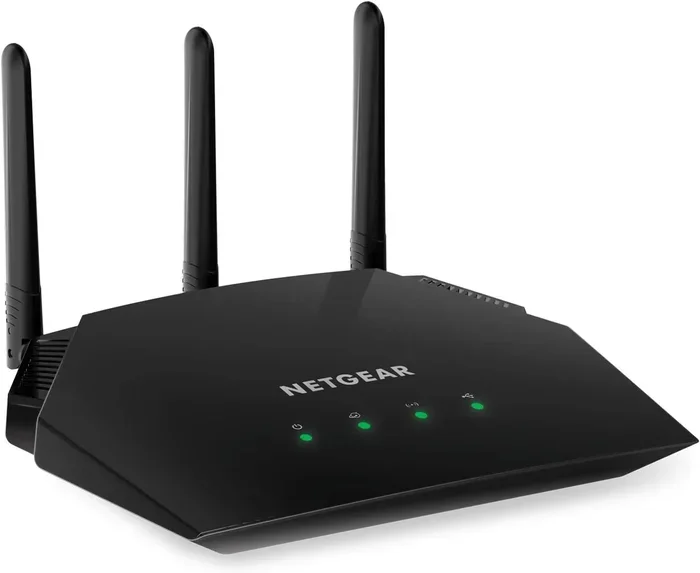
When someone updates the network password on a wireless router, the router immediately invalidates the old credentials. This is by design. It is a core part of network security. The router essentially locks the door and hands out a new key. Every device that was previously connected now has the old key, which no longer works.
Why Devices Get Disconnected
Your wireless router uses the password to authenticate devices. Think of it like a bouncer at a club. When the password changes, the bouncer no longer recognizes the old passwords. Every phone, laptop, tablet, and smart TV that was inside suddenly finds itself outside. The device still sees the network name, but it cannot get past the authentication step.
This happens because most devices save WiFi credentials locally. They store the old password in their memory. When the router rejects the old password, the device tries again and again, fails, and then disconnects. Some devices will show a saved network icon but give you a “connected, no internet” message. Others will simply disappear from the list of available networks.
Does the Router Need to Restart?
In most cases, the router does not need a restart. The password change takes effect immediately. The moment the new password is saved in the router settings, all old connections are dropped. However, some older routers might need a quick reboot to fully apply the changes. If you have changed the password through the router admin panel and nothing seems different, a simple restart of the router can help.
How to Reconnect After a Password Change
Reconnecting is straightforward, but the exact steps vary by device. Let us walk through the process for the most common devices you will find in a home.
Reconnecting on a Smartphone
On both iPhone and Android, the process is similar. Go to Settings. Tap on WiFi. Find your network name. Tap on it. You will be prompted to enter the password. Type in the new password carefully. Make sure caps lock is off. Tap connect, and you should be back online within seconds.
If your phone keeps saying the password is wrong, double-check the new password. A single extra space or missed character can cause the WiFi authentication to fail. You can also try “forgetting” the network first and then reconnecting. This clears any cached old credentials.
Reconnecting on a Laptop
On Windows, click the WiFi icon in the taskbar. Select your network. Click connect. Enter the new password. On a Mac, click the WiFi icon in the menu bar. Open Network Preferences. Select your network and type in the updated password.
Laptops sometimes hold onto old passwords more stubbornly than phones. If your laptop refuses to connect, go to the WiFi settings and remove the saved network profile. Then scan for networks again and reconnect with the new password. This simple step solves most laptop reconnection issues.
Reconnecting Smart Home Devices
This is where things get tricky. Smart home devices like smart speakers, security cameras, and smart plugs often do not have a keyboard interface. You usually need to use a companion app to update their WiFi credentials. Open the app for each device, go to its WiFi settings, and enter the new password there.
Some devices require a full factory reset if the password change is not fed through the app properly. Always try the app method first before resorting to a reset. It saves a lot of time and frustration.
Why People Change Their WiFi Password
There are many valid reasons to change your wireless network password. Understanding these reasons can help you appreciate why it is important and how to manage the aftermath.
Security Reasons
The most common reason is security. If a neighbor or guest knows your old password, they are using your bandwidth. Worse, they could potentially access shared files on your network. Changing the password kicks out unauthorized users and locks the door behind them. This is a basic but effective step in WiFi security.
Moving Into a New Place
When you move into a new apartment or house, the previous occupants likely still know the WiFi password. Changing it is essential. It is one of the first things you should do when taking over a new space. This ensures only people you trust have WiFi access.
After a Data Breach or Suspected Intrusion
If you suspect someone has accessed your network without permission, changing the password is urgent. A compromised network can lead to identity theft, slow internet speeds, and even illegal activity traced back to your account. A quick password change mitigates these risks.
Employee or Guest Departure
If someone who had the WiFi password leaves your household or office, change it. You do not want former guests or ex-employees still connected to your wireless router. It is a matter of privacy and security.
Common Problems After Changing Your WiFi Password
Even when you follow the steps correctly, things can go wrong. Here are the most common issues people face after a network password change and how to fix them.
Devices That Refuse to Accept the New Password
Some older devices do not handle password changes well. They might show an error message saying the password is incorrect even when you know it is right. This often happens with legacy devices that do not support newer encryption standards. In such cases, check if your router is using WPA3 or WPA2 encryption. Older devices might only support WEP, which is less secure but more compatible.
Devices That Connect But Have No Internet
This is a weird but common problem. The device shows it is connected to the WiFi, but there is no internet access. Usually, this means the device is connected to the router but has not been authenticated properly. Try forgetting the network and reconnecting. If that does not work, restart both the device and the router.
Slow Reconnection Across Multiple Devices
If you have many devices, updating each one can take time. The best approach is to start with your most important devices first. Get your phone and laptop connected. Then move to tablets, smart TVs, and gaming consoles. Finally, handle the smart home gadgets. This way, you at least have internet access on your primary devices while you work through the rest.
Devices That Completely Disappear From the Network List
Sometimes a device will not even show up in the list of available WiFi networks after a password change. This is rare but can happen with very old devices or devices with faulty network adapters. A factory reset of the device or updating its firmware might solve the problem.
How to Change Your WiFi Password Properly
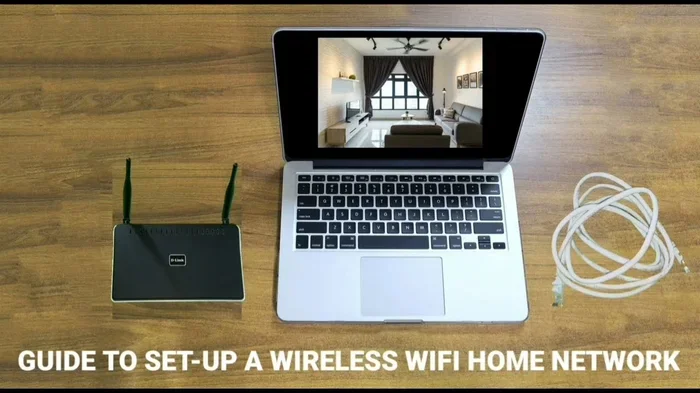
If you are the one planning to change the password, doing it the right way can save everyone a lot of trouble. Here is a step-by-step guide.
Step 1: Access the Router Admin Panel
Open a web browser on a connected device. Type in your router’s IP address. This is usually 192.168.1.1 or 192.168.0.1. Log in with your admin username and password. These are often printed on a sticker on the back of the router.
Step 2: Navigate to Wireless Settings
Once logged in, find the wireless settings section. Look for a tab labeled “Wireless” or “WiFi Settings.” Here you will see the current network name and password fields.
Step 3: Enter the New Password
Type in your new password. Make it strong but memorable. A mix of uppercase letters, lowercase letters, numbers, and symbols works best. Avoid common words or personal information that others could guess.
Step 4: Save and Reboot
Save your changes. The router may need a moment to apply the new settings. Some routers reboot automatically. Others require a manual restart. Once the router is back online, all previously connected devices will be disconnected and will need the new password.
Step 5: Update All Your Devices
This is the step most people skip. Go around your house and update the password on every device. Make it easier by writing the new password down and keeping it in a safe place. You can also share it through a secure password manager.
Tips to Make WiFi Password Changes Easier
Changing a WiFi password does not have to be a hassle every time. A few smart habits can make the process smoother for everyone in your household.
Use a Password Manager
Store your WiFi password in a reliable password manager. When you change it, update it in the manager first. Then share the new credentials with household members through the app. This keeps everyone informed and reduces the chaos of disconnected devices.
Set a Reminder to Update Smart Devices
Smart home devices are the last to get updated. Set a reminder to check all IoT gadgets after a password change. A quick walkthrough of your smart home app can catch any devices that still have the old credentials saved.
Keep a Printed Copy of Current Credentials
It sounds old-school, but keeping a printed list of your network name and current password taped inside a cabinet or drawer can be a lifesaver. When the password changes, you update the list immediately. Anyone who needs to reconnect can find the new details easily.
Use WPA3 Encryption When Possible
If your router supports WPA3, use it. It offers better security and smoother device handling during password changes. WPA2 is still good, but WPA3 is the current standard for network security. Check your router settings to see which encryption type is active.
Expert Insights on WiFi Password Management
Networking professionals recommend changing your WiFi password every three to six months. This keeps your wireless network secure and limits the window of opportunity for unauthorized access. However, frequency should also depend on how many people have the password. If you live alone, you can go longer between changes. If you have frequent guests, more frequent changes make sense.
Another expert tip is to create a separate guest network. This way, visitors get internet access without needing your main WiFi password. If a guest leaves, you simply change the guest network password without disrupting your own devices. This is a smart way to maintain network security without the headache of mass reconnections.
Experts also advise against using the same password for your WiFi and other online accounts. A breach on one platform could potentially expose your network credentials. Keep your WiFi password unique and distinct from your email, banking, and social media passwords.
Key Takeaways
- Devices lose access immediately: Once the WiFi password is changed, all previously connected devices are disconnected until the new password is entered.
- Reconnection is simple: You just need to go into each device’s WiFi settings and type in the new network password.
- Router admin access helps: Logging into the router admin panel lets you manage password changes and connected devices more easily.
- Smart home devices need extra attention: IoT gadgets often require manual reconfiguration after a WiFi password change.
- Security improves with regular changes: Updating your wireless network password regularly strengthens your network security significantly.
- Troubleshooting steps exist: Simple fixes like restarting your device or resetting network settings resolve most connection issues after a password change.
Conclusion
So, can you still connect to Wi-Fi if the password is changed? Absolutely. The process is entirely manageable once you know what to expect. Every device will need the new WiFi password entered manually. Smart home devices may need a little extra patience. But with the right approach, you can have all your devices back online in no time.
The key is to act quickly after a password change. Do not let devices sit disconnected for days. Update them as soon as possible. Keep your new password in a safe and accessible place. And remember, changing your wireless network password is one of the best things you can do for your network security. It keeps your internet fast, your data safe, and your peace of mind intact.
Next time someone changes the WiFi password in your home, you will know exactly what to do. You will not panic. You will not call tech support. You will simply open your settings, type in the new password, and get back to what matters. Staying connected should not be this hard, and now you know exactly how to handle it when it happens.
Can You Still Connect to Wi-Fi if the Password Is Changed?
Yes, you can still connect. You simply need to enter the new password on each device that was previously connected to the network.
What Happens to Devices Already Connected When the Password Changes?
They get disconnected immediately. The router invalidates the old credentials, and every device must reconnect using the new password.
Do I Need to Restart My Router After Changing the Password?
Usually no. The change takes effect right away. But if devices do not respond, a quick router restart can help apply the new settings.
Why Won’t My Device Accept the New WiFi Password?
This usually happens due to a typo, caps lock being on, or the device caching the old password. Try forgetting the network and reconnecting fresh.
How Do I Update Smart Home Devices After a Password Change?
Open the companion app for each device, go to its WiFi settings, and enter the new password. If that fails, a factory reset may be needed.
How Often Should I Change My WiFi Password?
Every three to six months is a good practice. Change it more often if you have frequent guests or suspect unauthorized access.
Frequently Asked Questions
What is Can You Still Connect To Wi Fi If The Password Is Changed?
Can You Still Connect To Wi Fi If The Password Is Changed is an important topic with many practical applications.