Can You Have 2 Wi Fi Connections At The Same Address
Yes, you absolutely can have 2 Wi-Fi connections at the same address. Whether you need a second network for smart home devices, guests, or better coverage, running two Wi-Fi networks at one location is totally doable. This guide walks you through every method, from using dual routers to mesh systems, so you can pick the best setup for your home.
Have you ever wondered whether you can run two Wi-Fi networks from the exact same address? Maybe your home is too big for one router. Perhaps you want a separate network for smart devices and another for your personal use. Or maybe you just want faster internet in every room. Whatever your reason, the answer is a clear yes.
Having two Wi-Fi connections at the same address is not only possible. It is also more common than most people think. Many households run multiple routers, extenders, or access points to cover every corner of their home. The good news is that setting this up does not require a degree in computer science. With the right guidance, you can get it done in an afternoon.
In this article, we will cover everything you need to know. We will explain how it works, the different ways to set it up, and the common pitfalls to avoid. By the end, you will feel confident setting up your own dual Wi-Fi network. Let us dive in.
Key Takeaways
- Two Wi-Fi networks at one address are fully supported: Your internet service provider allows multiple routers on the same account.
- You have several setup options: Choose from dual routers, Wi-Fi extenders, access points, or mesh systems.
- IP address conflicts are easy to avoid: Proper configuration keeps both networks running smoothly.
- Interference is manageable: Using different Wi-Fi channels and bands reduces signal overlap.
- Separate networks boost security: Isolating guest traffic from your main network adds a layer of protection.
- Mesh systems simplify the process: They offer a seamless way to manage multiple access points under one network name.
📑 Table of Contents
- What Does It Mean to Have 2 Wi-Fi Networks at One Address?
- Methods to Set Up 2 Wi-Fi Connections at the Same Address
- Can Two Wi-Fi Networks Share the Same Internet Connection?
- Will Two Wi-Fi Networks Interfere With Each Other?
- Benefits of Having 2 Wi-Fi Networks at the Same Address
- Common Mistakes to Avoid When Setting Up Two Wi-Fi Networks
- Expert Tips for Getting the Most Out of Your Dual Wi-Fi Setup
- How to Troubleshoot Common Issues
- Conclusion
What Does It Mean to Have 2 Wi-Fi Networks at One Address?
When we say two Wi-Fi networks at the same address, we mean two separate wireless networks operating from the same physical location. This could be your house, apartment, or office. Each network has its own name, password, and settings. They can share the same internet connection or run on separate plans entirely.
Think of it like having two TV channels broadcasting from the same building. They use different frequencies, carry different content, and serve different audiences. Your Wi-Fi networks work the same way. Each one broadcasts its own signal using a unique SSID, or network name.
How Does It Work Technically?
Every device that connects to the internet needs an IP address. When you have two routers at one address, each router assigns its own local IP addresses to connected devices. The key is making sure the routers do not clash. This is called an IP address conflict, and it can cause both networks to slow down or stop working.
Here is a simple way to think about it. Your modem connects to your internet service provider. That modem hands out one public IP address to your home. But behind that modem, you can have multiple routers. Each router creates its own private network. Devices on each network talk to the modem through their respective router. It is like having two doors into the same house.
Why Would You Want Two Networks?
There are several great reasons to run two Wi-Fi networks at the same address. Let us look at the most common ones:
- Better coverage: One router may not reach every room. A second router fills in the gaps.
- Device separation: Keep smart home gadgets on one network and your phones and laptops on another.
- Guest access: Give visitors their own network without sharing your main password.
- Speed optimization: Dedicate one network to high-bandwidth activities like streaming and gaming.
- Network isolation: Protect your main devices from potential security risks on IoT devices.
Methods to Set Up 2 Wi-Fi Connections at the Same Address
There are several ways to run two Wi-Fi networks from one address. Each method has its pros and cons. Let us walk through them so you can pick what works best for your home.
Method 1: Using Two Separate Routers
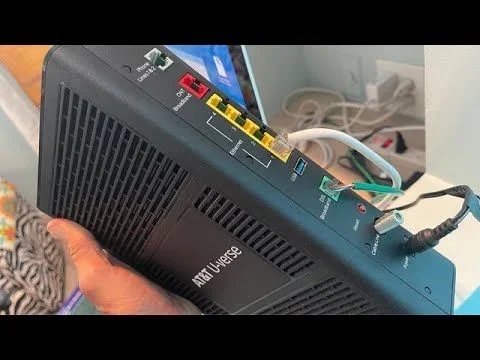
This is the most popular approach. You buy two routers and connect them both to your modem. One router acts as the main router. The second router extends the network or creates a completely separate network.
Here is how to set it up step by step:
- Connect your modem to the first router using an Ethernet cable.
- Set up the first router as you normally would.
- Connect the second router to the first router using another Ethernet cable.
- Go into the second router settings and change its IP address so it does not clash with the first.
- Set the second router to bridge mode or access point mode.
- Create a unique SSID and password for the second network.
Make sure both routers use different Wi-Fi channels. For example, set one to channel 1 and the other to channel 6. This reduces wireless interference and keeps both networks fast.
Quick Tip: If your second router is older, consider updating its firmware first. This can improve performance and fix security bugs.
Method 2: Using a Wi-Fi Extender or Repeater
A Wi-Fi extender picks up the signal from your main router and rebroadcasts it. This is a simple and affordable way to expand your coverage. However, extenders usually create a network with the same name as the original. If you want two separate networks, you may need a model that lets you customize the extended network name.
Extenders work best for moderate coverage needs. They are great for adding a Wi-Fi signal to a dead zone, like a basement or backyard. But they do cut your bandwidth roughly in half because they use the same radio to receive and transmit data.
Method 3: Using a Mesh Wi-Fi System
A mesh system is the most modern solution. It uses a main unit and satellite nodes placed around your home. All nodes work together to create one seamless network. Most mesh systems let you create a guest network, which effectively gives you a second network without extra hardware.
Mesh systems are easy to set up. You plug in the main unit, place the satellites around your home, and use an app to configure everything. Brands like Google Nest, Eero, and TP-Link Deco make this process very simple.
Expert Insight: Mesh systems are ideal for most homes. They handle the tricky parts of network management automatically, like channel selection and device balancing.
Method 4: Using a Router and a Wireless Access Point
This method gives you the most control. You use your main router for routing and add a dedicated wireless access point for the second network. An access point connects to your router via Ethernet and broadcasts its own Wi-Fi signal.
This setup is common in offices and larger homes. It provides strong, dedicated coverage without the signal loss that comes with extenders. The downside is that it requires running an Ethernet cable between the two devices, which may not be convenient in every home.
Can Two Wi-Fi Networks Share the Same Internet Connection?
Yes, they can. Both routers can connect to the same modem and share one internet plan. The modem acts as the gateway. It sends the internet signal to the first router, which then passes it to the second router through a wired or wireless connection.
Both networks will share the same total bandwidth. If your internet plan offers 200 Mbps, both networks split that 200 Mbps. If one network is streaming a 4K movie while the other is downloading a large file, they will compete for speed. This is an important consideration when planning your setup.
To get the best performance, connect your routers with an Ethernet cable whenever possible. Wired backhaul is much faster and more stable than wireless backhaul. It ensures both networks get the full speed of your internet plan.
Do You Need a Second Internet Plan?
No, you do not need a second internet plan to run two Wi-Fi networks at the same address. One internet connection is enough for both networks. However, if you have very heavy usage, like multiple 4K streams and online gaming, you might want to upgrade to a faster plan.
Some people choose to run two separate internet plans from different providers. This is rare but possible. It gives each network its own dedicated bandwidth. It also provides a backup if one connection goes down. But for most homes, one plan with two routers works perfectly fine.
Will Two Wi-Fi Networks Interfere With Each Other?
This is one of the most common concerns people have. The short answer is: it depends on how you set things up. If both networks use the same channel on the same frequency band, they will interfere. This can slow down both networks and cause dropped connections.
Here is how to avoid interference:
- Use different channels: Set each router to a non-overlapping channel. On the 2.4 GHz band, use channels 1, 6, or 11.
- Use different bands: Put one router on 2.4 GHz and the other on 5 GHz. These bands operate on different frequencies and do not interfere.
- Use dual-band routers: Modern routers broadcast on both bands simultaneously. This doubles your capacity.
- Space your routers apart: Physical distance reduces signal overlap between the two networks.
Dual-band routers are the easiest solution. They let you run one network on 2.4 GHz and another on 5 GHz from the same address. The 2.4 GHz band has longer range but slower speeds. The 5 GHz band has shorter range but much faster speeds. This combination works great for most homes.
| Feature | 2.4 GHz Band | 5 GHz Band |
|---|---|---|
| Range | Longer | Shorter |
| Speed | Slower | Faster |
| Wall Penetration | Better | Worse |
| Interference | More (from microwaves, Bluetooth) | Less |
| Best For | Smart home devices, basic browsing | Streaming, gaming, video calls |
Common Mistake: Many people set both routers to auto channel selection. This sounds convenient, but it can cause both routers to pick the same channel. Manually setting channels gives you much better control.
Benefits of Having 2 Wi-Fi Networks at the Same Address
Running two networks at one address comes with real advantages. Let us look at why so many people choose to do it.
Improved Network Security
When you separate your devices into different networks, you limit the damage if one network gets compromised. Smart home devices like cameras, bulbs, and thermostats are often less secure than phones and computers. By putting them on their own network, you keep them isolated from your personal data.
Better Performance for Heavy Users
If someone in your home is gaming or streaming while others are just browsing, a second network helps. You can dedicate the faster 5 GHz band to the heavy users and put lighter tasks on the 2.4 GHz band. This keeps everyone happy.
Easier Guest Management
A guest network keeps visitors off your main network. They get internet access without seeing your shared files, printers, or smart home devices. Most modern routers make it easy to set up a guest network with its own password and bandwidth limits.
Future-Proofing Your Home
As we add more connected devices to our homes, the demand on our networks grows. Smart TVs, phones, tablets, security cameras, smart speakers, and appliances all compete for bandwidth. A second network helps distribute that load and keeps everything running smoothly.
Common Mistakes to Avoid When Setting Up Two Wi-Fi Networks
Setting up two networks sounds simple, but small mistakes can cause big problems. Here are the errors to watch out for.
Mistake 1: Not changing the second router’s IP address. If both routers use the same default IP, they will conflict. Always check and change the IP on the second router before connecting it.
Mistake 2: Using the same SSID and password. This creates confusion for your devices. They may keep switching between the two networks unpredictably. Give each network a distinct name.
Mistake 3: Ignoring the DHCP settings. Only one router should assign IP addresses. Turn off DHCP on the second router if you are using it as an access point. Otherwise, both routers will try to hand out addresses, and devices will not connect properly.
Mistake 4: Placing routers too close together. This causes signal overlap and interference. Put some distance between them, ideally in different parts of your home.
Mistake 5: Forgetting about firmware updates. Outdated router firmware can cause security vulnerabilities and performance issues. Check for updates regularly.
Quick Tip: Write down your network settings before making changes. If something goes wrong, you can easily revert to your original setup.
Expert Tips for Getting the Most Out of Your Dual Wi-Fi Setup
Once you have two networks running, you can fine-tune them for the best experience. Here are some tips from networking professionals.
- Use Quality of Service (QoS) settings: Most routers let you prioritize certain types of traffic. Set your gaming or streaming devices to high priority.
- Restart your routers regularly: A simple reboot once a week can clear up slow speeds and connection drops.
- Position routers centrally: Place them in open areas, away from walls and metal objects. Elevating them on shelves helps too.
- Monitor connected devices: Use your router app to see what is connected. Remove any unknown devices for security.
- Consider a powerline adapter: If running Ethernet cables is not practical, a powerline adapter sends internet through your home’s electrical wiring.
Expert Insight: The best dual-network setups combine wired and wireless connections. Use Ethernet between the modem and routers whenever possible. Reserve wireless connections for devices that need mobility, like phones and tablets.
How to Troubleshoot Common Issues
Even with a great setup, you might run into issues. Here are the most common problems and how to fix them.
Problem: One network is much slower than the other. Check the Wi-Fi channel each router is using. Switch to a less crowded channel. Also make sure the slower router is not too far from the modem or the main router.
Problem: Devices keep switching between networks. This happens when both networks have similar signal strength. Rename the networks to make them distinct. You can also set your devices to remember the preferred network.
Problem: Devices cannot connect to the second network. Double-check the DHCP settings on both routers. Make sure only one router is assigning IP addresses. Also verify that the second router is not using the same IP range as the first.
Problem: Internet speed drops when both networks are active. Your total bandwidth is being shared. Consider upgrading your internet plan if you consistently need more speed. Also try connecting one router via Ethernet cable to reduce wireless congestion.
Conclusion
So, can you have 2 Wi-Fi connections at the same address? Absolutely. Whether you use two routers, a Wi-Fi extender, a mesh system, or a dedicated access point, running multiple networks from one location is straightforward and practical. The key is proper setup, smart channel selection, and avoiding common configuration mistakes.
A dual Wi-Fi setup gives you better coverage, stronger security, and more flexibility. You can keep your personal devices safe on one network while letting smart home gadgets run on another. Guests get their own access without compromising your main network. And heavy users get the speed they need without slowing everyone else down.
Take the time to plan your setup. Choose the method that fits your home and your needs. Follow the tips in this guide, and you will have a fast, reliable, and secure multi-network home in no time. Your internet experience will never be the same.
Frequently Asked Questions
Can two routers at the same address slow down my internet?
They can if both networks are heavily used at the same time. Both networks share the same total bandwidth from your internet plan. However, if you use wired backhaul and smart channel settings, the slowdown will be minimal. For most households, two networks work without any noticeable speed loss.
Do I need special equipment to run 2 Wi-Fi networks?
Not necessarily. Most people use two standard routers. You can also use a mesh system with a guest network feature, or a router paired with a Wi-Fi extender. The equipment you need depends on how separate you want the two networks to be.
Will my internet service provider charge extra for a second network?
No, your ISP does not charge extra for running multiple networks. You pay for the internet plan, not the number of routers. As long as you are using one internet connection, you are good to go.
Can I put the two routers on different floors of my house?
Yes, absolutely. Placing routers on different floors is actually a great strategy. The 2.4 GHz band works well for covering multiple floors because it penetrates walls better. Just make sure the Ethernet cable connects them for the best performance.
Is it hard to set up a second Wi-Fi network at home?
It is not hard at all. If you can connect to your Wi-Fi and open a web browser, you can do it. The hardest part is changing the IP address and DHCP settings on the second router. But most routers have simple setup wizards that walk you through everything step by step.
Can I use two different brands of routers together?
Yes, you can mix brands. A TP-Link router and a Netgear router can work together just fine. The key is proper configuration, not brand matching. Just make sure both routers support the same Wi-Fi standards for the best compatibility.