Can You Find Out The Password Of Wi Fi On Any Device
Can you find out the password of WiFi on any device? Yes, absolutely. Whether you use an Android phone, iPhone, Windows laptop, or Mac, there are simple built-in methods to view your saved WiFi password in minutes. This guide walks you through every easy step, from checking your router label to accessing your router admin panel and recovering your wireless network password on any connected device.
Ever walked into a friend’s house and needed to connect to their WiFi network? Or maybe you just bought a new laptop and forgot the password you saved on your phone. Whatever the reason, finding your WiFi password is easier than most people think. You do not need to be a tech expert. You do not need to hack anything. There are simple, legal, and built-in ways to find out the password of WiFi on virtually any device you own.
In this guide, we will cover every practical method you can use right now. We will look at how to check your password on phones, laptops, and even directly on the router itself. By the end, you will know exactly how to recover your wireless network password in any situation. Let us get started.
Key Takeaways
- Built-in OS features: Every major device — Windows, Mac, Android, and iPhone — lets you view saved WiFi passwords with just a few clicks.
- Router label method: The default WiFi password is printed on the back or bottom of your router.
- Router admin panel: You can log into your router settings to view or change your WiFi password from any browser.
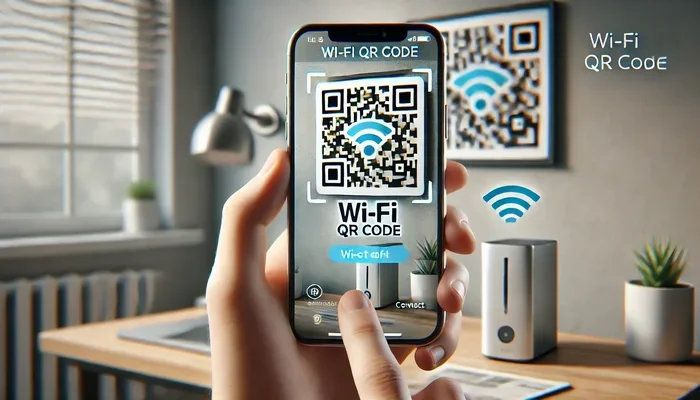
- QR code sharing: Modern phones can generate QR codes that share your WiFi password securely.
- Network security matters: Always use WPA3 or WPA2 encryption to keep your wireless network safe.
- No hacking needed: These are all legitimate, built-in methods — no special tools or software required.
- ISP-provided credentials: Your internet service provider often sets a default password you can change anytime.
📑 Table of Contents
- Can You Find Out The Password Of Wi Fi Using Your Router?
- How to Find Out The Password Of Wi Fi on Windows
- Can You Find Out The Password Of Wi Fi on Mac?
- How to Find Out The Password Of Wi Fi on Android
- Can You Find Out The Password Of Wi Fi on iPhone?
- How to View Your WiFi Password Through the Router Admin Panel
- Quick Tips for Managing WiFi Passwords
- Common Mistakes People Make With WiFi Passwords
- Expert Insights on WiFi Security and Password Management
- Conclusion
Can You Find Out The Password Of Wi Fi Using Your Router?
The simplest way to find your WiFi password is by looking at your router. Every router comes with a default password printed somewhere on the device. This is the fastest method, and it works even if you have never connected to the network before.
Where to Look on Your Router
Flip your router over or check the back panel. You will see a sticker. On that sticker, you will typically find:
- Network Name (SSID): This is your WiFi network name.
- Password or Key: This is your default wireless network password.
- Security Type: Usually WPA2 or WPA3.
Keep in mind that if someone changed the password after setup, this sticker will show the old default password. In that case, you will need to log into the router admin panel, which we cover later in this article.
When the Sticker Is Missing or Faded
If the sticker has worn off or you bought a used router, do not panic. You can still find your password through the admin panel. Simply type your router’s IP address into a web browser. Common addresses are 192.168.1.1 or 192.168.0.1. Log in with the admin credentials — these are also often printed on the router or in the manual.
How to Find Out The Password Of Wi Fi on Windows
If you are using a Windows computer, there are several quick ways to view your saved WiFi password. You do not need third-party apps. Everything is built right into the operating system.
Method 1: Through Settings
Here is the easiest way on Windows 10 and 11:
- Click the Start menu.
- Go to Settings, then Network & Internet.
- Click on Wi-Fi in the left sidebar.
- Click Manage known networks.
- Select your network and click Properties.
- Check the box that says Show character under the Network security key field.
Your WiFi password will appear on screen immediately.
Method 2: Through Control Panel
You can also use the classic Control Panel method:
- Open the Control Panel.
- Go to Network and Sharing Center.
- Click on your WiFi connection.
- In the window that pops up, click Wireless Properties.
- Go to the Security tab.
- Check Show characters to reveal your wireless network password.
Method 3: Using Command Prompt
For those who like a faster approach, the Command Prompt works great:
- Open Command Prompt as Administrator.
- Type netsh wlan show profiles and press Enter.
- Find your network name in the list.
- Type netsh wlan show profile name=”YourNetworkName” key=clear and press Enter.
- Look for Key Content — that is your WiFi password.
This method is especially useful when you want to see passwords for networks you are not currently connected to.
Can You Find Out The Password Of Wi Fi on Mac?
Mac users have a straightforward way to recover saved WiFi passwords using the Keychain Access tool. This is a built-in macOS feature that stores all your passwords securely.
Using Keychain Access
Follow these steps to view your wireless network password on a Mac:
- Open Finder.
- Go to Applications, then Utilities.
- Open Keychain Access.
- In the search bar, type your WiFi network name.
- Double-click on the network entry.
- Check the box that says Show password.
- Enter your Mac admin password to confirm.
Your WiFi password will now be visible. This method works for any network your Mac has ever connected to.
Using System Preferences
You can also find your password through System Preferences:
- Go to System Preferences (or System Settings on newer macOS).
- Click on Network.
- Select Wi-Fi and click Advanced.
- Go to the Wi-Fi tab.
- Select your network and click the minus (-) button to remove it (do not worry, this does not delete the password from Keychain).
- Actually, the Keychain Access method above is the most reliable approach for Mac users.
How to Find Out The Password Of Wi Fi on Android
Android phones make it easy to view saved WiFi passwords, but the exact steps depend on your phone model and Android version.
On Stock Android (Pixel, Motorola, etc.)
Here is how to find your WiFi password on a stock Android device:
- Go to Settings.
- Tap on Network & Internet or Connections.
- Tap on Wi-Fi.
- Find your connected network and tap the gear icon next to it.
- Tap on Share or Network details.
- If you see a QR code, you can scan it with another device to connect — but the password text is usually shown below the QR code.
On some Android phones, you may need to authenticate with your fingerprint or PIN before the password is revealed. This is a security feature that keeps your network password safe.
On Samsung Devices
Samsung phones have a slightly different path:
- Open Settings.
- Go to Connections, then Wi-Fi.
- Tap the gear icon next to your network.
- Tap Share.
- Authenticate with your Samsung account or fingerprint.
- The WiFi password will appear as plain text or within the QR code.
Using Third-Party Apps (Optional)
There are apps on the Google Play Store that can display your saved WiFi passwords. However, most of these are unnecessary since Android has built-in sharing features now. If you do use an app, stick to trusted ones like WiFi Password Show or WiFi Key Recovery. Always check permissions and reviews before installing any app.
Can You Find Out The Password Of Wi Fi on iPhone?
Apple makes it slightly harder to share WiFi passwords compared to Android, but it is still very doable. Starting with iOS 16 and later, Apple added a dedicated password feature that makes this much easier.
Using the Passwords Feature (iOS 16+)
Here is how to view your WiFi password on an iPhone running iOS 16 or newer:
- Open Settings.
- Go to Passwords.
- Tap Wi-Fi at the top.
- Find your network in the list.
- Tap on the network name.
- Authenticate with Face ID, Touch ID, or your passcode.
- Your WiFi password will be displayed on screen.
Sharing Password Between Apple Devices
If you have an iPhone and a Mac, you can use the AirDrop feature to share your WiFi password instantly. When someone tries to connect to your network, your iPhone will prompt you to share the password. Just tap Share Password and the other device receives it automatically.
On Older iOS Versions (iOS 15 and Below)
On older iPhones, the process is a bit different:
- Go to Settings**>.
- Tap Passwords & Accounts.
- Tap Wi-Fi Passwords.
- Authenticate with Face ID or Touch ID.
- Find your network and tap to reveal the password.
How to View Your WiFi Password Through the Router Admin Panel
If you want to see or change your WiFi password directly, logging into your router admin panel is the most powerful method. This works on any device connected to the network — phone, tablet, or computer.
Step-by-Step Guide
Follow these steps to access your router settings:
- Open a web browser on any device connected to the network.
- Type your router’s IP address in the address bar. Common addresses are 192.168.1.1, 192.168.0.1, or 10.0.0.1.
- Press Enter. A login page will appear.
- Enter the admin username and password. These are often “admin” for both, or printed on the router sticker.
- Once logged in, look for Wireless Settings or Wi-Fi Settings.
- Find the Password or Network Key field. Your WiFi password will be shown there.
Can You Change Your WiFi Password This Way?
Yes! The router admin panel lets you do much more than just view your password. You can:
- Change your WiFi password to something stronger.
- Update your network name (SSID).
- Change the security type to WPA3 for better protection.
- Set up a guest network for visitors.
- View connected devices on your network.
Changing your router password and WiFi password regularly is one of the best steps for network security. Most people never do this, which leaves their home network vulnerable.
What If You Forgot Your Router Admin Password?
If you changed your router admin password and forgot it, you can reset the router to factory settings. Look for a small reset button on the back of the router. Press and hold it for 10-15 seconds with a paperclip. This will restore all settings to default, including the default WiFi password on the router sticker. Keep in mind that you will need to set up your network again after a factory reset.
Quick Tips for Managing WiFi Passwords
Managing your wireless network password does not have to be stressful. Here are some quick tips that will save you time and keep your network secure:
Tip 1: Use a Password Manager
Store your WiFi password in a trusted password manager like Google Password Manager, Apple Keychain, or LastPass. This way, you never forget it, and you can access it from any device.
Tip 2: Create a Strong Password
A strong WiFi password should be at least 12 characters long and include a mix of uppercase letters, lowercase letters, numbers, and symbols. Avoid common words or personal information like birthdays or pet names.
Tip 3: Share Passwords Securely
When you need to share your WiFi password with guests, use the built-in QR code sharing feature on Android or iPhone. This is much safer than telling someone the password out loud or writing it on a sticky note.
Tip 4: Update Your Password Regularly
Set a reminder to change your wireless network password every few months. This keeps unauthorized users out and ensures your network security stays strong.
Tip 5: Enable WPA3 Encryption
If your router supports it, switch your WiFi security to WPA3. This is the latest and most secure encryption standard available. It protects your network from common attacks and brute-force attempts.
Common Mistakes People Make With WiFi Passwords
Many people run into avoidable problems when dealing with their WiFi password. Here are the most common mistakes and how to fix them:
Mistake 1: Never Changing the Default Password
The default WiFi password on your router sticker is easy to guess because it is public information. Anyone who buys the same router model can look up the default credentials online. Always change it to something unique.
Mistake 2: Using Weak Security Settings
If your router is set to WEP or an open network, your network security is very weak. WEP can be cracked in minutes. Always use WPA2 or WPA3 encryption for your wireless network.
Mistake 3: Sharing Passwords Casually
It is tempting to tell everyone your WiFi password at a party. But every person who knows it can access your network, potentially slowing it down or accessing shared files. Use a guest network for visitors instead.
Mistake 4: Not Knowing How to Recover Your Password
Many people panic when they need to connect a new device but cannot remember their WiFi password. Now that you know all the methods in this guide, you will never have this problem again.
Expert Insights on WiFi Security and Password Management
Network security professionals recommend a few best practices that go beyond just finding your WiFi password. Here is what the experts say:
- Separate your networks: Use a main network for your personal devices and a guest network for visitors. This keeps your sensitive devices safe even if a guest’s phone is compromised.
- Update router firmware: Router manufacturers release updates that patch security vulnerabilities. Check for updates at least once a month.
- Disable WPS: Wi-Fi Protected Setup is convenient but has known security flaws. Turn it off in your router settings.
- Monitor connected devices: Most router admin panels let you see which devices are connected. If you see something unfamiliar, change your WiFi password immediately.
- Use a VPN: A virtual private network adds an extra layer of protection to all devices on your wireless network.
These practices will help you maintain a fast, secure, and reliable home network for years to come.
Conclusion
Can you find out the password of WiFi on any device? Absolutely yes. Whether you use a Windows PC, Mac, Android phone, or iPhone, there are simple built-in methods to view your saved WiFi password in just a few minutes. You can check the router sticker, log into the admin panel, or use your device’s built-in password manager. Every method covered in this guide is free, legal, and takes less than five minutes.
The key is knowing where to look. Now that you have all the tools and methods at your fingertips, you will never be stuck without your wireless network password again. Take a few minutes today to check your password, make sure it is strong, and consider updating it if you have not changed it in a long time. Your network security depends on it.
Share this guide with friends and family who struggle with their WiFi password. It is one of those simple life skills that everyone should know. And remember, keeping your WiFi password secure does not mean keeping it a secret from people you trust — it means making sure only the right people have access to your network.
Frequently Asked Questions
Can I find out the password of WiFi on a smart TV or streaming device?
Most smart TVs and streaming devices like Roku or Apple TV do not have a built-in way to display your saved WiFi password. However, you can log into your router admin panel from any device and find the password there. You can also check your phone’s WiFi settings if the TV is connected to the same network.
Is it legal to find out the password of WiFi on a network I own?
Yes, absolutely. All the methods in this guide are for networks you own or have permission to access. These are built-in operating system features and router tools designed for legitimate password recovery and management purposes.
What should I do if my router does not have a sticker with the WiFi password?
No worries. You can log into your router admin panel using the router’s IP address in a web browser. The default admin credentials are usually printed on the router itself or in the user manual. From there, you can view or reset your wireless network password.
Can I recover my WiFi password if I reset my router to factory settings?
Yes. After a factory reset, your router will revert to the default settings, including the default WiFi password printed on the router sticker. You can then set a new password through the admin panel. Just make sure to write down your new password somewhere safe.
How do I share my WiFi password with a friend securely?
The best way is to use the built-in QR code sharing feature on Android or iPhone. Your friend simply scans the QR code with their phone and connects automatically. This avoids the need to type out a long WiFi password and keeps it private.
What is the difference between a WiFi password and a router admin password?
Your WiFi password is what devices use to connect to your wireless network. Your router admin password is what you use to log into your router’s settings page. They are often different, and it is a good practice to set both to strong, unique passwords for better network security.