Can You Completely Reset An HP Printer Today
Yes, you can completely reset an HP printer and restore it to factory default settings. Whether you own an HP DeskJet, OfficeJet, or LaserJet, a full reset clears all custom configurations, network settings, and error states. This guide walks you through every method so you can troubleshoot like a pro.
Have you ever stared at your HP printer screen, completely frustrated, wondering if there is any way to start fresh? Maybe your HP printer keeps throwing error codes, or the wireless connection just will not cooperate no matter what you try. The good news is that you can completely reset an HP printer and bring it back to its original factory state.
A full reset wipes away all the mess. It clears custom settings, network configurations, driver conflicts, and stored error states. Think of it like giving your printer a clean slate. Whether you are dealing with a stubborn paper jam, a frozen control panel, or mysterious error messages, a complete reset often solves the problem in minutes.
In this guide, we will walk you through everything you need to know. We cover what a reset actually does, the difference between a soft reset and a hard reset, and step-by-step instructions for every major HP printer line. You will also learn what to do after the reset and how to avoid common mistakes. Let us dive in and get your HP printer running smoothly again.
Key Takeaways
- Complete Reset Is Possible: You can fully reset any HP printer model using the control panel, HP Smart app, or computer software.
- Two Types of Resets Exist: A soft reset refreshes the printer temporarily, while a hard reset wipes all settings and restores factory defaults.
- Reset Fixes Common Problems: Connection errors, paper jams, and error codes often disappear after a full reset.
- Model-Specific Steps Matter: HP DeskJet, OfficeJet, and LaserJet printers each have slightly different reset procedures.
- Reconfiguration Is Required: After a complete reset, you will need to set up your network, drivers, and preferences again.
- Back Up Settings First: Save any important configurations before performing a factory reset to avoid losing custom preferences.
📑 Table of Contents
- What Does It Mean to Reset an HP Printer?
- Can You Completely Reset an HP Printer?
- How to Reset Different HP Printer Models
- Common Reasons to Reset Your HP Printer
- Step-by-Step Guide to a Complete HP Printer Reset
- What to Do After Resetting Your HP Printer
- Common Mistakes to Avoid When Resetting Your HP Printer
- Expert Tips for Keeping Your HP Printer in Top Shape
- When a Reset Is Not Enough
- Frequently Asked Questions
- Conclusion
What Does It Mean to Reset an HP Printer?
Before you press any buttons, it helps to understand what a reset actually does. Not all resets are the same. There are two main types, and knowing the difference saves you time and frustration.
Soft Reset vs Hard Reset
A soft reset is like restarting your phone. It refreshes the printer’s current state without deleting any settings. You turn the printer off, wait a few seconds, and turn it back on. This works for minor glitches, slow performance, or a printer that is unresponsive.
A hard reset, also called a factory reset, goes much deeper. It erases all custom configurations, network names, passwords, print queues, and stored preferences. The printer returns to the exact state it was in when you first took it out of the box. This is what people mean when they ask, “Can you completely reset an HP printer?” The answer is yes, and a hard reset is how you do it.
Why People Need to Reset Their Printer
People reset their HP printer for all kinds of reasons. Here are the most common ones:
- Persistent error codes that keep appearing even after restarting
- Wireless connection problems where the printer will not connect to Wi-Fi
- Print quality issues like streaks, smudges, or faded text
- Driver conflicts between the printer and your computer or laptop
- Paper jam errors that show up even when there is no paper stuck
- Before selling or giving away the printer to wipe all personal data
- Firmware update failures that leave the printer in a bad state
No matter the reason, understanding what a reset does helps you decide if it is the right move. A soft reset is quick and safe. A factory reset is powerful but requires you to set everything up again from scratch.
Can You Completely Reset an HP Printer?
The short answer is absolutely yes. Every HP printer model supports a complete factory reset. The process varies slightly depending on your printer type, but the core steps are the same. You access the reset function through the control panel, the HP Smart app, or the printer software on your computer.
When you perform a complete reset, the printer removes all network settings, clears the print queue, deletes stored Wi-Fi passwords, and wipes any custom preferences you set up over time. The internal memory is refreshed, and the printer starts working from a clean baseline.
What Gets Wiped During a Complete Reset
It is important to know exactly what a full reset deletes. Here is a list of what gets removed:
- Wi-Fi network name and password
- IP address and network configuration
- Custom print quality settings
- Saved fax numbers and scan profiles
- Print queue and pending jobs
- Any updated firmware that was installed
- Personalized display settings
Everything gets wiped clean. The printer goes back to its out-of-box state. This is why it is smart to write down your Wi-Fi password and any important settings before you begin the reset process.
How to Reset Different HP Printer Models
HP makes many different printer lines, and each one has its own reset process. Here is how to completely reset the most popular HP printer families.
Resetting HP DeskJet Printers
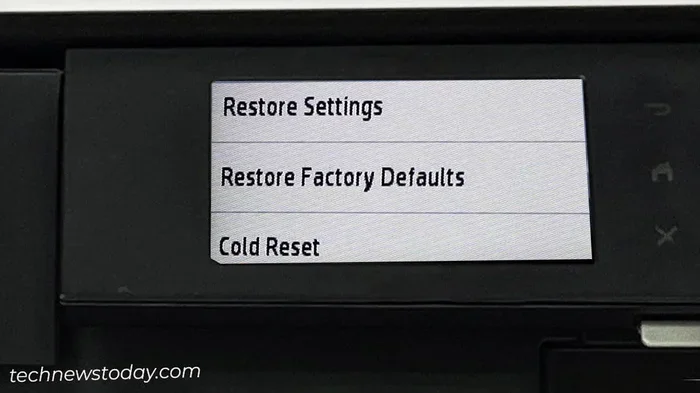
HP DeskJet printers are some of the most popular home printers in the world. Resetting one is straightforward. Start by turning off the printer using the power button. Wait about 30 seconds. Then press and hold the “Cancel” button and the “Power” button at the same time for five seconds. Release both buttons and wait for the printer to restart. This performs a soft reset. For a full factory reset, go to the Setup menu, choose “Restore Defaults,” and confirm your choice.
Resetting HP OfficeJet Printers
HP OfficeJet printers are designed for small offices and home offices. They have more features, which means a few extra steps for a complete reset. Turn off the printer first. Then navigate to the Setup menu on the control panel. Scroll to “Restore Defaults” or “Restore Factory Settings.” Confirm the selection, and the printer will restart with all settings cleared. You can also perform a network reset by going to the wireless settings menu and selecting “Restore Network Defaults.”
Resetting HP LaserJet Printers
HP LaserJet printers are built for heavy-duty printing in offices and businesses. The reset process on these models is slightly different. On most LaserJet printers, you press the “Menu” button, scroll to “Configuration Restore,” and select “Factory Default.” The printer will then reset all settings to the original factory configuration. Some newer LaserJet models also support a reset through the HP Web Jetadmin software, which is useful for IT teams managing multiple printers.
Common Reasons to Reset Your HP Printer
Knowing when to reset your printer is just as important as knowing how. Here are the most common situations where a reset solves the problem.
Fixing Connection Issues
Wireless printer connection problems are incredibly common. Your printer might show “Offline” on your computer, or it might refuse to join your Wi-Fi network. Before you spend hours troubleshooting, try a complete reset. The reset clears the old network configuration and forces the printer to start fresh. After the reset, you simply reconnect the printer to your Wi-Fi network using the HP Smart app or the control panel. Most connection issues disappear after this simple step.
Clearing Error Codes
HP printers display error codes on their screens or through blinking LED lights. Common codes include 0xc19a0003, 0xb80d0f01, and various “cartridge problem” messages. These error codes can be maddening, especially when you cannot figure out what they mean. A factory reset clears the error memory and gives the printer a fresh start. If the underlying problem is minor, the reset removes the error state and the printer works normally again.
Resolving Paper Jam Problems
Sometimes a printer will keep showing a paper jam error even after you remove all the paper. This happens when the printer’s sensors are stuck in an error state. A hard reset clears these sensor flags and tells the printer to recheck the paper path. In most cases, the error goes away after the reset, and you can print normally again.
Step-by-Step Guide to a Complete HP Printer Reset
Now that you understand the why and the what, let us walk through the how. Here are three methods you can use to completely reset your HP printer.
Method 1: Reset Using the Control Panel
This is the most direct method and works on most HP printers with a built-in screen. Follow these steps:
- Turn on your HP printer
- Press the “Setup” or “Gear” icon on the control panel
- Navigate to “Preferences” or “Advanced Settings”
- Select “Restore Defaults” or “Factory Reset”
- Confirm your choice when prompted
- Wait for the printer to restart completely
Once the printer finishes restarting, it is back to its original factory state. All custom settings have been removed, and the printer is ready for a fresh setup.
Method 2: Reset Using the HP Smart App
If you use the HP Smart app on your phone or tablet, you can reset the printer without touching the control panel. Here is how:
- Open the HP Smart app on your device
- Tap on your printer name from the home screen
- Go to “Printer Settings” or the gear icon
- Look for “Reset” or “Restore Factory Defaults”
- Confirm the reset when prompted
- Wait for the process to complete
The HP Smart app makes this process very easy, even for people who are not tech-savvy. The app walks you through each step and shows your progress on screen.
Method 3: Reset Using Computer Software
You can also reset your HP printer from your computer using the HP printer software or the Windows or Mac printer settings. Here is the process:
- Open “Devices and Printers” on Windows or “Printers & Scanners” on Mac
- Right-click on your HP printer and select “Printer Properties”
- Go to the “Ports” or “General” tab
- Look for a “Reset” or “Restore Defaults” option
- Follow the on-screen prompts to complete the reset
Another option is to use the HP Print and Scan Doctor tool, which is a free download from HP’s website. This tool automatically detects printer problems and can guide you through a reset if needed.
What to Do After Resetting Your HP Printer
A complete reset clears everything, which means you need to set up your printer again. This is not complicated, but it does take a few minutes. Here is what you should do after the reset is complete.
Reconfigure Your Network Settings
First, reconnect your printer to your Wi-Fi network. Open the HP Smart app and follow the on-screen instructions to connect. You can also use the printer’s control panel to navigate to the wireless setup menu. Enter your Wi-Fi password and wait for the connection to establish. Once connected, print a network configuration page to confirm everything is working.
Update Your Printer Drivers
After a factory reset, your computer may lose the printer driver. Go to HP’s official website and download the latest driver for your specific printer model. Install the driver on your computer, and then add the printer through your operating system’s printer settings. This ensures you have the most up-to-date software and the best compatibility.
Restore Your Custom Settings
If you wrote down your settings before the reset, now is the time to put them back. Reconfigure your preferred print quality, paper size, double-sided printing, and any other custom preferences. You can also set up scan profiles, fax numbers, and email notifications if your printer supports those features.
Test Your Printer
Always print a test page after completing the reset and reconfiguration. This confirms that everything is working properly. If the test page prints cleanly, you are all set. If you still see problems, double-check your connections and settings, or consider running the HP Print and Scan Doctor tool again.
Common Mistakes to Avoid When Resetting Your HP Printer
Even though resetting a printer is straightforward, people make mistakes that cause problems. Here are some common errors to avoid.
- Forgetting to back up settings: Always write down your Wi-Fi password and custom preferences before performing a reset.
- Interrupting the reset process: Do not turn off the printer while it is resetting. This can corrupt the firmware and cause bigger problems.
- Using the wrong reset method: Make sure you are doing a factory reset, not just a soft reset, if your goal is to clear all settings.
- Skipping driver updates: After a reset, always install the latest drivers to avoid compatibility issues.
- Ignoring error messages: If the printer shows a new error after the reset, do not ignore it. Address it right away before it becomes a bigger issue.
Expert Tips for Keeping Your HP Printer in Top Shape
Resetting your printer is a great troubleshooting tool, but the best approach is prevention. Here are some expert tips to keep your HP printer running smoothly and reduce the need for future resets.
- Update firmware regularly: HP releases firmware updates that fix bugs and improve performance. Check for updates at least once a month.
- Use genuine HP cartridges: Third-party cartridges can cause compatibility issues and error codes. Genuine HP cartridges are designed to work perfectly with your printer.
- Clean the print heads regularly: Run the print head cleaning utility from the HP Smart app every few weeks to prevent clogged nozzles and print quality issues.
- Keep the printer in a clean environment: Dust and debris can cause paper jams and sensor errors. Keep your printer in a clean, dry area.
- Restart your printer weekly: A simple weekly restart clears temporary files and keeps the printer running efficiently.
These small habits go a long way. They keep your HP printer healthy and reduce the chances that you will need a full factory reset anytime soon.
When a Reset Is Not Enough
In some cases, a complete reset will not fix the problem. If your HP printer still has issues after a factory reset, the problem might be hardware-related. Here are some signs that you need professional help:
- Hardware failure: The printer makes unusual grinding or clicking noises during operation
- Firmware corruption: The printer screen stays blank or shows garbled text after a reset
- Cartridge recognition failure: The printer still cannot detect cartridges even after a full reset
- Physical damage: There is visible damage to the printer body, rollers, or print head
If you notice any of these signs, contact HP support or take the printer to a certified service center. A reset cannot fix physical damage or deep firmware corruption. In these cases, professional diagnosis and repair are the best next steps.
Frequently Asked Questions
How long does it take to completely reset an HP printer?
A complete factory reset usually takes between 3 and 10 minutes, depending on your printer model. The printer will restart during the process and may take a few extra minutes to fully initialize. Do not interrupt the process, as this can cause problems.
Will a factory reset delete my saved documents or print jobs?
Yes, a factory reset clears the print queue and any stored print jobs from the printer’s memory. However, documents saved on your computer or in cloud storage are not affected. The reset only impacts the printer itself and its local settings.
Can I undo a factory reset on my HP printer?
No, there is no undo button for a factory reset. Once the reset is complete, all custom settings are permanently removed. This is why it is important to write down your Wi-Fi password and any important configurations before you start the reset process.
What is the difference between a soft reset and a factory reset?
A soft reset simply turns the printer off and back on again. It refreshes the current state without deleting any settings. A factory reset completely wipes all custom configurations and restores the printer to its original out-of-box condition. Use a soft reset for minor issues and a factory reset for persistent problems.
Do I need to reinstall ink cartridges after a factory reset?
No, you do not need to remove or reinstall ink cartridges after a reset. The cartridges stay in place. However, the printer may ask you to confirm the cartridge types after the reset. Simply follow the on-screen prompts to complete the setup.
Can I reset my HP printer without the control panel?
Yes, you can reset your HP printer using the HP Smart app on your phone or tablet, or through the printer software on your computer. Both methods provide the same factory reset functionality without needing to access the physical control panel on the printer.
Conclusion
Can you completely reset an HP printer? The answer is a definitive yes. Whether you own an HP DeskJet, OfficeJet, or LaserJet, a full factory reset is always available and can solve a wide range of problems. From connection issues to error codes to stubborn print quality problems, a reset gives your printer a fresh start and often fixes what nothing else can.
The key is to follow the right steps for your specific model, back up your settings first, and be prepared to reconfigure everything after the reset. With the instructions in this guide, you have everything you need to perform a complete reset confidently and safely.
Remember that resetting your printer is a powerful troubleshooting tool, but it is not a substitute for regular maintenance. Keep your printer clean, update the firmware, use genuine HP supplies, and restart the printer weekly. These simple habits keep your HP printer running at its best and reduce the need for future resets. Now you have the knowledge to take control of your printer and keep it working the way it should.