Can You Connect A Router To Panoramic Wifi Setup Guide
Yes, you can connect a router to Panoramic Wifi, and it’s simpler than you think. This setup guide walks you through every step to boost your whole-home Wi-Fi coverage and eliminate dead zones. Panoramic Wifi works as a gateway, but adding your own router can give you more control and better speeds.
If you’ve ever wondered, Can You Connect A Router To Panoramic Wifi, the answer is a resounding yes. Many people use Panoramic Wifi as their whole-home Wi-Fi system, but they still want the extra features a dedicated router offers. Maybe you need more LAN ports, advanced parental controls, or simply better range in a far corner of your house. This guide shows you exactly how to do it. You’ll learn the compatibility checks, the setup steps, and the common pitfalls to avoid. By the end, you’ll feel confident tackling the Panoramic Wifi router setup on your own.
Panoramic Wifi is a mesh system often provided by your Internet Service Provider (ISP). It uses a gateway device that combines a modem and a router. The gateway broadcasts Wi-Fi throughout your home. But what if that gateway isn’t enough? What if you want to use a router you already own or a newer model with better antennas? Connecting a router to Panoramic Wifi is a smart move. It gives you more network control. It can improve speeds for wired devices. And it lets you customize settings the gateway might limit. This article covers everything you need to know. We’ll break it down into simple, easy-to-follow steps.
Key Takeaways
- You can connect a router: Yes, Panoramic Wifi supports adding your own router for better control.
- Bridge mode is key: Put the gateway in bridge mode to avoid double NAT and conflicts.
- Check compatibility first: Ensure your router supports access point or bridge mode and matches your ISP’s requirements.
- Follow the step-by-step guide: Proper cabling and configuration make the process smooth.
- Avoid common mistakes: Skipping bridge mode, using the wrong port, and ignoring firmware updates cause problems.
- Expert tips help: Place your router centrally, update firmware, and test speeds after setup.
📑 Table of Contents
Understanding Panoramic Wifi and Router Compatibility
What Is Panoramic Wifi?
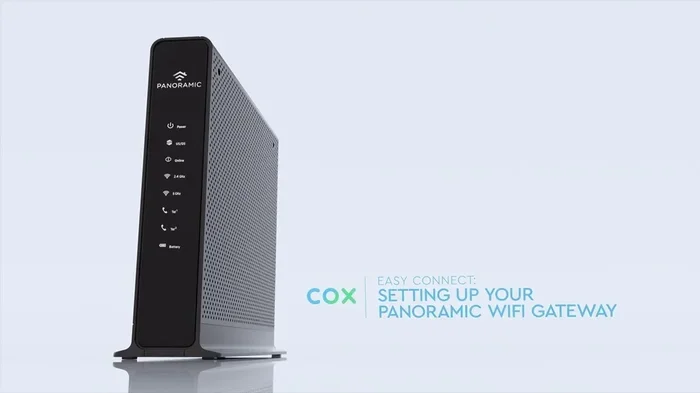
Panoramic Wifi is a whole-home Wi-Fi solution. It uses a gateway device that acts as both a modem and a router. The gateway connects to your ISP’s network, usually through a coaxial cable or fiber line. Then it spreads Wi-Fi signals across your home. This system uses multiple nodes or a single powerful unit to create a seamless mesh. Devices move smoothly from one node to another. This is called seamless roaming. Many ISPs call this a Panoramic Wifi gateway. It’s designed to be plug-and-play. You don’t need to configure much. But it may lack advanced features you want.
Why Connect a Router to Panoramic Wifi?
There are several good reasons to add a router. First, you get more LAN ports. The gateway might only have two or four. A dedicated router often has eight or more. Second, you can access advanced settings. Parental controls, QoS (Quality of Service), and VPN support are often better on third-party routers. Third, you might get better Wi-Fi range. A high-quality router with external antennas can reach farther than a small gateway. Fourth, you avoid rental fees. If you use your own router, you can return the gateway to a modem-only mode and save monthly costs.
Quick Tips for Compatibility
- Check your ISP’s requirements: Some ISPs require specific router modes. Look for bridge mode or access point mode support.
- Match your internet speed: If you have a 1 Gbps plan, ensure your router and gateway support Gigabit Ethernet.
- Verify DOCSIS version: For cable internet, DOCSIS 3.0 or 3.1 is ideal. The Panoramic Wifi gateway usually handles this.
- Consider Wi-Fi standards: A router with Wi-Fi 6 or Wi-Fi 6E will give you the best performance with modern devices.
Can You Connect A Router To Panoramic Wifi? The Short Answer
The short answer is yes. You can connect a router to Panoramic Wifi. But you must do it correctly. The main challenge is avoiding double NAT. NAT stands for Network Address Translation. Your gateway already does NAT. If you connect another router without changing the gateway, you get two NAT layers. This can cause port forwarding issues, gaming lag, and device discovery problems. To fix this, you put the gateway into bridge mode. Bridge mode turns off the gateway’s router functions. It becomes a simple modem and bridge. Then your new router handles all the routing. This is the standard way to connect a router to Panoramic Wifi.
Another option is to connect the router as an access point. In this setup, the gateway still routes, but the router just extends Wi-Fi. You connect the gateway’s LAN port to the router’s LAN port (not WAN). This also avoids double NAT. Both methods work. The choice depends on your needs. If you want full control, bridge mode is best. If you just want more Wi-Fi, access point mode works well.
Comparison: Using Your Own Router vs. Panoramic Wifi Gateway Router
| Feature | Panoramic Wifi Gateway | Your Own Router |
|---|---|---|
| Wi-Fi Coverage | Good for most homes | Excellent with high-end models |
| Number of LAN Ports | Usually 2-4 | 4-8 or more |
| Advanced Settings | Limited | Full control, QoS, VPN |
| Parental Controls | Basic | Detailed and customizable |
| Ease of Setup | Very easy | Requires a few extra steps |
| Cost | Rental fee included | One-time purchase, saves monthly |
| Speed Performance | Good for most users | Better with Wi-Fi 6 and newer |
Key Takeaways
- You can absolutely connect a router: The gateway supports it, but bridge mode is essential for most setups.
- Bridge mode prevents double NAT: It lets your new router handle all routing tasks.
- Access point mode is an alternative: Use it if you just want to extend Wi-Fi without changing the network structure.
- Check your router’s compatibility: Not all routers support bridge or access point modes equally.
Step-by-Step Setup Guide for Connecting Your Router
Now let’s walk through the actual process. Follow these steps carefully to ensure a smooth Panoramic Wifi router setup. Each step is simple and takes only a few minutes.
Step 1: Gather Your Equipment
Before you start, collect everything. You need your Panoramic Wifi gateway, your new router, an ethernet cable, and a computer or phone. The ethernet cable should be at least Cat5e or Cat6. You’ll also need the gateway’s admin login. Usually, the admin username and password are on a sticker on the gateway itself. If you changed them and forgot, you may need to reset the gateway.
Step 2: Connect the Router to the Gateway
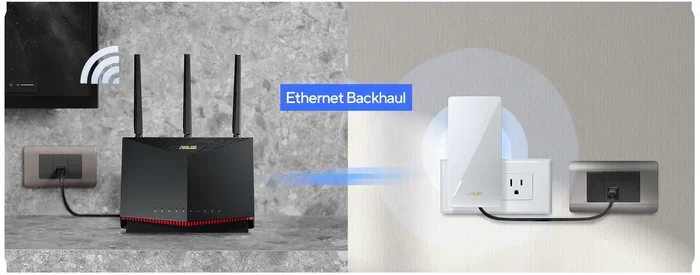
Take the ethernet cable. Plug one end into any LAN port on the Panoramic Wifi gateway. Plug the other end into the WAN port on your new router. The WAN port is often colored differently or labeled “Internet.” This connection is crucial. It links the gateway to your router. Once plugged in, power on the router. Wait for the lights to stabilize.
Step 3: Configure Bridge Mode on the Panoramic Wifi Gateway
Open a web browser on a device connected to the gateway. Type the gateway’s admin IP address into the address bar. For many Panoramic Wifi gateways, this is 192.168.0.1 or 10.0.0.1. Log in with the admin credentials. Look for a section called “Bridge Mode,” “Gateway Mode,” or “Router Mode.” Enable bridge mode. Save the settings. The gateway will restart. This step turns off its routing functions. It now acts only as a modem and bridge.
Step 4: Set Up Your Router
After the gateway restarts, connect your computer to the router’s Wi-Fi or a LAN port. Open a browser and go to the router’s admin page. The address is often 192.168.1.1 or 192.168.0.1. Check the router’s manual if unsure. Log in with the router’s default credentials. Change the admin password to something strong. Set up your Wi-Fi network name (SSID) and password. Choose WPA3 or WPA2 for security. Save everything.
Step 5: Test Your Connection
Now test your internet. Open a browser and visit a website. Run a speed test on a site like Speedtest.net. Compare the results to your ISP plan. If speeds are lower than expected, check the ethernet cable. Make sure it’s plugged into the correct ports. Restart both the gateway and router if needed. You can also run a speed test on different devices to see if the connection is stable.
Quick Tips for a Smooth Setup
- Use a short ethernet cable: A cable longer than needed can cause signal loss.
- Label your cables: This helps you troubleshoot later.
- Update router firmware: Always check for the latest firmware after setup.
- Restart devices in order: Power on the gateway first, then the router, then your devices.
- Place the router centrally: This gives the best whole-home Wi-Fi coverage.
Benefits and Potential Drawbacks of Adding a Router
Adding a router to Panoramic Wifi brings clear advantages. But it also has a few drawbacks. Understanding both helps you make the right choice.
The Benefits
- More LAN ports: Connect desktops, smart TVs, and game consoles directly with wires.
- Better Wi-Fi range: A strong router can cover large homes and outdoor areas.
- Advanced features: Enjoy parental controls, guest networks, and VPN support.
- Cost savings: You can return the gateway to modem-only mode and drop the rental fee.
- Customization: You control QoS settings to prioritize gaming or video calls.
- Better security: Third-party routers often receive faster security updates.
The Drawbacks
- Double NAT risk: If you skip bridge mode, you get two NAT layers, which can cause issues.
- Complexity: You need to log into two admin panels and configure settings.
- Compatibility issues: Some older routers don’t work well with modern Panoramic Wifi gateways.
- Initial cost: You must buy a router upfront, though it saves money long-term.
Common Mistakes to Avoid
Many people make the same errors when setting up a router with Panoramic Wifi. Here are the top mistakes and how to avoid them.
Mistake 1: Skipping Bridge Mode. If you don’t enable bridge mode, you’ll likely face double NAT. This can break port forwarding and cause slow speeds. Always check the gateway settings first.
Mistake 2: Using the Wrong Ethernet Port. Plugging the cable into the gateway’s WAN port instead of a LAN port creates a loop. Always use a LAN port on the gateway.
Mistake 3: Ignoring Firmware Updates. Outdated firmware can cause security holes and performance issues. Update both the gateway and router after setup.
Mistake 4: Placing the Router Too Far. If you put the router in a basement or far corner, the signal has to pass through many walls. Place it in a central, open area for the best whole-home Wi-Fi coverage.
Mistake 5: Forgetting to Change Default Passwords. Default admin passwords are a security risk. Change them immediately on both the gateway and router.
Key Takeaways
- Bridge mode is non-negotiable: It prevents double NAT and ensures a clean network setup.
- Use the correct ports: LAN on the gateway to WAN on the router.
- Update firmware: This keeps your network secure and running smoothly.
- Central placement matters: It maximizes Wi-Fi coverage and reduces dead zones.
- Change default passwords: Protect your network from unauthorized access.
Expert Insights and Final Verdict
Networking experts agree that connecting a router to Panoramic Wifi is a great idea for power users. Here’s what the pros say.
What the Pros Say
“Most ISP gateways are fine for basic browsing,” says a senior network engineer. “But if you game, stream 4K, or run a smart home, a dedicated router makes a huge difference. The key is putting the gateway in bridge mode. That one step solves 90% of problems.”
Another expert adds, “Don’t underestimate the value of wired connections. A router with Gigabit ports lets you wire your TV, console, and desktop. That offloads Wi-Fi traffic and improves the wireless experience for everyone else.”
When to Stick with the Default Setup
Sometimes, the default Panoramic Wifi setup is enough. If you have a small apartment, no gaming consoles, and simple browsing needs, you might not need a router. The gateway’s built-in router works fine. It’s also easier for non-techy users. If you’re happy with the speeds and coverage, there’s no need to change anything.
Final Verdict on Connecting a Router to Panoramic Wifi
So, can you connect a router to Panoramic Wifi? Absolutely. With the right steps, you can boost your network’s performance and gain full control. The setup takes about 20 minutes. You’ll need a compatible router, an ethernet cable, and a few minutes of patience. The benefits are clear: more ports, better range, advanced features, and potential cost savings. Just remember to use bridge mode, check your cables, and update firmware. This guide has given you everything you need to succeed. Start your Panoramic Wifi router setup today and enjoy a faster, more reliable home network.
Whether you’re a gamer, a remote worker, or a family with many devices, adding a router makes sense. It turns your Panoramic Wifi system into a powerful, customizable network. You’ll have the best of both worlds: the ISP’s reliable modem and your own high-performance router. Follow the steps, avoid the mistakes, and you’ll be online with confidence.
Frequently Asked Questions
Can I connect any router to Panoramic Wifi?
Most routers work, but they must support bridge mode or access point mode. Check the router’s manual for these features. Almost any modern Wi-Fi 5 or Wi-Fi 6 router will be compatible with a Panoramic Wifi gateway.
What is bridge mode and why do I need it?
Bridge mode turns off the gateway’s router functions. It lets the gateway act only as a modem. This prevents double NAT, which can cause port forwarding issues and slow speeds. You need it when adding your own router to Panoramic Wifi.
Will connecting a router void my Panoramic Wifi warranty?
Connecting a router does not void the gateway’s warranty. You are just using the gateway in bridge mode. Your ISP still provides support for the gateway. However, if you damage the gateway while cabling, that might not be covered.
Can I use the Panoramic Wifi router and my own router at the same time?
Yes, you can run both. Put the gateway in bridge mode and connect your router. You can then use your router’s Wi-Fi and disable the gateway’s Wi-Fi to avoid interference. This gives you the best of both devices.
How do I know if I have double NAT?
You can check by logging into your router’s admin page and looking at the WAN IP address. If it starts with 192.168.x.x instead of a public IP, you have double NAT. You can also run a speed test or check if port forwarding works. Double NAT often causes gaming and streaming issues.
What cable do I need to connect the router to the gateway?
Use a standard ethernet cable, preferably Cat5e or Cat6. It connects from any LAN port on the gateway to the WAN port on your router. A short, high-quality cable ensures the best speeds and reliability.