Can Hdmi To Displayport Go Both Ways On All Devices
Can HDMI to DisplayPort go both ways? The short answer is no, you cannot simply plug a HDMI cable into a DisplayPort monitor and expect it to work in reverse without help. Signal conversion requires specific gear, and most standard cables are one-way streets. If you want to connect a PC with an HDMI output to a DisplayPort monitor, or vice versa, you need the right active adapter. This guide will show you exactly how bi-directional connections work and what gear you need.
Key Takeaways
- No Direct Connection: Standard HDMI cables and DisplayPort cables cannot connect directly to each other without an adapter.
- Active Adapters Are Essential: You need an active adapter to convert the signal conversion from HDMI to DisplayPort or vice versa.
- Bi-Directional Options Exist: Some adapters can go both ways, allowing you to switch between HDMI and DisplayPort devices easily.
- Check Resolution and Refresh Rate: Cheap adapters might limit your resolution to 1080p or lower your refresh rate significantly.
- Power Matters: Many active adapters require external power via USB to function properly at high resolutions and refresh rates.
- Audio Pass-Through Varies: Not all adapters support audio pass-through, so always check the specs if you need sound.
📑 Table of Contents
Understanding HDMI and DisplayPort Basics
Before we answer if HDMI to DisplayPort can go both ways, we need to understand the two technologies involved. Both HDMI and DisplayPort carry digital video and audio. But they were built for different purposes and use different internal designs. Knowing these basics makes the whole connection process much easier and saves you a lot of money on the wrong gear.
What is HDMI?
HDMI stands for High-Definition Multimedia Interface. It is one of the most popular video output standards in the world today. You will find HDMI cables on almost every TV, laptop, and gaming console available on the market. The main job of an HDMI cable is to carry both high-definition video and audio through a single wire. This makes it super convenient for home theaters and PC setups alike. You do not need separate audio and video cables anymore. Over the years, HDMI has gone through several major updates to keep up with new television and monitor technology. HDMI 1.4 brought 4K support at 30Hz, which was a big deal when 4K TVs first came out. HDMI 2.0 pushed that to 4K at 60Hz, making it great for smooth, high-quality video. The newest standard, HDMI 2.1, supports up to 10K resolution and high refresh rates for serious gaming. When you plug in an HDMI cable, you are using a standard that has been around since 2003. It is widely backward compatible, which means older devices can still work with newer ports using the right cable. This wide support is why HDMI is everywhere in living rooms and offices around the world.
What is DisplayPort?
DisplayPort is another digital display standard, but it has a different origin story. It was developed by the Video Electronics Standards Association, or VESA. You usually find DisplayPort on PC graphics cards and high-end monitors. Unlike HDMI, DisplayPort was designed specifically for computer displays from the ground up. It focuses on delivering the sharpest image and fastest frame rates for PC use. DisplayPort is known for its high bandwidth, which allows for very high resolution and refresh rate combinations. For example, DisplayPort 1.4 easily handles 4K at 120Hz or even 144Hz without breaking a sweat. DisplayPort also supports daisy-chaining. This means you can connect multiple monitors to a single port using one cable. The physical connector comes in two sizes: the full-size DisplayPort and the Mini DisplayPort. Apple famously used the Mini version for years on their MacBooks and iMacs. Both versions carry the same signal, just in a smaller package that fits thinner laptops perfectly.
How Do They Differ?
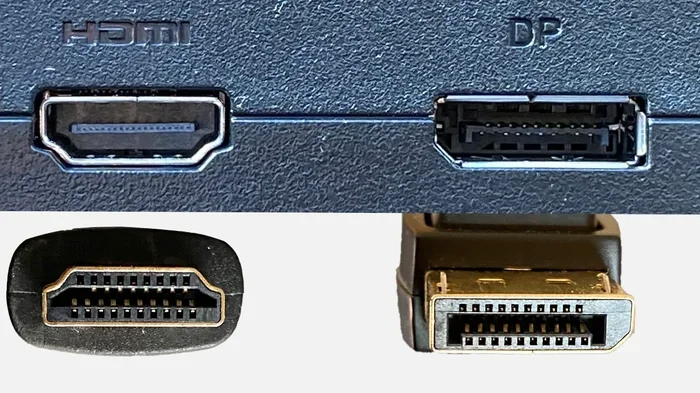
The biggest difference between HDMI and DisplayPort lies in their design purpose. HDMI is built for consumer electronics like your Blu-ray player or cable box. DisplayPort is built for computing and professional workstations where speed and image quality are everything. Another difference is the licensing. HDMI requires a license fee for manufacturers to use the technology. DisplayPort is royalty-free. This is why you see DisplayPort more on expensive monitors and professional gear where manufacturers want to save money. The connector shapes are different too. An HDMI plug is flat and rectangular with small side tabs. A DisplayPort plug is slightly asymmetrical with a clip on the side. This clip helps keep the cable secure in the monitor so it does not fall out when you bump your desk. These physical differences are the first clue that the two standards are not interchangeable without help.
Can HDMI To Displayport Go Both Ways?
This is the core question many users ask when they have mismatched gear sitting on their desk. The answer depends on what you mean by “both ways.” If you mean plugging an HDMI cable directly into a DisplayPort port, the answer is an absolute no. The pins inside an HDMI connector do not line up with the pins in a DisplayPort connector. They use completely different signal conversion methods under the hood. Even if you forced an HDMI plug into a DisplayPort hole, it would not work. The devices would not communicate at all. However, if you mean using an adapter to switch between the two, then yes, it can go both ways. You can use a bi-directional adapter. This special piece of hardware can convert an HDMI output to a DisplayPort input, and it can also convert a DisplayPort output to an HDMI input. But this only works if the adapter is active. A simple cable or passive piece of plastic will not do the job.
The Direction of Signal Flow
Understanding signal conversion is key to making this work. When your PC sends a video signal, it uses a specific language. An HDMI source speaks HDMI. A DisplayPort monitor speaks DisplayPort. They are two different languages. If you want them to understand each other, you need a translator. That translator is the active adapter. Without it, your video output will not reach the monitor. The signal just stops at the connector. When you use a bi-directional adapter, the translator can work in both directions. It can translate HDMI to DisplayPort, and it can also translate DisplayPort to HDMI. This is what makes true “both ways” operation possible. But remember, the translation process takes time and requires electricity to power the chip inside the box.
Why Standard Cables Are Not Reversible
Standard cables are not reversible because of how the pins are arranged inside the connector. An HDMI cable has 19 pins. These pins handle video data, audio data, and a clock signal that keeps everything in sync. A DisplayPort cable has 20 pins. These pins handle a completely different data protocol designed for high-bandwidth computer displays. When you try to plug an HDMI device into a DisplayPort monitor, the monitor does not know how to read the HDMI signal. It is like trying to plug a USB-A drive into a USB-C port without an adapter. The shapes are different, and the language the devices speak is different. You need a translator. That translator is the adapter. Without it, your video output will not reach the monitor. The graphics card will still work fine, but the screen will remain dark because it cannot understand the incoming signal. This is a very common mistake people make when setting up a new desk.
How Signal Conversion Works
Now that you know you need an adapter, let us look at how the actual signal conversion happens. This process is fascinating and very important for your setup. If you get this wrong, you will not get a picture on your screen, no matter how expensive your monitor is.
Active vs Passive Adapters
To make HDMI to DisplayPort work, you must understand the difference between active and passive adapters. A passive adapter simply changes the physical shape of the connector. It does not change the electrical signal inside the wire at all. Passive adapters only work when the signal type is exactly the same on both ends. For example, a passive adapter might work to change a full-size DisplayPort to a Mini DisplayPort. The signal remains pure DisplayPort throughout the process. A passive adapter will absolutely NOT work to convert HDMI to DisplayPort. You need an active adapter for that kind of conversion. An active adapter has a built-in chip. This chip takes the HDMI signal, decodes it into raw data, and then re-encodes it into a DisplayPort signal. This process is called signal conversion. It requires electricity to work, which is why active adapters often need to be plugged into a USB port on your PC or laptop to function correctly.
The Role of the Chipset
The chipset inside an active adapter is the real hero of the setup. It handles all the heavy lifting of signal conversion. When you send a video from an HDMI source to a DisplayPort monitor, the chipset translates the data on the fly. This translation takes a tiny bit of time. It can introduce a small amount of latency. For most office work, this latency is completely unnoticeable. You will not see any delay when moving your mouse or scrolling a web page. But for competitive gaming, even a few milliseconds of delay can matter a lot. A bad adapter can make your gaming experience frustrating when you are trying to aim quickly. The chipset also handles the EDID communication. EDID stands for Extended Display Identification Data. This is how your PC and monitor talk to each other. They share information about what resolution and refresh rate the monitor supports. A good active adapter passes this data correctly. A bad one might cause your PC to default to a low resolution like 1080p, even if your monitor is capable of 4K. Always check that your adapter supports the resolution and refresh rate you want to use on your screen.
Common Use Cases and Setups
Let us look at how people actually use HDMI to DisplayPort adapters in the real world. These examples will help you understand when you need this gear and how to set it up properly for the best experience.
Connecting a PC to a Monitor
Many people build a PC with an HDMI output but buy a DisplayPort monitor. This is very common in the gaming community right now. Graphics cards often have multiple HDMI ports because they are widely compatible with TVs and older gear. But high-end gaming monitors usually have DisplayPort inputs because DisplayPort offers higher bandwidth and better features for PC gaming. So, how do you connect them? You use an active HDMI to DisplayPort adapter. You plug the HDMI cable from your PC into the adapter. Then you plug a DisplayPort cable from the adapter to your monitor. Make sure the adapter is powered. Some adapters draw power from the USB port of your PC. This is called bus-powered. Others have a wall plug for external power. A powered adapter tends to be much more stable. It ensures you get the best resolution and refresh rate without any dropouts or annoying black screens.
Gaming Setups and Refresh Rates
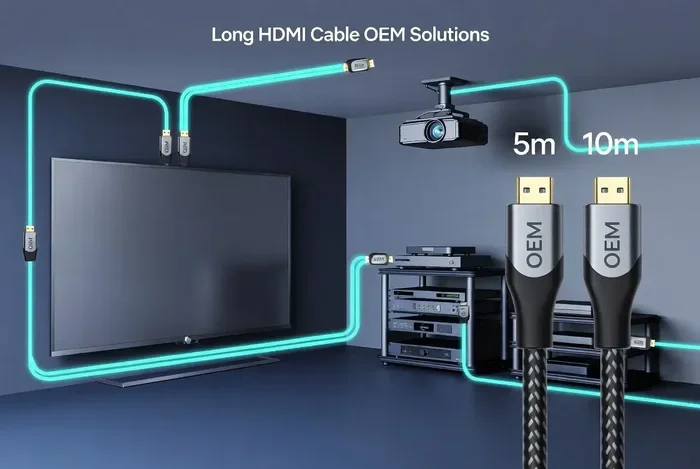
Gaming requires fast refresh rates and low latency to feel smooth and responsive. If you are a gamer, you need to be very careful with your adapter choice. Cheap adapters might only support 1080p or 60Hz. If you have a 144Hz monitor, a cheap adapter will severely limit your experience. You will not get the smooth motion you paid for, and your game will feel sluggish. Look for an adapter that explicitly supports high bandwidth. Check the box for 4K and 144Hz support before you buy. Also, consider the cable length. A very long HDMI cable can weaken the signal before it even reaches the adapter. This signal loss can cause flickering or a complete loss of signal. Keep your cable length as short as possible for the best video output. A short, high-quality HDMI cable paired with a good active adapter is the best formula for gaming setups at home.
Using a Laptop with a Docking Station
Laptops are another place where you see HDMI to DisplayPort questions all the time. Some laptops only have HDMI outputs. You might want to connect them to a DisplayPort monitor at your desk for more screen space. A docking station can help here. Many docking stations have bi-directional ports. This means they can act as an HDMI output or a DisplayPort output depending on the cable you use. This makes docking stations very versatile. They save you from carrying multiple adapters around with you. Just make sure your docking station supports the resolution you need. Some budget docks might only handle 1080p. If you want 4K on your monitor, you need a dock with a powerful internal chip that can handle the heavy data load.
Quick Tips, Common Mistakes, and Adapter Comparison
Setting up a new adapter can be tricky if you do not know what to look for. Here are some quick tips and common mistakes to help you avoid frustration. We have also included a helpful comparison table to guide your purchase.
Quick Tips for a Smooth Setup
- Always check the adapter specs. Do not assume any adapter supports 4K or high refresh rates. Read the fine print carefully.
- Use short HDMI cables. Shorter cable length means a stronger and more reliable signal path for your devices.
- Power your active adapter. If it has a USB cable, plug it in. Do not rely solely on bus power for 4K or high refresh rates.
- Update your graphics drivers. This helps with EDID communication between your PC and monitor for the best resolution.
Common Mistakes to Avoid
- Using a passive adapter for HDMI to DisplayPort. This will never work. The signal types are completely different and require active conversion.
- Ignoring the refresh rate. A cheap adapter might cap your refresh rate at 30Hz or 60Hz, making motion look choppy and unnatural.
- Forgetting about audio. Not all adapters pass audio. Check if you need audio pass-through for your setup if you are using external speakers.
- Buying the wrong version. An adapter for HDMI 1.4 will not support 4K 60Hz properly. Always check the HDMI and DisplayPort version support.
- Overlooking cable length. A very long HDMI cable can weaken the signal before it even reaches the adapter, causing annoying flickering.
Adapter Comparison Table
Choosing the right adapter can be confusing with so many options on the market. Use this table to compare the different types and find the one that fits your needs.
| Adapter Type | Direction | Signal Type | Powered? | Best For |
|---|---|---|---|---|
| Passive DisplayPort to Mini DisplayPort | One Way | DisplayPort | No | Connecting laptops to monitors |
| Active HDMI to DisplayPort | One Way | Converted | Yes | PC with HDMI to DP monitor |
| Active Bi-Directional Adapter | Both Ways | Converted | Yes | Flexible setups with HDMI and DP devices |
Final Thoughts on HDMI to DisplayPort Connections
So, can HDMI to DisplayPort go both ways? Yes, but only with the right gear. You cannot rely on a simple HDMI cable or a passive adapter. You need an active adapter that handles signal conversion. This is especially true if you want to go from an HDMI source to a DisplayPort monitor, or the other way around. Always look for a bi-directional adapter if you want the flexibility to switch between devices easily. Pay close attention to the resolution and refresh rate specs before you buy. A good adapter will make your PC and monitor work perfectly together. Do not let cable confusion stop you from building the perfect gaming or work setup. With the right active adapter, you can connect anything to anything and enjoy a flawless video output on your screen. Your setup will look great and perform even better when you use the correct adapter for the job.
Frequently Asked Questions
Can I use an HDMI to DisplayPort cable directly?
No, you cannot use an HDMI to DisplayPort cable directly because the connectors and signals are completely different. The physical pins do not align, and the devices speak different digital languages. You must use an active adapter to bridge the gap between the two standards and make them work together.
Why does my HDMI to DisplayPort adapter not support 4K?
Your adapter might not support 4K because it is a passive adapter or an older model with limited bandwidth. Passive adapters cannot change the signal type, so they do not work for HDMI to DisplayPort. Always buy an active adapter that explicitly lists 4K support in its specifications to avoid disappointment.
Does signal conversion affect gaming performance?
Yes, signal conversion can introduce a tiny bit of latency, but it is usually unnoticeable for casual gaming. However, competitive gamers might notice a slight delay with very cheap adapters. To minimize this, choose a high-quality active adapter that supports high refresh rates and low input lag for the smoothest experience.
Can I connect a DisplayPort source to an HDMI monitor?
Yes, you can connect a DisplayPort source to an HDMI monitor using a bi-directional active adapter. The adapter will convert the DisplayPort signal into an HDMI signal. Just make sure the adapter is powered and supports the resolution and refresh rate of your monitor for the best results.
What is EDID and why does it matter for adapters?
EDID stands for Extended Display Identification Data. It is the communication between your PC and monitor that tells the PC what resolution and refresh rate the screen can handle. A poor adapter might fail to pass this data correctly, causing your screen to flicker or display a low resolution like 1080p instead of 4K.
Are there any alternatives to using an adapter?
The best alternative to using an adapter is to buy a graphics card or monitor that has both HDMI and DisplayPort inputs natively. This eliminates the need for signal conversion entirely. Another option is a docking station with multiple output ports, giving you the flexibility to connect either type of cable directly without extra gear.