Can Dp Be Converted To Hdmi Everything You Need To Know
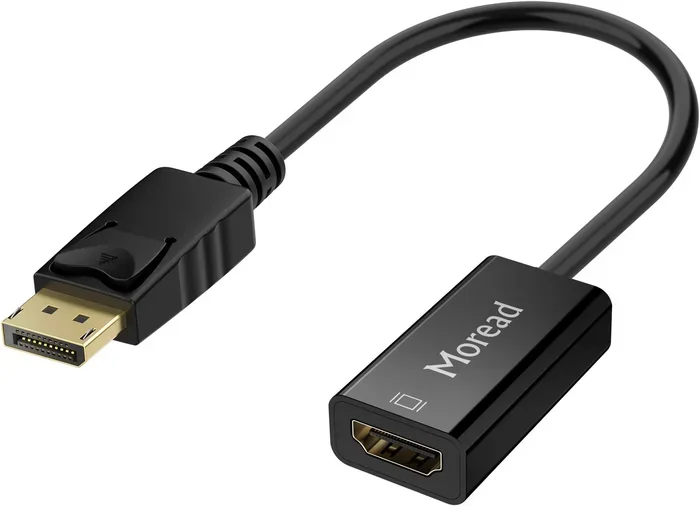
Yes, you can convert DP to HDMI using an adapter or converter. Whether you have a DisplayPort output on your PC or laptop and need to connect it to an HDMI monitor or TV, the process is simple and affordable. This guide covers everything from adapter types to troubleshooting common issues.
Have you ever plugged in a DisplayPort cable and realized your monitor only has an HDMI input? It happens all the time. You buy a new graphics card or a sleek monitor, and then you hit a wall. The ports don’t match. But here is the good news. Can DP be converted to HDMI? Absolutely yes. You can bridge that gap between DisplayPort and HDMI without buying all new gear.
This guide walks you through every detail. From the different types of adapters to step-by-step setup instructions, we have you covered. You will learn what works, what does not, and how to avoid common pitfalls. By the end, you will feel confident making any DP to HDMI connection at home or in the office.
Let us start with the basics. Understanding how these two ports differ is the first step to a smooth conversion. DisplayPort and HDMI both carry high-definition video signals, but they use different connectors and protocols. Knowing this helps you choose the right adapter and avoid frustrating surprises.
Key Takeaways
- DP to HDMI conversion is fully possible: You can connect a DisplayPort source to an HDMI display with the right adapter.
- Active adapters are needed for DP++ or dual-mode ports: Passive adapters only work with certain DisplayPort signals.
- You can get 4K resolution at 60Hz: The right adapter supports high resolutions and refresh rates.
- Audio travels through HDMI too: You get both video and sound from a single cable after conversion.
- Common problems are easy to fix: Most issues come from adapter type, cable quality, or driver settings.
- Check compatibility first: Not all adapters work with all devices, so always verify specs before buying.
📑 Table of Contents
- What Is DisplayPort and Why Do People Want to Convert It?
- Can You Convert DP to HDMI? The Straight Answer
- Active vs Passive DP to HDMI Adapters
- Step-by-Step Guide to Converting DP to HDMI
- Common Problems and How to Fix Them
- Expert Tips for the Best Conversion Experience
- Does DP to HDMI Conversion Affect Quality?
- What About Mini DisplayPort and USB-C?
- Final Thoughts and Key Takeaways
What Is DisplayPort and Why Do People Want to Convert It?
DisplayPort is a video connection standard developed by VESA. It is commonly found on PCs, laptops, and graphics cards. Many gamers and professionals prefer it because it supports high resolutions and fast refresh rates. But not every display uses DisplayPort. Monitors, TVs, and projectors often rely on HDMI instead.
So why do people need to convert DP to HDMI? A few reasons come up again and again. Maybe you have a powerful desktop with a DisplayPort output but only an HDMI monitor. Perhaps your laptop has a USB-C with DisplayPort alternate mode and your TV only accepts HDMI. Or maybe you are setting up a multi-monitor workstation and need to mix different port types.
The good news is that converting between these two standards is well-supported. You just need the right tool for the job. Let us look at those tools next.
Can You Convert DP to HDMI? The Straight Answer
The short answer is yes. You can convert DisplayPort to HDMI using an adapter or a dedicated converter box. The conversion process takes the video signal from your DP source and translates it into a format your HDMI display can read. Both audio and video can travel through the connection, depending on the adapter you choose.
But not all adapters are created equal. The type of adapter you need depends on your specific setup. Let us break down the two main categories so you know exactly what to look for.
How the Conversion Process Works
When you send a signal from a DisplayPort output, the adapter or converter takes that digital signal and re-encodes it for HDMI. This happens in real time. You do not need any special software in most cases. The adapter handles the translation automatically.
Here is a quick look at what happens behind the scenes:
- The graphics card or laptop sends a DisplayPort signal.
- The adapter receives that signal and converts it.
- The converted signal travels through an HDMI cable to your display.
- Your monitor or TV displays the video and audio.
It is a simple process. But the quality of your experience depends heavily on the adapter you pick. Cheap adapters can cause signal loss, flickering, or no signal at all. We will cover how to pick the right one in the next section.
Active vs Passive DP to HDMI Adapters
This is where most people get confused. Not all adapters work the same way. There are two main types: active and passive. Each has a specific use case, and picking the wrong one leads to problems.
What Is a Passive Adapter?
A passive adapter does not need external power. It simply changes the shape of the connector. Passive adapters work when your source has a dual-mode DisplayPort (also called DP++). This means the port can detect an HDMI adapter and output an HDMI-compatible signal automatically.
Most modern laptops and desktops with DisplayPort support dual-mode. If your device does, a passive adapter will work fine. You plug it in, and it just works. No drivers, no extra cables, no fuss.
What Is an Active Adapter?
An active adapter has built-in electronics. It needs power, usually from a USB port or through the adapter cable itself. Active adapters convert the signal regardless of whether your port supports dual-mode. They are more versatile and reliable for a wider range of devices.
You need an active adapter when your DisplayPort source does not support DP++. Older graphics cards and some specialized hardware fall into this category. Active adapters also handle more complex conversions, like converting a USB-C DisplayPort signal to HDMI.
Comparison Table: Active vs Passive Adapters
| Feature | Passive Adapter | Active Adapter |
|---|---|---|
| Needs External Power | No | Yes |
| Works with DP++ Ports | Yes | Yes |
| Works with Non-DP++ Ports | No | Yes |
| Price Range | $5 to $15 | $15 to $50 |
| Signal Quality | Good (when compatible) | Excellent |
| Best For | Modern laptops and PCs | Older devices and complex setups |
Quick Tip: When in doubt, go with an active adapter. It costs a little more but works with almost every setup. You will save yourself the headache of a non-working connection.
Step-by-Step Guide to Converting DP to HDMI
Setting up your DP to HDMI conversion is straightforward. Follow these steps and you will be up and running in minutes.
Step 1: Identify Your DisplayPort Type. Check whether your source device has a full-size DisplayPort, a Mini DisplayPort, or a USB-C port with DisplayPort alternate mode. This determines which adapter you need.
Step 2: Choose the Right Adapter. Based on your port type and whether your source supports DP++, pick either a passive or active adapter. Make sure it supports your desired resolution and refresh rate.
Step 3: Connect the Adapter. Plug the DisplayPort side into your source device. If using an active adapter, connect any required power cable.
Step 4: Connect the HDMI Cable. Run an HDMI cable from the adapter to your monitor or TV.
Step 5: Power On and Test. Turn on your display and switch to the correct HDMI input. Your screen should light up with a signal.
Step 6: Adjust Display Settings. If needed, go into your operating system display settings and select the correct resolution and orientation. Most systems detect the display automatically.
Common Mistake to Avoid: Do not buy a passive adapter for a non-DP++ port. This is the number one reason adapters fail. Always check your device specifications first.
Common Problems and How to Fix Them
Even with the right adapter, you might run into issues. Here are the most common problems people face when converting DisplayPort to HDMI and how to solve them.
No Signal on the Display
If your screen stays black, the adapter might not be compatible with your port type. Try a different adapter, preferably an active one. Also check that the HDMI cable is firmly connected on both ends. A loose cable is an easy fix that people often overlook.
Flickering or Intermittent Signal
Flickering usually points to a cable quality issue or a bandwidth problem. Cheap HDMI cables may not handle high resolutions well. Try a certified high-speed HDMI cable rated for 4K or 8K. Also make sure your adapter supports the resolution you are trying to output.
No Audio Through HDMI
Sometimes you get video but no sound. This happens when your system is still routing audio through the DisplayPort output instead of HDMI. Go to your sound settings and set the HDMI display as your default audio output device. On Windows, right-click the speaker icon and select your HDMI device. On macOS, go to Sound Preferences and choose the HDMI output.
Resolution Looks Blurry or Wrong
If your display looks fuzzy, check your native resolution settings. Your monitor has a specific native resolution it was designed for. Setting the wrong resolution causes blurriness. Go to Display Settings and select the recommended resolution for your screen.
Refresh Rate Drops Below Expected Levels
A lower-than-expected refresh rate can make motion look choppy. This often happens when the adapter or cable does not support the bandwidth needed for high refresh rates at high resolutions. Make sure your adapter, cable, and display all support the refresh rate you want. For 4K at 144Hz, you need a premium adapter and a high-quality HDMI 2.1 cable.
Expert Insight: DisplayPort version matters too. A DisplayPort 1.2 output may not support 4K at 60Hz over an adapter. Check your graphics card and source device specs to confirm what bandwidth is available. Upgrading to a DisplayPort 1.4 source can make a huge difference in signal quality and supported resolutions.
Expert Tips for the Best Conversion Experience
Getting the most out of your DP to HDMI setup comes down to a few smart choices. Here are expert-backed tips that make a real difference.
Buy Certified Adapters. Look for adapters certified by DisplayPort or HDMI licensing groups. Certified adapters have been tested for reliability and signal integrity. They cost a bit more but save you from constant troubleshooting.
Use High-Quality Cables. The cable matters just as much as the adapter. A poor-quality HDMI cable can bottleneck your signal and limit your resolution or refresh rate. Invest in cables from reputable brands that support the bandwidth you need.
Update Your Drivers. Graphics card drivers affect how your video signal is processed. Outdated drivers can cause compatibility issues with adapters. Keep your GPU drivers up to date through your manufacturer’s software.
Consider a Converter Box for Complex Setups. If you need to convert multiple signals or connect several displays, a dedicated converter box is better than a simple adapter. Converter boxes offer more ports, better signal processing, and often include additional features like audio extraction.
Check for Thunderbolt Compatibility. Many modern laptops use Thunderbolt ports that support DisplayPort signaling. A Thunderbolt-to-HDMI adapter works differently than a standard DisplayPort adapter. Make sure your adapter is compatible with Thunderbolt if that is what your device uses.
Mind the Adapter Orientation. Some adapters are designed for specific port orientations. A right-angle adapter can help when space is tight behind your desk. It keeps cables neat and prevents strain on the connection.
Test Before You Commit. If possible, test your adapter with your specific setup before making a permanent installation. Many online retailers have generous return policies. Use them to find the adapter that works best for your gear.
Does DP to HDMI Conversion Affect Quality?
A common concern is whether converting the signal degrades quality. In most cases, the answer is no. A good adapter preserves the full video quality of your original signal. You can get crisp 4K visuals and smooth motion without any noticeable loss.
However, cheap or incompatible adapters can introduce problems. Signal degradation, color banding, and dropped frames are signs of a poor-quality converter. This is why investing in a reputable adapter from a trusted brand is so important. The small upfront cost saves you from a frustrating experience later.
Also keep in mind that the weakest link in your chain determines your overall quality. If your HDMI cable cannot handle 4K bandwidth, you will not get 4K no matter how good your adapter is. Every component in the chain matters.
What About Mini DisplayPort and USB-C?
Mini DisplayPort is a smaller version of the standard DisplayPort. Apple used it in many of their devices for years. Converting Mini DisplayPort to HDMI works the same way as full-size DisplayPort. You just need an adapter with the right connector on the source side.
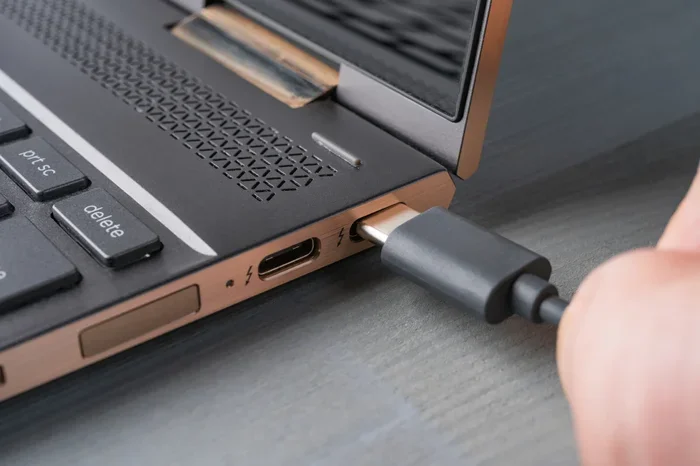
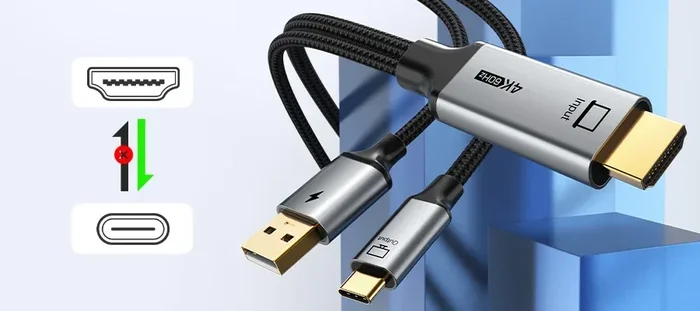
USB-C with DisplayPort Alternate Mode is another common scenario. Many modern laptops and tablets use USB-C ports that can carry DisplayPort signals. In this case, you need a USB-C to HDMI adapter or cable. Some of these cables are all-in-one, meaning you plug USB-C into your device and HDMI into your display. No separate adapter needed.
For USB-C setups, make sure your device supports DisplayPort Alternate Mode. Not all USB-C ports carry video signals. Some USB-C ports are data-only or power-only. Check your device manual or specifications to confirm video output capability before buying an adapter.
Quick Tip: If your USB-C port supports Thunderbolt 3 or 4, it almost certainly supports video output. Thunderbolt ports are fully compatible with DisplayPort signaling and work seamlessly with most adapters.
Final Thoughts and Key Takeaways
So, can DP be converted to HDMI? Yes, without a doubt. Whether you use a simple passive adapter or a feature-rich active converter, the process is straightforward and affordable. The key is choosing the right adapter for your specific setup and making sure all your components support the resolutions and refresh rates you need.
Remember to check your port type, verify DP++ support, invest in quality cables, and keep your drivers updated. These small steps make a big difference in your daily experience. A well-configured DP to HDMI setup gives you a reliable, high-quality connection between your source device and your display.
Now that you have all the information you need, you can confidently set up your display without any compatibility headaches. Grab the right adapter, follow the steps, and enjoy your screen in no time.
Frequently Asked Questions
Do I need a special adapter to convert DP to HDMI?
Yes, you need either a passive or active DP to HDMI adapter depending on your device. Check if your DisplayPort supports dual-mode (DP++) first. If it does, a passive adapter works. If not, you need an active adapter with built-in conversion chips.
Can I get 4K resolution through a DP to HDMI adapter?
Yes, but only with the right adapter and cable. Make sure your adapter supports 4K and your HDMI cable is rated for high bandwidth. DisplayPort 1.2 and above can carry 4K signals, and most modern adapters handle this without issues.
Will I lose audio when converting DP to HDMI?
No, you should not lose audio. Most DP to HDMI adapters carry both video and audio signals. If you experience no sound, check your system audio settings and make sure the HDMI display is set as the default audio output device.
Can I use a USB-C to HDMI adapter instead?
Yes, if your device has a USB-C port with DisplayPort alternate mode, a USB-C to HDMI adapter works perfectly. This is common on modern laptops and tablets. Just verify that your USB-C port supports video output before purchasing.
Why does my adapter keep disconnecting or flickering?
Flickering or disconnections usually result from a poor-quality adapter, a bad cable, or an incompatible port type. Try a certified active adapter and a high-speed HDMI cable. Also update your graphics drivers, as outdated software can cause signal instability.
Are expensive DP to HDMI adapters worth the money?
They can be. Premium adapters offer better signal processing, higher bandwidth support, and more reliable connections. If you need 4K at high refresh rates or use your setup for professional work, investing in a quality adapter is worthwhile. For basic 1080p use, a mid-range adapter works just fine.