Can A Usb Port Be Converted To Hdmi With These Simple Steps
Can a USB port be converted to HDMI? Yes, it can. With the right USB to HDMI adapter or HDMI converter, you can turn any USB port into a display output for your external monitor, TV, or projector. This guide covers simple steps, product recommendations, and troubleshooting tips to get your video signal running smoothly in minutes.
Have you ever been in a situation where you need to connect a device to a screen, but the only port available is a USB port? It can feel frustrating and confusing. The good news is that converting a USB port to HDMI is entirely possible. You do not need to be a tech expert to make it work. With the right USB to HDMI adapter, you can mirror your screen, extend your display, or stream content to a larger HDMI display in just a few minutes.
Many people wonder, can a USB port be converted to HDMI? The answer is a clear yes. Whether you have a laptop, a desktop computer, or even a tablet with a USB port, there is a video adapter that can bridge the gap. This guide walks you through everything you need to know. From understanding your USB port types to choosing the best HDMI converter, we have you covered. You will learn simple steps that work for almost any setup.
We also share practical tips, product recommendations, and solutions to common problems. By the end of this guide, you will feel confident making any USB port HDMI conversion on your own. No guesswork. No confusion. Just straightforward advice that gets results.
Key Takeaways
- USB to HDMI conversion is possible: You can use an adapter or converter to connect USB ports to HDMI displays easily.
- USB Type-A and USB Type-C both work: Choose the right adapter based on your port type for the best results.
- Plug and play options exist: Many USB to HDMI adapters require no extra software or drivers.
- Budget and premium adapters are available: You can find reliable options at every price point.
- Common issues are fixable: No signal or audio problems can usually be solved with simple troubleshooting steps.
- Check compatibility first: Make sure your USB port and display device support the conversion before buying.
📑 Table of Contents
What Is a USB to HDMI Conversion?
A USB to HDMI conversion means using a device or adapter to send a video signal from a USB port to an HDMI display. The USB port carries data and power, while the HDMI port carries high-quality audio and video. The adapter or converter bridges these two technologies so your screen can display content from a USB source.
Think of it like a translator. Your computer speaks USB, and your monitor or TV speaks HDMI. The USB to HDMI adapter helps them understand each other. Once connected, you can use your TV or external monitor as an extension of your computer screen. This is useful for presentations, gaming, streaming, or simply having a bigger workspace.
The process is called plug and play with most modern adapters. You plug the USB adapter into your computer, connect an HDMI cable from the adapter to your display, and the screen shows up automatically. No complicated setup is needed in most cases. Some adapters may require a quick driver install, but the majority work right out of the box.
Types of USB Ports That Support HDMI Conversion
Not all USB ports are the same. Before you buy an adapter, it helps to know which USB port type you have. Different ports offer different speeds and capabilities. Let us look at the two most common types that support USB to HDMI conversion.
USB Type-A to HDMI Adapters
USB Type-A is the classic rectangular port found on most desktop computers and older laptops. If your device has this port, you can use a USB-A to HDMI adapter. These adapters are widely available and affordable. They work well for basic display tasks like extending your screen or showing a presentation.
Most USB Type-A to HDMI adapters support USB 3.0 or USB 2.0 connections. A USB 3.0 port provides more power and faster data transfer, which helps with smoother video playback. If you only have a USB 2.0 port, the adapter will still work, but you may notice lower frame rates or reduced quality at higher display resolutions.
These adapters are great for older computers, office desktops, and devices that do not have USB Type-C ports. They are simple to use and require no technical knowledge. Just plug in the adapter, connect the HDMI cable, and you are good to go.
USB Type-C to HDMI Solutions
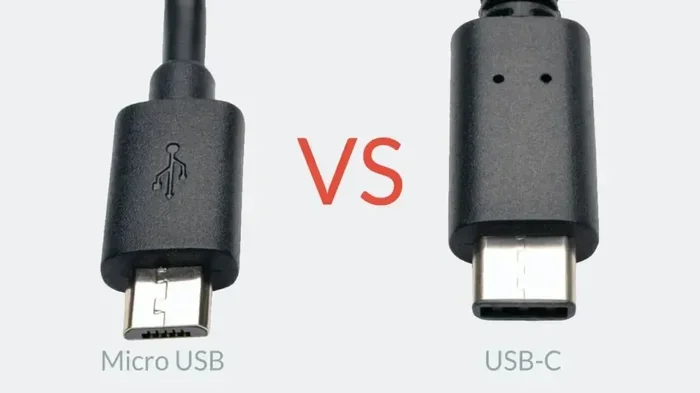
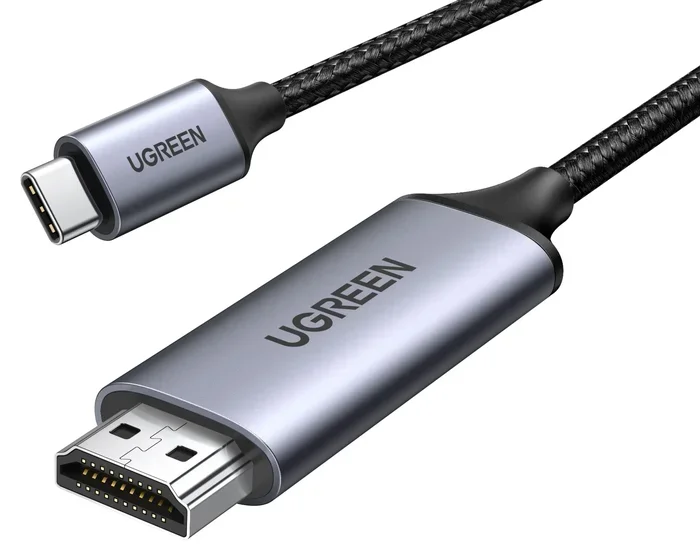
USB Type-C is the newer, smaller, and reversible port found on most modern laptops, tablets, and smartphones. If your device has a USB-C port, you have even more options for HDMI conversion. A USB-C to HDMI adapter or cable is the easiest way to connect to an HDMI display.
Many modern USB-C to HDMI adapters support display output through a technology called DisplayPort Alt Mode. This allows the USB port to carry a full video signal without any lag or quality loss. You can stream 4K video, play games, and enjoy crisp audio and video through a single USB-C to HDMI cable.
These adapters are also compact and portable. You can carry one in your laptop bag and use it with any HDMI display you find. Whether you are in a conference room, a hotel room, or at home, a USB-C to HDMI adapter gives you connectivity options wherever you go.
How to Convert USB to HDMI With These Simple Steps
Now that you understand the basics, let us walk through the actual process. Converting a USB port to HDMI is straightforward and takes only a few minutes. Follow these simple steps to get your display working.
Step-by-Step Guide
- Identify your USB port type. Look at the port on your computer or device. Is it a rectangular USB Type-A port or a smaller oval USB Type-C port? Knowing this helps you choose the right adapter.
- Choose the right adapter. Based on your port type, select a USB to HDMI adapter or USB-C to HDMI cable. Make sure the adapter supports your desired display resolution and is compatible with your device.
- Plug the adapter into the USB port. Insert the adapter firmly into your USB port. If you are using a USB hub or docking station, connect the adapter to that first.
- Connect the HDMI cable. Plug one end of an HDMI cable into the adapter and the other end into your external monitor, TV, or projector.
- Switch your display input. On your TV or monitor, use the remote or buttons to select the correct HDMI input source. Your computer screen should now appear on the display.
- Adjust display settings. Go to your computer display settings to arrange the screens, change the display resolution, or mirror the screen. On Windows, right-click the desktop and select Display Settings. On Mac, go to System Preferences and click Displays.
That is it. You have successfully converted your USB port to HDMI. The entire process takes less than five minutes once you have the right adapter.
Best USB to HDMI Adapters and Converters
Not all USB to HDMI adapters are created equal. Some offer better performance, higher display resolutions, and more features than others. Below is a comparison of popular options to help you choose the right one for your needs.
| Adapter | Port Type | Max Resolution | Plug and Play | Price Range |
|---|---|---|---|---|
| Generic USB-A to HDMI | USB Type-A | 1080p | Yes | $10 – $20 |
| USB-C to HDMI 4K | USB Type-C | 4K @ 60Hz | Yes | $15 – $30 |
| Premium Docking Station | USB Type-C | 4K @ 60Hz | Yes | $50 – $150 |
| USB 3.0 to HDMI Adapter | USB Type-A | 1080p @ 60Hz | Yes | $12 – $25 |
| Wireless HDMI Transmitter | USB Type-C | 1080p | Yes | $30 – $80 |
Budget-Friendly Options
If you are on a tight budget, a basic USB to HDMI adapter works perfectly fine for everyday tasks. These adapters typically cost between $10 and $25 and support Full HD display resolution at 1080p. They are ideal for office work, presentations, and casual streaming.
Look for adapters from reputable brands that offer plug and play functionality. Avoid the cheapest no-name options, as they may have poor video signal quality or compatibility issues. Reading customer reviews before purchasing is always a smart move.
Premium Adapters for Better Performance
If you need higher display resolution or faster refresh rates, consider a premium USB-C to HDMI adapter. These adapters support 4K video at 60Hz and deliver smoother performance for gaming and video editing. Some premium options also include additional USB ports, data transfer capabilities, and audio output options.
A docking station is another excellent choice for users who need multiple connectivity options. A docking station connects to a single USB-C port and provides HDMI output, USB ports, Ethernet, and charging capabilities all in one device. This is perfect for professionals who work with multiple compatible devices throughout the day.
Common Problems and How to Fix Them
Even with the right adapter, you might run into issues when trying to convert USB to HDMI. Most problems are easy to fix. Here are the most common issues and their solutions.
No Signal Issues
If your external monitor shows no signal after connecting the USB to HDMI adapter, do not panic. This is one of the most common issues and usually has a simple fix.
First, check that the HDMI cable is securely connected at both ends. A loose connection is the number one cause of no signal. Next, make sure your display is set to the correct HDMI input source. Most TVs and monitors have multiple HDMI ports, and you need to select the right one.
If the connection is secure and the input is correct, try unplugging the USB adapter and plugging it back in. Sometimes the video adapter needs a fresh connection to start working. You can also try a different USB port on your computer. A USB 3.0 port is recommended because it provides more stable power for the adapter.
On some devices, you may need to go into your display settings and manually detect the external monitor. On Windows, go to Settings > System > Display and click Detect. On Mac, go to System Preferences > Displays and hold the Option key to show the Detect Displays button.
Audio and Video Sync Problems
Sometimes the video signal works but the audio does not play through the HDMI display. This happens when your computer is still sending audio to the built-in speakers instead of the HDMI output.
To fix this, right-click the sound icon in your taskbar and select Open Sound Settings. Under Output, choose your HDMI display as the default audio device. On Mac, go to System Preferences > Sound and select the HDMI output under the Output tab.
If you experience a delay between audio and video, try lowering the display resolution or reducing the frame rate. This reduces the load on the USB adapter and can help with synchronization. Updating your graphics drivers can also resolve audio and video sync issues in many cases.
Expert Tips for the Best Results
Quick Tips
- Always use a high-quality HDMI cable. A cheap or damaged cable can cause flickering, low quality, or no signal at all.
- Update your graphics drivers. Outdated drivers can cause compatibility issues with USB to HDMI adapters. Visit your device manufacturer’s website for the latest updates.
- Use a powered USB hub for desktop computers. Some USB ports do not provide enough power for the adapter, especially when connected to multiple devices. A powered hub solves this problem.
- Check the adapter’s supported resolution. Make sure the adapter supports the display resolution of your monitor or TV for the best picture quality.
- Keep your adapter drivers up to date. Some adapters require specific software or drivers for optimal performance. Visit the manufacturer’s website to download the latest version.
Common Mistakes to Avoid
- Buying the wrong adapter type. Always double-check whether your device has a USB Type-A or USB Type-C port before purchasing an adapter.
- Ignoring power requirements. Some USB to HDMI adapters need more power than a standard USB port can provide. Use a powered hub or a cable that draws power from the HDMI display if needed.
- Using an old or damaged HDMI cable. This is one of the most overlooked causes of poor performance. Always use a cable that is in good condition and rated for your desired display resolution.
- Skipping driver updates. Even plug-and-play adapters can benefit from updated drivers. Check for updates regularly to ensure the best performance.
- Assuming all USB ports support video output. Some USB ports are designed only for data transfer and charging. They cannot carry a video signal. Always verify your port’s capabilities first.
Expert Insights
According to tech experts, the best way to ensure a smooth USB to HDMI conversion is to match your adapter with your device’s capabilities. If you have a modern laptop with a USB-C port, invest in a USB-C to HDMI adapter that supports at least 1080p or 4K resolution. This ensures you get the best picture quality and the smoothest performance.
For users with older devices that only have USB Type-A ports, a basic USB-A to HDMI adapter will work well for everyday use. However, you may notice some limitations at higher resolutions or refresh rates. This is because older USB 2.0 ports have lower bandwidth compared to USB 3.0 or USB-C ports.
Experts also recommend testing your setup with a simple task first, like displaying a static image, before trying demanding applications like video editing or gaming. This helps you identify any issues early and ensures a smooth experience from the start.
One final tip from professionals: if you use your USB to HDMI setup frequently, consider a docking station instead of a simple adapter. A docking station provides a more stable connection, additional ports, and often better performance. It is a worthwhile investment for anyone who regularly connects to an external monitor or HDMI display.
Conclusion
Can a USB port be converted to HDMI? Absolutely. With the right USB to HDMI adapter and a few simple steps, you can connect any device with a USB port to an HDMI display in minutes. Whether you have a USB Type-A or USB Type-C port, there is an adapter that fits your needs and budget.
We covered the different USB port types, the step-by-step conversion process, the best adapters on the market, and how to fix common problems. You now have all the knowledge you need to set up a USB to HDMI connection confidently. The key is to choose the right adapter, use quality cables, and keep your drivers updated.
Do not let a missing HDMI port hold you back. With a USB to HDMI adapter, you can turn any screen into a powerful display for work, entertainment, or presentations. Try it today and enjoy the connectivity options that USB to HDMI conversion brings to your setup.
Frequently Asked Questions
Can Any USB Port Be Converted to HDMI?
Most USB ports can be converted to HDMI using the right adapter. However, the port must support display output. Standard USB 2.0 and USB 3.0 Type-A ports can carry video signals through an adapter. Some older or specialized ports may not support video output. Check your device specifications to confirm compatibility before purchasing an adapter.
Do I Need to Install Drivers for a USB to HDMI Adapter?
Most modern USB to HDMI adapters are plug and play and do not require driver installation. Simply plug the adapter into your USB port and connect the HDMI cable. However, some adapters may need a driver update for optimal performance. Visit the manufacturer’s website to download the latest drivers if you experience any issues with display detection or quality.
What Is the Difference Between a USB to HDMI Adapter and a USB-C to HDMI Cable?
A USB to HDMI adapter is a small device that plugs into your USB port and provides an HDMI output for a cable. A USB-C to HDMI cable combines the adapter and cable into one unit. Both serve the same purpose, but the all-in-one cable is more compact and portable. Choose based on your needs and how often you plan to use the setup.
Can I Connect Multiple Displays Using a USB to HDMI Adapter?
Yes, you can connect multiple external monitors using multiple USB to HDMI adapters. Each adapter uses a separate USB port on your computer. Make sure your computer has enough USB ports and sufficient processing power to drive multiple displays. A docking station with multiple HDMI outputs is a great alternative for managing several screens from a single connection.
Does USB to HDMI Conversion Affect Display Quality?
The display quality depends on the adapter, the USB port speed, and the HDMI cable quality. A good USB 3.0 or USB-C adapter with a high-quality HDMI cable delivers excellent picture quality up to 4K resolution. Cheaper adapters or older USB 2.0 ports may limit the display resolution and frame rate. Investing in a quality adapter ensures the best results.
Can I Use a USB to HDMI Adapter with a Smart TV?
Yes, you can connect a USB to HDMI adapter to any smart TV with an HDMI input. Simply plug the adapter into your computer, connect an HDMI cable from the adapter to the TV, and switch the TV to the correct HDMI input source. This is a great way to mirror your computer screen or use your TV as a second display for streaming, gaming, or presentations.