Can A Usb Be Read Only Here Is Everything You Should Know
Yes, a USB can be read only, and it happens for several reasons including physical switches, file system errors, and registry settings. A read-only USB prevents any new data from being written or existing files from being deleted or modified. In this guide, we walk you through everything you need to know about USB write protection, how to fix it, and when to use it on purpose.
Have you ever plugged in your USB flash drive and suddenly realized you cannot save new files or change anything on it? That frustrating experience means your USB read-only mode has been activated. It can feel confusing and even a little scary when your removable storage suddenly refuses to let you write any new data.
The good news is that a USB can be read only for many different reasons, and most of them are easy to fix. Whether it is a simple physical switch on the side of the drive or a deeper file system error, you have options. This guide covers everything you need to know about USB write protection, why it happens, and how to solve it step by step.
We will also explore why some people actually want their lock USB drive to stay read only. Data protection and USB security are real concerns, and understanding write protection can help you keep your files safe. Let us dive in and make sense of it all.
Key Takeaways
- A USB can be read only due to a physical switch, file system errors, or registry settings on your computer.
- Write protection on a USB drive helps keep your data safe from accidental deletion or malware attacks.
- You can fix a read-only USB using simple methods like removing the switch, using Diskpart, or editing the registry.
- FAT32 and NTFS file system conflicts are common causes of a USB showing as read only.
- You can intentionally set a USB to read only for extra security and data protection.
- Formatting the drive is a last resort but often solves persistent read-only issues.
- Regular USB troubleshooting can prevent future read-only problems and extend your drive’s lifespan.
📑 Table of Contents
What Does It Mean When a USB Is Read Only?
Understanding Read-Only Mode on USB Drives
When a USB flash drive is in read-only mode, it means the device will let you view and copy files off of it. However, you cannot add new files, delete existing ones, or make any changes to what is already stored. Think of it like a library book. You can read it, but you cannot write in it.
This read-only file system setting is built into the way the drive communicates with your computer. Your operating system reads the drive as a protected volume. That means any attempt to write new data gets blocked. You might see error messages like “The disk is write-protected” or “You need to format the disk before you can use it.”
USB read-only mode is not always a bad thing. Sometimes it is a safety feature. Other times, it is a sign that something has gone wrong with the drive or its settings. Either way, understanding what is happening is the first step toward fixing it.
How Read-Only Differs from Normal USB Operation
Normally, a USB flash drive works both ways. You can copy files onto it, delete files from it, rename folders, and move things around freely. This is called read-write mode, and it is what most people expect from their removable storage.
In read-only mode, the drive flips a switch in its behavior. It still connects to your computer. It still shows up in File Explorer or Finder. But the write function gets disabled. You are stuck with whatever data is already on the drive. This disk write protection can affect all file types, including documents, photos, and videos.
The key difference is control. In normal mode, you have full control. In read-only mode, the drive controls what happens. This is a simple concept, but it has big implications for how you use and manage your USB flash drive.
Why Would a USB Become Read Only?
Physical Write Protection Switches
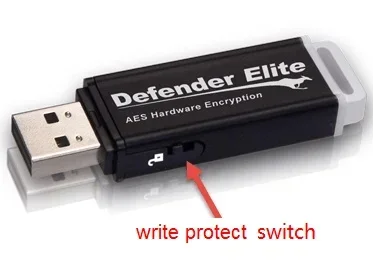
Many USB flash drives and SD card read only devices have a tiny physical switch on the side or bottom. When this switch is flipped, it activates disk write protection at the hardware level. No software change can override this. The drive simply will not allow any writing.
This is the most common reason a USB becomes read only unexpectedly. You might have bumped the drive while plugging it in or while carrying it in your bag. The switch gets flipped without you noticing. It is a small thing, but it causes big problems if you do not know what to look for.
Not all USB drives have this switch. It is more common on older models and on certain brands of removable storage. If your drive has a small slider near the USB connector, check its position first. Moving it back might solve the problem instantly.
File System Errors and Corruption
Sometimes the problem comes from inside the drive itself. File system errors can cause your USB flash drive to switch to read-only mode automatically. This often happens when the drive is removed improperly, such as pulling it out without using the “Safely Remove Hardware” option.
Corruption can also occur after a sudden power loss, a system crash, or a virus attack. When the file system gets damaged, the operating system may lock the drive to prevent further data loss. This is actually a protective measure. The read-only file system acts as a shield, keeping your existing files intact while preventing new damage.
FAT32 file system and NTFS read only issues are particularly common. These file systems have their own rules and limitations. When they get corrupted, the drive often defaults to a protected state. Running a USB troubleshooting tool can help identify and repair these kinds of errors.
Virus and Malware Attacks
Malware and viruses are another major cause of USB write protection problems. Some malicious programs are designed to lock your USB flash drive and prevent you from accessing or modifying files. They do this to spread themselves or to hold your data hostage.
A virus might change the registry settings on your computer to force the drive into read-only mode. It might also corrupt the file allocation table, which controls how data is stored and accessed. In either case, the result is the same: your drive becomes inaccessible for writing.
This is why USB security matters so much. Always scan your removable storage with reliable antivirus software before opening any files. A simple scan can prevent a lot of headaches and keep your lock USB drive safe from malicious attacks.
Common Reasons Your USB Shows as Read Only
Registry Settings That Enforce Read-Only Mode
Your Windows computer stores a lot of settings in the registry, including rules about how removable storage behaves. Sometimes a registry entry gets changed or corrupted, and it forces all connected USB flash drives into read-only mode. This can happen after a software update, a failed driver installation, or even a mistaken registry edit.
The WriteProtect registry key is the main culprit here. When this key is set to a certain value, Windows tells the system to block all write operations on removable drives. You might not have changed this setting yourself. It could have been changed by a program, a virus, or a system error.
Fixing registry issues requires care. A wrong change can cause bigger problems. Always back up your registry before making any edits. If you are not comfortable doing this yourself, consider using a trusted USB troubleshooting tool that can handle registry fixes safely.
NTFS and FAT32 File System Conflicts
NTFS and FAT32 are the two most common file systems used on USB flash drives. Each has its own strengths and limitations. FAT32 is older and more compatible, but it has a maximum file size limit of 4GB. NTFS is newer and more robust, but it does not always play well with non-Windows devices.
When you plug a USB flash drive into a Mac, a smart TV, or a car stereo, the device might not understand the NTFS file system. As a result, the drive may mount as read only. This is not a bug. It is a compatibility issue. The device simply cannot write to a file system it does not recognize.
Similarly, switching a drive between Windows and Linux systems can cause file permissions conflicts. The read-only file system error appears when the operating system does not have permission to write to the drive. Reformatting the drive to a compatible file system usually fixes this problem.
Compatibility Issues with Different Devices
Not all devices treat removable storage the same way. A USB flash drive that works perfectly on your desktop computer might show up as read only on a laptop, a tablet, or a gaming console. This happens because different devices have different drivers and file system support.
Some devices only support FAT32 or exFAT file systems. If your drive is formatted as NTFS, those devices will only be able to read it, not write to it. This is an important thing to keep in mind when using the same USB flash drive across multiple devices.
Using a high-quality USB flash drive that supports multiple file systems can reduce these compatibility headaches. Look for drives that are advertised as cross-platform compatible. They are designed to work smoothly with Windows, Mac, and Linux systems alike.
How to Fix a USB That Is Read Only
Method 1: Remove the Physical Write Protection Switch
If your USB flash drive has a physical switch, this is the easiest fix. Simply slide the switch back to the unlocked position. You should hear or feel a click when it moves. Once unlocked, plug the drive back in and try writing a file to it.
This method works instantly and does not require any software. It is the first thing you should check whenever your USB becomes read only unexpectedly. If the switch is already in the unlocked position and the problem persists, move on to the next method.
Keep in mind that not all USB drives have this switch. If yours does not, do not worry. There are plenty of other solutions to try. The physical switch is just the most obvious one.
Method 2: Use Diskpart to Clear Read-Only Status
Diskpart is a built-in Windows command-line tool that can manage disks and partitions. It is a powerful way to remove write protection from a USB flash drive that does not have a physical switch. Here is how to use it:
- Open the Start menu and type “cmd.”
- Right-click Command Prompt and select “Run as administrator.”
- Type “diskpart” and press Enter.
- Type “list disk” and press Enter to see all connected drives.
- Type “select disk X” (replace X with your USB drive number).
- Type “attributes disk clear readonly” and press Enter.
This registry edit through Diskpart clears the read-only attribute at the disk level. It works for most cases where software-level write protection is causing the problem. Always double-check the disk number before running any commands to avoid affecting the wrong drive.
Method 3: Edit the Windows Registry
If Diskpart does not work, the next step is to edit the Windows registry directly. This method targets the WriteProtect key that can force a USB flash drive into read-only mode. Here is what to do:
- Press Windows Key + R to open the Run dialog.
- Type “regedit” and press Enter.
- Navigate to HKEY_LOCAL_MACHINE\SYSTEM\CurrentControlSet\Control\StorageDevicePolicies.
- Look for the WriteProtect key on the right side.
- Double-click WriteProtect and change the value to 0.
- Restart your computer and check if the USB works normally.
If the StorageDevicePolicies key does not exist, you can create it. Right-click the Control folder, select New > Key, and name it “StorageDevicePolicies.” Then create a new DWORD value named WriteProtect and set it to 0. This registry edit disables software-level write protection and often fixes persistent USB read-only mode issues.
Method 4: Format the USB Drive
Formatting is the nuclear option, but it works. When nothing else fixes the read-only file system problem, reformatting the drive resets everything. All data on the drive will be erased, so make sure you have a backup first.
To format a USB flash drive, right-click it in File Explorer, select “Format,” and choose your preferred file system. FAT32 is the most compatible option. NTFS offers better performance on Windows but may cause read-only issues on other devices.
USB formatting clears all corruption, resets file permissions, and removes any write protection settings that are stuck in the drive’s firmware. It is a reliable way to bring a stubborn lock USB drive back to normal operation. Just remember to back up your files before you start.
Can You Make a USB Read Only on Purpose?
Benefits of Setting a USB to Read Only
Yes, you can intentionally set a USB flash drive to read-only mode, and there are many good reasons to do so. Data protection is the biggest benefit. When a drive is read only, you cannot accidentally delete or overwrite important files. This is especially useful for sharing files with others or for storing reference documents that should not be changed.
USB security is another major advantage. A read-only removable storage device cannot be infected by malware or viruses. Since no new data can be written to it, malicious software has nowhere to hide. This makes read-only USB drives a popular choice in corporate and educational environments.
Some people also use write protection to prevent children or other users from modifying files on a shared drive. It is a simple and effective way to maintain control over your data without needing complicated software or passwords.
Tools and Software for Write Protection
Several tools can help you set a USB flash drive to read only on purpose. Windows has a built-in option through Group Policy Editor that lets you control removable storage access. You can also use third-party software like USB Write Protect, which adds a simple toggle for write protection.
For more advanced users, tools like Rufus and HP USB Disk Storage Format Tool offer write-protection options during the formatting process. These tools give you fine-grained control over how your USB flash drive behaves and who can modify its contents.
When choosing a tool, look for one that is well-reviewed and regularly updated. USB security software should be reliable and easy to use. The goal is to protect your data without making the process more complicated than it needs to be.
Protecting Your USB Drive from Unwanted Changes
Best Practices for USB Data Security
Taking care of your USB flash drive goes beyond just fixing read-only problems. Good USB security habits can prevent issues before they start. Here are some tips to keep your removable storage safe and functioning well:
- Always use the “Safely Remove Hardware” option before pulling out your USB drive. This prevents file system corruption that can lead to read-only mode.
- Scan your USB drive regularly with antivirus software. Malware can lock your drive and compromise your data.
- Keep your drive in a protective case when not in use. Physical damage can cause file system errors and trigger write protection.
- Back up your files frequently. If your drive does become corrupted, having a backup means you will not lose anything important.
- Avoid using the same USB drive on untrusted computers. Public or shared computers are more likely to harbor malware that can affect your lock USB drive.
These simple habits can save you a lot of trouble. They keep your USB flash drive healthy and your data safe. Prevention is always better than cure, especially when it comes to removable storage.
When to Seek Professional Help
Most USB troubleshooting tasks can be handled at home with the methods described above. But sometimes the problem is deeper than software or settings. If your USB flash drive is physically damaged, has a hardware failure, or shows signs of overheating, it is time to seek professional help.
A data recovery specialist can often retrieve files from a damaged drive. They have tools and techniques that go beyond what most users can access at home. If your data is extremely valuable and you cannot access it, this is a worthwhile investment.
Also, if you have tried every fix and your USB read-only mode persists, the drive itself may be failing. In that case, replacing the drive and restoring your files from a backup is the safest option. No amount of troubleshooting can fix a physically broken removable storage device.
Conclusion
A USB can be read only for many reasons, and the good news is that most of them are easy to fix. Whether it is a flipped physical switch, a corrupted file system, a registry setting, or a malware infection, you have practical solutions at your fingertips. From simple checks to advanced registry edits, there is a fix for every situation.
Understanding USB write protection and read-only mode also empowers you to use your USB flash drive more effectively. You can protect your data, prevent accidental changes, and keep your removable storage secure. The next time your drive goes read only, you will know exactly what to do.
Take the time to apply these fixes and tips. Your USB flash drive is an essential tool for daily life, and keeping it in good working order is well worth the effort. With the right knowledge and a little patience, you can overcome any USB read-only problem and keep your data safe and accessible.
Frequently Asked Questions
Why is my USB drive showing as read only even though there is no physical switch?
This usually happens because of a software setting, a corrupted file system, or a registry issue on your computer. USB troubleshooting tools and registry edits can often fix this. Try the Diskpart method or check your file system format first.
Can a virus make my USB flash drive read only?
Yes, certain malware and viruses are designed to lock removable storage devices into read-only mode. They do this to prevent you from deleting them or to block data access. Always scan your USB flash drive with antivirus software if it suddenly becomes read only.
Is it safe to format a USB drive that is stuck in read-only mode?
Formatting is generally safe and often fixes persistent write protection issues. However, it will erase all data on the drive. Make sure you have a backup of any important files before you format. Use a reliable USB formatting tool for best results.
Can I use a read-only USB flash drive on a Mac and a Windows computer?
Yes, a read-only USB will work on both Mac and Windows computers. You can view and copy files from it on either system. However, if the drive is formatted as NTFS, a Mac may not be able to write to it even after removing the read-only setting. FAT32 or exFAT formats offer better cross-platform compatibility.
How do I know if my USB drive has a physical write protection switch?
Look closely at the body of your USB flash drive, especially near the USB connector. Some drives have a small sliding switch. If you see one, slide it to the unlocked position to disable disk write protection. Not all USB drives have this feature, especially newer or smaller models.
What is the difference between NTFS and FAT32 when it comes to USB read-only issues?
NTFS is a newer file system with better features for Windows, but it can cause compatibility issues on non-Windows devices, making the drive appear read only. FAT32 is older and more widely compatible but has a 4GB file size limit. Choosing the right file system helps prevent USB read-only mode problems across different devices.
=== CONCLUSION ===
Can a USB be read only? Absolutely, and now you know exactly why it happens and how to fix it. From physical switches and file system errors to registry settings and virus attacks, the causes are varied but the solutions are within reach. Whether you need to unlock your USB flash drive or intentionally set it to read-only mode for data protection, this guide has you covered.
Keep your removable storage safe, stay on top of USB security, and remember that a little prevention goes a long way. Your USB flash drive is a powerful tool, and with the right knowledge, you can keep it working perfectly for years to come.