Can I Plug My Xbox Into My Pc And What Happens Next
Can I Plug My Xbox Into My Pc? Yes, you can, and it opens up a world of possibilities. You can use your PC as a monitor, stream games, capture footage, and even play Xbox games on a bigger screen setup. But what happens next depends on how you connect them. This guide walks you through every step, from cables and capture cards to setup tips and common mistakes.
So you are sitting there with your Xbox and your PC sitting side by side. You wonder, can I plug my Xbox into my PC? Maybe you want to use your big monitor for both. Or perhaps you want to stream your gameplay to your computer. Whatever the reason, you are not alone. This is one of the most common questions among gamers right now.
The short answer is yes. You absolutely can plug your Xbox into your PC. But what happens next is the real question. Will your games look great? Will there be lag? Can you record your gameplay? The answers depend on how you set things up. This guide breaks it all down for you in simple terms. No jargon. No confusing tech talk. Just clear steps and honest advice.
Whether you own an Xbox One or the newer Xbox Series X, the connection process is similar. You will learn about cables, capture cards, and software. You will also discover the pros and cons of each method. By the end of this article, you will know exactly what to do. Let us get into it.
Key Takeaways
- You can plug your Xbox into your PC using an HDMI cable or a capture card for streaming and recording.
- Using your PC as an Xbox monitor is possible but comes with trade-offs like input lag and screen sharing.
- A capture card is the best option for high-quality Xbox streaming and recording on your PC.
- Xbox PC connection lets you game on a larger display, share content, and build a versatile setup.
- Common mistakes include using cheap cables and skipping driver updates that cause connection issues.
- Latency and performance impact are real factors to consider when linking your Xbox to a PC.
- The right setup depends on your goals whether you want to game, stream, or just mirror your screen.
📑 Table of Contents
- Can I Plug My Xbox Into My Pc And What Happens Next
- How To Connect Your Xbox To Your Pc
- Using Your Pc As An Xbox Monitor
- Benefits And Drawbacks Of Xbox Pc Connection
- Best Capture Cards For Xbox To Pc Setup
- Common Mistakes To Avoid When Connecting Xbox To Pc
- Can You Play Xbox Games On Your Pc Without A Console
- Frequently Asked Questions
- Conclusion
Can I Plug My Xbox Into My Pc And What Happens Next
When you plug your Xbox into your PC, several things can happen. It all depends on your setup and what you want to achieve. Let us explore the most common scenarios. Each one serves a different purpose for different types of gamers.
Scenario One: You Want To Use Your PC Monitor As A Second Screen
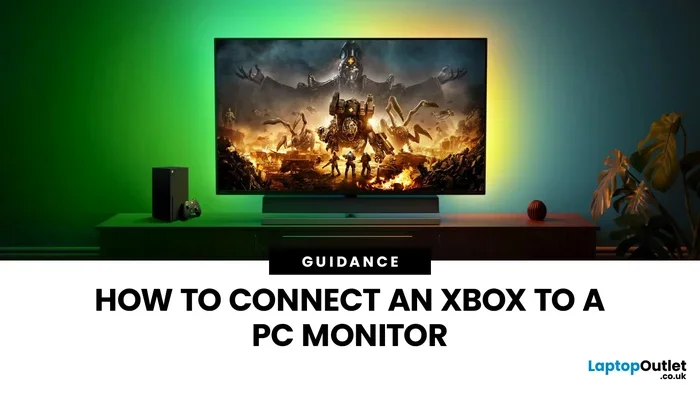
This is the simplest method. You take an HDMI cable and run it from your Xbox to your PC monitor. Your PC acts like a television. You can switch inputs on your monitor and see your Xbox dashboard. This works great if you have a spare monitor lying around. You do not need any extra equipment. Just a standard HDMI cable and your Xbox console.
But here is the catch. When your Xbox is plugged into your PC monitor, your PC is technically sharing that screen. You cannot use your PC for other things while gaming on the monitor. Well, not easily anyway. You can switch back and forth, but it gets annoying fast. You will be pressing input buttons on your monitor every time you want to toggle between devices.
Scenario Two: You Want To Stream And Record Xbox Gameplay
This is where things get interesting. Many gamers want to capture their Xbox gameplay on their PC. They want to stream on Twitch or record clips for YouTube. For this, you need something called a capture card. A capture card sits between your Xbox and your PC. It takes the video signal from your Xbox and sends it to your computer.
The capture card has an HDMI input for your Xbox and a USB output for your PC. Popular options include the Elgato HD60 S and the AVerMedia Live Gamer Mini. These devices let you see your Xbox screen on your PC in real time. You can then use streaming software like OBS Studio to broadcast or record your gameplay.
Scenario Three: You Want To Play Xbox Games Through Your PC
Some people want to play Xbox games but use their PC setup. This includes Xbox wireless controllers, better keyboards, and headsets. You can connect your Xbox controller to your PC via Bluetooth or USB. Then use the capture card feed to see the game on your monitor. This gives you the best of both worlds. You get the Xbox console power with the PC peripherals you prefer.
Another option is Xbox Game Pass for PC. This lets you download and play Xbox games directly on your computer. It is not the same as plugging your Xbox into your PC. But it is worth mentioning because many gamers confuse the two. With Game Pass, you do not need your console at all. You just need a good PC and an internet connection.
How To Connect Your Xbox To Your Pc
Now that you know what is possible, let us talk about the actual steps. Connecting your Xbox to your PC is not hard. But it does require the right cables and a little patience. Here is a simple walkthrough for each method.
Method One: Direct HDMI Connection
This is the easiest way to connect your Xbox to your PC. You will need one HDMI cable. Here is what you do.
- Turn off your Xbox console.
- Plug one end of the HDMI cable into the Xbox output port.
- Plug the other end into your PC monitor or capture card.
- Turn on your Xbox.
- Switch your monitor input to the correct HDMI source.
That is it. You should see your Xbox dashboard on your screen. If you do not, check that your cable is fully seated. Sometimes the ports feel loose and need a firm push. Also, make sure your monitor supports the HDMI version your Xbox uses. Most modern monitors and TVs work fine with standard HDMI cables.
Method Two: Using A Capture Card
A capture card adds more functionality. It lets you record and stream your Xbox gameplay. Here is how to set one up.
- Plug the capture card into a USB port on your PC.
- Connect an HDMI cable from your Xbox to the capture card input.
- Connect another HDMI cable from the capture card output to your monitor.
- Install the capture card software on your PC.
- Open the software and select the capture card as your video source.
Once everything is set up, you will see your Xbox screen on your PC. You can then open OBS Studio or similar software to start recording. The capture card handles the video processing. Your PC just receives the feed and lets you control recording and streaming.
Quick Tips For A Smooth Connection
- Always use high-quality HDMI cables. Cheap cables can cause signal loss and flickering.
- Update your capture card drivers before first use. Outdated drivers cause lag and disconnections.
- Keep your Xbox and PC close together. Long cables can weaken the signal.
- Restart both devices before troubleshooting. This fixes most connection issues instantly.
- Use a USB 3.0 port for your capture card. USB 2.0 ports may not handle the bandwidth.
Using Your Pc As An Xbox Monitor
Can you use your PC monitor as a TV for your Xbox? Yes. But should you? That depends on your situation. Let us look at what works and what does not.
If you have a small monitor, say 24 inches or less, gaming on it can feel cramped. Xbox games are designed for TVs and large screens. A small monitor may not give you the immersive experience you want. However, if you are playing slower games like strategy titles or puzzle games, a small monitor works just fine.
Another thing to consider is resolution. Most modern Xbox consoles support 4K output. If your PC monitor only supports 1080p, you will not get the full picture quality. Check your monitor specs before plugging in your Xbox. You want to make sure it can handle the resolution your console outputs.
Input lag is another concern. PC monitors are designed for fast-paced PC gaming. They usually have low response times. But when you connect an Xbox, the signal processing can add slight delays. For most casual gamers, this is not noticeable. For competitive players, even a small delay can matter. If you are a serious esports gamer, you may want to stick with your TV or a dedicated gaming monitor for your Xbox.
What About Using A Kvm Switch?
A KVM switch is a handy device. It stands for Keyboard, Video, Mouse switch. It lets you share one monitor between your PC and your Xbox. You press a button on the switch to toggle between devices. This is a great solution if you want to use the same monitor for both your PC and your Xbox without unplugging cables every time.
KVM switches come in different sizes and prices. Basic models cost around 20 to 30 dollars. More advanced ones with 4K support can cost over 100 dollars. They are worth the investment if you switch between devices often. You save time and protect your ports from wear and tear.
Benefits And Drawbacks Of Xbox Pc Connection
Every setup has its ups and downs. Let us be honest about what you gain and what you lose when you connect your Xbox to your PC.
| Benefits | Drawbacks |
|---|---|
| Use your PC monitor for Xbox gaming | Screen sharing limits multitasking |
| Stream and record Xbox gameplay easily | Added latency with some setups |
| Share peripherals like controllers and headsets | Extra hardware costs for capture cards |
| Save space by using one monitor | Potential signal quality loss with cheap cables |
| Flexible setup options with KVM switches | PC performance may dip during capture |
The benefits are clear. You get flexibility and convenience. You can use your existing PC monitor for console gaming. You can capture and share your gameplay with friends. The drawbacks are manageable too. Most are solved with the right equipment and a little setup time.
Expert Insight: What Gamers Say
Many gamers who have tried connecting their Xbox to their PC say it changed their setup completely. One common feedback is that the capture card method is the most rewarding. It lets them game on their Xbox and stream to their audience without needing a second capture device. Another popular opinion is that the direct HDMI method is great for casual players who just want a bigger screen without extra gear.
However, some gamers warn about the frustration of input lag. When you plug your Xbox into your PC and use software to display the feed, there can be a slight delay between pressing a button and seeing the action on screen. For most people, this delay is less than 50 milliseconds. That is barely noticeable. But for competitive gamers, it can feel like a world of difference.
Best Capture Cards For Xbox To Pc Setup
If you decide to go the capture card route, you need a good one. Not all capture cards are created equal. Some are cheap and full of problems. Others deliver stunning quality but cost a pretty penny. Here are some of the best options on the market right now.
Elgato HD60 S Plus
This is the gold standard for Xbox capture cards. It supports 1080p at 60 frames per second. The setup is simple. You plug it into a USB 3.0 port and it works instantly. The Elgato software is user-friendly and lets you adjust settings easily. It also has passthrough, which means your monitor gets an uncompressed signal. You do not lose any quality when using the capture card.
AVerMedia Live Gamer Mini
This is a budget-friendly option that does not skimp on quality. It captures at 1080p and 60fps. It is compact and easy to carry around. The AVerMedia software works well with OBS Studio. One downside is that it uses USB 2.0, which can sometimes bottleneck the signal. But for most setups, it works perfectly fine.
Elgato 4K60 Pro MK.2
This is the premium choice for serious streamers. It supports 4K capture at 60fps. It uses a PCIe slot instead of USB, which means zero latency and maximum bandwidth. If you have a desktop PC with a free PCIe slot, this is the best option. It is expensive but delivers professional-grade quality.
How To Choose The Right Capture Card
Here are quick tips to help you pick the right one.
- Check your PC ports. Make sure you have the right USB or PCIe slots available.
- Consider your budget. You do not need a 4K card if you only game at 1080p.
- Look for passthrough support. This lets you see the raw signal without processing delay.
- Read user reviews. Real-world feedback helps you avoid buggy or low-quality products.
- Check software compatibility. Make sure the card works with your preferred streaming software.
Common Mistakes To Avoid When Connecting Xbox To Pc
Even with the right gear, things can go wrong. Here are the most common mistakes people make when plugging their Xbox into their PC. Avoid these and your setup will run smoothly.
Mistake One: Using Low-Quality HDMI Cables
This is the number one mistake. Cheap HDMI cables often cannot handle the bandwidth of modern consoles. You might experience flickering, no signal, or poor image quality. Always buy certified HDMI cables from reputable brands. A good cable costs around 10 to 15 dollars. It is a small price to pay for a reliable connection.
Mistake Two: Skipping Software Updates
Both your Xbox and your PC need to be up to date. Xbox system updates fix bugs and improve compatibility. PC drivers for your capture card need regular updates too. Skipping updates is a quick way to run into connection problems and performance issues.
Mistake Three: Plugging Into The Wrong Port
Not all HDMI ports on your PC monitor are the same. Some only support input, not output. Check your monitor manual to see which ports work for your Xbox. If you are using a capture card, make sure you plug the cables into the correct input and output ports on the card.
Mistake Four: Ignoring Audio Settings
When you plug your Xbox into your PC, the audio routing can get confusing. Your PC might try to play audio through its own speakers instead of passing through the Xbox audio. Check your sound settings and make sure your capture card or monitor is set as the default audio output. This simple step saves a lot of frustration.
Mistake Five: Not Testing Before Going Live
If you plan to stream, always test your setup before going live. Do a test recording and watch it back. Check for lag, audio sync issues, and image quality. Fixing problems before your stream goes live saves you from embarrassing technical difficulties in front of your audience.
Can You Play Xbox Games On Your Pc Without A Console
This is a related question that many gamers ask. Can you play Xbox games on your PC without owning a console? The answer is yes, through Xbox Game Pass for PC. Microsoft offers hundreds of Xbox titles for PC download. You subscribe to Game Pass and download the games you want. They run natively on your Windows computer.
However, this is different from plugging your Xbox into your PC. With Game Pass, you do not need the console at all. The games run using your PC hardware. This means you need a decent PC to play modern titles. A weak computer will struggle with demanding games. But if your PC is strong enough, Game Pass is a fantastic alternative to buying a console.
Xbox Cloud Gaming As Another Option
Xbox Cloud Gaming lets you stream Xbox games directly to your PC through the internet. You do not need a powerful PC or a console. You just need a good internet connection and a Game Pass Ultimate subscription. The games run on Microsoft servers and stream to your screen. It is like having a console in the cloud.
The quality depends on your internet speed. A stable connection with at least 10 Mbps is recommended. Higher speeds give you better picture quality and less buffering. Cloud gaming is not perfect. There can be slight delays and occasional quality drops. But for casual gaming, it works really well.
Frequently Asked Questions
Do I Need A Capture Card To Plug My Xbox Into My PC?
No, you do not need a capture card for basic connections. You can use a simple HDMI cable to connect your Xbox to your PC monitor. A capture card is only necessary if you want to record or stream your gameplay. For just playing games on a bigger screen, a direct HDMI connection works perfectly fine.
Will Plugging My Xbox Into My PC Damage Either Device?
No, plugging your Xbox into your PC will not damage either device. HDMI connections are safe and standardized. Just make sure you use compatible cables and ports. Avoid forcing cables into ports that do not fit. If you use a capture card, make sure it is compatible with your Xbox model and your PC operating system.
Can I Use My Xbox Controller On My PC When Connected This Way?
Yes, you can. Your Xbox controller can connect to your PC via Bluetooth or a USB cable. This lets you use your preferred controller for PC games while still playing Xbox titles on the same setup. The controller pairing process is simple and works across both platforms seamlessly.
Does Connecting Xbox To PC Cause Input Lag?
It depends on your setup. A direct HDMI connection to a monitor usually has minimal lag. Using a capture card can add slight latency because of the video processing. For most casual gamers, this lag is unnoticeable. Competitive gamers who are sensitive to input delay should test their setup carefully before committing to it.
Can I Use My Pc And Xbox On The Same Monitor Simultaneously?
Not directly on the same screen. You will need to switch inputs manually or use a KVM switch. A KVM switch lets you toggle between your PC and Xbox with the press of a button. This gives you the convenience of sharing one monitor without constantly unplugging and replugging cables.
What Is The Best Way To Stream Xbox Gameplay To My Pc?
The best way is using a capture card with OBS Studio. The capture card captures the Xbox video feed and sends it to your PC. OBS lets you record, stream, and customize your broadcast. This combination is reliable, high quality, and widely used by content creators of all skill levels.
Conclusion
So, can I plug my Xbox into my PC? Absolutely yes. You have several options to choose from. You can use a direct HDMI cable for simple screen sharing. You can invest in a capture card for streaming and recording. You can use a KVM switch for easy device toggling. Each method has its own benefits and trade-offs.
The key is knowing what you want to achieve. If you just want a bigger screen, a direct HDMI connection is all you need. If you want to share your gameplay with the world, a capture card is your best friend. And if you want the flexibility to switch between devices, a KVM switch is the way to go.
Avoid the common mistakes we covered. Use quality cables. Keep your software updated. Test your setup before going live. These small steps make a huge difference in your experience. With the right setup, plugging your Xbox into your PC can transform how you game, stream, and share your passion with others.
Now that you have all the information you need, it is time to take action. Pick the method that fits your goals. Gather your cables and equipment. Follow the steps in this guide. You will be up and running in no time. Happy gaming.