Can I Connect Any Bluetooth Controller To My Phone
Yes, you can connect many Bluetooth controllers to your phone, but not every controller works with every device. Bluetooth controller phone compatibility depends on your phone’s operating system, the controller type, and a few simple settings. This guide walks you through everything you need to know about connecting a game controller to your phone without headaches.
If you love playing games on your phone, you have probably wondered about using a Bluetooth controller instead of tapping on a tiny screen. The idea of connecting a wireless gamepad to your mobile device sounds great. But can you actually connect any Bluetooth controller to your phone? The short answer is no, not every controller works with every phone. But the good news is that many popular controllers do work, and setting them up is easier than you might think.
In this guide, we will walk you through everything you need to know about connecting a Bluetooth controller to your phone. We will cover compatibility, pairing steps, common problems, and pro tips. Whether you use an Android phone or an iPhone, this article has you covered. Let us dive in and make your mobile gaming setup better.
Key Takeaways
- Not all controllers work with all phones: controller compatibility depends on your phone model and operating system.
- Xbox, PlayStation, and Nintendo controllers each have different connection rules for mobile devices.
- Pairing a Bluetooth controller is usually simple but may require extra steps on some phones.
- iPhone users need MFi-certified controllers for seamless connection without extra apps.
- Android phones offer wider compatibility but may still need USB OTG adapters in some cases.
- Input lag and latency can affect your gaming experience, so choosing the right setup matters.
- Third-party apps can unlock compatibility for controllers that don’t connect natively.
📑 Table of Contents
- What Is a Bluetooth Controller and Why Use It with Your Phone?
- How Does Bluetooth Controller Compatibility Work?
- Popular Bluetooth Controllers and Their Phone Compatibility
- Step-by-Step: How to Connect a Bluetooth Controller to Your Phone
- Common Problems When Connecting Bluetooth Controllers to Phones
- Tips for the Best Gaming Experience with a Bluetooth Controller on Your Phone
- Key Takeaways
- Conclusion
What Is a Bluetooth Controller and Why Use It with Your Phone?
A Bluetooth controller is a handheld gaming device that connects to your phone wirelessly. Instead of using the phone screen as the input, you hold a physical gamepad with buttons, joysticks, and triggers. The controller sends input signals to your phone over a Bluetooth connection. This setup feels much closer to playing on a console or PC.
There are many reasons to use a wireless controller with your phone. First, it makes mobile gaming far more comfortable. Long tapping sessions on a small screen can cause finger fatigue. A Bluetooth game controller gives you physical buttons and analog sticks. Second, many modern phone games are designed for controller input. Games like Fortnite, Call of Duty Mobile, and Genshin Impact support external controllers. Third, using a controller can improve your accuracy and response time in competitive games.
Not all phone games need a controller, though. Simple puzzle games and casual apps work fine with touch controls. But if you play action games, racing games, or emulated console titles, a Bluetooth controller phone setup can be a game changer.
How Does Bluetooth Controller Compatibility Work?
Understanding controller compatibility is the first step before you buy or try to connect any device. Not every Bluetooth controller will pair with every phone. Several factors decide whether a controller will work.
Operating System Matters
The biggest factor is your phone’s operating system. Android phones and iPhones handle Bluetooth devices differently. Android is generally more open and accepts a wider range of wireless controllers. iPhones are more restrictive because Apple uses its own MFi certification program. MFi stands for Made for iPhone. Only controllers that carry the MFi badge will connect natively to an iPhone without extra software.
Controller Protocol and Bluetooth Version
Different controllers use different Bluetooth protocols. Some older controllers use Bluetooth Classic, while newer ones use Bluetooth Low Energy (BLE). Your phone needs to support the same protocol as the controller. Most modern smartphones support both, but older phones may have trouble with certain gamepad models. The Bluetooth version on your phone also matters. Bluetooth 4.0 and above handle controller connections much better than older versions.
Controller Input Mapping
Even if a controller pairs successfully, the buttons might not map correctly. Input mapping means matching the physical buttons on the controller to the on-screen controls in the game. Some phones and games automatically detect the controller and map the buttons. Others need you to set up the mapping manually. This is where controller apps can help, which we will cover later.
Popular Bluetooth Controllers and Their Phone Compatibility
Not all wireless controllers are created equal when it comes to phone compatibility. Here is a look at the most popular options and how well they work with phones.
Xbox Wireless Controller
The Xbox controller is one of the most popular game controllers in the world. The good news is that Xbox controllers work well with both Android and iPhone. On Android, you can pair an Xbox controller directly through Bluetooth settings. On iPhone, newer Xbox controllers (the Xbox Elite Series 2 and the updated Xbox Wireless Controller) support MFi Bluetooth and connect without extra apps. Older Xbox models may need the Xbox app on iPhone.
PlayStation DualShock and DualSense Controllers
PlayStation controllers are another great option for mobile gaming. The DualShock 4 (PS4 controller) works well with Android phones. On iPhone, it connects natively. The DualSense (PS5 controller) also works with both platforms. Both controllers use standard Bluetooth connectivity and are widely supported by phone games. They offer excellent build quality and comfortable grips.
Nintendo Switch Pro Controller
The Nintendo Switch Pro Controller is a fantastic wireless gamepad. It connects to Android phones easily via Bluetooth. On iPhone, it also connects natively. However, some games may not recognize the Pro Controller because Nintendo uses a slightly different input protocol. In most cases, it works fine, but you may run into issues with specific games.
Third-Party and Budget Controllers
Many third-party controllers are designed specifically for phones. Brands like 8BitDo, Razer, and PowerA make mobile-friendly controllers that work well with both Android and iPhone. These controllers often come with dedicated phone mounting brackets. Budget controllers can be hit or miss. Some cheap gamepad models have high controller latency and poor build quality. Always check reviews before buying a budget option.
Quick Comparison Table
| Controller | Android | iPhone | MFi Required |
|---|---|---|---|
| Xbox Wireless Controller | Yes | Yes (newer models) | Older models only |
| DualShock 4 (PS4) | Yes | Yes | No |
| DualSense (PS5) | Yes | Yes | No |
| Nintendo Switch Pro Controller | Yes | Yes | No |
| 8BitDo Pro 2 | Yes | Yes | No |
| Generic Budget Controllers | Often yes | Sometimes | Often yes |
Step-by-Step: How to Connect a Bluetooth Controller to Your Phone
Connecting a Bluetooth controller to your phone is a straightforward process. Here is a step-by-step guide that works for most devices.
Step 1: Check Compatibility
Before you start, make sure your controller and phone are compatible. Check the controller manufacturer’s website for a list of supported devices. Also confirm that your phone supports Bluetooth 4.0 or higher. Most phones made after 2016 meet this requirement.
Step 2: Charge Your Controller
Make sure your controller has enough battery. A low battery can cause connection drops and input lag. Charge the controller fully before pairing. Most controllers use USB-C or micro-USB for charging.
Step 3: Turn on Bluetooth on Your Phone
Go to your phone’s Bluetooth settings and turn Bluetooth on. On Android, swipe down from the top of the screen and tap the Bluetooth icon. On iPhone, open the Settings app and tap Bluetooth. Make sure your phone is not already connected to another Bluetooth device that might cause interference.
Step 4: Put the Controller in Pairing Mode
Hold down the pairing button on your controller. This is usually a small button near the top or on the back of the controller. The controller’s lights will start flashing, which means it is ready to pair. Each controller has a different method, so check the manual if you are unsure.
Step 5: Find the Controller on Your Phone
Go back to your phone’s Bluetooth settings and look for the controller in the list of available devices. Tap on it to pair. You may see a name like “Xbox Wireless Controller” or “Wireless Controller.” Once paired, the flashing lights should stop.
Step 6: Test the Controller
Open a game or a controller testing app to make sure everything works. Move the joysticks and press each button. If the inputs register correctly, you are all set. If some buttons do not work, you may need to remap them using a controller app.
Common Problems When Connecting Bluetooth Controllers to Phones
Even when everything seems set up correctly, you might run into issues. Here are the most common problems and how to fix them.
Controller Does Not Show Up in Bluetooth List
This is the most common issue. First, make sure the controller is in pairing mode. The lights should be flashing. If they are not, try turning the controller off and on again. Also, make sure your phone’s Bluetooth is turned on and not connected to another device. Sometimes simply restarting both the controller and your phone fixes the problem.
Buttons Do Not Map Correctly
If the controller connects but the buttons do not work right in games, the input mapping is wrong. Many games have a controller settings menu where you can remap buttons. If the game does not have this option, try using a third-party app. Apps like “Gamepad Tester” or “ControllerMate” can help you adjust the mapping.
Input Lag and Delayed Response
Controller latency is the delay between pressing a button and seeing the action on screen. Some Bluetooth latency is normal, but high lag makes games unplayable. To reduce lag, make sure your phone and controller are close to each other. Remove other Bluetooth devices that might interfere. Also, avoid using your phone while charging, as charging can sometimes cause Bluetooth interference.
Controller Disconnects During Gaming
A controller that keeps disconnecting is frustrating. This usually happens due to low battery or signal interference. Keep the controller charged and stay within 10 feet of your phone. Other wireless devices like Wi-Fi routers can also cause interference. Moving closer to your phone often fixes this problem.
iPhone Says “Controller Not Supported”
If your iPhone does not recognize the controller, it likely lacks MFi certification. Apple requires MFi certification for wired and wireless game controllers that connect without extra software. To use an unsupported controller on iPhone, you will need to download a compatible app that acts as a bridge between the controller and the game.
Tips for the Best Gaming Experience with a Bluetooth Controller on Your Phone
Once you get your controller connected, you want the best possible experience. Here are some expert tips to help you get the most out of your setup.
Use a Phone Controller Mount
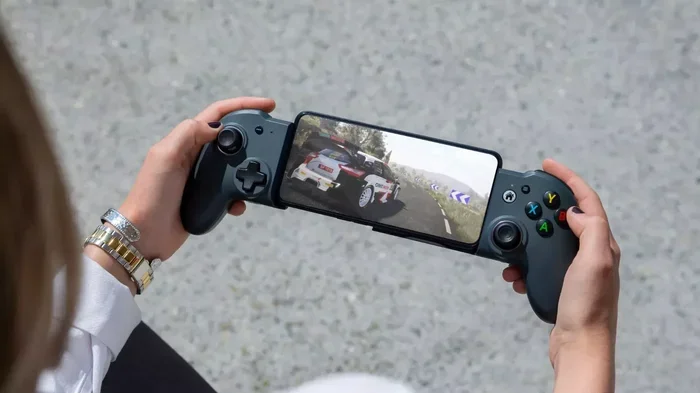
Holding a controller and your phone at the same time can be awkward. A phone controller mount attaches your phone to the controller, creating a handheld console feel. These mounts are cheap and make a huge difference in comfort. They also keep your phone steady during intense gaming sessions.
Close Background Apps
Running too many apps in the background can cause Bluetooth interference and reduce performance. Close all apps you are not using before you start gaming. This frees up system resources and can reduce input lag.
Keep Your Phone and Controller Close
Bluetooth range is typically about 30 feet, but walls and obstacles reduce this. For the best Bluetooth connectivity, keep your phone within a few feet of your controller. This also reduces latency and prevents disconnections.
Update Your Phone Software
Phone software updates often include fixes for Bluetooth connectivity issues. Keep your phone updated to the latest version. Similarly, check if your controller has a firmware update. Updated firmware can improve compatibility and fix bugs.
Try Different Controller Apps
If the built-in Bluetooth controller support is not enough, try a third-party app. Apps like Sixaxis Controller, DroidJoy, and Xbox Game Pass can expand compatibility. These apps let you use controllers that your phone would not normally recognize. Some also let you emulate console games on your phone with full controller support.
Expert Insight: Choose Controllers with Phone-Specific Features
According to mobile gaming experts, controllers designed specifically for phones offer the best experience. These controllers often have built-in phone holders, optimized battery life, and low-latency Bluetooth chips. Brands like 8BitDo and Razer invest heavily in mobile controller design. If you are buying a controller mainly for phone gaming, look for models that explicitly advertise phone compatibility.
Key Takeaways
- Controller compatibility varies: Not every Bluetooth controller works with every phone. Always check before buying.
- Android phones are more flexible: They support a wider range of wireless controllers without extra software.
- iPhone users need MFi-certified controllers for the easiest setup, though some workarounds exist.
- Pairing is simple: Most controllers connect through your phone’s standard Bluetooth settings in under a minute.
- Input lag and disconnections are common issues but are usually fixable with simple troubleshooting steps.
- Third-party apps unlock more options: They can make unsupported controllers work with your phone.
- A phone mount improves comfort: It turns your phone and controller into a handheld gaming device.
Conclusion
So, can you connect any Bluetooth controller to your phone? The honest answer is that many controllers will work, but not all of them. Controller compatibility depends on your phone model, operating system, and the specific controller you choose. Android phones offer the most flexibility, while iPhones require MFi-certified controllers for the smoothest experience.
That said, the most popular controllers from Xbox, PlayStation, and Nintendo all work well with modern smartphones. The pairing process is straightforward and usually takes less than a minute. If you run into issues, most problems have simple fixes. From checking your Bluetooth settings to using a third-party app, you have options.
A Bluetooth controller phone setup can transform how you play games on the go. You get the comfort of a real gamepad, better accuracy, and longer play sessions without finger fatigue. Whether you are a casual gamer or a competitive player, a wireless controller is a worthy addition to your mobile gaming toolkit. Pick the right controller, follow the pairing steps, and enjoy a better way to game on your phone.
Frequently Asked Questions
Can I connect an Xbox controller to any phone?
Most modern Android phones can connect an Xbox controller directly through Bluetooth. iPhones can connect newer Xbox models that support MFi Bluetooth. Older Xbox controllers may need the Xbox app on iPhone to work properly.
Why does my phone not detect my Bluetooth controller?
This usually happens because the controller is not in pairing mode, your phone’s Bluetooth is off, or the controller is too far away. Try restarting both devices and make sure the controller lights are flashing before searching again.
Do I need a special app to use a Bluetooth controller with my phone?
For most popular controllers, no special app is needed. Your phone’s built-in Bluetooth settings handle the connection. However, some controllers or games may require a third-party app for proper button mapping and compatibility.
Is there input lag when using a Bluetooth controller on a phone?
A small amount of input lag is normal with Bluetooth connections. But you can reduce it by keeping your phone and controller close, closing background apps, and using a controller with low-latency Bluetooth support. Wired controllers eliminate lag entirely if you use a USB OTG adapter.
Can I use a Nintendo Switch Pro controller with my phone?
Yes, the Nintendo Switch Pro Controller connects to both Android and iPhone via Bluetooth. Most games recognize it without issues. However, a few games may not support the Pro Controller’s input layout, so always check game compatibility before buying.
What is MFi certification and why does it matter for iPhone users?
MFi stands for Made for iPhone. It is Apple’s certification program for accessories that work with iOS devices. MFi-certified controllers connect to iPhones natively without extra software. Non-MFi controllers usually need a third-party app to function on iPhone.