Can I Connect A Bluetooth Keyboard To My Samsung Tablet
Yes, you can absolutely connect a Bluetooth keyboard to your Samsung tablet and transform it into a powerful productivity machine. This guide walks you through every step, from pairing and setup to troubleshooting common issues. Whether you own a Samsung Galaxy Tab S series or an older model, a wireless keyboard will change how you work and play on your tablet.
Have you ever wanted to type faster on your Samsung tablet? Maybe you need to write emails, work on documents, or just chat more comfortably. A Bluetooth keyboard can make all the difference. It turns your tablet into something that feels a lot like a laptop. And the best part? The process is simpler than you think.
In this guide, I will walk you through everything you need to know about connecting a Bluetooth keyboard to your Samsung tablet. We will cover the pairing process, setup tips, troubleshooting, and much more. By the end, you will feel confident setting up your wireless keyboard and getting to work. Let us dive right in.
Key Takeaways
- Easy Pairing Process: Connecting a Bluetooth keyboard to your Samsung tablet takes just a few simple steps and works with most models.
- Boosts Productivity: A wireless keyboard turns your tablet into a laptop-like setup for typing, browsing, and work tasks.
- Compatible with Many Keyboards: Most standard Bluetooth keyboards work seamlessly with Samsung tablets, including third-party options.
- Quick Troubleshooting: Common connection issues can be fixed with basic steps like restarting Bluetooth or re-pairing the device.
- Battery and Portability: Bluetooth keyboards are lightweight, portable, and offer long battery life for on-the-go use.
- Customization Options: You can adjust keyboard settings on your Samsung tablet for a personalized typing experience.
📑 Table of Contents
- Why Connect a Bluetooth Keyboard to Your Samsung Tablet?
- Before You Start: What You Need
- How to Connect a Bluetooth Keyboard to Your Samsung Tablet
- Troubleshooting Common Connection Issues
- Best Bluetooth Keyboards for Samsung Tablets
- Tips to Get the Most Out of Your Bluetooth Keyboard and Samsung Tablet
- Common Mistakes to Avoid
- Expert Insights: How Bluetooth Keyboards Work with Samsung Tablets
- How to Disconnect or Forget a Bluetooth Keyboard
- Can I Connect Multiple Bluetooth Devices at Once?
- Frequently Asked Questions
- Final Thoughts
Why Connect a Bluetooth Keyboard to Your Samsung Tablet?
Using a Samsung tablet with just the on-screen keyboard has its limits. Typing long emails or documents can feel slow and frustrating. A wireless keyboard changes the entire experience. It gives you real keys, better speed, and a more comfortable setup. Here is why so many people make this switch.
Productivity Boost
When you add a tablet keyboard, your workflow improves instantly. You can type faster, navigate easier, and multitask more efficiently. For students, professionals, and casual users alike, this upgrade makes a big difference. Writing a report or replying to a long thread becomes much less of a chore.
Portability and Convenience
One of the best things about a wireless keyboard is how portable it is. Most Bluetooth keyboards are slim and lightweight. You can slip one into your bag alongside your Samsung tablet. This means you get a laptop-like setup anywhere, without the bulk. Whether you are at a coffee shop or on a flight, your setup travels with you.
Versatility Across Devices
A Bluetooth keyboard is not limited to just your Samsung tablet. Many keyboards can connect to multiple devices. You can switch between your tablet, phone, and laptop with the press of a button. This makes it a versatile tablet accessory that adds real value to your tech collection.
Before You Start: What You Need
Before you begin the pairing process, make sure you have everything ready. A smooth setup starts with proper preparation. Here is a quick checklist to follow.
- A Samsung tablet with Bluetooth capability. Most Samsung tablets made in the last several years support Bluetooth.
- A Bluetooth keyboard. This can be a brand-name keyboard or a third-party option. As long as it supports Bluetooth, it should work.
- Charged battery on both your tablet and keyboard. Low battery can cause pairing problems.
- A flat, clear surface to place your tablet and keyboard during setup.
Now let us look at which Samsung tablets work best with external keyboards. Not all models are the same, but the good news is that most of them are compatible.
Compatible Samsung Tablet Models
The Samsung Galaxy Tab lineup includes many models that support Bluetooth keyboards. The Galaxy Tab S series, including the Tab S6, Tab S7, and Tab S8, are excellent choices. These tablets run Android and offer full Bluetooth support. Even older models like the Tab A series can connect to a wireless keyboard. If your tablet has a Bluetooth setting in the menu, you are good to go.
How to Connect a Bluetooth Keyboard to Your Samsung Tablet
This is the main part of the guide. Follow these steps carefully, and your keyboard will be connected in just a few minutes. The process is straightforward and works on most Samsung tablets.
Step 1: Turn on Bluetooth on Your Samsung Tablet
First, you need to make sure Bluetooth is active on your tablet. Swipe down from the top of your screen to open the quick settings panel. Look for the Bluetooth icon and tap it to turn it on. You will see a Bluetooth symbol appear in your status bar. This tells you that your tablet is ready to search for nearby devices.
You can also go to the Settings app. Tap Connections, then tap Bluetooth. Toggle the switch to turn it on. Your tablet will start scanning for available devices automatically.
Step 2: Put Your Keyboard in Pairing Mode
Now it is time to prepare your wireless keyboard for pairing. Most Bluetooth keyboards have a dedicated pairing button. Look for a small button on the back or side of the keyboard. Press and hold it for a few seconds. You should see a flashing LED light, usually blue or white. This flashing light means the keyboard is ready to be discovered.
If your keyboard does not have a pairing button, try turning it off and back on. Some keyboards enter pairing mode automatically when you power them on for the first time. Check your keyboard manual if you are unsure.
Step 3: Find and Select Your Keyboard on the Tablet
Go back to your Samsung tablet. You should see your keyboard listed under Available Devices or Other Devices in the Bluetooth settings. Tap on the name of your keyboard to select it.
Your tablet will take a moment to connect. You may see a pairing request screen with a code. If so, check if the code matches on both devices. Tap Pair or Confirm to complete the connection. Once connected, the keyboard will move up to the Paired Devices section.
Step 4: Test Your Connection
Now open any app where you can type. The Notes app or a browser search bar works great. Start typing on your external keyboard. If characters appear on screen, you are all set. The connection is working perfectly.
If nothing happens, do not worry. This is a common issue, and we will cover troubleshooting in the next section.
Troubleshooting Common Connection Issues
Sometimes things do not go smoothly. A Bluetooth keyboard might not connect right away, or it might disconnect unexpectedly. These issues are usually easy to fix. Let us walk through the most common problems and their solutions.
Keyboard Not Showing Up in Bluetooth List
If your keyboard does not appear on your Samsung tablet, try these steps. First, make sure your keyboard is in pairing mode. The flashing LED light is your signal that it is ready. Next, turn Bluetooth off and back on your tablet. This refreshes the connection scan. You can also try restarting your tablet entirely. Sometimes a simple reboot clears up connectivity glitches.
Paired But Not Typing
This happens more often than you might think. Your keyboard shows as connected, but no characters appear when you type. The fix is usually to go to your tablet Settings, tap Bluetooth, and remove the keyboard from the paired list. Then pair it again from scratch. This resets the connection and often solves the problem right away.
Keyboard Disconnects Frequently
If your wireless keyboard keeps losing its connection, check the battery first. A low battery on the keyboard can cause frequent disconnections. Charge it fully and try again. Also, make sure your tablet and keyboard are close to each other. Bluetooth works best within about 30 feet. Walls and other electronics can interfere with the signal. Moving closer to your tablet can help stabilize the connection.
Keyboard Works on Other Devices But Not Your Samsung Tablet
Some keyboards use Bluetooth profiles that are not fully compatible with every device. If your keyboard works fine on a laptop but not your tablet, try clearing the Bluetooth cache. Go to Settings, tap Applications, find Bluetooth, and clear the cache. Restart your tablet and try pairing again. This resolves many compatibility hiccups.
Best Bluetooth Keyboards for Samsung Tablets
Not all keyboards are created equal. Some are better suited for tablet use than others. Here are a few options worth considering if you are in the market for a new wireless keyboard.
Samsung Book Cover Keyboard
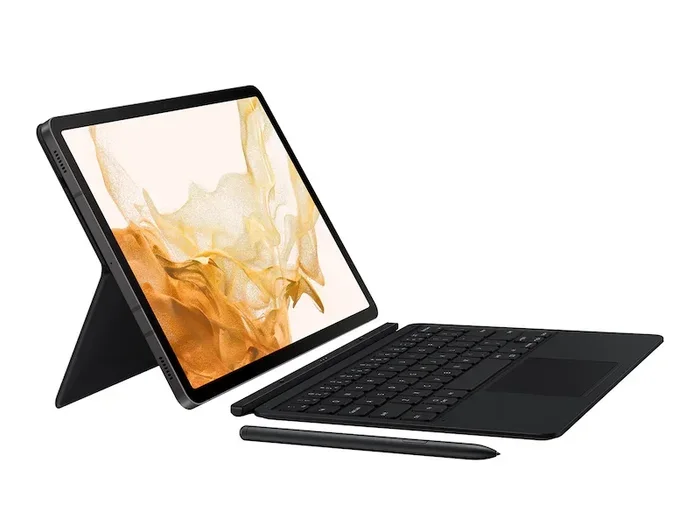
The Samsung Book Cover Keyboard is designed specifically for Samsung tablets. It attaches magnetically and doubles as a protective cover. This is a great choice if you want a keyboard that is made for your device. It offers a comfortable typing feel and a built-in trackpad. The setup is seamless since it is a Samsung accessory.
Logitech K380
The Logitech K380 is a popular choice among tablet users. It is compact, lightweight, and works with multiple devices. You can switch between your Samsung tablet, phone, and laptop with ease. The battery lasts up to two years on two AAA batteries. It is a reliable Bluetooth keyboard at a very reasonable price.
Apple Magic Keyboard (For Samsung Tablets)
You might be surprised to learn that the Apple Magic Keyboard can work with Samsung tablets. It uses standard Bluetooth protocols. However, not all features may be available. The keys feel great, and the trackpad is smooth. If you already own one, it is worth trying with your Samsung tablet.
Microsoft Universal Fold-Up Keyboard
This keyboard folds up small and is very portable. It connects via Bluetooth and works with Android devices. It is a solid option for people who travel often. The keys are full-sized, which makes typing comfortable for longer sessions.
Tips to Get the Most Out of Your Bluetooth Keyboard and Samsung Tablet
Once your keyboard is connected, you can do a few things to improve your experience. These tips will help you get the most out of your setup.
Adjust Keyboard Settings on Your Tablet
Your Samsung tablet lets you customize how your external keyboard behaves. Go to Settings, then General Management, and tap Language and Input. From there, you can adjust keyboard settings, enable or disable auto-correct, and set up shortcut keys. Taking a few minutes to tweak these settings can make a big difference in how you work.
Use Keyboard Shortcuts
A Bluetooth keyboard opens up shortcut options that the on-screen keyboard does not offer. You can use Ctrl+C to copy, Ctrl+V to paste, and Alt+Tab to switch between apps. These shortcuts speed up your workflow significantly. Learning a few essential ones will make you feel right at home on your tablet.
Keep Your Devices Updated
Software updates can improve Bluetooth performance and fix bugs. Make sure your Samsung tablet is running the latest version of One UI or Android. Similarly, check if your keyboard has any firmware updates. Keeping both devices updated ensures the smoothest possible connection.
Protect Your Keyboard and Tablet
If you use your wireless keyboard on the go, invest in a good carrying case. A protective sleeve for your tablet and a soft pouch for your keyboard will keep them safe. This is especially important if you travel or use your setup in different locations throughout the day.
Common Mistakes to Avoid
Setting up a Bluetooth keyboard with your Samsung tablet is easy, but a few mistakes can cause frustration. Here is what to watch out for.
- Skipping the pairing mode step. Your keyboard must be in pairing mode to show up on your tablet. Always check for the flashing light.
- Ignoring battery levels. A low battery on either device can prevent a successful connection. Charge both devices before you start.
- Placing devices too far apart. Bluetooth has a limited range. Keep your keyboard and tablet within a few feet during setup.
- Not removing old pairings. If your keyboard was previously connected to another device, it might try to reconnect to that device instead. Remove old pairings to avoid this issue.
- Forgetting to restart Bluetooth. A simple on-and-off refresh of Bluetooth can solve many connection problems. Do not skip this step if things are not working.
Expert Insights: How Bluetooth Keyboards Work with Samsung Tablets
Understanding how Bluetooth connectivity works between your keyboard and tablet helps you troubleshoot better. Bluetooth uses short-range radio waves to transmit data between devices. When you press a key on your wireless keyboard, it sends a signal to your Samsung tablet. The tablet receives the signal and displays the character on screen.
Samsung tablets use the standard Bluetooth protocol, which means they can connect to most Bluetooth keyboards on the market. The connection is secure and encrypted, so your data stays private. Unlike USB connections, Bluetooth does not require a physical port. This means you can use your tablet without any cables or dongles.
One thing to keep in mind is that Bluetooth keyboards use different profiles. The most common one is the Human Interface Device profile, or HID. This profile is supported by virtually all Android tablets, including Samsung devices. As long as your keyboard uses the HID profile, it will work with your Samsung tablet. This is why most standard keyboards connect without any extra software or drivers.
If you use a keyboard with special function keys or backlighting, those features may not work the same way on Android as they do on a computer. The core typing functionality will always work, but advanced features might be limited. This is normal and not something to worry about.
How to Disconnect or Forget a Bluetooth Keyboard
There may come a time when you want to remove a keyboard from your Samsung tablet. Maybe you are using a shared device, or you simply want to free up the Bluetooth slot. Here is how to do it.
Go to Settings, then Connections, and tap Bluetooth. Find your keyboard in the Paired Devices list. Tap the gear icon next to it, then tap Unpair or Forget. The keyboard will be removed from your tablet’s memory. If you want to connect it again later, you will need to go through the pairing process from scratch.
This is also a good step to take if your keyboard is causing problems. Forgetting the device and re-pairing it often resolves stubborn connection issues. It clears any corrupted data from the previous connection and gives you a fresh start.
Can I Connect Multiple Bluetooth Devices at Once?
Yes, your Samsung tablet can connect to multiple Bluetooth devices simultaneously. You can have a keyboard, a mouse, and headphones all connected at the same time. This is great for creating a full workstation setup with your tablet. Just make sure your tablet has enough Bluetooth bandwidth to handle all the connected devices. Most modern Samsung tablets handle multiple connections without any issues.
Keep in mind that having too many devices connected can occasionally slow down the Bluetooth response. If you notice any lag, try disconnecting devices you are not actively using. This keeps your connection fast and responsive.
Frequently Asked Questions
Can any Bluetooth keyboard work with a Samsung tablet?
Yes, most Bluetooth keyboards work with Samsung tablets. As long as the keyboard uses standard Bluetooth and the HID profile, it should connect without any issues. This includes keyboards from brands like Logitech, Microsoft, and Apple. Even generic or budget-friendly keyboards usually work just fine with your Samsung tablet.
Do I need any special app to connect a Bluetooth keyboard to my Samsung tablet?
No, you do not need any special app. Samsung tablets have built-in Bluetooth settings that handle the pairing process. You simply go to Settings, turn on Bluetooth, and follow the pairing steps. The tablet recognizes the keyboard automatically and sets it up for you.
Why does my Bluetooth keyboard keep disconnecting from my Samsung tablet?
Frequent disconnections are usually caused by a low battery, distance between devices, or interference from other electronics. Try charging your keyboard fully, moving closer to your tablet, and reducing the number of Bluetooth devices in the area. Restarting both devices can also help stabilize the connection.
Can I use a Bluetooth keyboard with a Samsung Galaxy Tab A?
Yes, the Samsung Galaxy Tab A series supports Bluetooth keyboards. While these tablets may not have the same high-end specs as the Tab S series, they still have full Bluetooth capability. Any standard wireless keyboard should pair and work well with a Galaxy Tab A.
Is it better to use a Bluetooth keyboard or a wired keyboard with my Samsung tablet?
A Bluetooth keyboard is generally better for most users. It offers more flexibility, no cables to manage, and easy portability. However, a wired keyboard might be a better choice if you need zero latency or do not want to worry about battery charging. Both options work well, so it really comes down to your personal preference and how you use your tablet.
How long does the battery last on a Bluetooth keyboard?
Battery life varies depending on the keyboard model and usage. Most Bluetooth keyboards last between one and three months on a single charge or set of batteries. Some models, like the Logitech K380, can last up to two years. To extend battery life, turn off the keyboard when you are not using it and reduce backlight settings if your keyboard has them.
Final Thoughts
Connecting a Bluetooth keyboard to your Samsung tablet is one of the easiest and most rewarding upgrades you can make. It opens up a world of productivity and comfort that the on-screen keyboard simply cannot match. Whether you are a student taking notes, a professional working on the go, or someone who just prefers a better typing experience, a wireless keyboard is the way to go.
The process is simple, the setup takes only a few minutes, and the benefits last a long time. You do not need expensive equipment or technical skills. Just follow the steps in this guide, and you will be typing away on your Samsung tablet in no time. Give it a try today, and you will wonder how you ever managed without it.