Can I Cast Directly To TV And Stream Without Hassle
Yes, you can cast directly to TV and stream without any hassle. Whether you use a Chromecast, AirPlay, Roku, or a smart TV, sending content from your phone or laptop to the big screen is easier than ever. This guide walks you through every method, device, and tip you need to stream without interruption and enjoy your favorite shows on a larger display.
Have you ever wanted to watch something on your TV but didn’t want to deal with cables or complicated setups? The good news is that casting directly to your TV has become incredibly simple. You don’t need to be a tech expert to get your phone, tablet, or laptop content playing on a bigger screen.
In this guide, we will show you exactly how to cast directly to TV and stream without any hassle. We will cover every major method, device, and tip so you can enjoy your favorite movies, shows, and music on the TV screen in minutes. Let us dive in.
Key Takeaways
- Multiple casting methods exist: You can use Chromecast, AirPlay, Roku, Fire TV Stick, or built-in smart TV features to cast directly.
- Wi-Fi is essential: A strong and stable wireless connection ensures smooth screen mirroring and lag-free video casting.
- Most devices work together: iPhones, Androids, Windows laptops, and Macs can all connect to modern casting devices with minimal setup.
- Common issues are fixable: Problems like lag, audio sync issues, and connection drops usually have simple solutions.
- No extra hardware needed: Many modern smart TVs have built-in casting support, so you can skip extra gadgets.
- Streaming apps support casting natively: Popular apps like Netflix, YouTube, and Spotify include a cast button for direct streaming.
📑 Table of Contents
- What Does It Mean to Cast Directly to TV?
- Can I Cast Directly to TV Using Chromecast?
- Can I Cast Directly to TV Using AirPlay?
- Can I Cast Directly to TV Using Roku or Fire TV Stick?
- Can I Cast Directly to TV Without Any Extra Device?
- Common Problems When Casting Directly to TV (And How to Fix Them)
- Expert Tips for the Best Casting Experience
- Key Takeaways
- Conclusion
What Does It Mean to Cast Directly to TV?
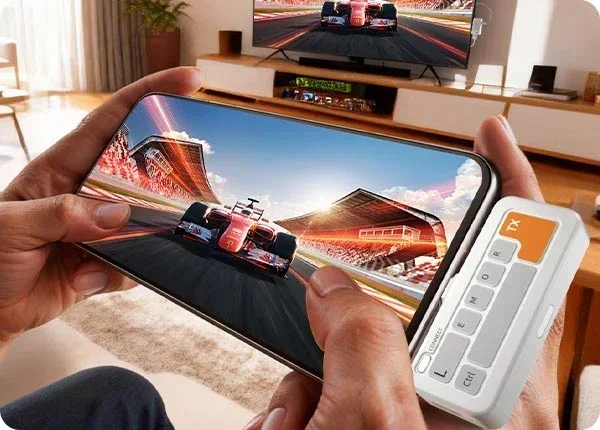
Casting means sending content from one device to another over a wireless connection. When you cast, you are basically telling your TV to display what is on your phone, tablet, or computer. The content plays on the TV while your device acts as a remote control.
This is different from screen mirroring. Mirroring shows everything on your phone screen on the TV. Casting sends specific content like a video or song directly to the TV. Both methods let you enjoy media on a bigger display without wires.
How Casting Works Behind the Scenes
Most casting devices use your home Wi-Fi network to communicate. Your phone sends a signal to the TV or a casting dongle like a Chromecast. The TV then pulls the content directly from the internet. This means your phone can even be used for other things while the video plays on the TV.
The process relies on DLNA or Miracast protocols. These are just technical standards that let devices talk to each other wirelessly. You do not need to understand the tech. Just know that it works fast and reliably when your Wi-Fi connection is strong.
Can I Cast Directly to TV Using Chromecast?
Chromecast is one of the most popular ways to cast directly to TV. Google made this small device that plugs into your TV’s HDMI port. It connects to your Wi-Fi and lets you stream anything from your phone or computer to the big screen.
Setting Up Chromecast for the First Time
Getting started with Chromecast is straightforward. Here is what you need to do:
- Plug the Chromecast into your TV’s HDMI port.
- Connect the Chromecast to power using the USB cable.
- Download the Google Home app on your phone.
- Follow the on-screen instructions to connect to your Wi-Fi.
- Once setup is complete, you can start casting right away.
Using the Cast Button in Apps
Most popular streaming apps support Chromecast natively. Apps like Netflix, YouTube, Hulu, Spotify, and Disney+ all have a cast button in the corner of the screen. When you tap it, you can choose your Chromecast device and the content will start playing on your TV.
You can also cast from the Chrome browser on your computer. Just open a video or website, click the three-dot menu, and select Cast. This is a great way to watch anything on the web on your TV.
Can I Cast Directly to TV Using AirPlay?
If you have an iPhone, iPad, or Mac, AirPlay is your best friend for wireless streaming. Apple’s built-in casting technology lets you send audio, video, and photos to a compatible TV or AirPlay receiver with just a few taps.
How to Use AirPlay with Your TV
Many modern smart TVs from Samsung, LG, Sony, and Vizio support AirPlay 2. This means you do not need any extra hardware. Here is how to use it:
- Make sure your iPhone and TV are on the same Wi-Fi network.
- Open the Control Center on your iPhone by swiping down from the top right.
- Tap the Screen Mirroring icon.
- Select your TV from the list of available devices.
- Your iPhone screen is now showing on the TV.
AirPlay vs. Chromecast: Which Is Better?
Both AirPlay and Chromecast do a great job of casting to TV. AirPlay works best if you are in the Apple ecosystem. It feels seamless and natural on iPhones and Macs. Chromecast works well with both Android and Apple devices. It also tends to be more affordable.
Here is a quick comparison to help you decide:
- AirPlay: Best for Apple users. Smooth integration. No extra hardware needed if your TV supports it.
- Chromecast: Works with Android and Apple. Very affordable. Great for casting from Chrome browser.
- Both: Need a strong Wi-Fi connection. Both support popular streaming apps.
Can I Cast Directly to TV Using Roku or Fire TV Stick?
Yes! Both Roku and Amazon Fire TV Stick are excellent casting devices that let you send content from your phone to the TV. They each have their own casting apps and features that make wireless streaming easy.
Casting with Roku
Roku has a built-in feature called Screen Mirroring. You can mirror your phone screen to your Roku TV or Roku streaming device. Here is how:
- Make sure your phone and Roku are on the same Wi-Fi network.
- Open the Roku app on your phone.
- Tap the Screen Mirroring option.
- Select your Roku device and start streaming.
Roku also supports casting from apps like Netflix and YouTube. Just look for the cast icon inside the app and select your Roku device.
Casting with Fire TV Stick
The Amazon Fire TV Stick lets you cast using the Amazon Fire TV app. You can also mirror your Android phone screen directly to the Fire Stick. Apple users can use AirPlay if their Fire TV supports it on newer models.
- Download the Amazon Fire TV app on your phone.
- Connect both devices to the same Wi-Fi network.
- Select your Fire TV device from the app.
- Choose to mirror or cast specific content.
Can I Cast Directly to TV Without Any Extra Device?
Absolutely! Many smart TVs made in the last few years have built-in casting support. This means you can cast directly to TV without buying a Chromecast, Roku, or Fire Stick.
Which Smart TVs Support Built-In Casting?
Most major TV brands now include wireless streaming features right out of the box. Here are some popular options:
- Samsung Smart TVs: Support AirPlay 2 and Miracast for wireless casting.
- LG Smart TVs: Work with both AirPlay and Chromecast built-in.
- Sony Smart TVs: Offer Google Cast and AirPlay support.
- Vizio Smart TVs: Include Chromecast and AirPlay on most models.
- TCL and Hisense: Many models now have Android TV or Roku TV built in.
How to Check If Your TV Supports Casting
Not sure if your TV can cast directly? Here is a quick way to find out:
- Check the TV’s settings menu for Screen Mirroring or Cast options.
- Look for the Chromecast or AirPlay logo on the TV box or manual.
- Open your phone’s Wi-Fi settings and see if your TV appears as a connected device.
- Search online for your TV model and check if it supports wireless display.
Common Problems When Casting Directly to TV (And How to Fix Them)
Even though casting to TV is usually smooth, you might run into some issues. Here are the most common problems and easy fixes.
Lag or Delay During Casting
If your video stutters or there is a delay, your Wi-Fi connection might be weak. Try these fixes:
- Move your router closer to the TV.
- Reduce the number of devices using the same network.
- Restart your router and casting device.
- Switch to a 5 GHz Wi-Fi band for faster speeds.
Audio and Video Not Synced
Sometimes the audio and video get out of sync when you stream wirelessly. This is a common casting issue. Here is what you can do:
- Lower the video quality in the app settings.
- Restart both your phone and TV.
- Make sure your Wi-Fi signal is strong in the room where the TV is.
- Update the firmware on your casting device or smart TV.
TV Not Showing Up as a Casting Option
If your TV does not appear when you try to cast, try these steps:
- Check that both devices are on the same Wi-Fi network.
- Turn on Screen Mirroring or Cast in your TV settings.
- Restart your TV and casting device.
- Update the casting app or TV firmware to the latest version.
Quick Tips for Smooth Casting
- Always use the same Wi-Fi network for your phone and TV.
- Keep your casting device firmware updated.
- Close unused apps on your phone to free up memory.
- Use a dual-band router for the best wireless streaming experience.
- Restart devices regularly to prevent connection issues.
Expert Tips for the Best Casting Experience
Want to get the most out of casting directly to TV? Here are some expert tips that make a big difference.
Optimize Your Home Network
A strong Wi-Fi network is the foundation of great wireless streaming. Place your router in a central location in your home. Avoid putting it in closets or behind furniture. If you have a large home, consider a mesh Wi-Fi system to eliminate dead zones.
Use the Right App for Casting
Not all apps handle video casting the same way. Apps like YouTube, Netflix, and Spotify have excellent cast support and deliver high-quality video. Some lesser-known apps might not support casting or may have bugs. Stick to well-known streaming apps for the best results.
Keep Your Devices Updated
Software updates often include fixes for casting issues. Make sure your phone, TV, and casting device are running the latest software. This simple step can solve many problems and improve performance.
Consider a Wired Connection for Critical Viewing
If you are watching something important and cannot afford any lag, consider using an HDMI cable or a USB-C to HDMI adapter. Wired connections are more reliable than wireless display options. They also offer better video quality with no compression.
Key Takeaways
- Multiple casting methods exist: You can use Chromecast, AirPlay, Roku, Fire TV Stick, or built-in smart TV features to cast directly.
- Wi-Fi is essential: A strong and stable wireless connection ensures smooth screen mirroring and lag-free video casting.
- Most devices work together: iPhones, Androids, Windows laptops, and Macs can all connect to modern casting devices with minimal setup.
- Common issues are fixable: Problems like lag, audio sync issues, and connection drops usually have simple solutions.
- No extra hardware needed: Many modern smart TVs have built-in casting support, so you can skip extra gadgets.
- Streaming apps support casting natively: Popular apps like Netflix, YouTube, and Spotify include a cast button for direct streaming.
Conclusion
The answer to can I cast directly to TV is a resounding yes. You have many options, from Chromecast and AirPlay to Roku, Fire TV Stick, and built-in smart TV features. Each method makes it easy to stream without hassle and enjoy your favorite content on the big screen.
Casting to TV has never been simpler. With a strong Wi-Fi connection and a compatible device, you can start streaming in just a few minutes. Whether you are watching movies, sharing photos, or playing games, wireless streaming gives you the freedom to enjoy content anywhere in your home.
Try the methods in this guide and find what works best for you. Once you experience the convenience of casting directly to TV, you will wonder how you ever watched anything on a small screen. Happy streaming!
Frequently Asked Questions
Can I cast directly to TV without Wi-Fi?
Most casting methods require a Wi-Fi connection. However, some devices support peer-to-peer casting or Bluetooth connections that work without Wi-Fi. Check your specific device for offline casting options.
Can I cast from any phone to any TV?
Not every combination works perfectly. Android phones work best with Chromecast and Miracast. iPhones work best with AirPlay. Most modern smart TVs support multiple casting standards. Check your TV and phone compatibility before buying any equipment.
Is casting the same as screen mirroring?
No, they are different. Casting sends specific content like a video or song to the TV. Screen mirroring duplicates your entire phone screen on the TV. Casting usually gives better quality and lets you use your phone while the content plays.
Why is my cast video lagging or buffering?
Lagging usually means your Wi-Fi connection is weak or slow. Try moving closer to your router, reducing the number of connected devices, or lowering the video quality in the app. A dual-band router can significantly improve wireless streaming performance.
Can I cast to multiple TVs at once?
Yes, some casting devices and smart TVs support multi-room casting. Chromecast allows you to group multiple devices and cast to them simultaneously. AirPlay also supports multiple AirPlay 2 speakers and TVs on the same network.
Do I need to buy a casting device if I have a smart TV?
Not always. Many modern smart TVs have built-in Chromecast or AirPlay support. Check your TV’s settings or manual to see if it supports wireless streaming. If it does, you can skip buying any extra hardware.
=== CONCLUSION ===
Casting directly to TV is one of the simplest and most enjoyable ways to enjoy your favorite content on a bigger screen. With so many options available, there is no reason not to try it. Whether you use Chromecast, AirPlay, Roku, Fire TV Stick, or your TV’s built-in features, streaming without hassle is within your reach.
Start with the method that fits your devices and setup. Follow the tips in this guide to get the best experience. Soon you will be casting like a pro and enjoying every show, movie, and song on your TV. Happy streaming!