Can A Smart TV Be Used As A Digital Photo Frame Today
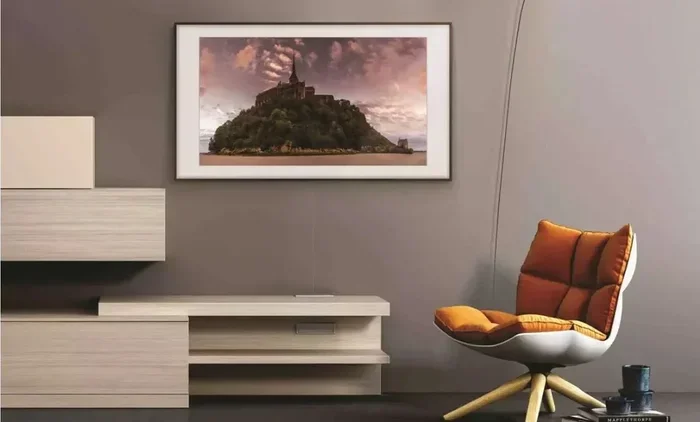
Yes, you can absolutely use a smart TV as a digital photo frame. With just a few simple steps, your big screen transforms into a beautiful display for your favorite memories. Smart TVs support photo apps, wireless streaming, and slideshow features that make this process effortless. You get a larger, sharper display compared to traditional photo frames, and the setup costs far less than buying a dedicated frame. Smart TV digital photo frames are a smart upgrade for any home.
Have you ever looked at your blank wall and thought it needs something warm and personal? A big screen TV sitting idle can become the perfect solution. Can a smart TV be used as a digital photo frame? The answer is a resounding yes. This simple trick turns your entertainment center into a stunning gallery of memories.
People love showing off family photos, travel snapshots, and artwork. But traditional photo frames have limitations. They hold only a few pictures at a time. You need to swap them out manually. A smart TV digital photo frame solves all of these problems. It cycles through hundreds of images automatically. The picture quality blows any small frame out of the water. And the best part? You probably already own the device you need.
In this guide, we will walk you through everything you need to know. We will cover setup steps, the best apps, display settings, and common mistakes to avoid. Whether you are a tech beginner or a seasoned smart home user, this guide has you covered.
Key Takeaways
- Easy Setup: Connecting your smart TV as a digital photo frame takes just minutes with built-in apps or streaming devices.
- Cost-Effective: Using an existing smart TV saves money compared to buying a dedicated digital photo frame.
- Superior Display: Smart TVs offer larger screens and better resolution than most traditional digital frames.
- Multiple Apps: Google Photos, Amazon Photos, and other apps make photo streaming seamless.
- Customizable: You can adjust slideshow speed, transition effects, and display zones to suit your style.
- Smart Home Integration: Many smart TVs work with voice assistants for hands-free control.
📑 Table of Contents
- Why Use a Smart TV as a Digital Photo Frame?
- How to Set Up Your Smart TV as a Digital Photo Frame
- Best Apps for Smart TV Photo Slideshows
- Smart TV Digital Photo Frame Settings and Tips
- Common Mistakes to Avoid
- Expert Insights: Smart TV Photo Frames vs. Dedicated Digital Frames
- Quick Tips for the Best Results
- Frequently Asked Questions
- Conclusion
Why Use a Smart TV as a Digital Photo Frame?
More and more people are discovering the benefits of using their TV screen for photo displays. It is not just a gimmick. There are real, practical advantages that make this idea worth exploring.
Bigger Screen, Better Impact
A standard digital photo frame is usually around 10 to 15 inches. That is fine for a desk. But for a living room wall, it looks tiny. A smart TV gives you a massive display area. Your photos look vibrant and detailed. Even a 43-inch TV makes a big difference in any room.
Think about it. Family photos on a large screen feel cinematic. You can see every smile, every detail, every expression clearly. It creates a warm, inviting atmosphere in your home.
Cost Savings
Dedicated digital photo frames can be expensive. High-quality ones with good resolution cost anywhere from $100 to $300. A large smart TV digital photo frame setup costs you nothing extra if you already own the TV. You are simply repurposing a device you already paid for.
Even if you need to buy a streaming stick, the total cost is still lower than most dedicated frames. A basic Chromecast or Fire TV Stick costs under $50. That is a great deal for a photo display that fills an entire wall.
Automatic Slideshow Features
One of the best things about a smart TV photo frame is the automatic slideshow. You upload your photos once. The TV cycles through them all day long. No need to touch a thing. Most apps let you adjust the speed, transition effects, and even the order of photos.
You can set it to show family photos in the morning. Switch to artwork in the evening. The flexibility is incredible.
How to Set Up Your Smart TV as a Digital Photo Frame
Setting up your TV as a photo frame is simpler than you might think. Follow these steps and you will have a beautiful display in no time.
Step 1: Connect to Wi-Fi
Make sure your smart TV is connected to your home network. This is essential for streaming photos from the cloud. Go to your TV settings and check the network connection. A stable Wi-Fi connection ensures smooth photo loading.
Step 2: Choose Your Photo App
Most smart TVs come with built-in photo apps. Here are the top options:
- Google Photos: Works on Android TV and Google TV models. Free and unlimited photo storage up to certain limits.
- Amazon Photos: Great for Prime members. Offers unlimited full-resolution photo storage.
- Apple TV App: If you have an iPhone, Apple TV supports iCloud photo streaming.
- Samsung Smart View: Built into Samsung TVs for seamless phone-to-TV photo sharing.
- LG Photo Plus: LG TVs have their own dedicated photo display app.
Step 3: Upload Your Photos
Upload your favorite photos to your chosen app. Use your phone or computer. Google Photos and Amazon Photos both have easy mobile apps. Simply select the photos you want to display and let them sync to your TV.
Pro tip: Choose high-quality images. Low-resolution photos will look blurry on a big screen. Aim for photos that are at least 1080p for the best results.
Step 4: Configure the Slideshow
Once your photos are loaded, open the app on your TV. Look for the slideshow or screensaver option. Set the time between photo changes. Most people prefer 5 to 10 seconds per photo. Adjust the transition effect to something smooth and elegant.
Step 5: Fine-Tune Display Settings
Go into your TV picture settings and make a few adjustments:
- Brightness: Lower it slightly for a softer, ambient look.
- Contrast: Keep it balanced so photos look natural.
- Color Mode: Use a warm or natural setting for skin tones.
- Motion Smoothing: Turn this off. It can cause weird effects on still photos.
Best Apps for Smart TV Photo Slideshows
Not all photo apps are created equal. Some work better than others for displaying photos on a big screen. Here are the top picks for a smart TV digital photo frame setup.
Google Photos
Google Photos is the gold standard for photo storage and display. It works with most smart TVs running Android TV or Google TV. The app automatically organizes your photos by date, face, and location. You can create shared albums that update in real time.
The slideshow feature is clean and easy to use. Photos transition smoothly. The app supports albums, so you can curate different collections for different moods or rooms.
Amazon Photos
If you are an Amazon Prime member, Amazon Photos is a fantastic choice. It gives you unlimited full-resolution photo storage at no extra cost. The app works on Fire TV devices and many smart TV models.
One great feature is the ability to create family libraries. Everyone in the household can contribute photos. This makes it perfect for a shared family display.
Apple TV and iCloud
Apple users have a seamless experience with Apple TV and iCloud. Photos sync automatically across all Apple devices. The Apple TV app displays your iCloud photos beautifully on the big screen.
The main advantage is integration. If you live in an Apple ecosystem, everything just works. No extra apps needed.
Third-Party Apps Worth Trying
Beyond the big names, there are some excellent third-party options:
- Flickr: Great for photography enthusiasts. Supports large photo collections.
- Dropbox: Good for users who already store files in the cloud.
- Presentation apps: Some users turn PowerPoint into a photo slideshow on their TV.
Smart TV Digital Photo Frame Settings and Tips
Getting the right settings makes a huge difference in how your photos look on a big screen. Small adjustments can transform a basic slideshow into a stunning display.
Display Settings for Photo Viewing
Your TV likely has picture modes designed for movies and sports. These are not ideal for photos. Switch to a mode that is more natural and accurate. Here are some quick tips:
- Turn off motion smoothing or TruMotion. It creates artificial frames that distort still images.
- Set the color temperature to warm for a cozy feel.
- Disable dynamic contrast. It can make photos look harsh.
- Use the game mode for the clearest picture with no processing delays.
Managing Photo Quality
Resolution matters a lot on a big screen. A photo that looks fine on your phone might look pixelated on a 55-inch TV. Always upload the highest quality versions of your photos. Most cloud apps preserve original quality, so this should be easy.
Also, consider the aspect ratio. Most smart TVs are 16:9. Photos taken in portrait mode will have black bars on the sides. You can crop photos to fit the screen, or choose apps that auto-adjust the framing.
Creating a Gallery Wall Effect
Want to go beyond a single slideshow? You can create a multi-zone display on your smart TV. Some TVs support picture-in-picture or split-screen modes. This lets you show different photo albums in different sections of the screen.
It is like having multiple frames on one wall. Each section shows a different collection. Travel photos in one corner. Family portraits in another. Holiday snaps in a third.
Common Mistakes to Avoid
Setting up a smart TV as a photo frame is easy, but there are some pitfalls to watch out for.
Using Low-Resolution Photos
This is the number one mistake. Low-quality photos look terrible on a big screen. Always upload the highest resolution versions you can find. If your phone compresses photos, use a cloud service that preserves original quality.
Leaving Motion Features On
Motion smoothing, dynamic contrast, and other TV processing features are designed for video content. They can make static photos look weird. Always disable these features for a clean photo display.
Ignoring Screen Burn-In
OLED and some LED TVs can experience burn-in if a static image stays on screen too long. This is rare with modern TVs, but it is worth knowing. Use a slideshow with regular photo changes. Most apps have a screensaver mode that prevents burn-in by shifting the image slightly.
Forgetting to Update Photos
A digital photo frame is only as good as the photos it shows. Set a reminder to update your photo collection regularly. Add new family moments, recent trips, and fresh snapshots. This keeps the display feeling current and alive.
Expert Insights: Smart TV Photo Frames vs. Dedicated Digital Frames
You might wonder how a smart TV compares to a dedicated digital photo frame. Let us break it down.
| Feature | Smart TV Photo Frame | Dedicated Digital Frame |
|---|---|---|
| Screen Size | 43 to 85 inches | 7 to 15 inches |
| Picture Quality | 4K Ultra HD | HD to Full HD |
| Cost | $0 if you already own it | $50 to $300 |
| App Ecosystem | Google Photos, Amazon Photos, and more | Limited built-in apps |
| Wireless Streaming | Yes, built-in | Some models only |
| Portability | No, wall-mounted | Yes, easy to move |
| Setup Complexity | Simple, 5 minutes | Very simple |
The comparison shows clear advantages for the smart TV approach. The screen size and picture quality are in a different league. The cost savings are significant. However, dedicated frames win on portability and simplicity for small spaces.
Expert tip: Many people use both. A dedicated frame on the desk and a smart TV on the wall. This gives you the best of both worlds.
Quick Tips for the Best Results
Here are some quick tips to get the most out of your smart TV photo frame setup:
- Use a dark room or dim the TV brightness for a gallery-like ambiance.
- Create themed albums for different moods or seasons.
- Set the slideshow to shuffle randomly for a surprise effect.
- Add music in the background using your TV speakers for a full sensory experience.
- Use a smart plug to turn the TV on and off on a schedule.
- Rotate photos seasonally to keep the display fresh and interesting.
Frequently Asked Questions
Can any smart TV be used as a digital photo frame?
Yes, most smart TVs can be used as a digital photo frame. You just need a photo app that supports slideshow mode. Android TV, Google TV, Samsung Tizen, LG WebOS, and Fire TV all support photo display apps. If your TV connects to Wi-Fi and has an app store, it can likely work as a photo frame.
Do I need any extra equipment to set this up?
In most cases, no extra equipment is needed. If your TV has built-in photo apps, you are good to go. For some models, you might need a streaming device like a Chromecast, Fire TV Stick, or Apple TV. These cost under $50 and plug right into an HDMI port.
Will using my smart TV as a photo frame damage the screen?
No, using your smart TV as a photo frame will not damage the screen. Modern TVs are designed to handle static images for extended periods. Just make sure to use the slideshow feature rather than displaying one photo continuously. This prevents any risk of screen burn-in, especially on OLED models.
Can I use my phone to control what photos appear on the TV?
Yes, most photo apps let you control the TV display from your phone. Google Photos, Amazon Photos, and Apple TV all have companion apps. You can select albums, adjust slideshow settings, and add new photos right from your phone. It is a seamless experience.
What is the best screen brightness for a TV photo frame?
A brightness setting between 40% and 60% works best for a photo frame display. This creates a warm, ambient glow that is easy on the eyes. Too bright and it feels harsh. Too dim and the photos lose their vibrancy. Adjust based on your room lighting and personal preference.
Can I show videos on my smart TV photo frame too?
Yes, you can! Many photo apps support video clips alongside photos. You can create a mixed slideshow with still images and short video clips. This adds a dynamic element to your display. Just keep the video clips short, around 5 to 10 seconds, for the best viewing experience.
Conclusion
Using a smart TV as a digital photo frame is one of the smartest things you can do with your existing devices. It is simple, cost-effective, and produces stunning results. You get a large, high-quality display that showcases your favorite photos in style.
The setup takes just a few minutes. The apps are free and easy to use. The results look far better than any dedicated digital frame. Whether you want to display family photos, travel memories, or artwork, your smart TV delivers.
Give it a try tonight. Upload your favorite photos, set up a slideshow, and enjoy your new wall gallery. Once you see the difference, you will wonder how you ever lived without it. A smart TV digital photo frame is a small change that makes a big impact on your home.